Edit
Editing in the Studio
The timeline, auto-zoom, cuts, the cursor, frames and wallpapers, the camera, 3D angles and versions.
Around the Studio
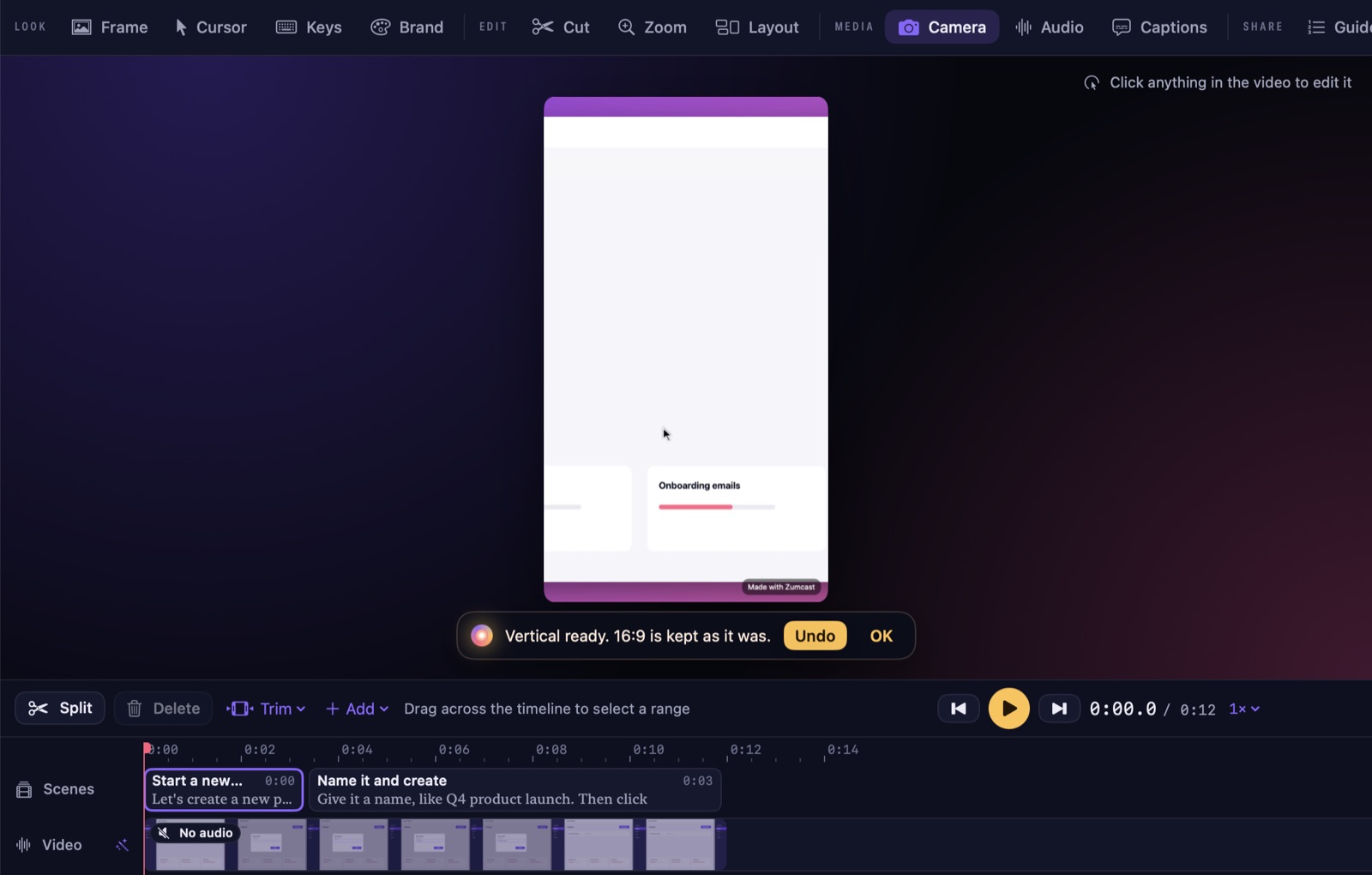
- Top bar: the project name, the version (16:9 and others), Ask Zumi, quick actions like Cut pauses and Make a Short, undo and redo, and Export.
- Tool bar: Look (Frame, Cursor, Keys, Brand), Edit (Cut, Zoom, Layout), Media (Camera, Audio, Captions) and Share (Guide, Privacy, Clips, Project).
- Right panel: the Zumi, Story, Tools and Props tabs.
- Timeline: lanes for Scenes, Cards, Video, Zoom, Layout, Overlays and Captions.
The timeline
| Key | Action |
|---|---|
| Space | Play or pause |
| J, K, L | Back 5 s, pause, forward 5 s |
| ← or → | One frame back or forward |
| ⇧← or ⇧→ | 5 seconds back or forward |
| B | Split at the playhead |
| ⌫ | Delete the selection |
| S | Save this frame as a shot |
| Z | Add a zoom here |
| ⌘Z or ⇧⌘Z | Undo or redo |
Drag across the timeline to select a range, then Delete or Trim. Add puts in a zoom, card, layout change or overlay. Shortcuts with a single key don’t work while you’re typing in a text field.
Auto-zoom
ZumCast zooms in on every click and follows your typing, then eases back out. Zooms are ready when you stop recording; each one shows on the Zoom lane with its scale and the element it’s on.
- Choose how close it gets: Roomy, Balanced or Tight. Rebuild zooms makes them again with the new style.
- Drag a zoom’s edges to change its timing, or delete it.
- Double-click the Zoom lane, or press Z, to add your own.
Cut, trim and speed
In Cut, trim the start and end, remove long pauses and filler words, and change the speed of a part. The Story tab shows the transcript: delete words and the video cuts with them. Click a word to jump there; shift-click to select a run.
Frame, wallpaper and cursor
- Frame: put the recording on one of 102 wallpapers in nine families (Aurora, Gradient, Mesh, Solid, Pastel, Dark, Paper & texture, Geometric, Sunset & warm) or a gradient or colour. Set padding, rounded corners, a shadow (Soft, Floating or Hard), a MacBook or browser frame, and crop.
- Cursor: ten cursor styles, a size, smoothing that steadies shaky moves, click effects (Ripple, Highlight, Pulse, Ring, Press, ZumCast spark), motion blur, and hide the cursor when it stops.
- Click sounds: Soft, Crisp or Mechanical, and optional typing sounds.
- Keys: show the shortcuts you pressed on screen, dark, light or in your brand colours. Typed text is never shown or stored.
Camera and layout
In Camera, pick a shape (circle, rounded, square and other ratios), one of nine positions, and blur, colour or remove the background behind you. In Layout, switch between picture in picture, screen only, camera only and split screen over time, with a cut, fade or morph between them.
Ready-made layouts include a YouTube tutorial with a round camera, Reels with the camera on top or bottom, a Shorts bubble, a LinkedIn split and a talking-head intro.
3D angles
In Zoom, drag the puck on the Angle pad to tilt the screen in 3D: High, Low, Left, Right and the corners, or Flat. Each zoom can have its own angle.
- Lean into the click tilts toward the button you pressed.
- Settle, Hold or Float sets how the tilt moves.
- Vary between zooms keeps long videos from feeling repetitive.
Captions, your camera, cards and the watermark stay flat. Or just ask Zumi: “make the zooms feel 3D”.
Join clips and looks
Use Add recording… to put another recording before or after this one, with a cut or a fade through black. Each part can keep its own look, and the looks cross-fade where they meet. Undo puts it back.
Versions
One project can have several versions: 16:9, 9:16, 1:1, 4:5 and 4:3. Add one with the + next to the version in the top bar. Each version has its own crop, padding and camera layout, but the edit is shared, so a cut you make shows up in all of them.
Undo and saving
ZumCast saves as you go (⌘S saves right away). Every change can be undone with ⌘Z, and each Zumi plan or Polish is one undo step. ⌘L goes back to the Hub.