Screenshots
Shots (screenshots)
Capture an area, a window, a display, a scrolling page or a web page, then mark it up and set it on a wallpaper.
Take a shot
| Shortcut | Shot |
|---|---|
| ⌃⌥⌘3 | A whole display |
| ⌃⌥⌘4 | An area |
| ⌃⌥⌘5 | A window |
| ⌃⌥⌘6 | A scrolling page (Pro) |
| ⌃⌥⌘T | Capture text: copies the words in an area to the clipboard |
Or switch the HUD to Photo (P) for every mode, including From video (a frame from a recent recording) and Web page. Options: a 3, 5 or 10 s timer, show the pointer, freeze the screen while you select, and show desktop icons.
When picking an area: Return confirms, arrow keys nudge, hold Space to move the selection, hold ⇧ to keep the shape, and hold ⌘ to turn off snapping.
After the shot
The shot is copied to the clipboard and saved. A small capsule shows in the corner for a few seconds: drag the image straight into another app, open it, save a copy, pin it or ask Zumi. It also warns you if it spotted something private.
Scrolling and web pages
Scrolling shot: pick an area, then scroll yourself or press Auto-scroll. Press Return when done. Shots can be up to 20,000 px tall.
Web page: enter a URL and choose a phone, tablet or desktop width (or any width from 320 to 3840 px), light or dark, and the visible part or the full page. The page is drawn off screen, so nothing on your screen is captured. ZumCast asks first before capturing a local address.
The shot editor
| Key | Tool |
|---|---|
| V | Select |
| A | Arrow |
| R | Box |
| N | Numbered step (1 2 3, A B C or I II III) |
| T | Text |
| H | Highlight |
| B | Blur |
| S | Spotlight |
| C | Crop (Return applies, Esc cancels) |
| ⇧⌘T | Copy the text in the shot |
⌘D duplicates a mark, arrow keys nudge it (⇧ for 10), Tab moves between marks and ⌫ deletes. ⌘C copies the finished image.
Wallpapers, frames and tilt
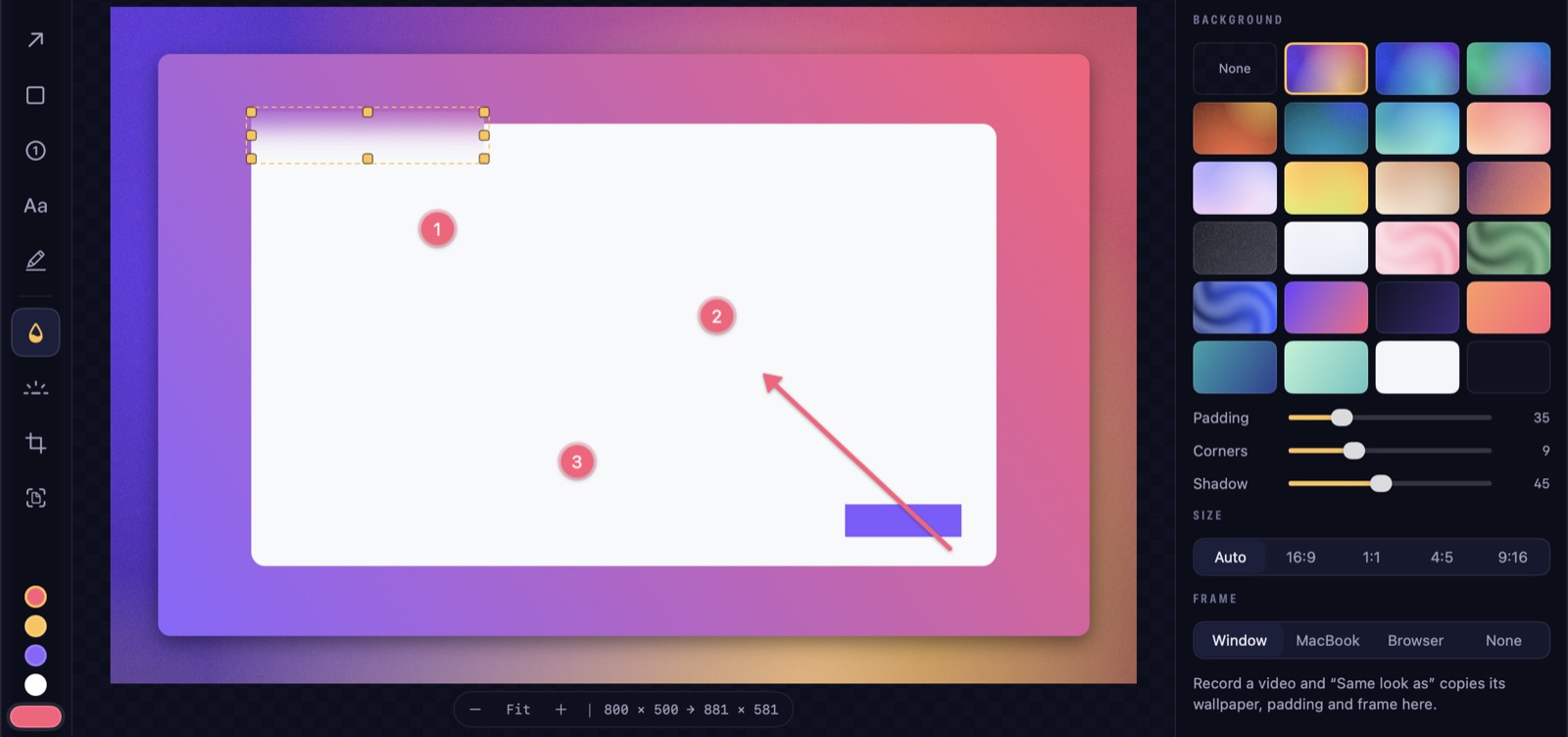
In the Look tab, set the shot on one of 102 wallpapers, a gradient or a colour; add padding; pick a size (auto, 16:9, 1:1, 4:5 or 9:16); and put it in a window, MacBook or browser frame. Tilt gives it a 3D angle with an optional floor reflection, and Match video angle uses the same angle as a recording. Same look as… copies the look of a project.
Add your own watermark, a logo or text, from a brand kit.
Pins
Press Pin to float a shot above every window, for example to copy from it. Hover to change its opacity, and ⌘-click to let clicks pass through it. Esc closes it. Pins never show up in screenshots or recordings, and they come back the next time you open ZumCast.
Save and export
- Export (⌘E) as PNG, JPEG or PDF. The original is always kept as a full-size PNG.
- Video turns a shot into a 5–15 s clip that moves through your steps or pans across, as MP4 or GIF.
- Use in Guide adds the shot to a guide.
- From video: press S in the Studio to save the current frame as a shot.