How to Annotate a Screenshot on a Mac (Free and Faster Ways)
How to annotate a screenshot on a Mac with Markup and Preview, how to number steps and blur private details, and the rules that make annotations easy to read.
Pour l’instant, cet article n’existe qu’en anglais.
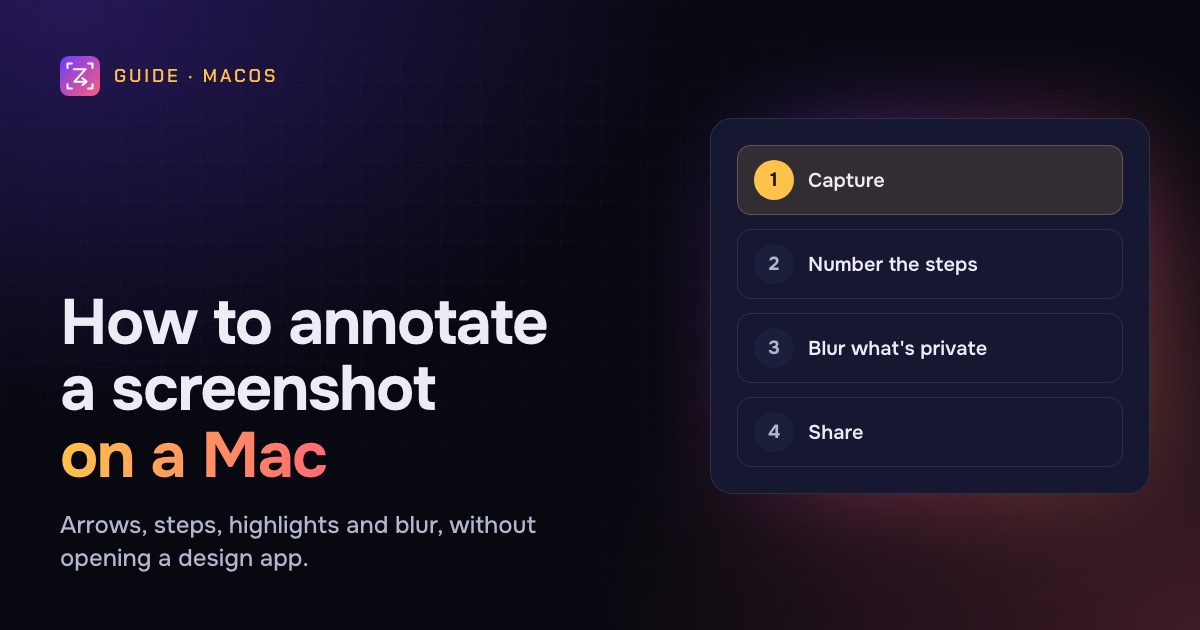
A screenshot on its own rarely says enough. Someone looks at it and asks "Which button?" or "Where am I supposed to look?" An arrow, a box or a number answers that before they have to ask.
The Mac has a decent annotation tool built in, and most people only ever use a fraction of it. This guide shows how to annotate a screenshot with it, where it runs out (numbered steps and blur are the usual two), and the habits that make annotated screenshots clear instead of cluttered.
The quick answer
- Take the screenshot with Shift-Command-4.
- Click the thumbnail that appears in the corner of the screen. A Markup window opens.
- Use the toolbar to add shapes (arrows, boxes, a magnifier), text or a sketch, and to crop.
- Click Done to save.
Missed the thumbnail? Open the file in Preview and choose View › Show Markup Toolbar (or press Shift-Command-A).
Method 1: Markup, from the screenshot thumbnail
Markup is the annotation toolbar built into macOS. It appears in the screenshot thumbnail, Preview, Quick Look, Photos, Mail and Notes, with roughly the same tools everywhere.
After you take a screenshot, a thumbnail slides into the bottom-right corner for a few seconds. Click it and the screenshot opens in a Markup window. (If no thumbnail appears, it's been switched off: press Shift-Command-5, click Options and tick Show Floating Thumbnail.)
The tools you'll use most:
- Shapes: click the Shapes button to see the choice, which includes lines, arrows and outlines such as boxes. Drag a shape into place; blue handles resize it and green handles change its form, such as the bend of an arrow.
- Loupe: one of the shapes. It magnifies a small part of the screenshot, which is useful for tiny UI details.
- Text: a text box you can move, with its own font, size and colour under Text Style.
- Sketch and Draw: freehand. Sketch tidies a rough circle or arrow into a clean shape if it recognises one. Draw, on Macs with a Force Touch trackpad, makes the line heavier the harder you press.
- Shape Style, Border Colour and Fill Colour: line thickness, dashed lines, shadows and colours.
- Crop: drag the corners in, then click Crop.
- Sign: adds a signature, which matters more for PDFs than screenshots.
Click Done to save over the original, or drag the window's preview into another app.
Method 2: Preview (more room, same tools)
For anything more than one arrow, open the screenshot in Preview: double-click it, or Control-click and choose Open With › Preview. Then press Shift-Command-A or click the Markup button (a pen tip) to show the toolbar.
Preview gives you a bigger window, proper undo with Command-Z, and File › Export to save a copy as JPEG, PNG, HEIC or PDF. Export is also the safest way to make sure the version you send is a new, flattened image rather than the original.
Quick Look works too: select the file in Finder, press Space, and click the Markup button at the top. Note that in Quick Look, changes can't be undone after you close the window.
Where the built-in tools run out
Markup is good for one arrow and a caption. Two things come up constantly that it doesn't do well.
Numbered steps. There's no step tool. You can fake it with an oval and a text box for each number, lined up by hand, but it's slow, and the numbers don't stay consistent from one screenshot to the next.
Blurring private details. There's no blur or pixelate. The usual workaround is a rectangle with a solid fill colour over the text. That works, as long as the fill is fully opaque and you send an exported copy. A box with only a border, or a half-transparent fill, hides nothing.
There's also no way to put the screenshot on a background, add padding or a device frame, which is what makes a screenshot look finished on a website or in a launch post.
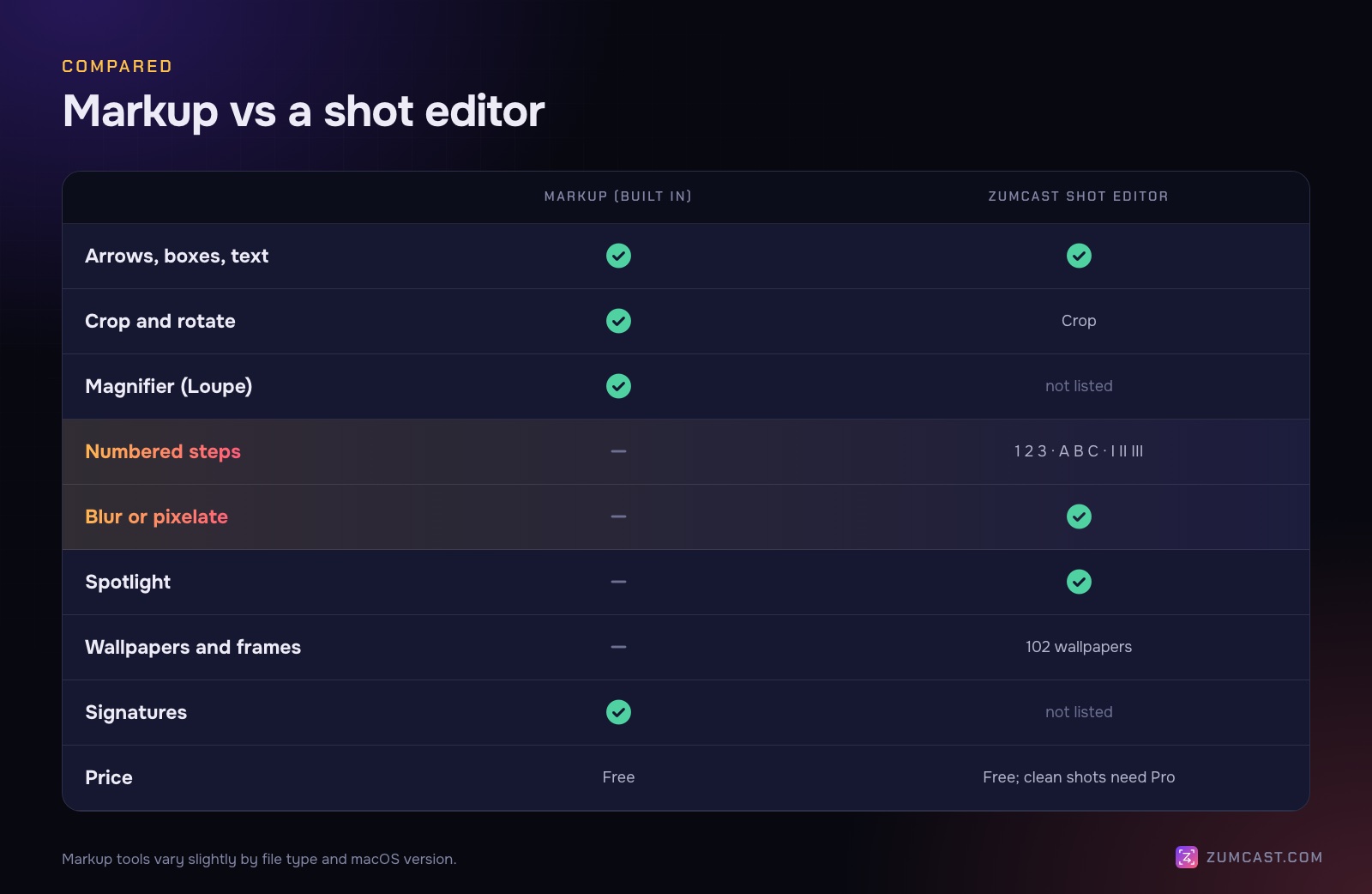
Method 3: The ZumCast shot editor
ZumCast is a Mac screen recorder that also takes screenshots (shots) and has an editor built for exactly this job: screenshots for docs, help articles, bug reports and launch posts.
Take a shot with ⌃⇧4 (an area), ⌃⇧5 (a window) or ⌃⇧3 (a display), then open it from the capsule in the corner. Every tool has a single key:
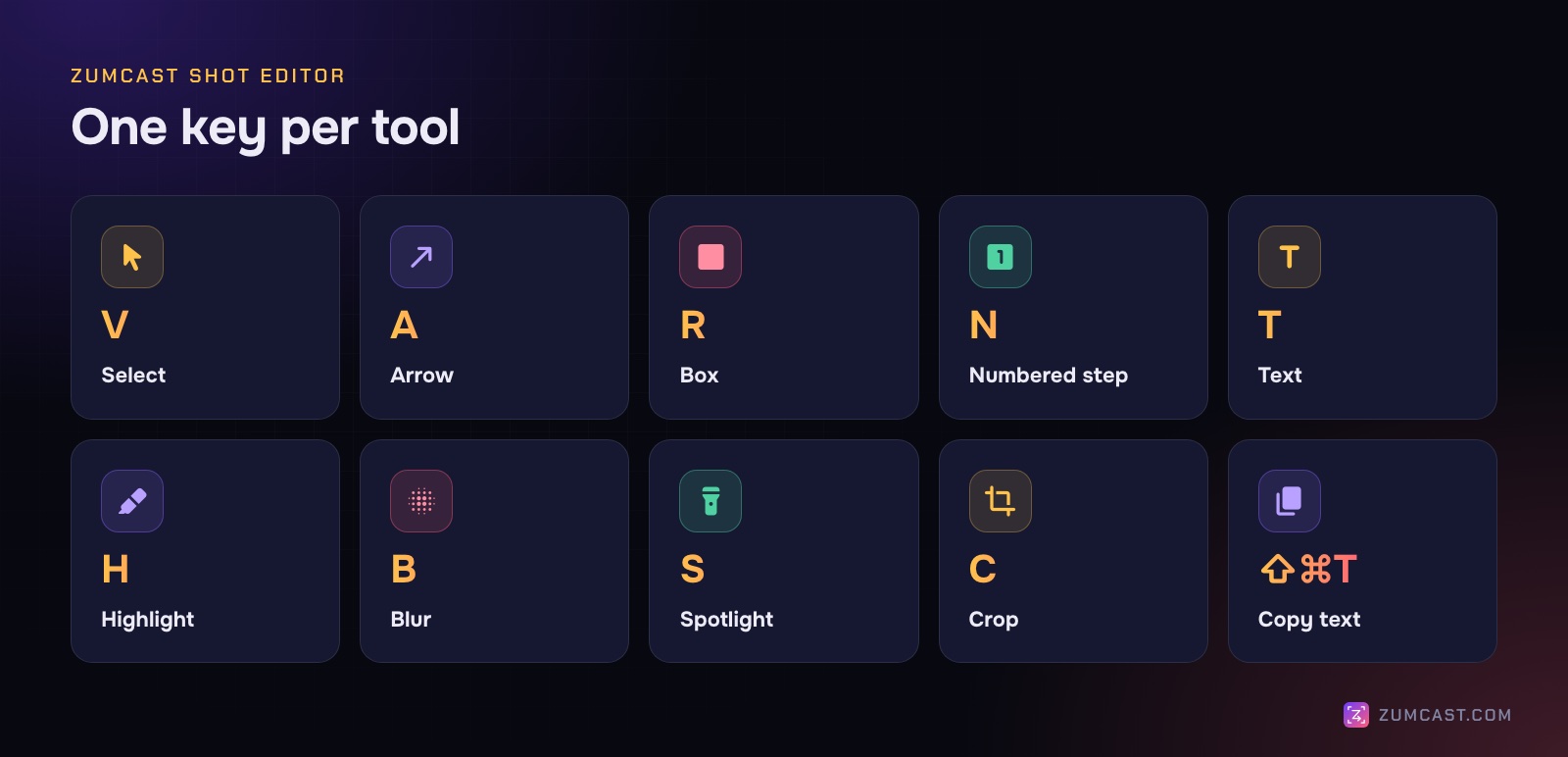
- V Select, A Arrow, R Box, T Text, H Highlight.
- N Numbered step. Click and you get 1, then 2, then 3. Choose 1 2 3, A B C or I II III to match your instructions.
- B Blur, for emails, names and keys.
- S Spotlight, which dims everything except the part you want people to look at.
- C Crop. Return applies, Esc cancels.
- ⇧⌘T copies the text in the shot, so you can paste an error message instead of retyping it.
⌘D duplicates a mark, the arrow keys nudge it (with Shift, by 10), Tab moves between marks and ⌘C copies the finished image.
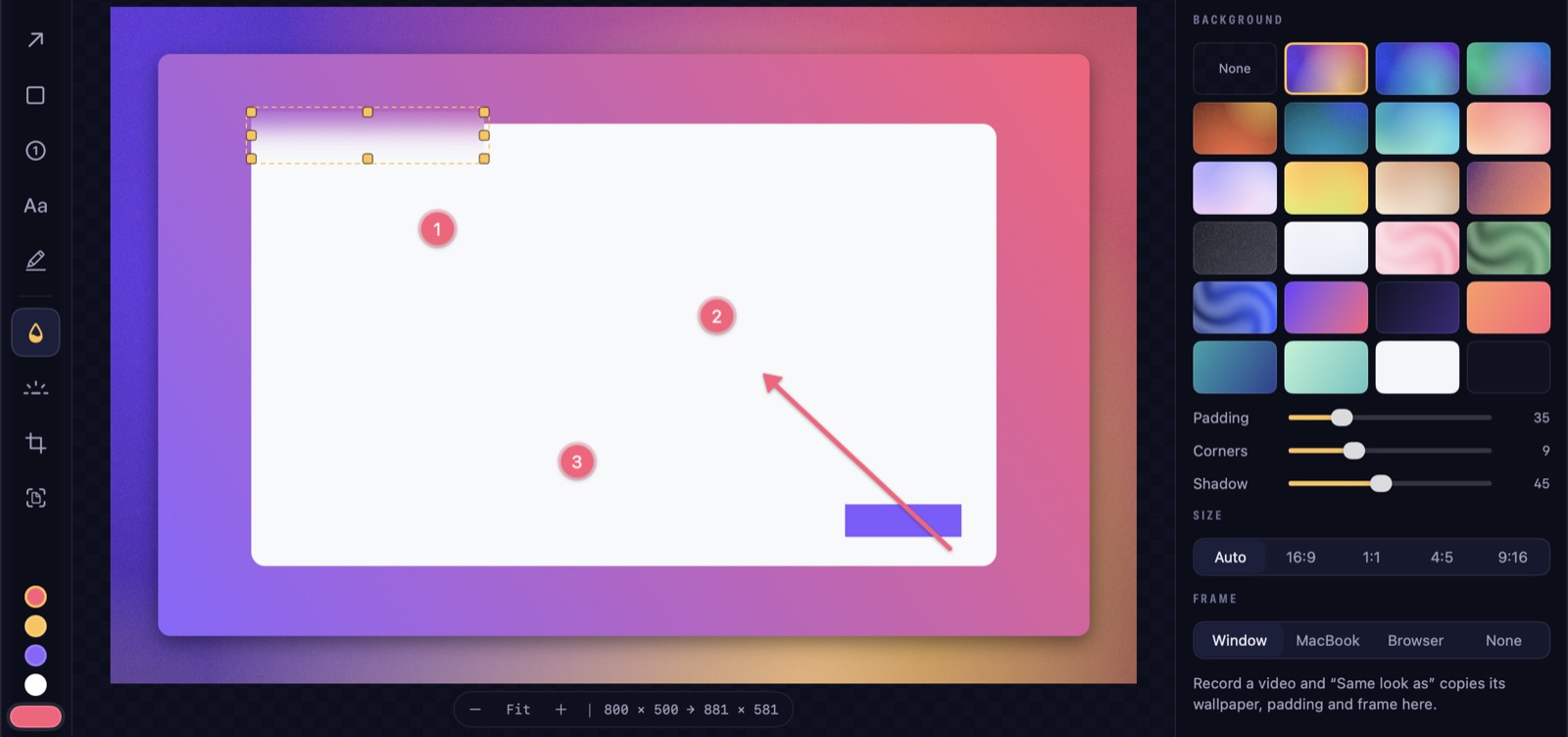
The Look tab: wallpapers, frames and tilt
In the Look tab, set the shot on one of 102 wallpapers, a gradient or a colour; add padding; pick a size (auto, 16:9, 1:1, 4:5 or 9:16); and put it in a window, MacBook or browser frame. Tilt gives it a 3D angle with an optional floor reflection. That's the difference between "a screenshot" and an image you'd put on a landing page.
Your watermark
If you've set up a brand kit (Settings › Brand), tick Watermark shots to add your logo or text to screenshots.
Ask Zumi (Pro)
With Pro, you can ask Zumi, ZumCast's AI editor, to do the annotation in plain words: "blur the card and number the Save button", "make it a 16:9 social image" or "copy all the text". You see the plan before it applies. Zumi runs on your Mac.
What's free: taking shots, every markup tool, wallpapers and pins. What needs Pro: without Pro, shots that leave ZumCast carry a small corner watermark. Clean full-size shots, scrolling shots, Zumi on shots and Blur all are part of Pro. See the Shots docs.
How to annotate so people actually read it
The tool matters less than the habits. These are the ones that make the biggest difference.
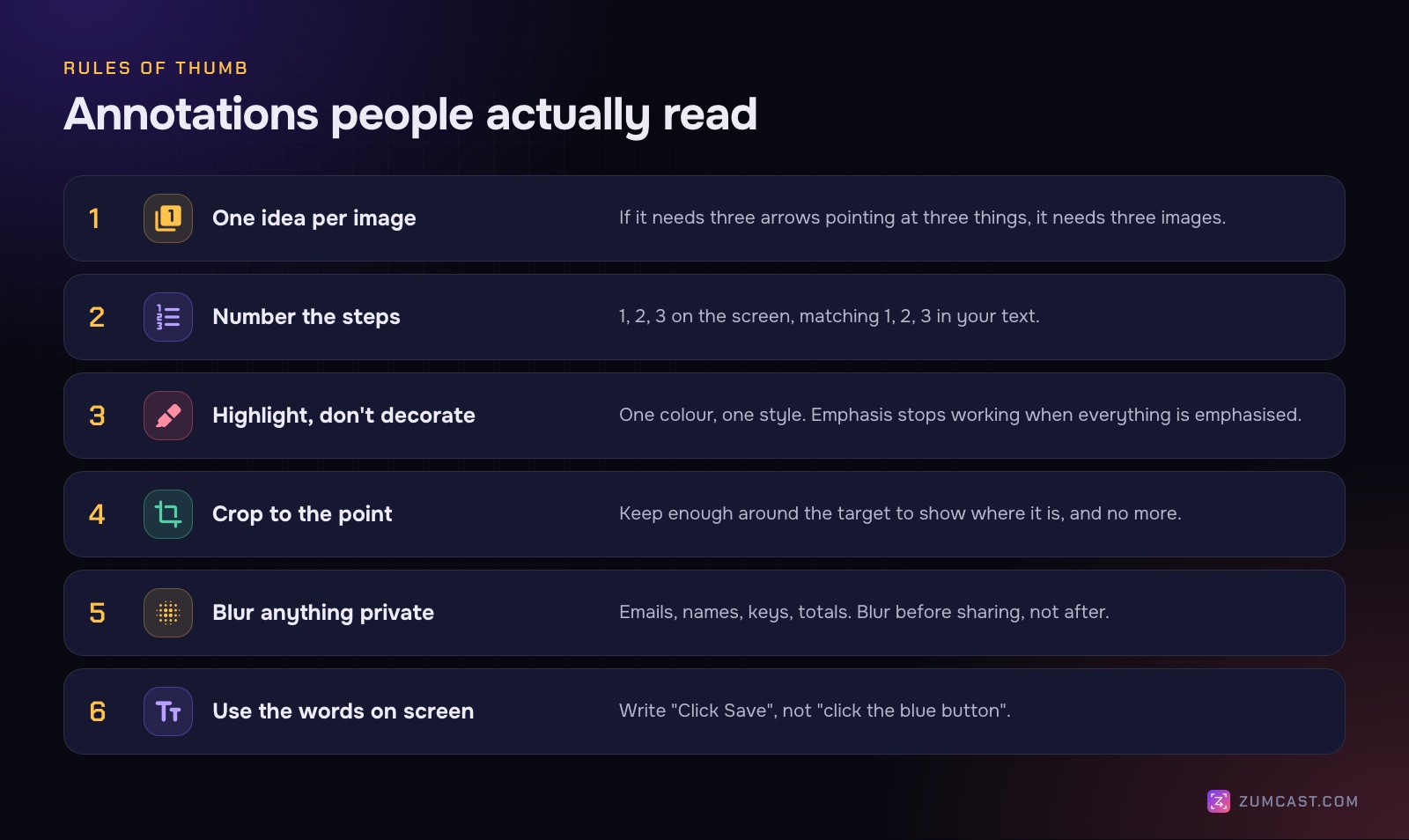
One idea per image. If you need three arrows pointing at three different things, you probably need three screenshots. People look at the biggest mark first and ignore the rest.
Number the steps. When a screenshot goes with instructions, put 1, 2, 3 on the screen and the same 1, 2, 3 in the text. The reader's eye can jump between them without hunting.
Highlight, don't decorate. Pick one colour and one style for emphasis and stick to it. A red box, a yellow highlighter, a blue arrow and a drop shadow on the same image cancel each other out.
Crop to the point. Keep enough around the target that people can find it in their own app (the toolbar, the sidebar) and cut the rest. A smaller image also stays readable on a phone.
Blur anything private. Email addresses, customer names, API keys, invoice totals, the tabs in your browser. Do it before the image leaves your Mac, not after someone points it out. More in How to Hide Sensitive Information in Screen Recordings.
Use the words on screen. In the caption and in any text you add, use the exact label: "Click Save", not "click the blue button". Colours and positions change between versions and themes; labels change less.
Hide it so it stays hidden
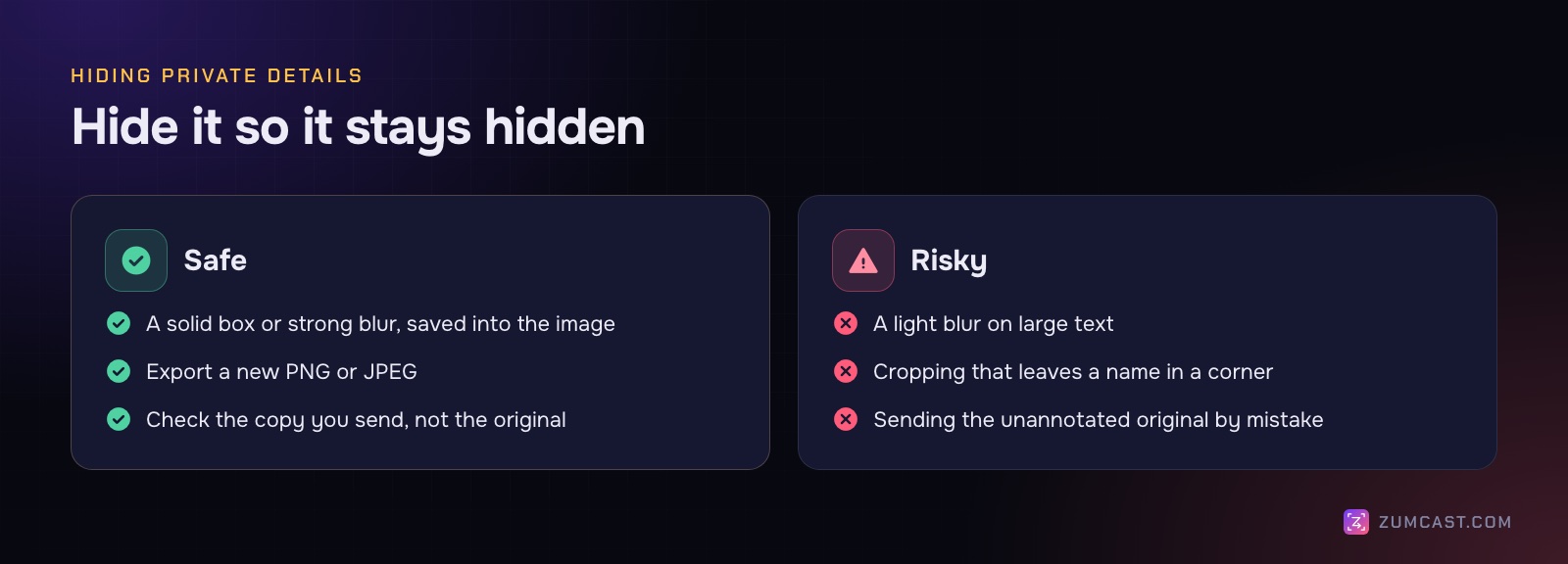
A light blur over large text can sometimes still be read. Use a strong blur, pixelation or a solid bar, export a new image, and check that copy before you send it. Annotating a copy and then attaching the original by mistake is more common than anyone admits.
Annotating more than one screenshot
If you're writing a how-to with ten screenshots, annotating each by hand gets old fast. Two shortcuts:
- Record the task instead. A recorder that turns each click into a step with its own screenshot does most of the numbering for you. See How to Make a Step-by-Step Guide From a Screen Recording.
- Keep a consistent look. In ZumCast, Same look as… copies the wallpaper, padding and frame from a project, so a set of shots matches.
FAQ
How do I draw an arrow on a screenshot on a Mac? Click the screenshot thumbnail (or open the file in Preview and press Shift-Command-A), click the Shapes button and choose the arrow. Drag it into place and use the green handle to bend it.
How do I blur part of a screenshot on a Mac? Markup has no blur tool. Cover the area with a rectangle with a fully opaque fill, then export a copy. Screenshot apps such as ZumCast have a proper blur or pixelate tool (B in the shot editor).
How do I add numbers to a screenshot? Markup has no numbering tool, so you'd add an oval and a text box for each number. In ZumCast's shot editor, press N and click: each click adds the next number, in 1 2 3, A B C or I II III style.
Where is Markup on a Mac? It's in the screenshot thumbnail, in Preview (View › Show Markup Toolbar), in Quick Look (the pen button) and in apps like Photos, Mail and Notes.
Can I undo Markup changes after saving? In Preview you can use Edit › Undo or File › Revert To while the file is open. In Quick Look, changes can't be undone after you close the window, so work on a copy if it matters.
How do I put a screenshot on a nice background? macOS can't do this on its own. A screenshot app with backgrounds does it in a click; in ZumCast, use the Look tab to pick one of 102 wallpapers, add padding and a frame.
ZumCast is a Mac screen recorder with an AI editor that runs on your Mac. Its shot editor adds numbered steps, highlights, blur and spotlight to screenshots, and sets them on 102 wallpapers with frames and tilt. The Basic version is free; Pro is a one-time purchase. Download it free.