How to Add Captions to a Screen Recording (Burned-In or SRT)
How to add captions or subtitles to a screen recording, burned in or as an SRT or VTT file, with YouTube, a hand-written SRT or an on-device transcript.
Pour l’instant, cet article n’existe qu’en anglais.
You made a good screen recording. You explained every step out loud. Then you shared it in a feed, a chat or an office, and most people watched it with the sound off.
Captions fix that. They help people who are deaf or hard of hearing, people watching in a second language, people in a quiet office or on a train, and anyone skimming a feed where videos play muted. They also make your narration searchable.
There are two kinds of captions, and three practical ways to make them on a Mac. This guide covers all of it, plus how to make captions people can actually read.
The quick answer
- Posting on YouTube? Upload the video, let YouTube make automatic captions, then fix the mistakes in YouTube Studio › Subtitles. Or upload your own SRT file.
- Posting to social or sharing a file? Burn the captions into the video, so they show everywhere, even where players don't support caption files.
- Want both, without typing? Use a recorder that transcribes on your Mac and exports burned-in captions and an SRT or VTT file from the same transcript, like ZumCast (Pro).
Burned-in captions vs caption files
This is the first decision, and it decides which tools you can use.
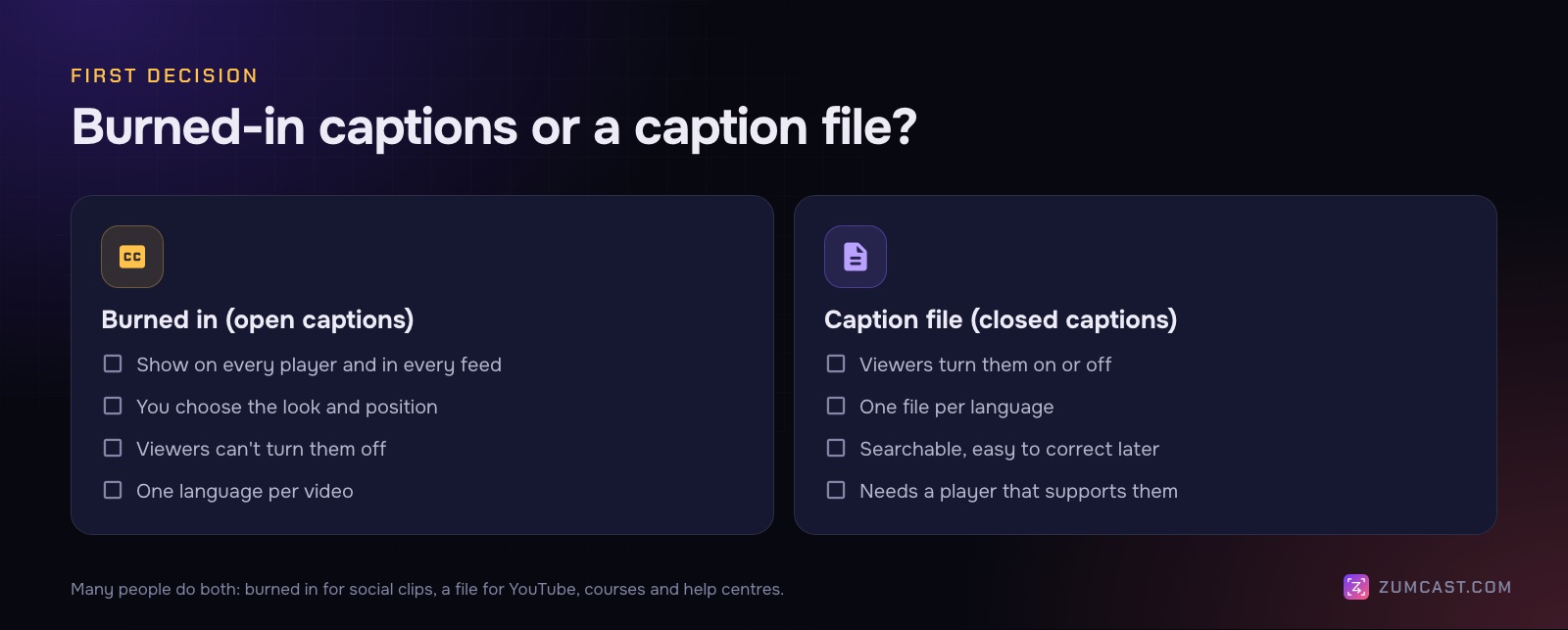
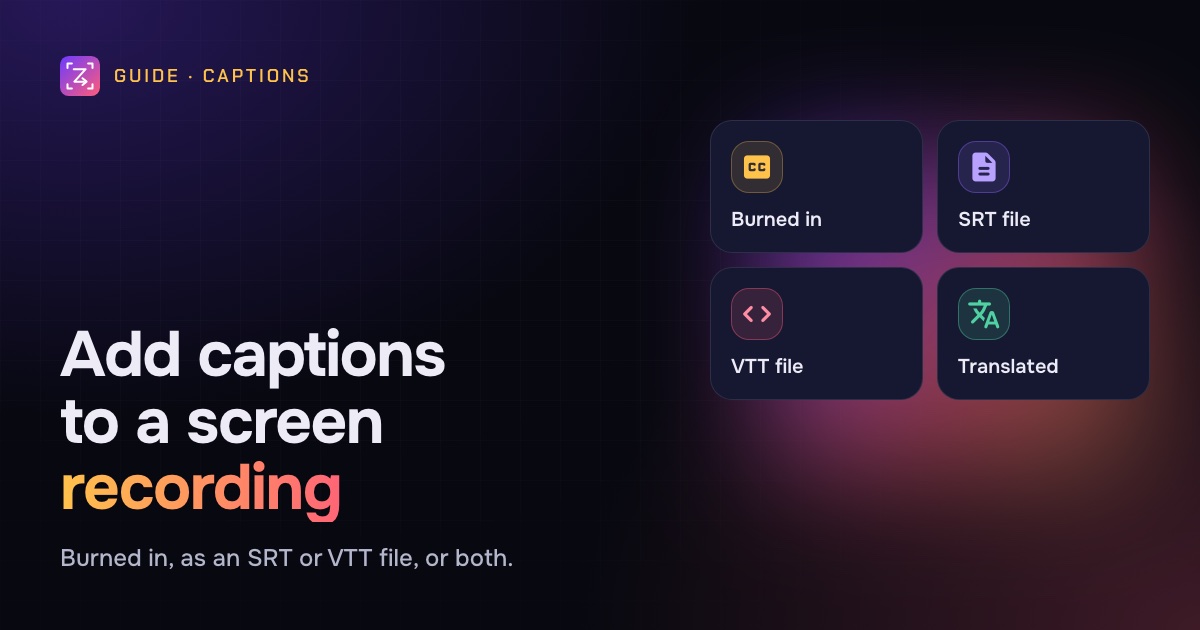
Burned-in captions (also called open captions) are drawn into the video itself. They show on every player, in every app, in every feed, and you control exactly how they look. But viewers can't turn them off, and they can't be searched or translated by the player.
Caption files (closed captions) are separate text files with timings. The player shows them on top of the video, and viewers can turn them on or off or pick a language. YouTube, Vimeo, most video platforms, learning systems and HTML5 video players support them. Social feeds and chat apps often don't.
The two common formats:
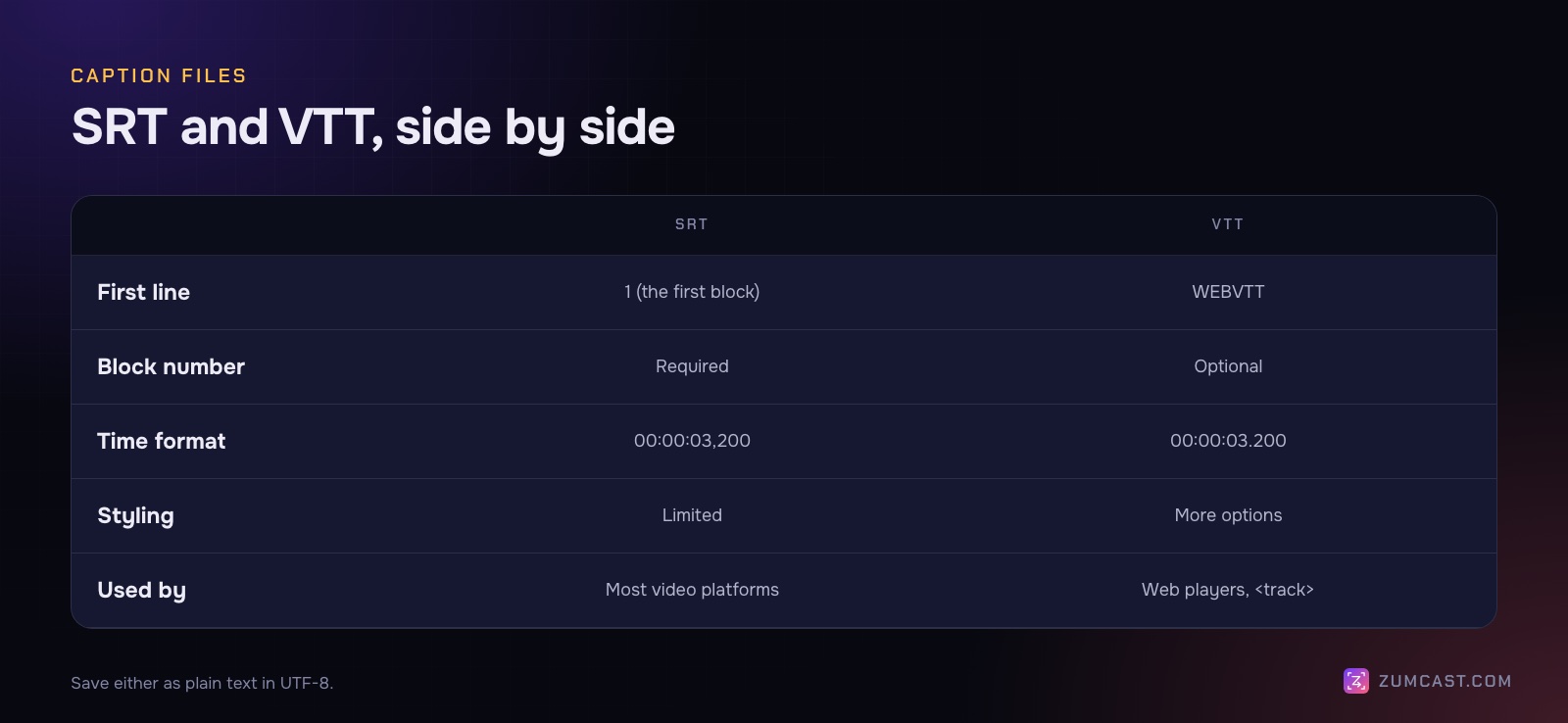
- SRT (SubRip). The most widely supported. Plain text, numbered blocks.
- VTT (WebVTT). The web standard, used by the HTML
<track>element. Almost the same as SRT, with a header and a few styling options.
Many people do both: burned-in captions for social clips, and a caption file for YouTube, the help centre or the course platform.
Method 1: YouTube's automatic captions
If the video is going to YouTube anyway, this is the cheapest route.
- Upload the video to YouTube. You can leave it Private or Unlisted while you work on captions.
- Wait. YouTube makes automatic captions for supported languages once the video is processed. Long videos take longer.
- Open YouTube Studio and choose Subtitles in the left menu.
- Select the video and find the automatic track for its language, marked as automatic. Open it to edit.
- Correct the mistakes, especially product names, people's names and technical words, then Publish.
YouTube itself says automatic captions can misrepresent what was said, because of accents, mispronunciations or background noise. Always check them. Product and feature names are where they go wrong most.
Once they're right, you can download your caption track from YouTube Studio and use it elsewhere.
Good for: videos that live on YouTube.
Not good for: burned-in captions, private recordings you don't want to upload, or videos that will be shared as a file.
Method 2: Write an SRT file by hand
For a short recording, typing captions yourself is perfectly doable, and you get exactly the words you want. An SRT file is plain text. Open TextEdit, choose Format › Make Plain Text, and type blocks like this:
1
00:00:00,500 --> 00:00:03,200
Open Billing from the sidebar.

2
00:00:03,400 --> 00:00:06,800
Pick the Team plan,
then click Save.
Each block has three parts:
- A number, counting up from 1.
- The start and end time, as
hours:minutes:seconds,milliseconds, with-->between them. SRT uses a comma before the milliseconds. - One or two lines of text, then a blank line.
Save it as recording.srt with UTF-8 encoding. To make a VTT file instead, add WEBVTT and a blank line at the very top, use a dot before the milliseconds (00:00:03.200), and save it as .vtt.
To get the timings, play the video in QuickTime and note where each sentence starts. It's slow for anything over a few minutes, which is why most people start from an automatic transcript and fix it.
Good for: short clips, exact wording.
Method 3: Transcribe and caption on your Mac (ZumCast)
ZumCast, our Mac screen recorder, makes captions from your narration without uploading the recording anywhere. Transcription and captions run on your Mac.
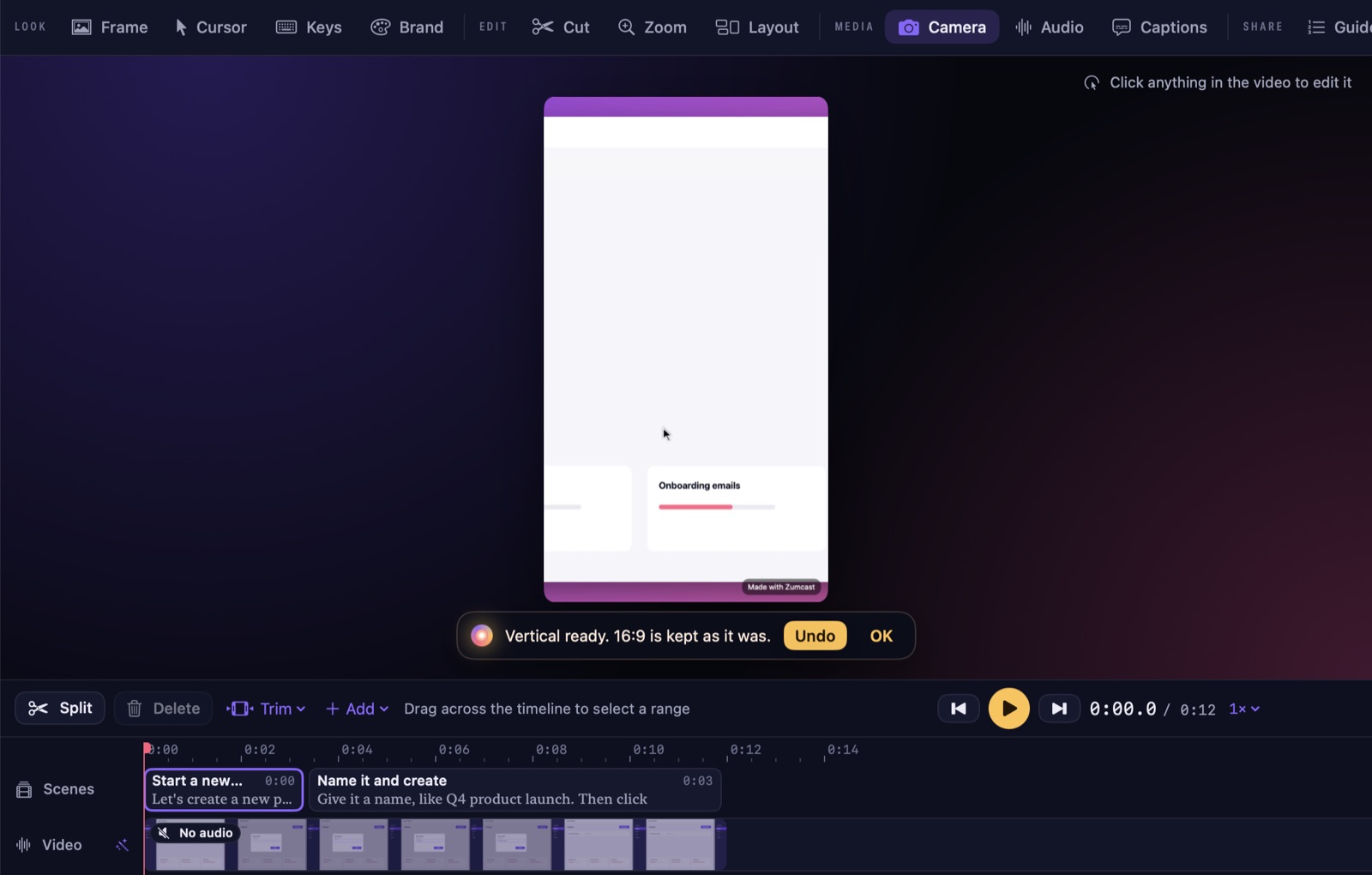
- Record as usual, or bring in an existing video with Import video in the Hub.
- In the Studio, open Captions and press Transcribe. ZumCast writes down what you said, word by word.
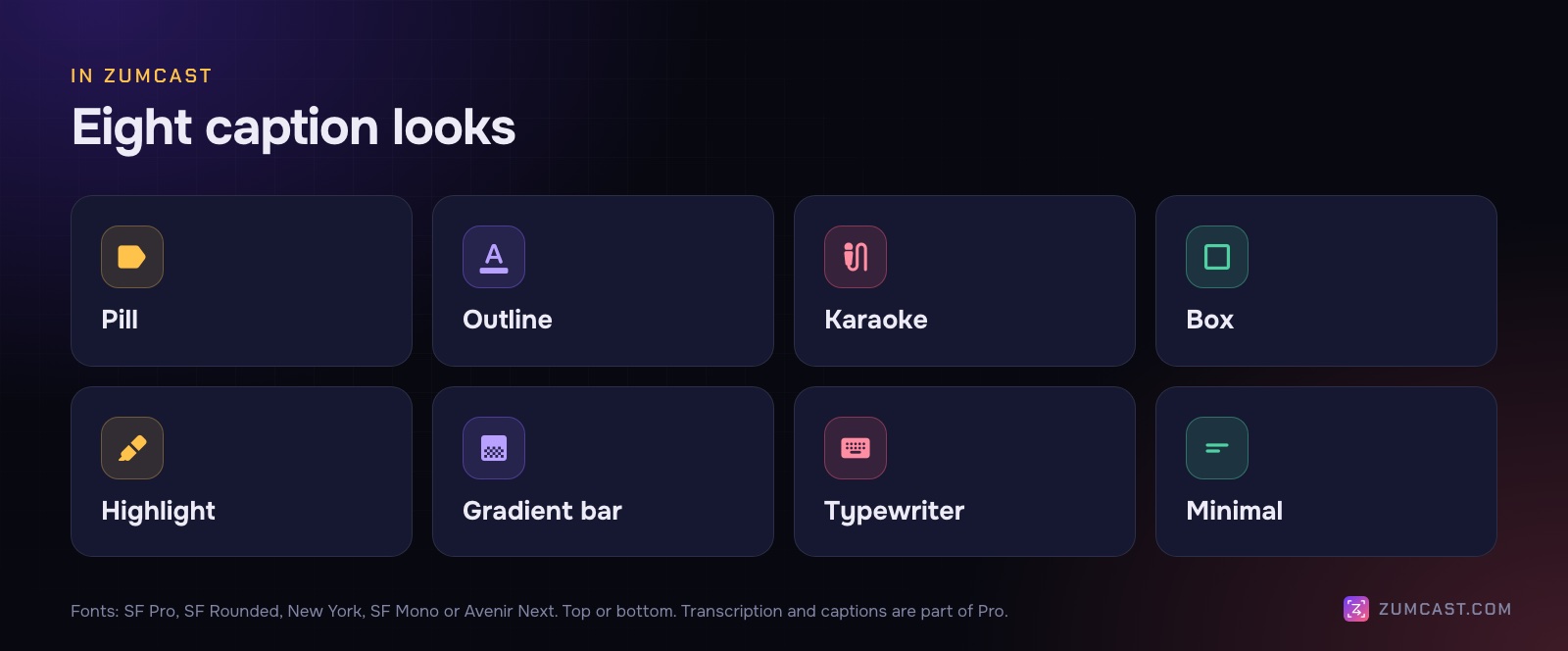
- Pick a look: Pill, Outline, Karaoke, Box, Highlight, Gradient bar, Typewriter or Minimal.
- Choose a font: SF Pro, SF Rounded, New York, SF Mono or Avenir Next, and put the captions at the top or bottom.
- Read the transcript through in the Story tab, where every word is shown with its place in the video.
- Press ⌘E to export. Captions are burnt into the video. To give viewers captions they can turn off, press Export SRT… or Export VTT… in the Export window too.
Or ask Zumi, the built-in AI editor: "add captions at the top".
Translated captions
ZumCast can translate captions on your Mac into Spanish, French, German, Portuguese (Brazil), Italian, Dutch, Japanese, Korean, Chinese (Simplified), Hindi, Arabic, Russian, Turkish, Polish, Indonesian or Vietnamese, and export each language as its own SRT or VTT file from the Export window. Upload them to YouTube or your video player and viewers can pick their language.
What's free and what's Pro
Transcription, captions and caption files (SRT and VTT) are part of Pro, a one-time purchase. Basic, the free version, records and edits without limits but doesn't include transcripts or caption files. See Captions, voice and audio and Pricing.
The transcript does more than captions: you can also cut the video by deleting words in it. See How to Trim a Screen Recording on a Mac.
Make captions people can read
Captions that are technically present but hard to read don't help anyone. A few rules hold up across platforms.
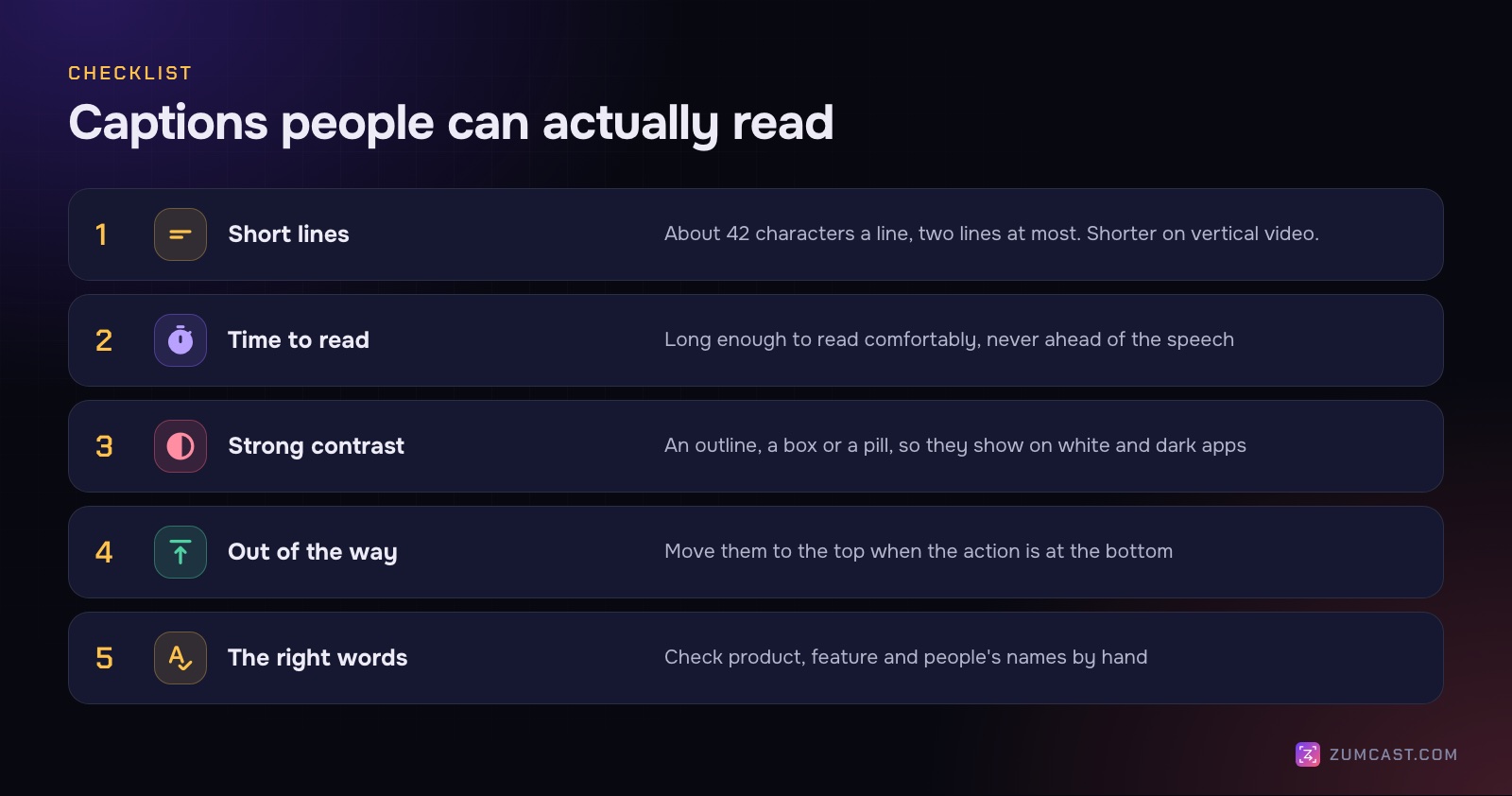
Keep lines short. A common rule of thumb is no more than about 42 characters a line and two lines at a time. On a vertical video, aim shorter. Break lines at natural pauses, not in the middle of a phrase like "Team / plan".
Give people time to read. A caption that flashes up for half a second is useless. Keep each one on screen long enough to read comfortably, and don't let captions run ahead of the speech.
Use strong contrast. White text with a dark outline, a dark box behind it, or a solid pill keeps captions readable over any background. Screen recordings switch between white documents and dark apps all the time, so plain white text with no backing will disappear somewhere.
Don't cover what you're showing. In a screen recording, the bottom of the screen often has the thing you're clicking: a Save button, a status bar, a terminal prompt. Move captions to the top when the action is at the bottom. For vertical clips, keep them clear of the app's own buttons; see How to Turn a Screen Recording Into a Vertical Video.
Get the words right. Product names, feature names and people's names are where automatic transcripts fail. Check every one. A wrong product name in a caption looks worse than no caption.
Caption what matters beyond speech. If a sound matters, like an alert chime that shows an error, add it in brackets: "[error sound]".
Captions and accessibility
If your video is for customers, students or the public, captions are often expected, not optional. The Web Content Accessibility Guidelines (WCAG) include captions for prerecorded video with audio at Level A, the most basic level, and many organisations follow WCAG in their accessibility policies.
A transcript next to the video helps too: people can read it at their own pace, search it, and copy commands from it. If you record tutorials, a written step-by-step guide does the same job even better; see How to Make a Step-by-Step Guide From a Screen Recording.
FAQ
How do I add subtitles to a screen recording on a Mac for free? Upload it to YouTube and edit the automatic captions in YouTube Studio, or type an SRT file in TextEdit and upload it with the video. Both are free; burning captions into the video needs an editor.
What's the difference between SRT and VTT? They're nearly the same. VTT starts with a WEBVTT line, uses a dot instead of a comma before the milliseconds, and supports a little styling. Most platforms accept SRT; web players use VTT.
Should captions be burned in or a separate file? Burn them in for social feeds and files shared in chat, where caption files often aren't supported. Use a separate file for YouTube, courses and help centres, so viewers can turn them off or choose a language.
Can I add captions without uploading my recording? Yes. Write the SRT yourself, or use an app that transcribes on your Mac. ZumCast transcribes and makes captions on your Mac (Pro); nothing is uploaded.
How accurate are automatic captions? Good for clear speech, weaker on names, jargon and accents. Always read them through before publishing, especially product and feature names.
Can I translate captions into other languages? YouTube lets you add translated subtitle tracks. In ZumCast, Pro translates captions on your Mac into 16 languages and exports each as SRT or VTT.
Where should captions go in a screen recording? At the bottom by default, but move them to the top when the action you're showing is at the bottom of the screen. In vertical videos, keep them clear of the app's buttons and the caption area at the bottom.
ZumCast is a Mac screen recorder with an AI editor that runs on your Mac. With Pro, it transcribes your narration on your Mac, adds word-by-word captions in eight looks, translates them into 16 languages and exports SRT and VTT files. The Basic version is free; Pro is a one-time purchase. Download it free.