How to Record a Zoom Call on a Mac (With Everyone's Audio)
How to record a Zoom call on a Mac, plus Google Meet and Microsoft Teams, with both your voice and everyone else's, and how to ask for consent.
You want a copy of a call. A customer interview, a design review, a training session you'll want to watch again. You look for the record button and find it greyed out, because you're not the host. Or you press Shift-Command-5, record the whole call, and play it back to find only your own voice.
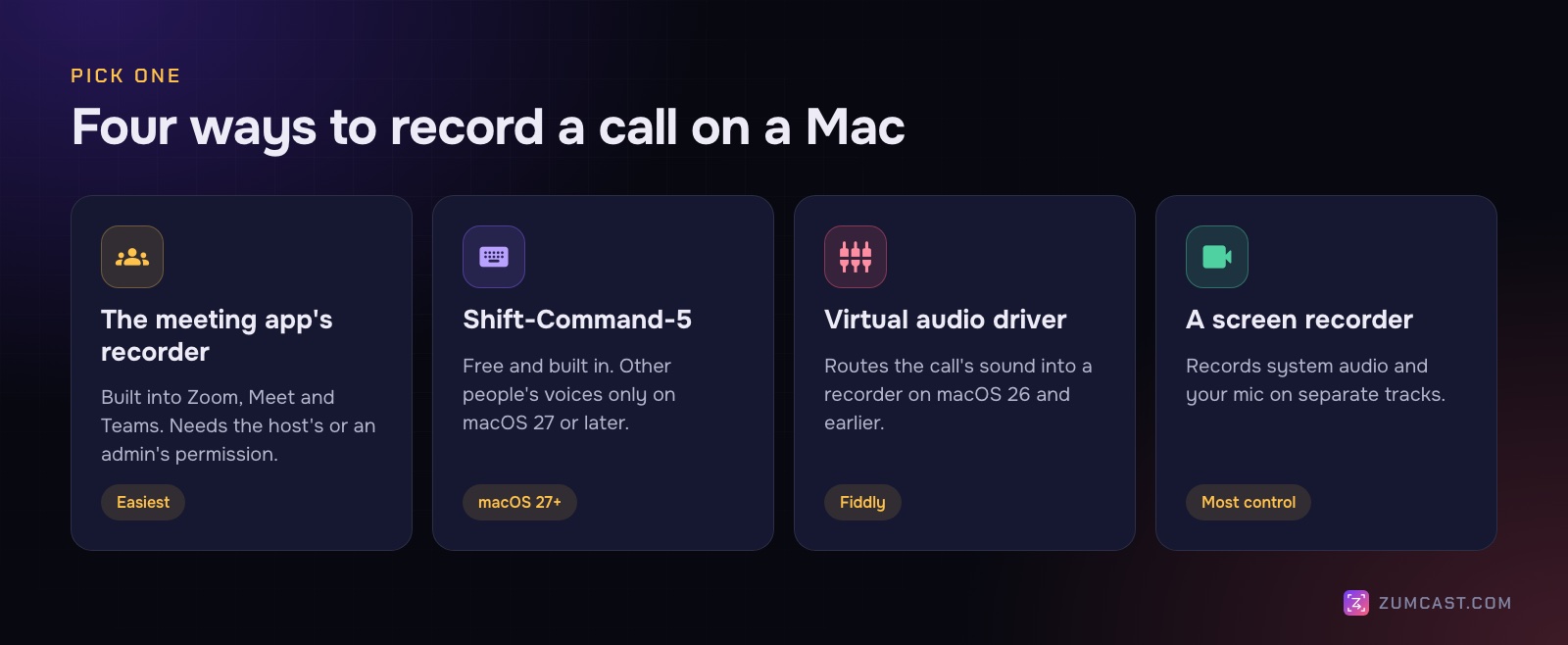
Recording a video call on a Mac is easy once you know which tool records what. The meeting app's own recorder is the simplest, but it depends on permissions you may not have. The Mac's built-in recorder can capture everyone's voices only on the newest version of macOS. And whichever way you do it, the people on the call need to know.
This guide covers Zoom, Google Meet and Microsoft Teams, the four practical ways to record a call on a Mac, and how to do it in a way people are happy with.
The quick answer
- Tell everyone you'd like to record, and wait for a yes.
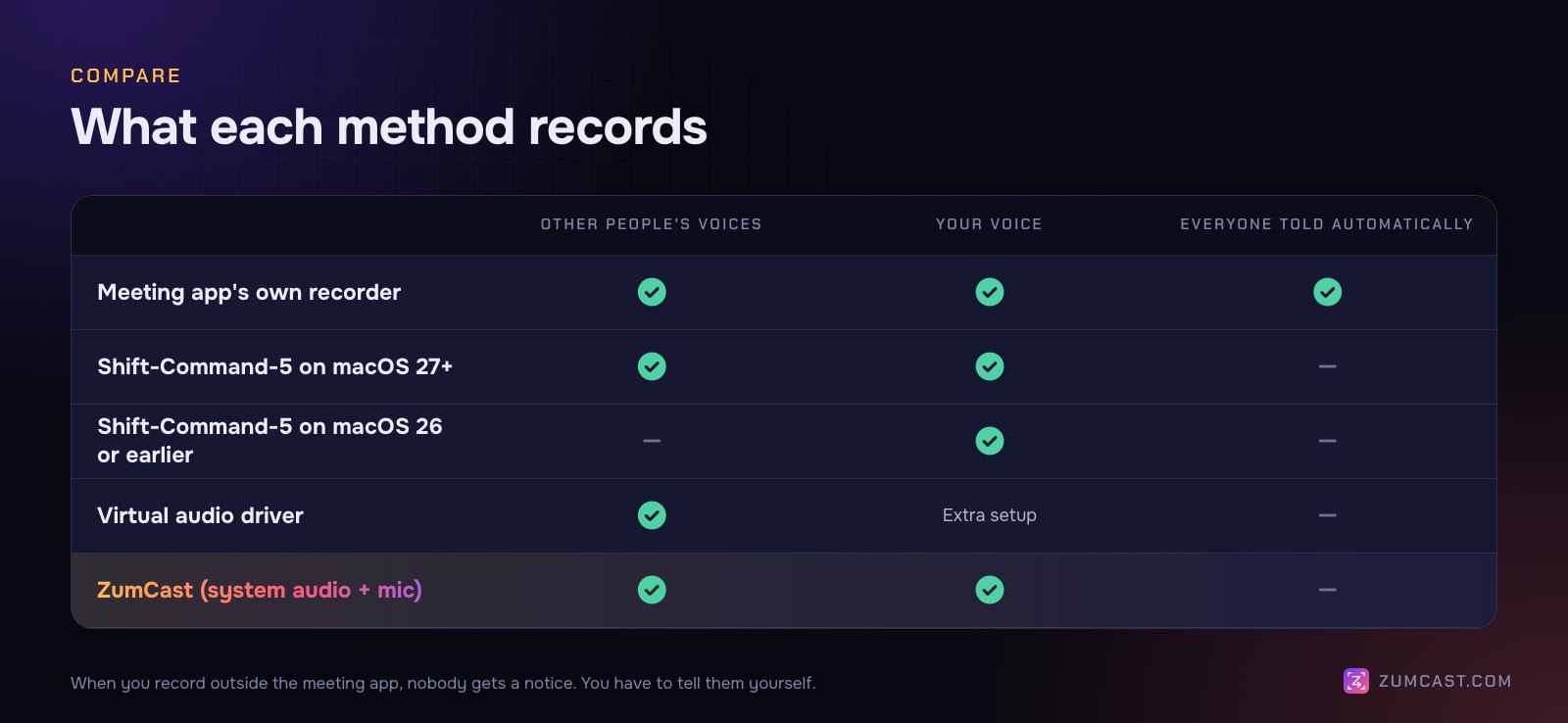
- If you can, use the meeting app's own Record button. Everyone gets a notice, and the file includes every voice.
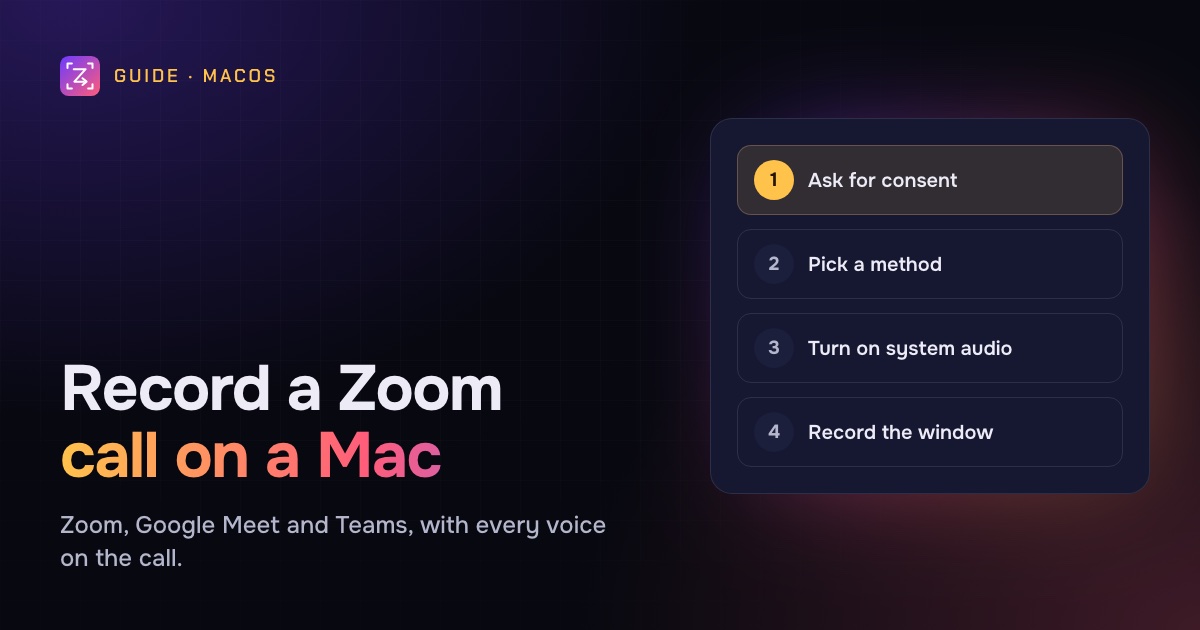
- If you can't, record the meeting window with a recorder that captures system audio (the call) and your microphone. On macOS 27 Golden Gate, the built-in Shift-Command-5 toolbar can do this with Options › Include System Audio. On macOS 26 Tahoe and earlier, you need a screen recorder that captures system audio, or a virtual audio driver.
- Wear headphones, turn on Do Not Disturb, and record a ten-second test first.
First: consent
Before the how, the most important part. Recording a conversation without telling people is, in many places, against the law. Rules differ between countries, and between states within some countries: some need everyone's consent, some only one person's. We can't tell you what applies where you are, and this isn't legal advice. The safe habit is the same everywhere: tell everyone, and only record if they agree.
The meeting apps build this in. When someone records with Zoom, Meet or Teams, everyone on the call sees a notice, and people who join later see it too. Zoom can ask participants to consent before they stay in a recorded meeting.
When you record with anything else, including the Mac's own tools or a screen recorder, nobody gets a notice. The app can't tell anyone. That makes asking out loud your job.
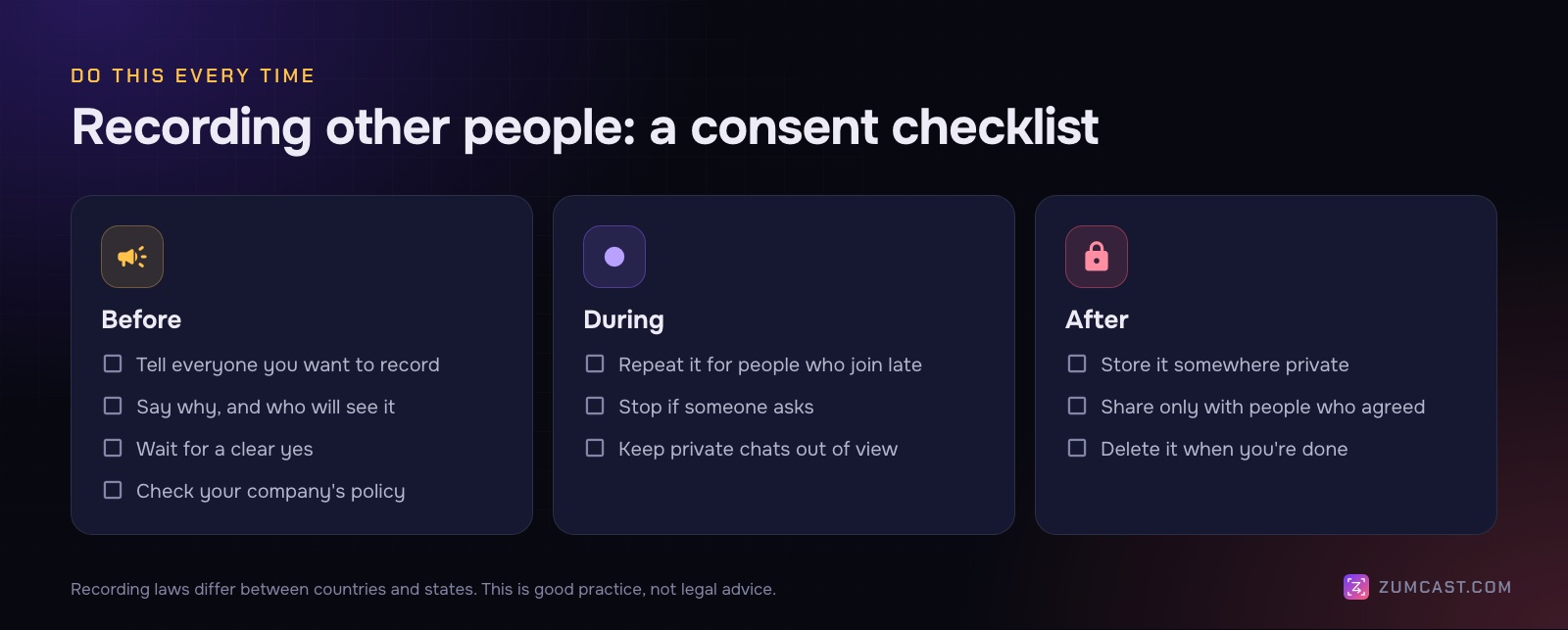
A simple routine that works:
- Before: say you'd like to record, why, and who will see it. "I'd like to record this so I can write up notes. It's just for me and the product team. Is that OK?" Wait for a clear yes from everyone.
- During: if someone joins late, tell them too. If anyone asks you to stop, stop.
- After: keep the file somewhere private, share it only with the people you said you would, and delete it when you no longer need it.
Your company may also have a policy on recording calls with customers or candidates. Check it first.
Method 1: The meeting app's own recorder
This is the best option when it's available. It records every voice, everyone is told, and the file is managed for you.
Zoom
Zoom can record to your computer or, on paid plans, to the cloud. By default only the host can record. If you're a participant, the host can let you record (in the participants list, More › Allow Record), make you a co-host, or you can ask for permission when Zoom offers a request button. Account admins can also turn recording off for everyone, in which case the button won't appear at all.
To record, click Record in the meeting controls (it may be under More). Local recordings are converted when the meeting ends; the default folder is a Zoom folder in your Documents folder.
Google Meet
In Meet, recording depends on your Google Workspace edition and on your admin turning it on. When host management is on, only the host and co-hosts can record; otherwise anyone in the host's organisation usually can. People from outside the organisation generally can't. Click Meeting tools › Recording at the bottom right, then Start recording. Everyone is told when it starts and stops.
Recordings are saved to the organiser's Google Drive, in a folder for the meeting, and a link is emailed to the organiser and to whoever started the recording.
Microsoft Teams
Teams records to the cloud. With a work or school account, the organiser and people in the same organisation can usually record, if an admin allows it. Guests and people from other organisations can't. Some organisations limit recording to organisers and co-organisers. To start, choose More actions › Record in the meeting controls, then Confirm.
The organiser owns the recording, and by default only organisers and co-organisers can download it.
If the record button is greyed out or missing in any of these apps, it's almost always permissions: you're not the host, or your admin has turned recording off. Ask the host to record and share the file with you; it's quicker than working around it.
Method 2: Shift-Command-5 (built into macOS)
The Mac's Screenshot toolbar records video, and on the newest macOS it can now record a call properly.
- Press Shift-Command-5.
- On macOS 26 or later, choose Record Selected Window and click the meeting window. On earlier versions, use Record Selected Portion and drag the frame around it.
- Click Options:
- Under Microphone, choose your mic, so your voice is recorded.
- On macOS 27 Golden Gate or later, choose Include System Audio, so the other people's voices are recorded too.
- Click Record. Stop with the button in the menu bar, or Command-Control-Esc.
On macOS 26 Tahoe and earlier, the toolbar records a microphone only. You'll hear yourself clearly and the other side faintly, if at all (only what leaks from your speakers into your mic). That's why so many first attempts at recording a call come out one-sided. Check your version with Apple menu › About This Mac.
The file lands on your Desktop as a .mov, unless you changed Options › Save to.
Method 3: A virtual audio driver (macOS 26 and earlier)
Before macOS 27, the classic workaround was a free virtual audio driver such as BlackHole. It creates a pretend speaker that a recorder can listen to. You build a Multi-Output Device in Audio MIDI Setup so the call goes to your headphones and to the virtual device at once, then pick the virtual device as the recording input.
It works, but it's fiddly for calls in particular. Out of the box you record the call or your microphone, not both; you need an Aggregate Device as well to combine them. Your keyboard volume keys stop working while a Multi-Output Device is selected, and you have to remember to switch everything back afterwards. We walk through the setup in How to Screen Record on a Mac With Audio.
Method 4: A screen recorder with system audio and mic
Since macOS 13, apps can capture system audio directly, with no driver. A dedicated screen recorder will record the meeting window, the call's sound and your microphone in one go, on any recent macOS.
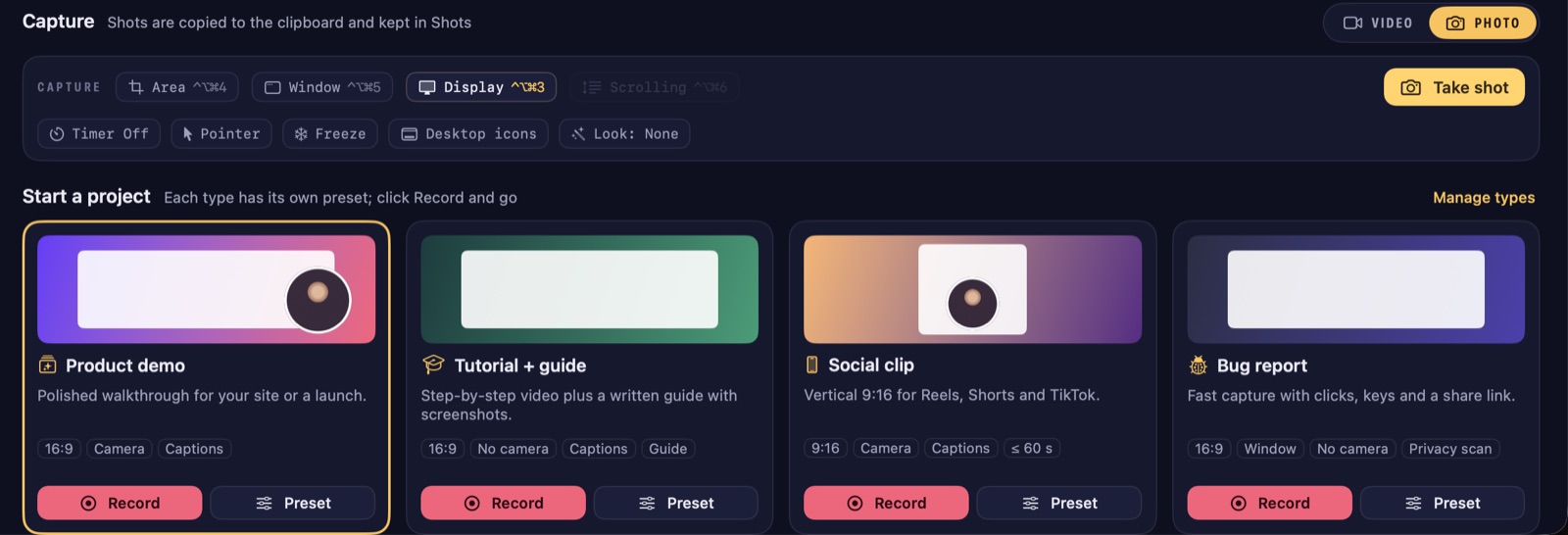
Here's how it works in ZumCast, which needs macOS 14 or later:
- Open the recorder (the HUD) with ⌃⇧H.
- Press 2 for Window and click the meeting window.
- Turn on the microphone, and press A to turn on System audio. Test mic shows a level meter, so you can check your voice is coming through.
- Press Return to start. Press ⌃⇧R to stop.
The useful part for calls is that your voice and system audio are saved separately. In the Studio you can set a volume for each, which helps when one person was much louder than everyone else, and voice clean-up removes hum and hiss from your mic and evens out the volume, on your Mac. If you want a transcript or captions of what was said, transcription also runs on your Mac (it's part of Pro). And because nothing is uploaded unless you choose to share, a confidential call stays on your Mac.
What it doesn't do: ZumCast doesn't announce the recording to other people on the call, and it doesn't join meetings for you or record calls you're not in. It records what your Mac plays and hears, while you're there.
The HUD also has options to hide notifications and hide desktop icons while you record, which is useful if you record the whole display.
Set up for a clean recording
A few minutes of setup saves a recording you can't use.
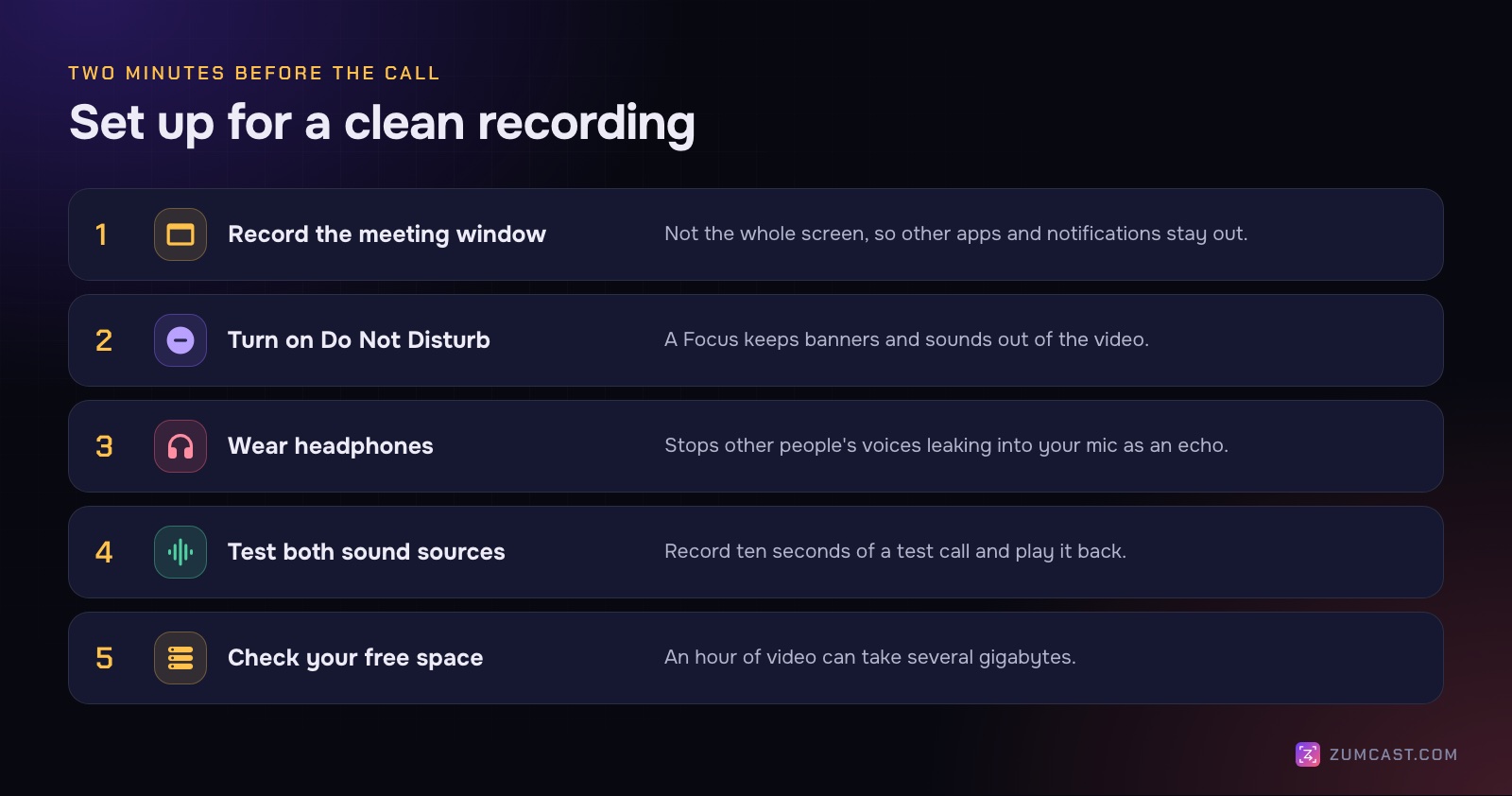
- Record the window, not the screen. It keeps your other apps, messages and bookmarks out of the video, and the call fills the frame.
- Turn on Do Not Disturb. A Focus stops banners and notification sounds appearing in the recording.
- Wear headphones. Without them, other people's voices come out of your speakers and back into your mic, which sounds like an echo on the recording, and sometimes for everyone on the call too.
- Test both sound sources. Before an important call, record ten seconds of a test call (Zoom has a test meeting at zoom.us/test) and play it back. Can you hear yourself and the other side?
- Check your free space. An hour of screen recording can take several gigabytes. Some recorders refuse to start when space is low; ZumCast needs 2 GB free to start a take.
- Keep the chat in mind. If you record the whole window, the chat panel and participant names are in the video. Close or move what shouldn't be.
Where the recordings go
- Zoom local recording: a Zoom folder in Documents, by default. Cloud recordings are in your Zoom account.
- Google Meet: the organiser's Google Drive, with a link in the calendar event.
- Microsoft Teams: the organiser's cloud storage; find it from the meeting chat or the meeting's Recap.
- Shift-Command-5: your Desktop, unless you changed Options › Save to.
- ZumCast:
~/Movies/Zumcast, one project per recording. Exports go wherever you choose, with a copy in the project's exports folder.
After the call
A raw call recording is long. A few things make it useful:
- Trim the start and end. The "can you hear me?" minute nobody needs.
- Cut out private parts. If someone shared something they shouldn't have, cut it, or blur it. See How to Hide Sensitive Information in Screen Recordings.
- Make a short clip. One two-minute highlight is more likely to be watched than a 45-minute recording. See How to Trim a Screen Recording on a Mac.
- Compress before sending. See How to Compress a Screen Recording on a Mac.
FAQ
Can I record a Zoom meeting if I'm not the host? With Zoom's own recorder, only if the host gives you permission or makes you a co-host. You can also record your own screen and audio with a screen recorder, but nobody is told automatically, so ask everyone first.
Does Zoom tell people when you record? Yes, when you use Zoom's own recorder: everyone sees a recording notice. Zoom can't detect other screen recorders, so if you use one, telling people is up to you.
Why does my Mac recording of a call only have my voice? The built-in recorder on macOS 26 and earlier records only a microphone, not the sound your Mac plays. On macOS 27 or later, choose Options › Include System Audio; on earlier versions, use a recorder that captures system audio or a virtual audio driver.
Is it legal to record a video call? It depends on where you and the other people are. Some places require everyone's consent, some only one person's. The safe habit is to tell everyone and record only if they agree; for anything specific, ask a lawyer.
How do I record a Google Meet call on a Mac without permission to record in Meet? Record the Meet window with a recorder that captures system audio and your mic, after asking everyone. The Meet recorder itself needs your Workspace edition and admin to allow it.
Can I record a Teams meeting as a guest? Not with the Teams recorder; guests and people from other organisations can't start a recording. Ask the organiser, or record your own screen and audio after getting everyone's agreement.
How do I avoid an echo in the recording? Wear headphones. Without them, other people's voices play through your speakers into your microphone and are recorded twice.
ZumCast is a Mac screen recorder with an AI editor that runs on your Mac. It records a window, your microphone and system audio on separate tracks, cleans up your voice, and keeps everything on your Mac unless you choose to share. The Basic version is free; Pro is a one-time purchase. Download it free.