How to Reduce a Screen Recording's File Size on a Mac
Why Mac screen recordings are so big, and five ways to compress one, from QuickTime and Finder to HandBrake and ffmpeg, without making the text blurry.
You recorded a three-minute walkthrough, went to attach it to an email, and the file is far too big to send. Or Slack is still uploading it, or the shared drive is filling up with recordings nobody will watch twice.
Mac screen recordings are big because they're made for quality, not for sending. The good news: you can usually make one many times smaller without the text going blurry, using tools already on your Mac.
This guide explains what makes the file big, then walks through five ways to shrink it.
The quick answer
Open the recording in QuickTime Player, choose File › Export As › 1080p (or 720p for something smaller), and save. On a Retina Mac this alone usually makes a big difference, because the original is recorded at your screen's full resolution.
For the smallest file at good quality, choose HEVC when you export. HEVC files are about half the size of H.264 at the same quality. And trim anything you don't need first: the shortest file is the one with nothing to cut.
Why screen recordings are so big
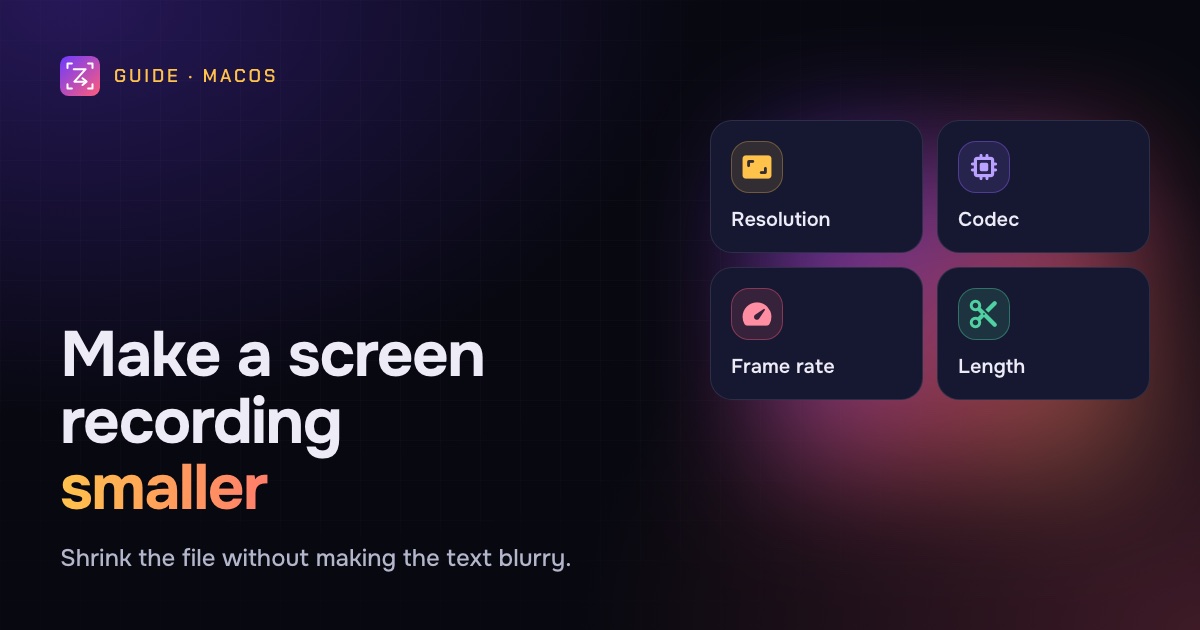
Four things decide the size of a video file. Change any one of them and the size changes with it.
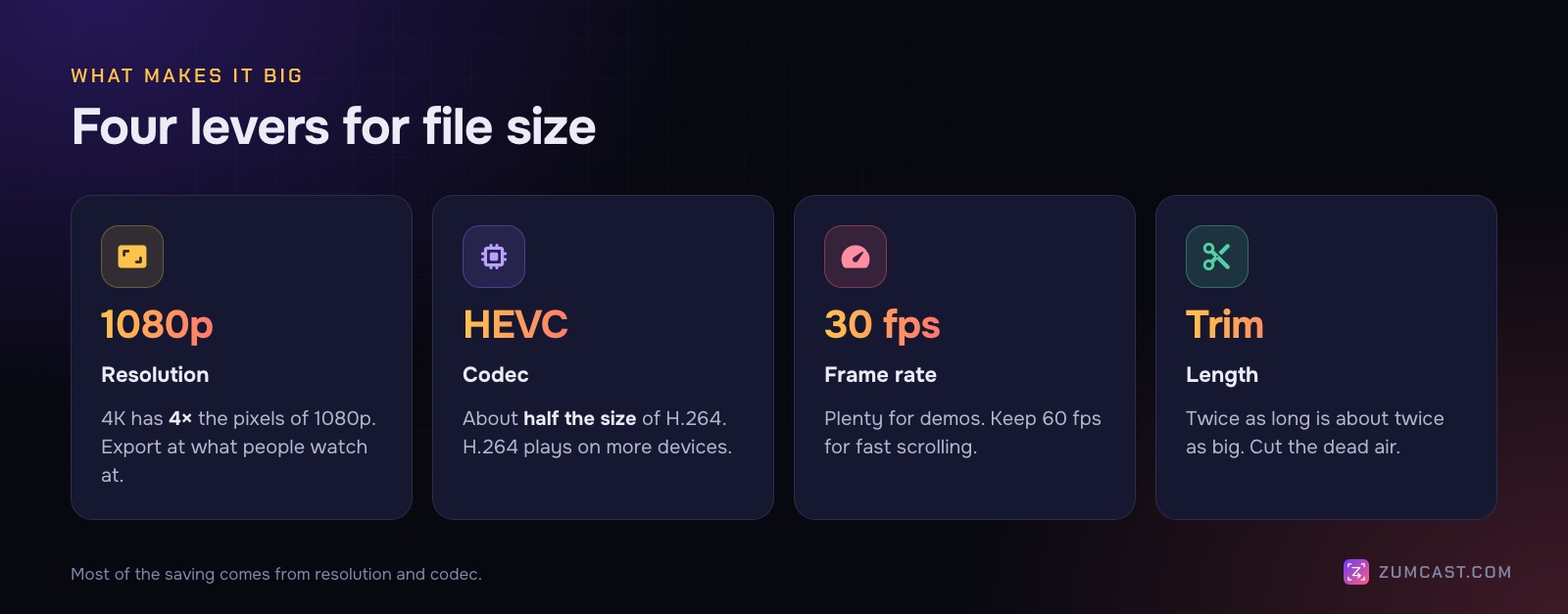
- Resolution. A Retina display has far more pixels than a 1080p video. The Mac records them all, so a full-screen recording on a 5K display is much larger than the 1080p video your viewer will watch. 4K has four times the pixels of 1080p.
- Codec. The codec is how the video is compressed. H.264 plays everywhere. HEVC (also called H.265) is newer and makes files about half the size at the same quality. Recent Macs, iPhones and iPads play it, and so do most current browsers on hardware that supports it, but some older editors and players don't.
- Frame rate. 60 frames a second looks smooth for scrolling and animation. For a software demo, 30 fps is plenty, and it gives the encoder fewer frames to store.
- Length. A file twice as long is roughly twice as big. Trimming dead air is compression too. See How to Trim a Screen Recording on a Mac.
There's also bitrate, the amount of data spent on each second. Most export tools set it for you from the resolution and a quality setting, which is what you want.
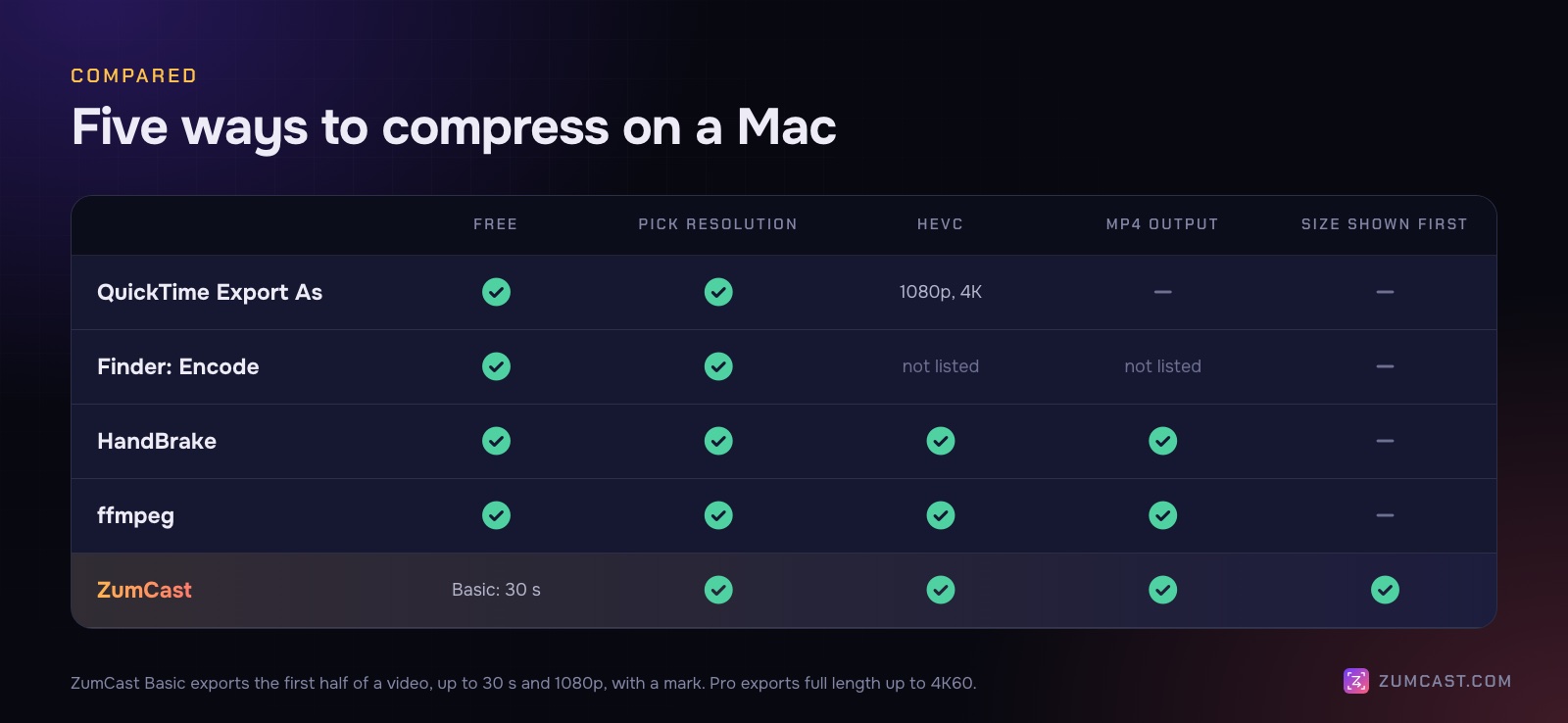
Method 1: QuickTime Player (Export As)
QuickTime is the simplest way and comes with every Mac.
- Open the recording in QuickTime Player.
- Choose File › Export As and pick a resolution: 4K, 1080p, 720p or 480p. Sizes larger than your recording are dimmed.
- For 4K and 1080p, choose HEVC under the format option for a smaller file. 720p and 480p use H.264.
- Choose where to save it and click Save.
QuickTime exports a .mov file. That's fine for almost every use; if a website insists on MP4, use one of the methods below.
Good for: a one-off export at a sensible size.
Not good for: fine control. You can't set the frame rate or quality yourself.
Method 2: Finder's Encode Selected Video Files
You don't even need to open the file. In Finder:
- Control-click the recording (or several at once).
- Choose Encode Selected Video Files. If you don't see it straight away, look under Services in that menu.
- Pick a resolution, and choose between higher quality or greater compatibility.
- Start the encode, then check the new file before you delete anything.
Good for: shrinking a batch of recordings in one go.
Method 3: HandBrake (free)
HandBrake is a free, open-source video converter for Mac, Windows and Linux. It gives you full control and exports MP4.
- Open HandBrake and drag in your recording.
- Pick a preset. Fast 1080p30 (the default) is a good start for screen recordings. The Hardware presets include H.265 Apple VideoToolbox 1080p60, which uses your Mac's video encoder and is very fast.
- Under Video, a lower Constant Quality number means higher quality and a bigger file. Leave it at the preset's value unless the text looks soft.
- Click Start.
Good for: control without the command line, and MP4 output.
Method 4: ffmpeg (one command)
If you're comfortable in Terminal, ffmpeg does the same job in one line. Install it with Homebrew (brew install ffmpeg), then run:
ffmpeg -i "Screen Recording.mov" -vf "scale=-2:1080,fps=30" -c:v libx264 -crf 23 -preset slow -pix_fmt yuv420p -c:a aac -b:a 128k -movflags +faststart recording-1080p.mp4
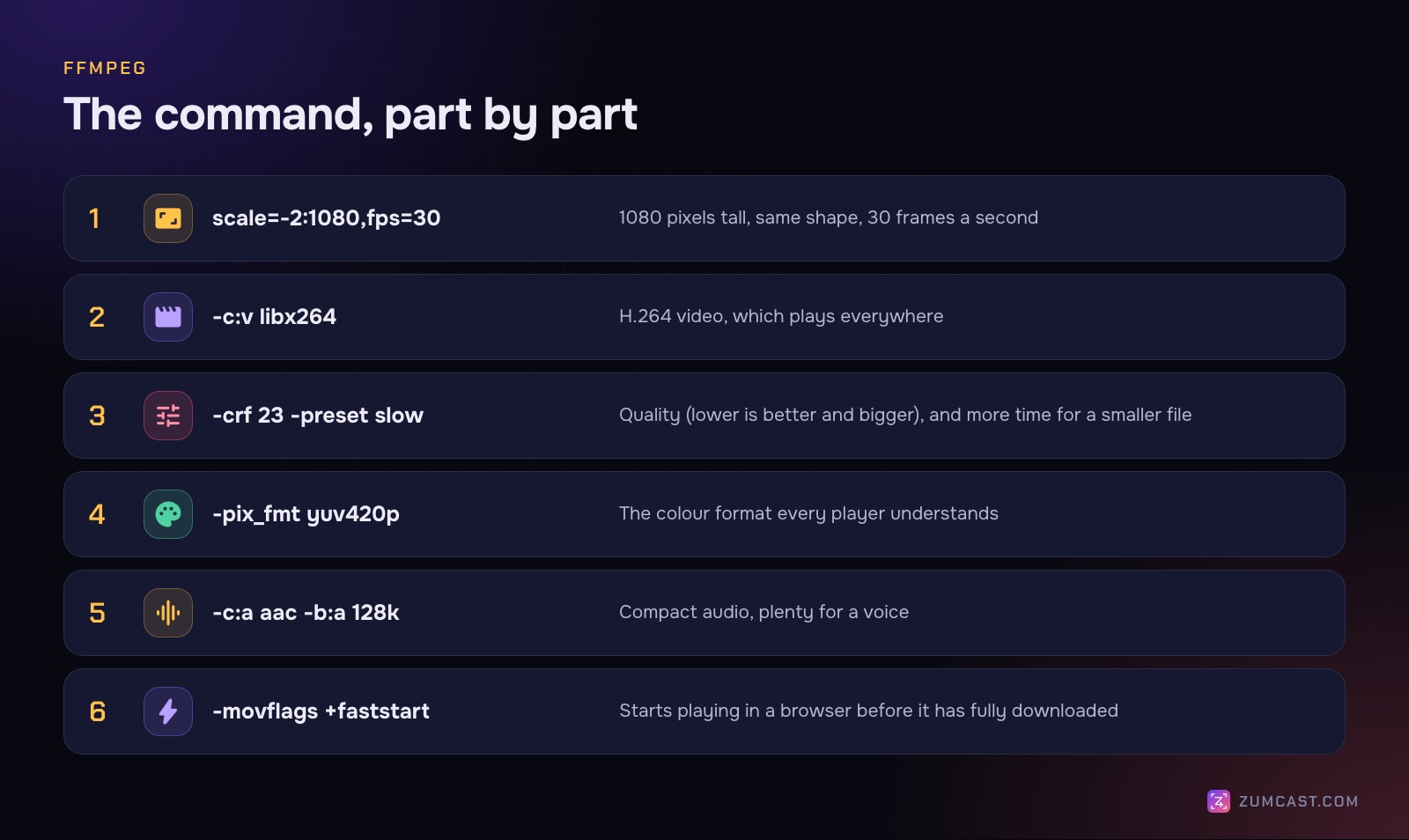
What it does:
-vf "scale=-2:1080,fps=30"resizes the video to 1080 pixels tall, keeps the shape (-2picks a matching even width) and sets 30 frames a second. Use720for smaller, and only scale down: if your recording is already smaller than 1080 pixels tall, remove thescalepart.-c:v libx264encodes with H.264, which plays everywhere.-crf 23sets the quality. Lower is better and bigger; 18 looks nearly identical to the original, 28 is noticeably softer. 23 is the default and a sensible middle.-preset slowspends more time to make a smaller file at the same quality.-pix_fmt yuv420pkeeps the colour format that every player understands.-c:a aac -b:a 128kcompresses the audio to AAC at 128 kbps, plenty for a voice.-movflags +faststartlets the video start playing in a browser before it's fully downloaded.
For HEVC instead, replace -c:v libx264 -crf 23 with -c:v libx265 -crf 28 -tag:v hvc1. The hvc1 tag is what lets QuickTime and Apple devices play the file.
Good for: batches, scripts and exact control.
Method 5: Export the right size from the start (ZumCast)
If you record with ZumCast, our Mac screen recorder, you don't need a separate compression step: you pick the size when you export, and the Export window tells you how big the file will be before you start.
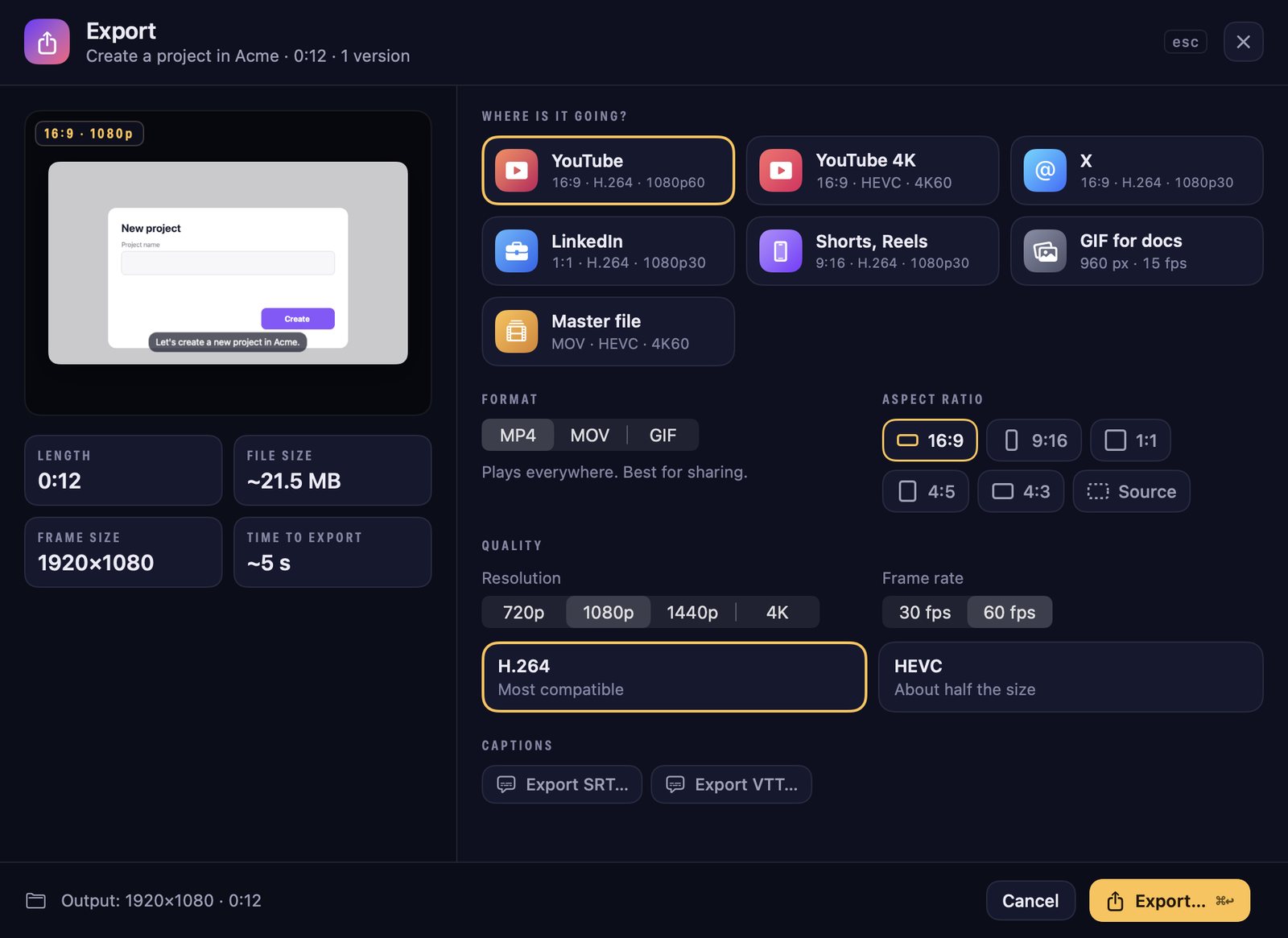
Press ⌘E and either pick a destination preset, or set it yourself:
- Format: MP4, MOV or GIF.
- Resolution: 720p, 1080p, 1440p or 4K.
- Frame rate: 30 or 60 fps.
- Codec: H.264 (plays everywhere) or HEVC (about half the size).
The presets are set for where the video is going. X and LinkedIn export 1080p30 with H.264, Shorts and Reels export 9:16 at 1080p30, and GIF for docs makes a 960 px GIF at 15 fps. The Master file preset is the opposite of small: MOV, HEVC, 4K60, for keeping.
ZumCast also helps before export: Cut all pauses removes silences (Pro) and you can trim and delete by hand for free, so the video is shorter before it's compressed. While recording, the HUD's Use H.264 instead of HEVC option is there for older editors; leave it off to record HEVC.
The free Basic version exports the first half of a video, up to 30 seconds and up to 1080p, with a small mark. Pro exports the full length up to 4K60. See the Export guide.
How small is small enough?
It depends on where it's going.
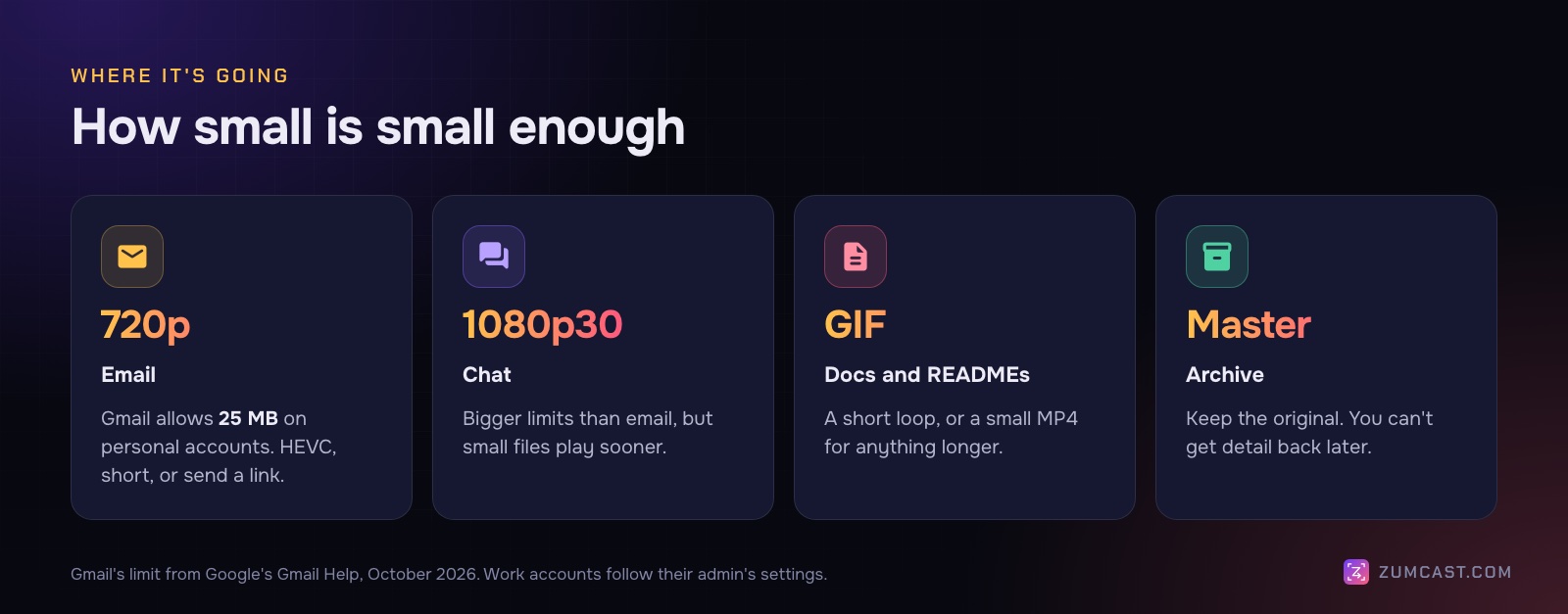
- Email. Gmail's limit for attachments is 25 MB on personal accounts (work accounts follow their admin's settings); larger files are sent as a Google Drive link instead. Other mail services have their own limits, often in the same range. For a recording of a few minutes, 720p with HEVC is your best chance. For anything longer, send a link instead.
- Chat apps. Slack, Teams and similar apps take much bigger files than email, but a smaller file uploads faster and plays sooner for everyone. 1080p at 30 fps is a good default.
- Docs, READMEs and help centres. A short loop is often better as a GIF or a small MP4. See How to Turn a Screen Recording Into a GIF on a Mac.
- Your archive. Keep the original, or a high-quality master, before you compress. You can always make a smaller copy later; you can't get detail back.
Keep the text sharp
Screen recordings are mostly text, and text is the first thing to suffer from heavy compression. A few rules of thumb:
- Reduce the resolution before you reduce the quality. A clean 1080p file reads better than a blocky 4K one of the same size.
- Record what you need, not your whole screen. Recording one window or an area means fewer pixels from the start. ZumCast can resize a window to 1280×720, 1440×900 or 1920×1080 before you record, so every take has the same shape.
- Make the text bigger before recording. Zoom the browser or editor in a step or two. Larger text survives compression and small screens much better.
- Use 30 fps unless you scroll a lot. Fast scrolling and animation are where 60 fps earns its size.
FAQ
Why are Mac screen recordings so large? They're recorded at your display's full resolution, often far more than the 1080p people watch at, and with settings that favour quality. Exporting at 1080p or 720p fixes most of it.
How do I compress a screen recording on a Mac for free? Open it in QuickTime Player and choose File › Export As › 1080p or 720p. Or Control-click it in Finder and choose Encode Selected Video Files. HandBrake and ffmpeg are free too and give more control.
Does compressing a video lose quality? A little, but done well you won't see it. Reduce resolution to what viewers will watch at, keep the quality setting moderate, and keep the original in case you need it later.
Is HEVC better than H.264? HEVC makes files about half the size at the same quality. H.264 plays on more devices and in more editors. Use HEVC for Apple devices and modern browsers, and H.264 when you're not sure what the viewer has.
How do I convert a Mac screen recording from MOV to MP4? Use HandBrake, ffmpeg, or a recorder that exports MP4 directly, like ZumCast. QuickTime only exports MOV.
What's the best size to email a screen recording? Under your mail service's limit, which is 25 MB for personal Gmail. If a short 720p HEVC export is still too big, share a link instead.
Does lowering the frame rate reduce file size? Yes, though usually less than lowering the resolution. For software demos 30 fps looks just as good as 60.
ZumCast is a Mac screen recorder with an AI editor that runs on your Mac. It records your screen, camera and audio, cuts the pauses, and exports MP4, MOV or GIF from 720p to 4K, showing the file size before you export. The Basic version is free; Pro is a one-time purchase. Download it free.