How to Blur Part of a Video or Screen Recording on a Mac
How to blur part of a video on a Mac, like an email, an API key or a face, so it stays hidden when the page scrolls, and when to pixelate or use a solid bar.
You've recorded a great walkthrough, and then you spot it: a customer's email in the sidebar, an API key in the terminal, a colleague's face in the corner. You don't want to record it again. You just want that part of the video blurred.
On a phone, there are apps for that. On a Mac, it's surprisingly awkward: the built-in tools can trim and split but not blur, and a blur box that stays in one place stops working the moment you scroll.
This guide shows how to blur part of a video properly, which kind of mask to use, and how to avoid the mistakes that leave the secret visible for a second or two.
The quick answer
- Apple's built-in apps can't blur part of a video. QuickTime Player only trims and splits. iMovie has no tool for blurring one area of the frame; the usual workaround is an overlay, which is fiddly and doesn't follow moving content.
- If the content doesn't move, any editor that lets you place a blur or a shape over the video for a set time will do.
- If the content scrolls or moves, you need a mask that follows it: tracking in a professional editor, or a recorder that finds the text and keeps the mask on it. ZumCast does the second, on your Mac.
- For passwords and keys, use a solid bar, not a blur.
Why a fixed blur box fails in screen recordings
Most blur tools let you draw a box and choose when it appears. That works for a video where nothing moves. Screen recordings are full of movement: you scroll a page, a list reorders, a dialog slides in, the window resizes.
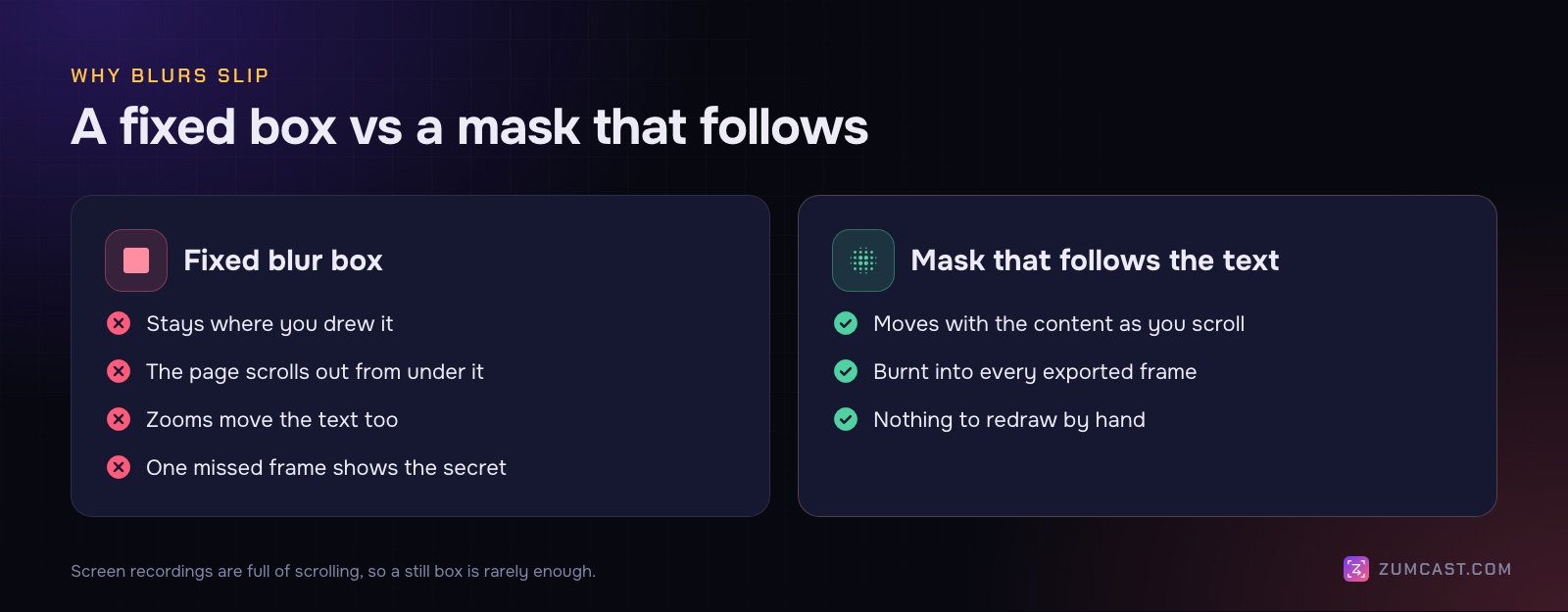
The moment you scroll, the email address slides out from under the box and is in plain view until it leaves the screen. To fix it with a fixed box, you have to add a new box for every position, or animate the box frame by frame to follow the text. On a long recording with lots of scrolling, that's hours of work, and one missed frame is all it takes. Someone can pause the video on exactly that frame.
Zooms make it worse. If your editor zooms in on clicks, the secret moves on screen even when the page doesn't. A mask has to follow both.
Blur, pixelate or a solid bar?
All three hide something. They're not equally safe.
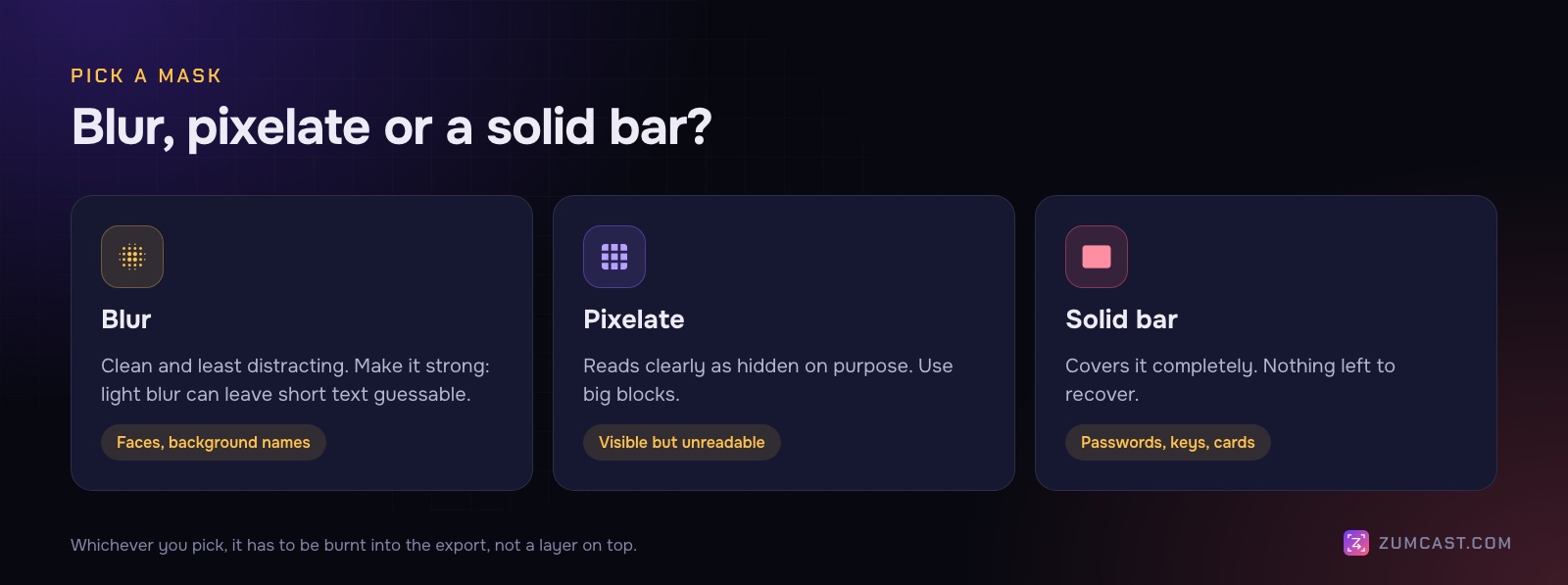
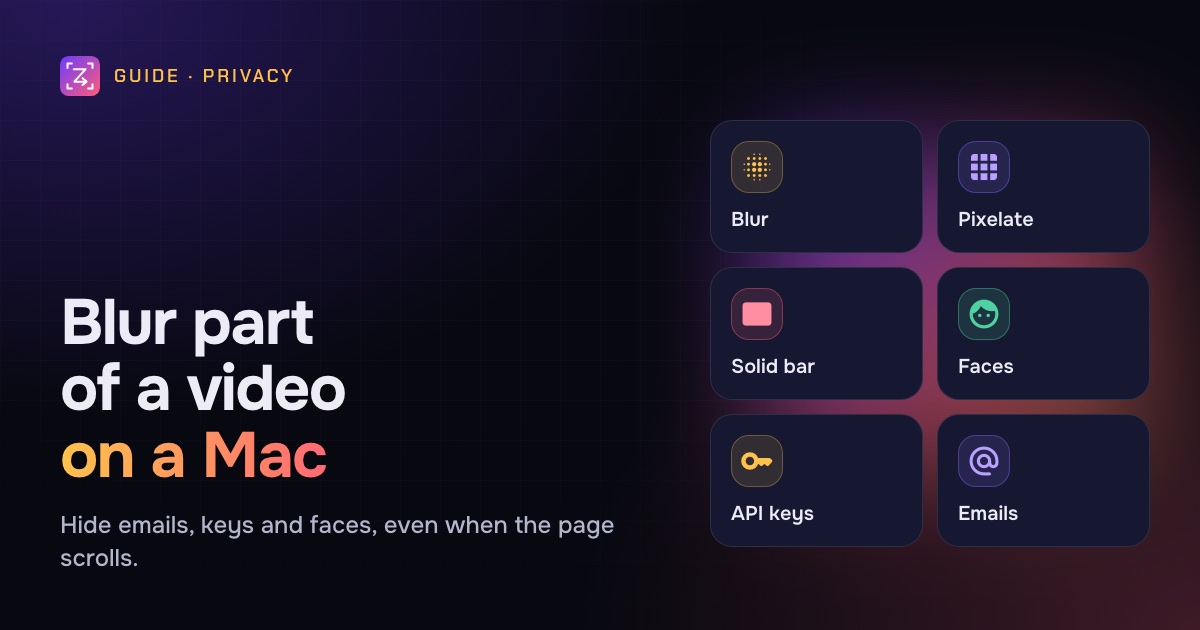
- Blur softens the area. It looks clean and is the least distracting, so it's good for faces, names in the background and things that just aren't relevant. A light blur can leave text guessable, especially short text like a number, so make it strong.
- Pixelate turns the area into large blocks. It reads clearly as "hidden on purpose". Lightly pixelated text has been shown to be reconstructable in some cases, so use big blocks.
- A solid bar covers it completely. Nothing to recover. Use it for passwords, API keys, tokens, card numbers and anything you'd have to rotate or cancel if it leaked.
Whichever you use, it has to be burnt in: part of the exported pixels, not a layer on top. If you share a project file or an export with the mask turned off, the original is still there.
Method 1: An overlay in iMovie (static content only)
iMovie doesn't have a blur tool for part of the frame. The workaround people use:
- Pause on a frame and take a screenshot of it (Shift-Command-4).
- Blur or cover the sensitive part of that screenshot in another app.
- Put the edited image above the video in iMovie's timeline and use the Picture in Picture overlay to place it over the area, for the time it's on screen.
It works for something that sits still, like a name in a fixed sidebar. It doesn't work once the content moves, and lining up the image exactly takes patience. For a single still screenshot rather than a video, it's much easier: open it in Preview, click the Markup button, draw a rectangle shape and fill it with a solid colour.
Method 2: A professional editor with tracking
Full video editors such as Final Cut Pro and DaVinci Resolve can blur an area and track it, so the blur follows a moving face or object. You draw a mask, run the tracker, and check the result frame by frame.
Good for: faces and objects in camera footage, and anyone who already edits video.
Not good for: a quick screen recording. There's a real learning curve, tracking flat text on a scrolling page can drift, and you still have to find every secret yourself.
Method 3: Find and blur automatically (ZumCast)
ZumCast is our Mac screen recorder, and it treats redaction as part of recording rather than an afterthought. Instead of you hunting for secrets frame by frame, it reads the screen on your Mac, finds them, and keeps the mask on the text as it moves.
Run a privacy scan
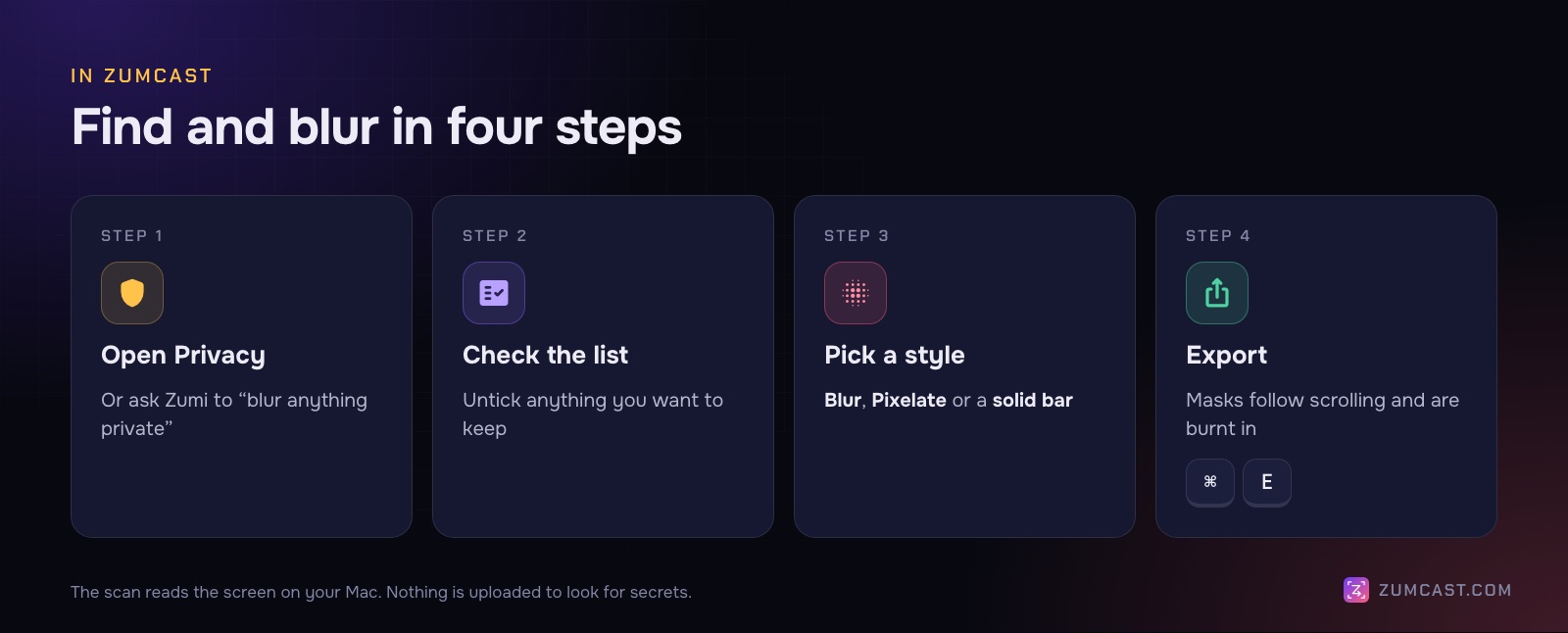
- Open the recording in the Studio and click Privacy, or ask Zumi, the built-in AI editor, to "blur anything private".
- ZumCast reads the screen and lists what it found.
- Check the list and untick anything you want to keep.
- Choose Blur, Pixelate or a solid bar, and apply.
What it finds
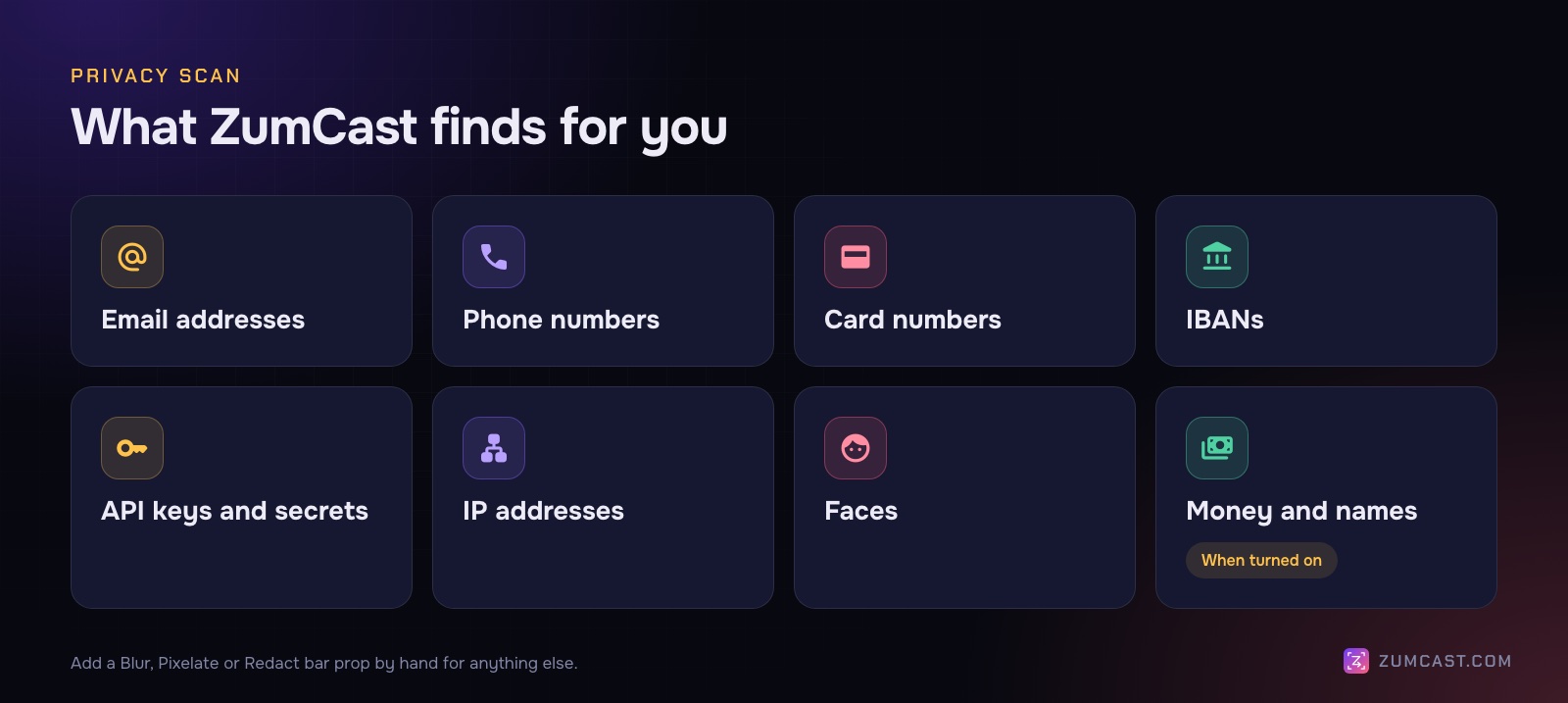
- Email addresses and phone numbers
- Card numbers and IBANs
- API keys and other secrets
- IP addresses
- Faces
- Money amounts and names, only when you turn them on
Prices and names are off by default because they're often the point of a demo. Turn them on when you're recording real customer data.
Masks that follow the text
In video, the mask follows the text as the page scrolls, so a scroll doesn't uncover it. Masks are burnt into every export: the hidden part is never in the file.
Blur by hand
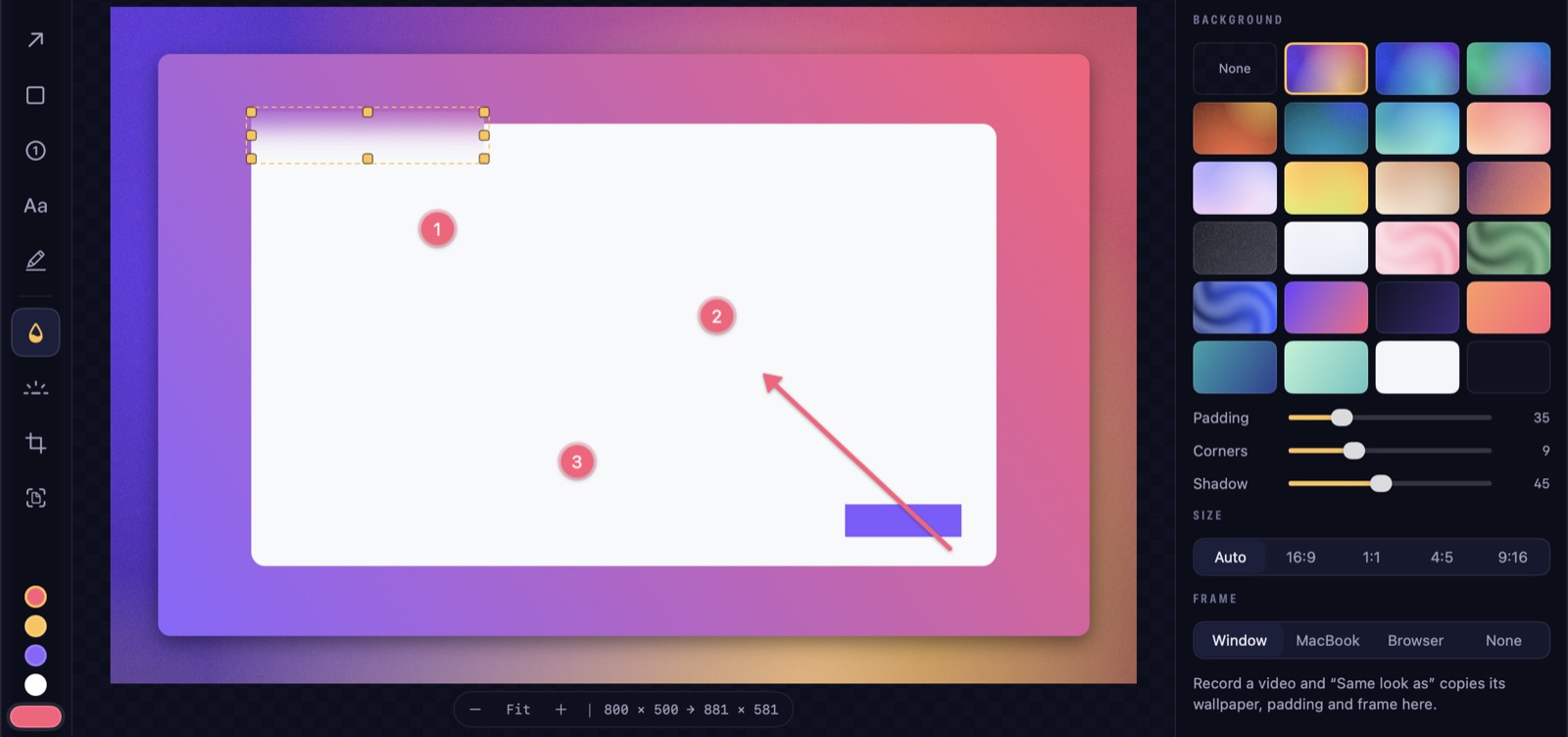
For anything the scan doesn't know is private, like an internal project name, add a Blur, Pixelate or Redact bar prop from the Props tab (Blur is also on the Quick add bar under the video). Drag it over the area and set how long it stays on the Overlays lane. Props stay in place as the video zooms when they're attached to a click.
For screenshots, the shot editor has a Blur tool: press B and drag over the area.
Nothing is uploaded
Finding private details happens on your Mac; nothing is sent anywhere to look for secrets. That matters: if redaction runs in the cloud, the unredacted recording has to be uploaded first.
Props and screenshot markup, including the Blur, Pixelate and Redact bar props and the shot editor's Blur tool, are in the free Basic version. Blur all on screenshots is part of Pro, and Basic exports the first half of a video, up to 30 seconds, with a small mark; Pro exports the full length. The Bug report project type runs a privacy scan on every recording automatically; see our guide to bug report videos and Privacy and redaction.
Check before you share
Whatever tool you use, watch the exported file one more time before you send it, and look only for private details. Scrub slowly through every scroll and every zoom: that's where masks slip. Check the frames just before and after each mask appears.
Also check the parts a blur tool can't see:
- Audio. Did you say a customer's name or read out a code? Cut or mute it.
- Captions and transcripts. If you transcribed the video, anything you said is now in writing too.
- Browser tabs and the address bar. Tokens in URLs are easy to miss.
- Notifications. A message preview can appear for two seconds in the corner.
For the full checklist, including what to do if a key already leaked, see How to Hide Sensitive Information in Screen Recordings.
FAQ
Can iMovie blur part of a video? Not directly. iMovie has no tool for blurring one area of the frame. The workaround is to overlay a blurred or covered still image with Picture in Picture, which only works when the content doesn't move.
How do I blur a moving object or face in a video on a Mac? Use an editor with motion tracking, such as Final Cut Pro or DaVinci Resolve. For faces and text in a screen recording, ZumCast's privacy scan finds faces and keeps masks on content as it moves.
Is blurring enough to hide a password or API key? Use a solid bar for those. Weak blur and pixelation can sometimes be reversed or guessed, and short strings are the easiest to guess. And rotate any real key that appeared on screen.
Can I remove a blur after exporting? Not if it was burnt in, which is the point. Keep your original recording if you might need the unblurred version later, and never share the original.
How do I blur part of a screenshot on a Mac? Open it in Preview, click Markup and cover the area with a filled shape. In ZumCast's shot editor, press B for the Blur tool and drag over it.
Does blurring a video upload it anywhere? Desktop editors and ZumCast work on your Mac. Online blur tools need you to upload the original, unblurred video first, so avoid them for anything confidential.
ZumCast is a Mac screen recorder with an AI editor that runs on your Mac. It finds emails, keys, card numbers and faces in your recordings, blurs, pixelates or covers them with masks that follow scrolling, and burns them into every export, without uploading anything. The Basic version is free; Pro is a one-time purchase. Download it free.