Customer Onboarding Videos: What to Make and Where to Put Them
A practical guide to customer onboarding videos for SaaS. Which videos to make, how long, where to put them, and how to keep them current and translated.
A new customer signs up, lands on an empty dashboard and wonders what to do first. If they don't find out quickly, many of them never come back. Your onboarding emails, tooltips and help centre all try to answer that one question: what should I do now, and how?
Short onboarding videos answer it better than almost anything else, because people can watch someone do the thing on the real screen. But most teams either make one long "product tour" nobody finishes, or a dozen videos that go out of date the next time the UI changes.
This guide covers which onboarding videos to make, how long each should be, where to put them, how to pair them with written guides, and how to keep them current and translated without rebuilding everything every release.
The quick answer
Start with three to five short videos, not one long tour:
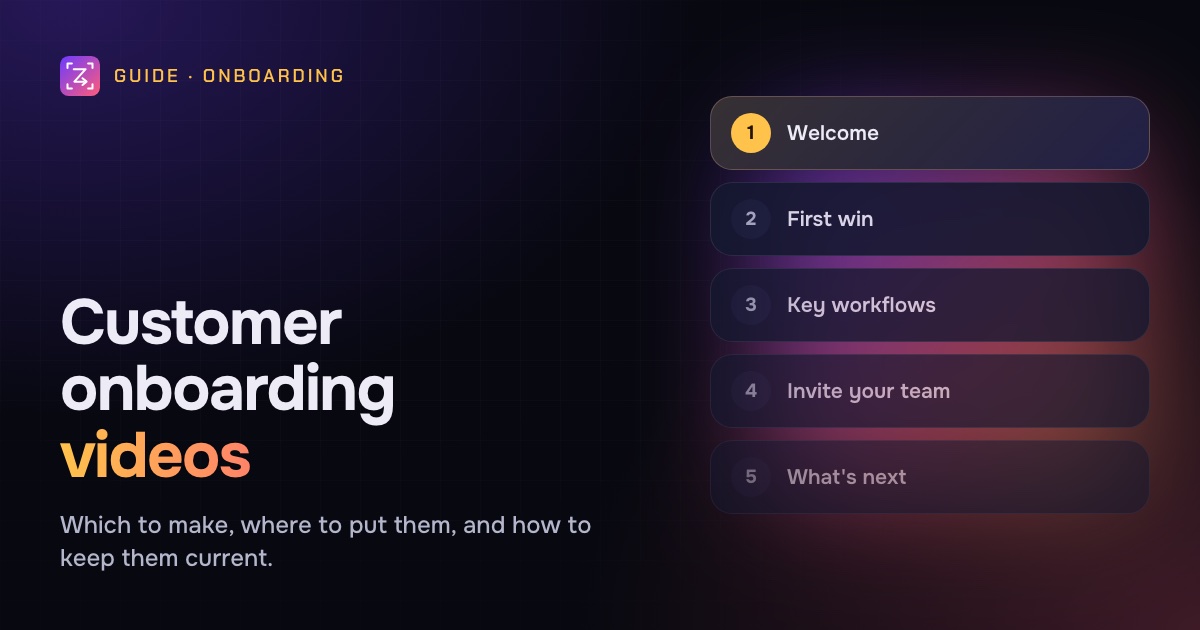
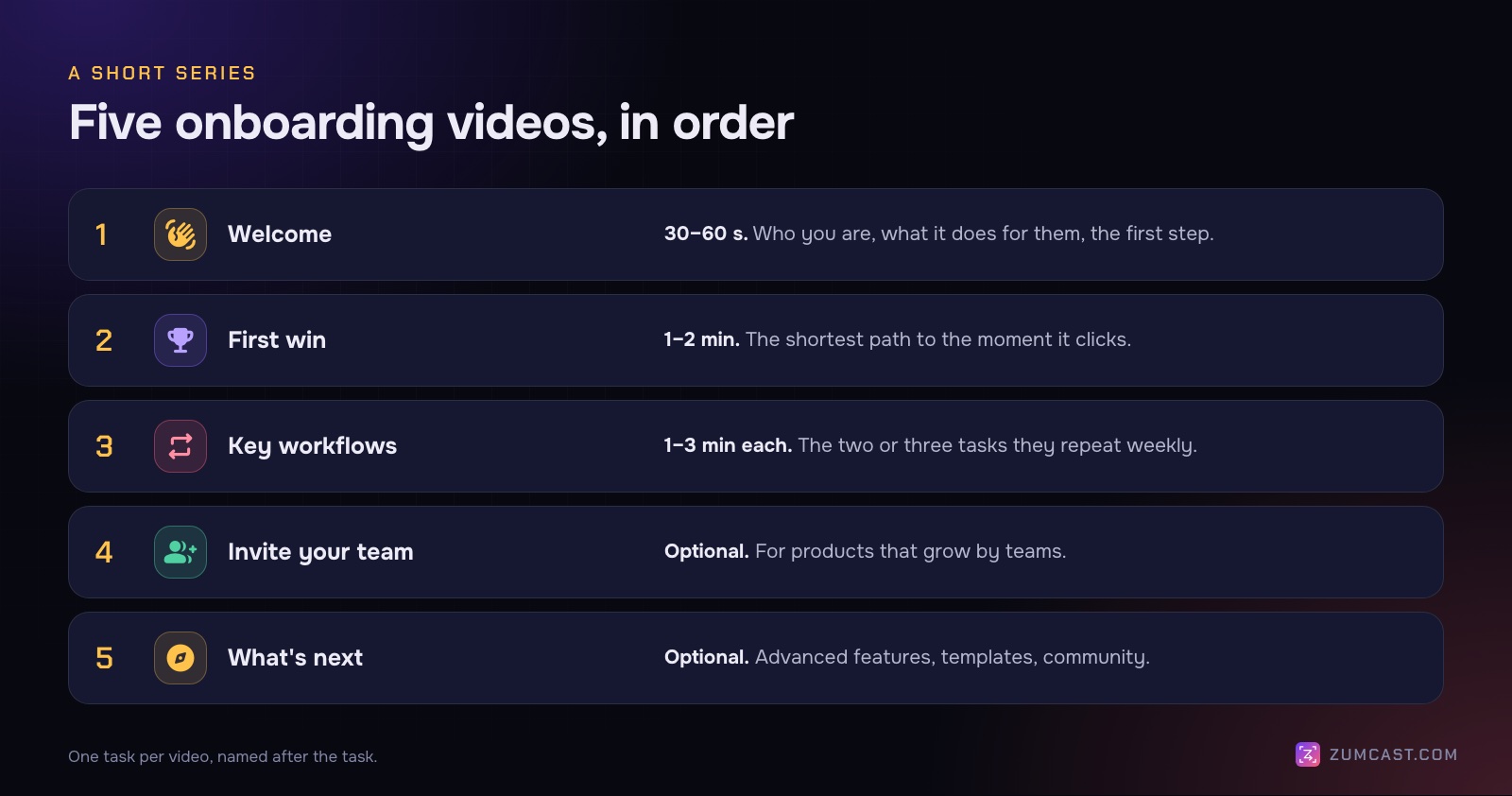
- Welcome (30–60 seconds): who you are, what the product helps with, and the one thing to do first.
- First win (1–2 minutes): the shortest path to the moment the product proves its value.
- Key workflows (1–3 minutes each): the two or three tasks customers do every week.
Put each one where the question comes up: in the app next to the feature, in the onboarding email that day, and in the help centre. Pair every video with a short written guide, add captions, and record in a way that makes re-recording one video easy when the UI changes.
Which onboarding videos to make
Think of onboarding as a short series, ordered by what a new customer needs first.
Welcome video
The welcome video sets expectations. Keep it under a minute: a face, a sentence about what the product does for them, and a clear next step. "Start by connecting your calendar. It takes a minute, and the next video shows you how."
This is where a camera helps most. A real person saying hello makes a product feel less anonymous, and a small camera bubble over the screen is enough.
First-win video
Every product has a moment where it clicks: the first report generated, the first invoice sent, the first automation that runs. The first-win video takes the customer there by the shortest path, skipping every setting that can wait.
Plan it backwards from the moment of value. If a step isn't needed to get there, leave it out and cover it later.
Key workflow videos
Pick the two or three things customers do most often after onboarding and give each its own video. One task per video, named after the task: "Send an invoice", "Invite your team", "Export a report". Task names are what people search for in your help centre.
Optional: invite your team, and what's next
For products that grow by teams, a short "invite your team" video pays off. A "what's next" video at the end of the series can point to advanced features, templates or your community without overloading the first week.
How long should each be?
Shorter than you think. A common rule of thumb is under two minutes for anything in the first week, and one task per video. If a video needs chapters, it's probably two videos.
Where to put onboarding videos
The best onboarding video is the one a customer sees at the moment they need it. That means putting the same videos in several places.
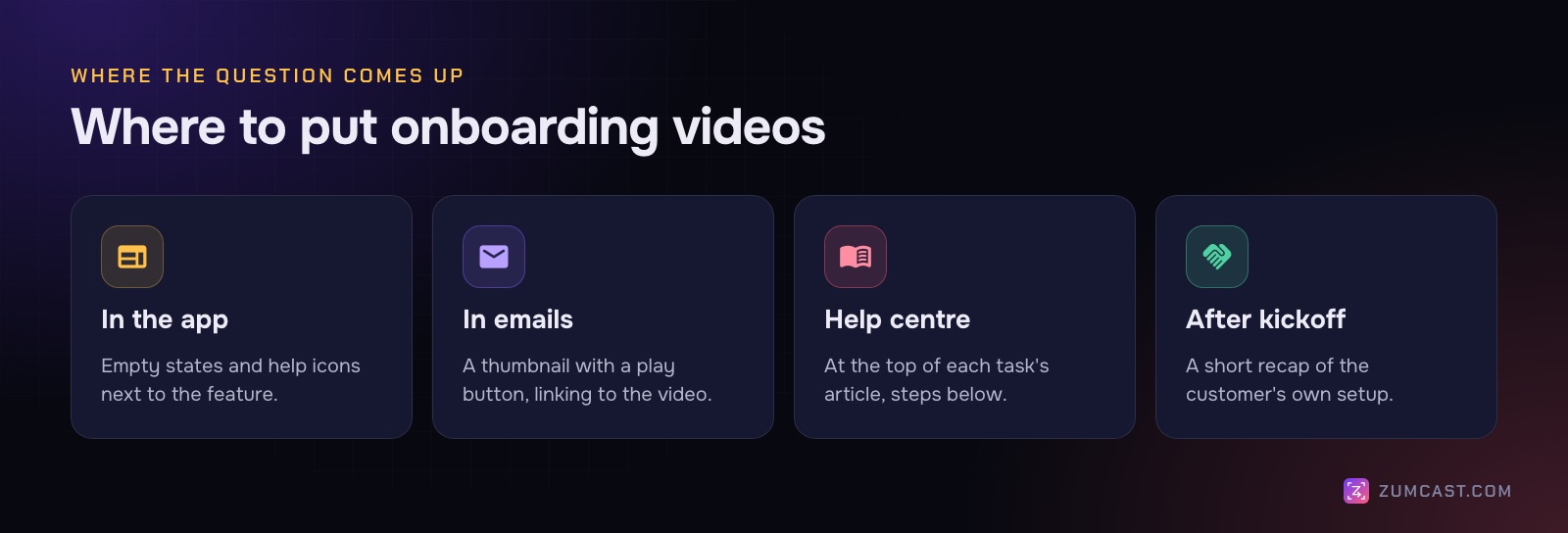
- In the app. Empty states are perfect: the screen that says "No projects yet" is exactly where a 60-second "Create your first project" video belongs. Help icons next to complex features work too.
- In onboarding emails. Most email clients don't play video inline, so use a thumbnail image with a play button that links to the video. One video per email, matched to where the customer is in the series.
- In the help centre. Put each workflow video at the top of the matching article, with the written steps below.
- After a kickoff call. For higher-touch customers, a short recap video of their setup is a useful follow-up.
Pair every video with a written guide
Video isn't always the right format. Some people skim, some can't play sound at work, and some just want to copy one setting. A written step-by-step guide next to each video covers them all, and it's what search engines and your help centre's search can read.
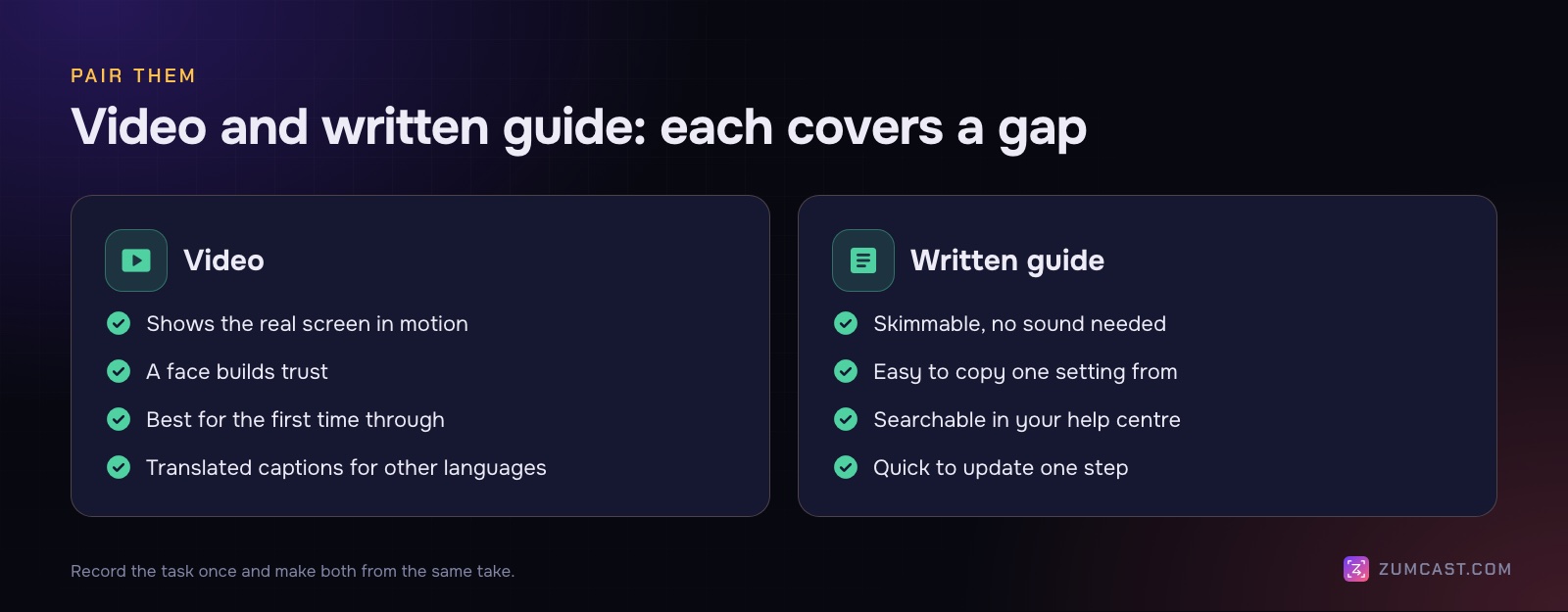
The good news: if you record a workflow once, you can turn the same recording into both. Each click becomes a step with a screenshot, and you edit the words instead of writing from scratch. We go through this in How to Make a Step-by-Step Guide From a Screen Recording.
Keep them updated without starting over
The biggest problem with onboarding videos isn't making them. It's that the UI changes and the videos quietly go stale. A few habits help:
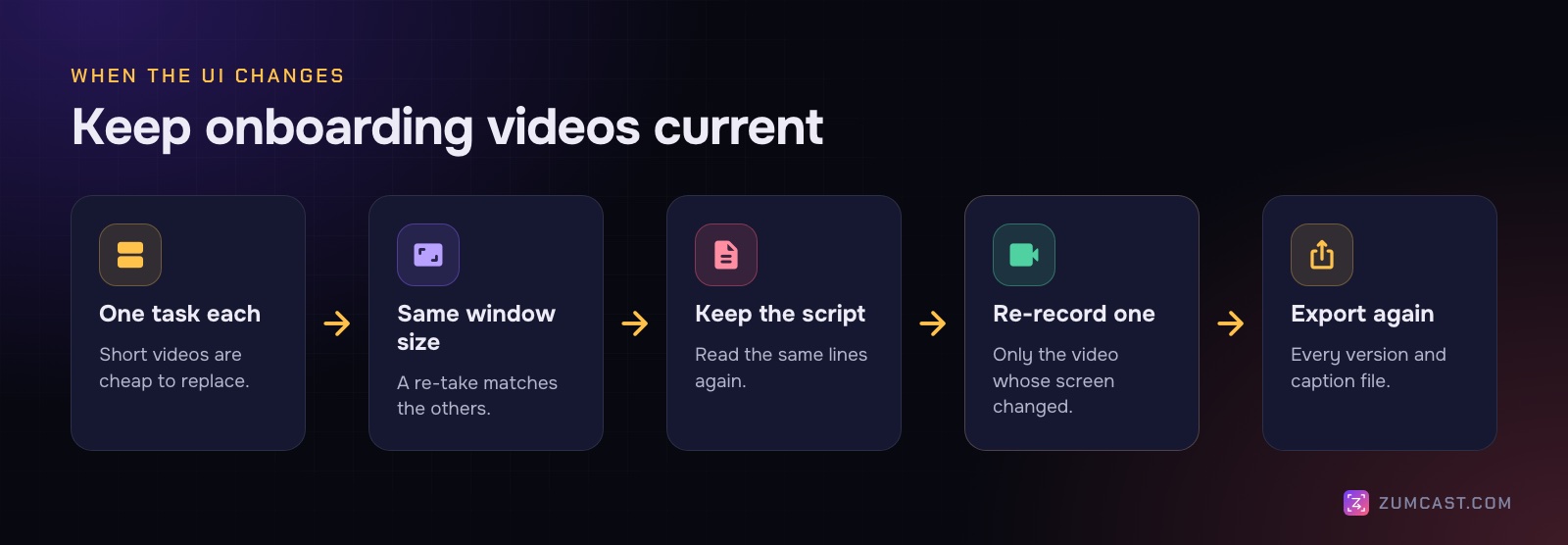
- One task per video. When the billing page changes, you re-record "Send an invoice", not a ten-minute tour.
- Record at the same window size every time, so a re-recorded video matches the others.
- Keep a short script for each video. Re-recording is quick when you're reading the same lines.
- Use fictional data. A demo account with "Acme" and example.com addresses looks the same every time and has nothing private to blur.
- Keep titles and end cards in a template, so a new video looks like part of the series.
- Review the series every release. A quick list of "which videos show this screen?" saves surprises.
Localise with translated captions
Re-recording every video in every language is expensive. Translated captions get you most of the way: customers see your product in action, and read along in their language.
Two practical points:
- Burnt-in captions are part of the video and always show. They're good for social clips, but you'd need a separate video per language.
- Caption files (SRT or VTT) sit next to the video. Most players, including YouTube and many help-centre video hosts, let viewers pick a language. One video, many languages.
For onboarding, caption files are usually the better choice. Have a native speaker check the first few translations, especially product terms. Our guide on adding captions to a screen recording covers the details.
Making onboarding videos with ZumCast
ZumCast is a Mac screen recorder with an AI editor, Zumi, that runs on your Mac. It has an Onboarding project type for welcome videos with a guide: project types set the look, the source, the formats, whether captions and a guide are made, a script and a brand kit, so every video in the series starts the same way. Duplicate it in the Hub's Presets page to make your own.
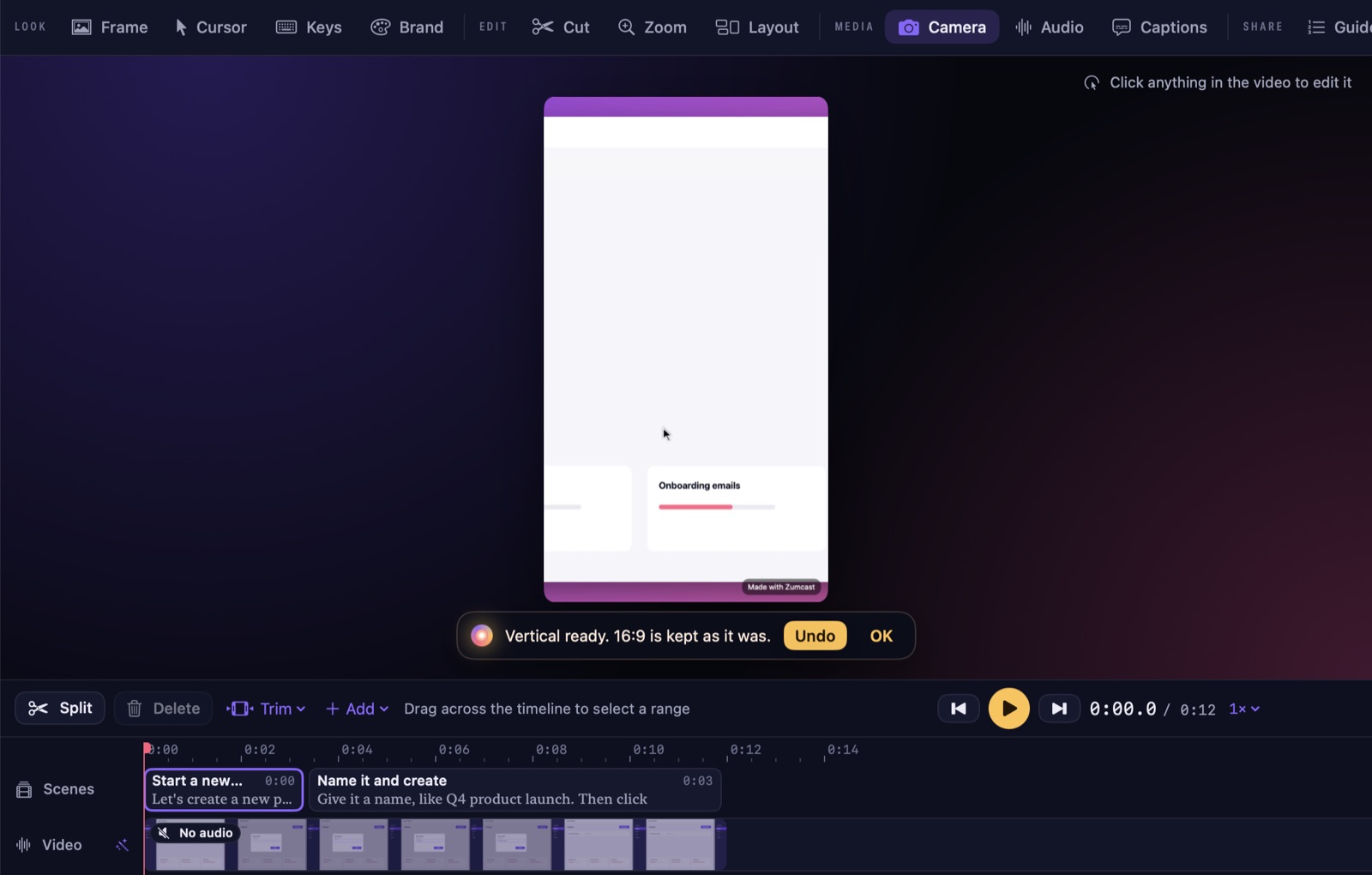
What helps with onboarding in particular:
- Consistent takes. Record a Window and resize it to 1280×720, 1440×900 or 1920×1080 first, so every video is the same size. Read from the teleprompter (press N), which can follow your voice and never shows in the recording.
- Readable on any screen. Zooms on every click and a smooth cursor are on the timeline when you stop, so small UI text is readable.
- A series that looks like a series. A brand kit (in Settings › Brand) holds your logo, colours, typeface and the look of your title, chapter and end cards. The end card has a headline, a line under it, a URL and your logo. Brand kits and cards are free.
- A guide from the same take. Every click becomes a guide step with a picture, named like "Click Save" when Accessibility is allowed. Export it as Markdown, HTML, PDF or an interactive demo, or copy it as rich text into your help centre. Basic exports the first 3 steps; full guides need Pro.
- Versions for every placement. One project can have 16:9, 9:16, 1:1, 4:5 and 4:3 versions, each with its own crop and camera layout, sharing one edit. Use 16:9 for the help centre and 1:1 for an email thumbnail.
- Translated captions (Pro). Transcribe on your Mac, then translate captions into 16 languages, including Spanish, French, German, Japanese and Portuguese (Brazil), and export each as SRT or VTT.
- Repeatable demos. For videos you re-record every release, a recording script (a JSON file of clicks, typing and waits) plays the same demo every time.
What to know: ZumCast is Mac only (macOS 14 or later). Basic is free with no time limit, but video exports are limited to the first half, up to 30 seconds, with a mark, until you buy Pro ($49 once). It doesn't host videos for your help centre; you export files and upload them where your customers watch, or share a Pro link.
FAQ
What is a customer onboarding video? A short video that helps a new customer get started with a product: what it does, the first thing to set up, and how to do the tasks they'll repeat. It's usually part of a short series.
How long should onboarding videos be? Under two minutes each is a good target for the first week, with one task per video. A welcome video can be under a minute.
How many onboarding videos do I need? Three to five is a solid start: a welcome, a first win and two or three key workflows. Add more only when support questions show a gap.
Should onboarding videos show a face? The welcome video benefits most from a face. For workflow videos, the screen matters more; a small camera bubble or none at all is fine.
How do I localise onboarding videos? Translated caption files (SRT or VTT) are the cheapest route: one video with a caption track per language. Have a native speaker check product terms.
How do I make onboarding videos on a Mac? Record each task as its own short video, add zooms and captions so it's readable, and pair it with a written guide. See How to Make a Tutorial Video on a Mac for the full workflow.
ZumCast records your product, adds zooms and captions, and writes the step-by-step guide from the same take, all on your Mac. Basic is free with no time limit. Download it free.