Screen Recording to Vertical Video: TikTok, Reels and Shorts
How to turn a widescreen screen recording into a vertical 9:16 video for TikTok, Instagram Reels and YouTube Shorts, without a tiny, unreadable centre crop.
Por enquanto, este artigo está só em inglês.
Your screen is wide. TikTok, Instagram Reels and YouTube Shorts are tall. Put a 16:9 screen recording into a 9:16 frame and you get one of two bad results: a thin strip of tiny, unreadable interface in the middle of a black screen, or a centre crop that cuts off the menu you're clicking.
Software demos can do well on vertical feeds. A quick "how to do X in 20 seconds" is exactly the kind of video people save and share. But only if the viewer can see what you're doing on a phone.
This guide shows how to turn a screen recording into a vertical video that's readable, keeps the action in frame, and doesn't hide behind the app's own buttons.
The quick answer
- Record for vertical. Record one window or an area, not your whole wide screen, and make the text bigger first.
- Reframe, don't just crop. Move the 9:16 crop to follow the part of the screen where things happen, and zoom in on each click.
- Keep the safe area clear. Leave room at the bottom and right side for the app's caption, username and buttons.
- Add captions. Many people scroll with the sound off.
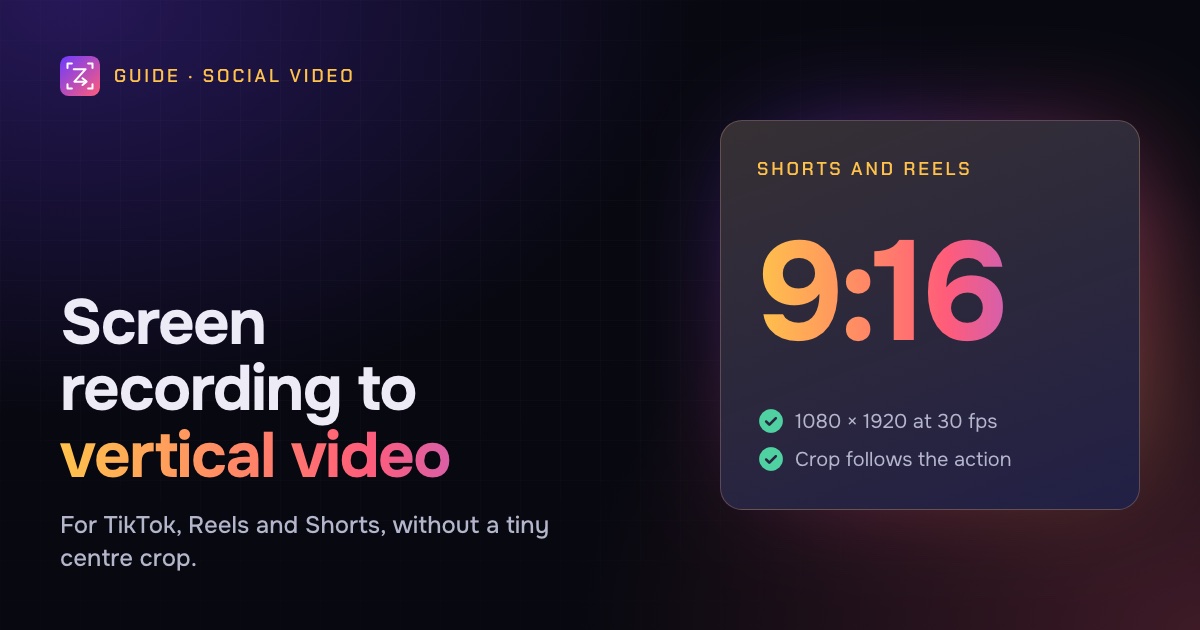
- Export 1080 × 1920 (9:16 at 1080p), at 30 fps.
Why a centre crop doesn't work
A 9:16 frame cut from the middle of a 16:9 recording keeps less than a third of its width. On a typical app, that's the middle of the content area: the sidebar, the toolbar and the button you're about to click are often outside it.
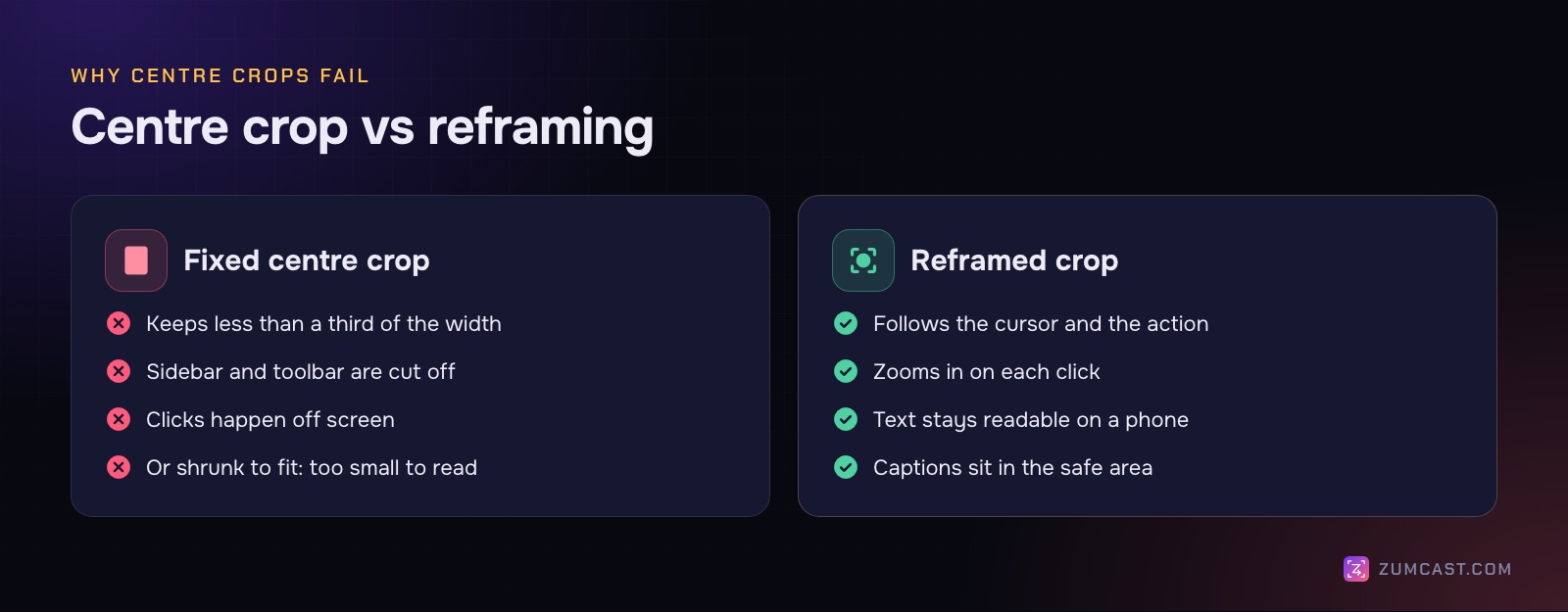
The other common fix, shrinking the whole recording to fit the width and filling the rest with a blurred background, keeps everything in view, but it's too small to read on a phone. Interface text that was clear on a laptop becomes a few pixels tall.
What works is reframing: a 9:16 window that moves across the recording to follow the action, usually zoomed in. When you click the sidebar, the frame is on the sidebar. When you type in a field, the frame is on the field. It's what a video editor would do by hand with keyframes, one move at a time.
Before you record: set it up for vertical
You'll get a much better vertical video if you plan for it.
- Record a window, not the whole screen. A smaller source means less to crop away. A narrow browser window works well.
- Make text bigger. Zoom the browser or app in a step or two (Command-Plus in most apps). Text that's comfortable on your display is often too small on a phone.
- Keep the action in one area. If you can avoid jumping from the far left to the far right of the screen, the crop moves less and the video is easier to follow.
- Hide distractions. Close other tabs and turn on Do Not Disturb, so notifications don't appear.
- Keep it short. YouTube Shorts can be up to three minutes, and Reels and TikTok allow longer videos too, but software tips usually work best when they get to the point fast. One task per clip.
Safe areas: keep clear of the app's buttons
Each app puts its own interface over your video: a like, comment and share column on the right, the caption, username and sound at the bottom, and sometimes a search bar or tabs at the top. Anything important under those gets covered.
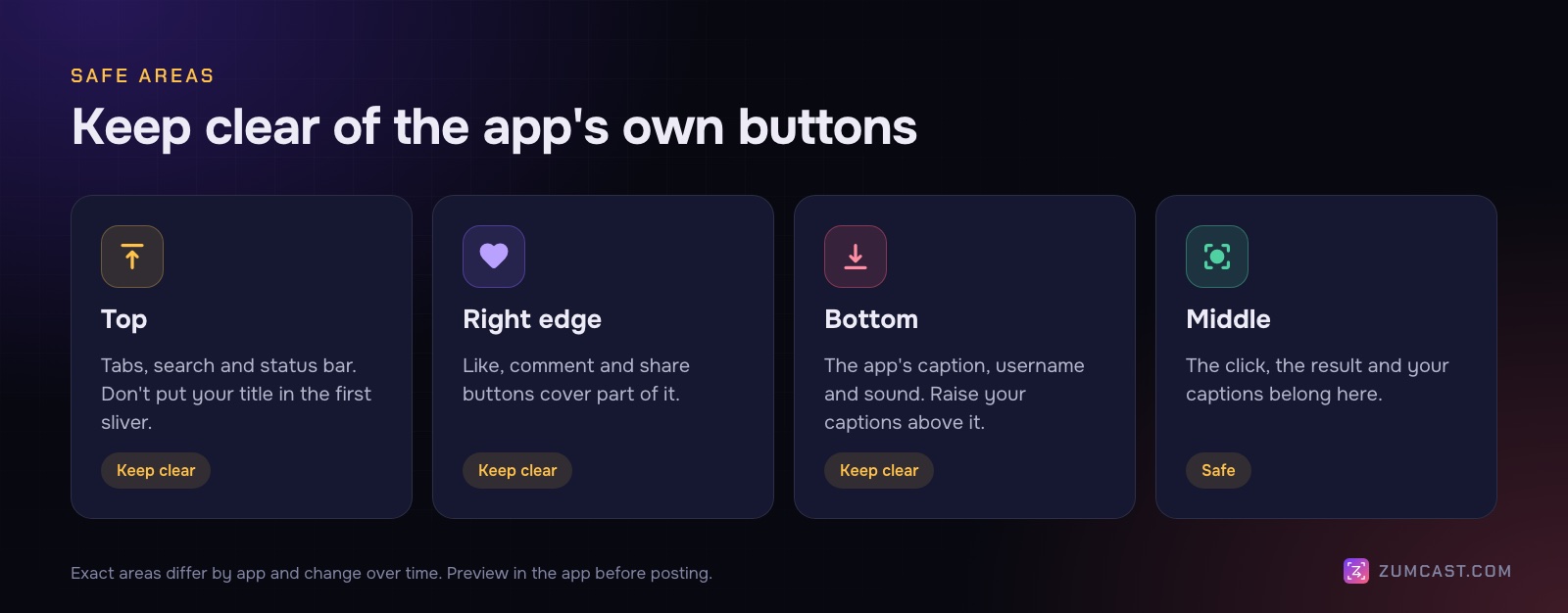
Rules of thumb that work across TikTok, Reels and Shorts:
- Keep the action in the middle. The button you click, the result you show.
- Raise the captions. Put them above the bottom area, where the app shows your caption and username, not at the very bottom of the frame.
- Leave the right edge clear. The button column covers part of it.
- Watch the top. Don't put your title in the first sliver at the top.
The exact areas differ by app and change over time. Before you post, preview it in the app's editor and check nothing important is covered.
Captions for vertical video
Vertical clips are often watched with the sound off, so captions do most of the explaining. For vertical:
- Short lines. A few words at a time. Word-by-word captions, where each word lights up as you say it, are easy to follow on a phone.
- Big and bold. A pill or box behind the text keeps it readable over any interface.
- In the safe area. Above the app's bottom caption, clear of the buttons.
See How to Add Captions to a Screen Recording for styles, SRT files and readability tips.
Doing it with ZumCast
ZumCast is our Mac screen recorder, and it was built with vertical versions in mind. One recording can have several versions, and the vertical one is a version of the same project rather than a separate re-edit.
Versions: one edit, every shape
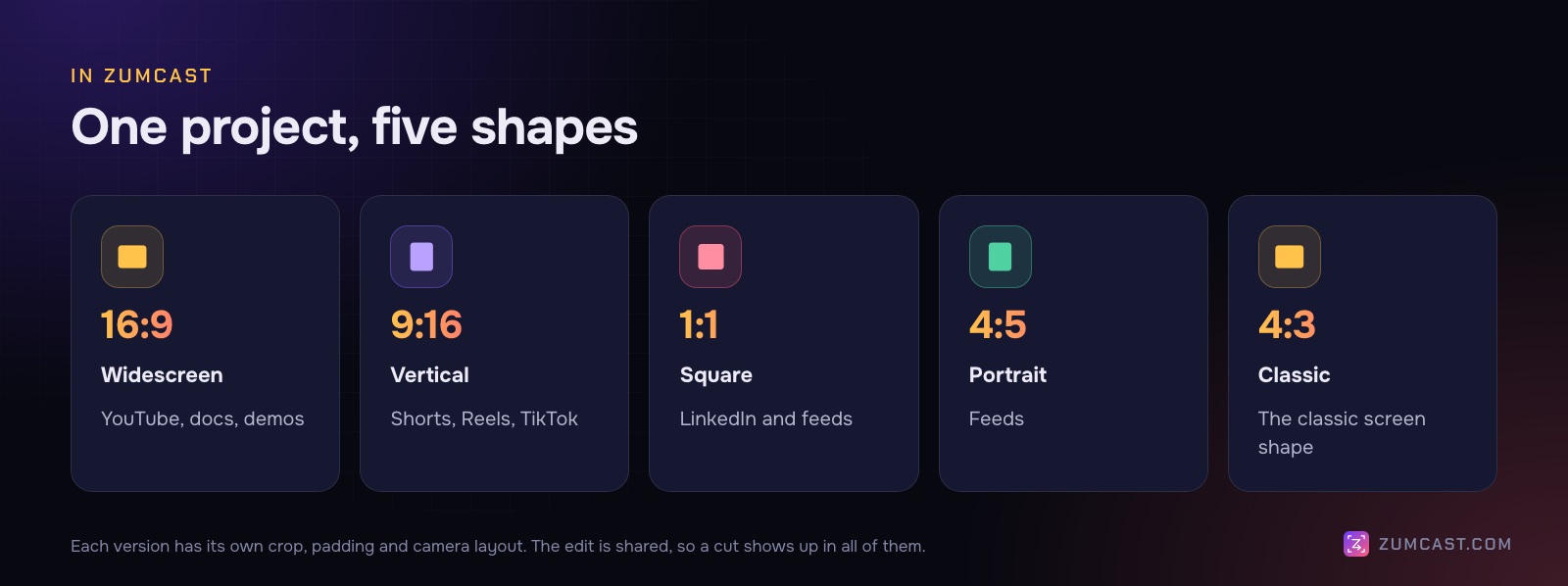
A project can have 16:9, 9:16, 1:1, 4:5 and 4:3 versions. Add one with the + next to the version name in the Studio's top bar. Each version has its own crop, padding and camera layout, but the edit is shared: cut a pause in the 16:9 and it's gone from the 9:16 too.
Make it vertical in one step
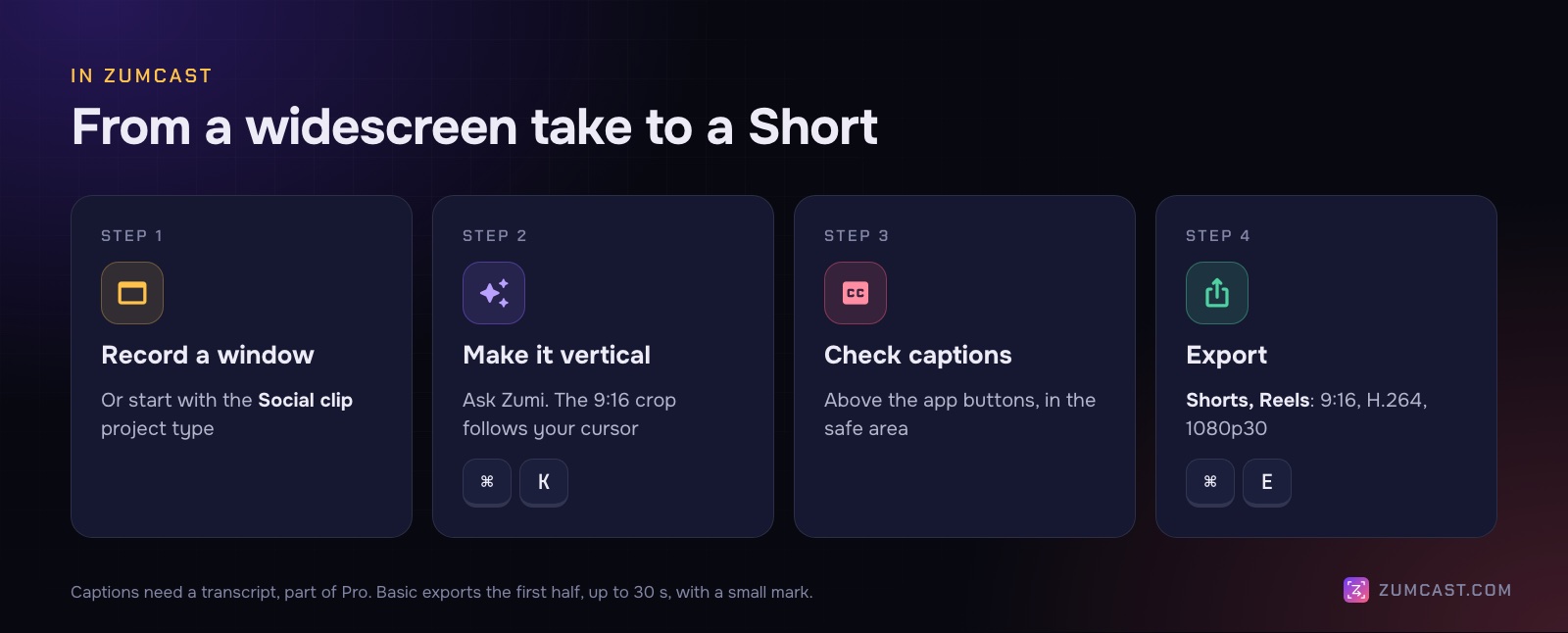
Ask Zumi, the built-in AI editor, to "make it vertical". Zumi shows a plan: add a 9:16 version where the crop follows your cursor, and move captions above the app buttons, into the safe area for Shorts and Reels. Nothing changes until you press Apply.
The top bar also has a Make a Short quick action. And because ZumCast zooms in on every click as you record, small interface text gets a close-up at the moments that matter, which counts for even more on a phone screen.
Start with a Social clip
If you know you're making a vertical video before you record, pick the Social clip project type in the Hub. It's set up for vertical 9:16, under a minute. Or type what you want in the Hub's Ask Zumi field, like "a 30-second Short showing how to export a report", and Zumi picks the project type and format for you.
Several clips from one long recording
Recorded a long demo? Ask Zumi to "make three short clips". It picks moments from the recording and makes them into short vertical clips. Clips are part of Pro.
Your camera in a vertical video
If you record your camera, the Layout tool has ready-made layouts for vertical video, including Reels with the camera on top or bottom and a Shorts bubble. You can blur, colour or remove the background behind you, and each version keeps its own camera layout, so the 16:9 can have a round bubble while the 9:16 has you on top.
Export
Press ⌘E and pick Shorts, Reels: 9:16, H.264, 1080p at 30 fps. That's 1080 × 1920, which TikTok, Reels and Shorts all accept.
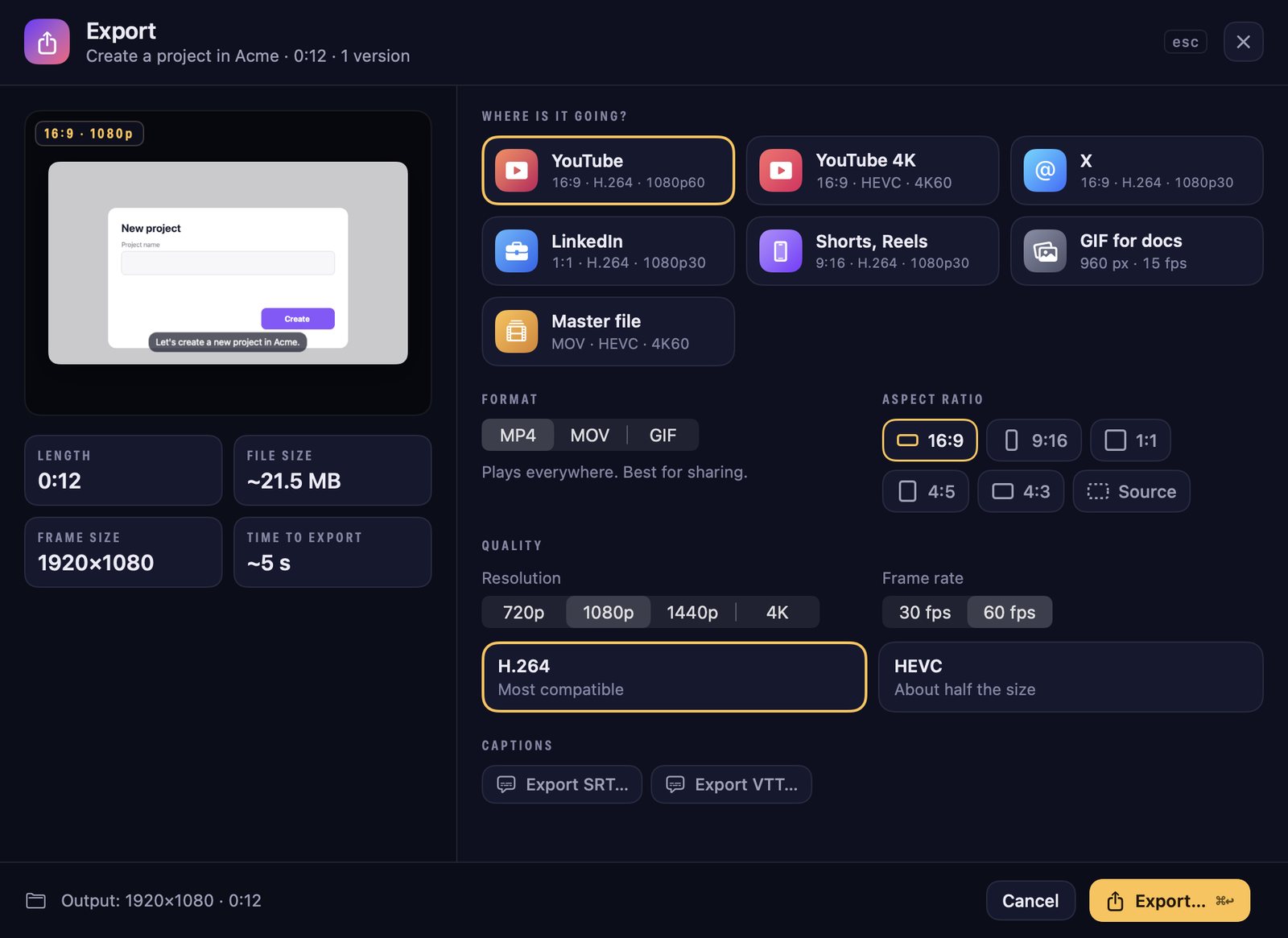
With Pro, Export all (⇧⌘E) makes one file for every version in one go, named like "Title – 9:16.mp4". The free Basic version exports the first half of a video, up to 30 seconds and 1080p, with a small "Made with ZumCast" mark and a short end card. Word-by-word captions need a transcript, which is also part of Pro. See Studio versions and Export.
Doing it by hand in another editor
No ZumCast? Any editor with keyframes can do the same thing, just more slowly:
- Create a 1080 × 1920 project.
- Put your recording on the timeline and scale it up until the text is readable. It will be much wider than the frame.
- At each moment the action moves, add a position keyframe and slide the video so the action is centred.
- Add captions in the middle third, above the bottom area.
- Export at 1080 × 1920, 30 fps, H.264.
It's worth the effort for a single important clip. For a weekly habit, a tool that reframes from your cursor saves most of the work.
FAQ
What size should a vertical video be for TikTok, Reels and Shorts? 9:16, and 1080 × 1920 pixels is the standard choice for all three. Export at 30 fps unless your video has a lot of fast motion.
How long can a YouTube Short be? Up to three minutes, according to YouTube. For software tips, shorter is usually better: one task, straight to the point.
How do I make a screen recording vertical without black bars? Crop to 9:16 and move the crop to follow the action, instead of shrinking the whole recording to fit. In ZumCast, "make it vertical" adds a 9:16 version whose crop follows your cursor.
Where should captions go on a vertical video? In the middle of the frame or just above the bottom area, clear of the app's caption, username and button column. Preview in the app before posting.
Can I make a vertical and a widescreen version from the same recording? Yes. In ZumCast, add a 9:16 version to the project: it has its own crop and camera layout, but shares your cuts, so you edit once.
Should I record my iPhone screen instead? If you're showing an iPhone app, yes: an iPhone screen is already tall. See How to Record Your iPhone Screen on a Mac.
Can I turn a long demo into several short clips? Yes. Pick the strongest moments and make each its own vertical clip. In ZumCast, asking Zumi to "make three short clips" does this for you (Pro).
ZumCast is a Mac screen recorder with an AI editor that runs on your Mac. It adds zooms on every click, makes a 9:16 version whose crop follows your cursor, keeps captions clear of app buttons and exports for Shorts and Reels, all from the same take as your widescreen video. The Basic version is free; Pro is a one-time purchase. Download it free.