How to Screenshot on a Mac: Every Shortcut, Setting and Trick
How to take a screenshot on a Mac with every built-in shortcut, where screenshots are saved, how to change the folder and format, and when an app helps.
この記事は現在、英語のみです。
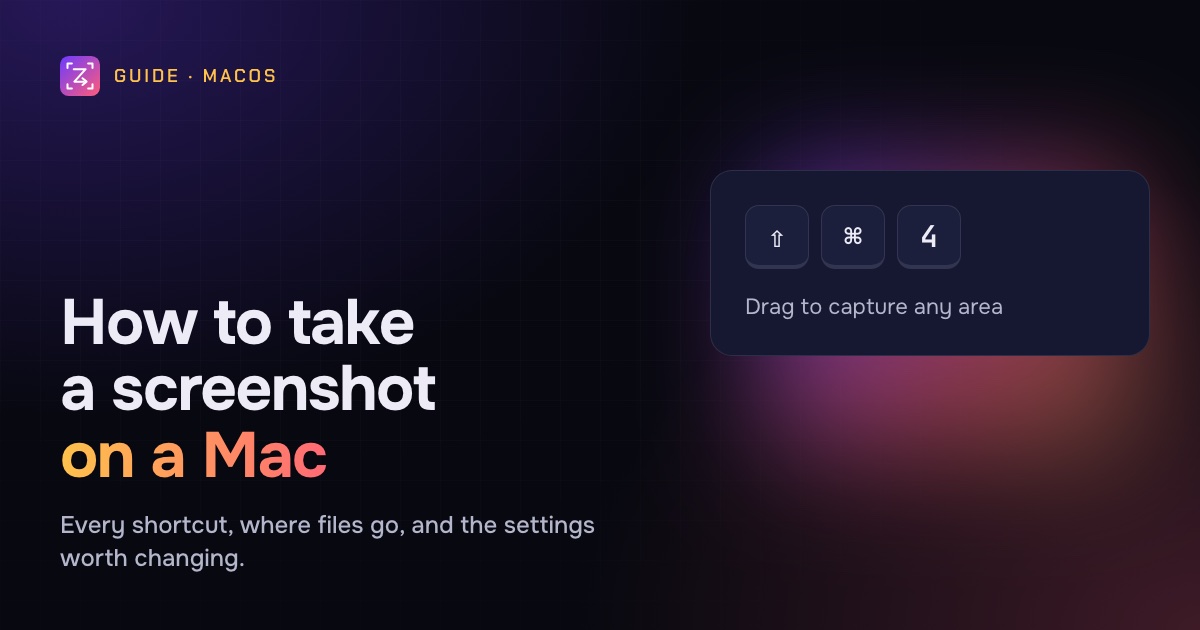
Taking a screenshot on a Mac is easy once you know the keys. The trouble is that there are five of them, a hidden window mode, a toolbar with its own settings, and a desktop that fills up with files called "Screenshot" and a date.
This guide covers every built-in way to take a screenshot on a Mac in 2026, where the files go and how to change that, the small tricks that save time, and when a screenshot app is worth adding.
The quick answer
- Whole screen: press Shift-Command-3.
- Part of the screen: press Shift-Command-4 and drag.
- One window: press Shift-Command-4, then Space, then click the window.
- The Screenshot toolbar (and screen recording): press Shift-Command-5.
- Copy instead of saving a file: add Control to any of the above, for example Control-Shift-Command-4.
Screenshots are saved to your Desktop by default. To change that, press Shift-Command-5 and choose Options › Save to.
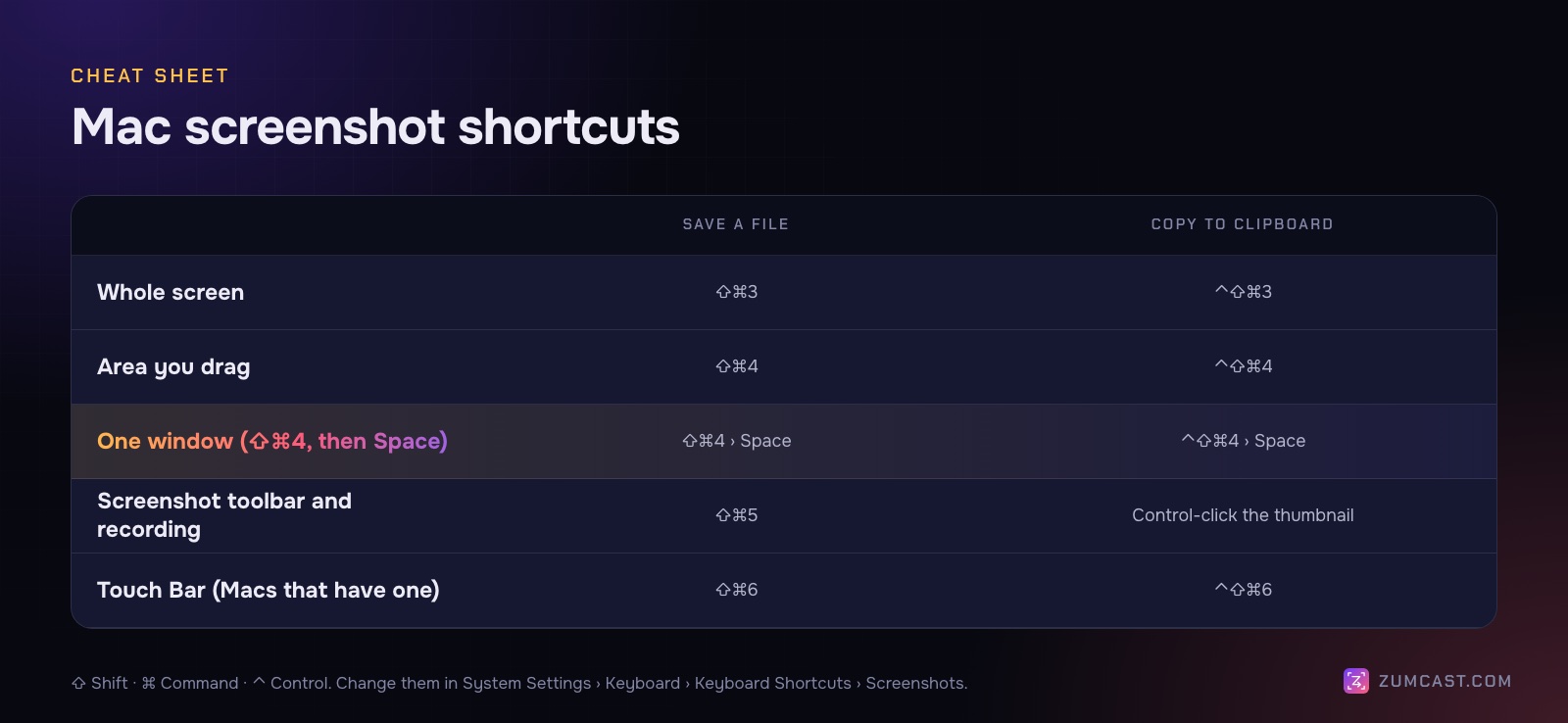
Every built-in screenshot shortcut
Shift-Command-3: the whole screen
Press all three keys together and macOS captures everything on the screen. If you have more than one display, you get one file per display.
Shift-Command-4: an area you drag
The pointer turns into a crosshair. Drag over the part you want and let go. This is the shortcut most people use most often, because a tight crop is nearly always more useful than a whole screen.
Shift-Command-4, then Space: one window
Press Shift-Command-4, then tap Space. The pointer becomes a camera and each window lights up as you move over it. Click to capture that window, with a soft shadow around it. Hold Option as you click to leave the shadow out, which is handy if the image is going into a document. This mode also captures menus and the Dock.
Shift-Command-5: the Screenshot toolbar
This opens a small toolbar at the bottom of the screen with buttons for the whole screen, a window or a selected portion, the two screen recording buttons, and Options. It's the slowest way to take a quick screenshot, but it's where all the settings live. You can also open it as the Screenshot app in Applications › Utilities.
Shift-Command-6: the Touch Bar
On a MacBook Pro with a Touch Bar, Shift-Command-6 captures the Touch Bar itself. In macOS 27 with Siri AI (Beta) turned on, Apple uses the same keys to ask Siri about a portion of the screen.
Add Control to copy to the clipboard
Hold Control with any of the shortcuts (Control-Shift-Command-4, for example) and the screenshot goes to the clipboard instead of a file. Then paste it straight into Slack, Mail, Notes or a document with Command-V. No file clutter.
Tricks while you drag
After Shift-Command-4, a few keys change how the selection behaves. Most people never find them.
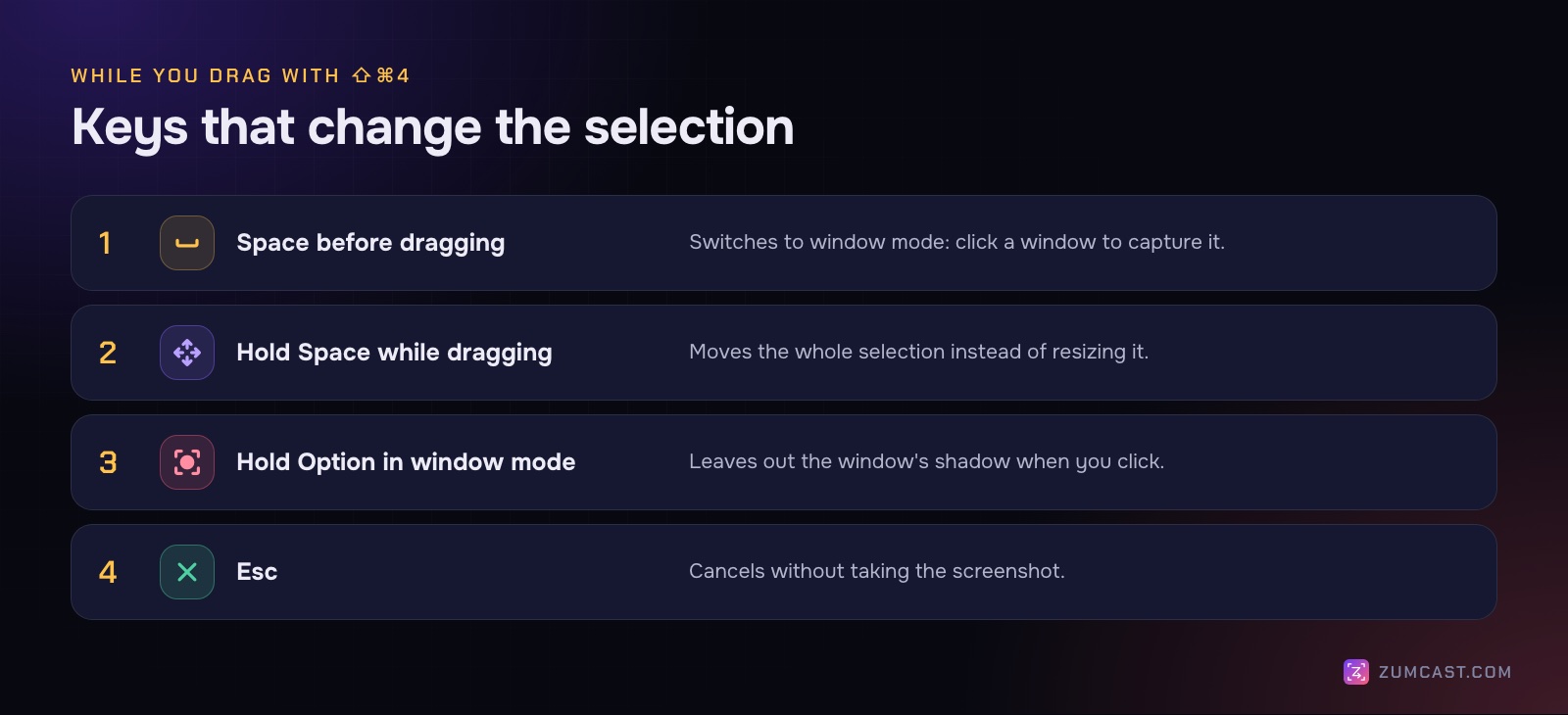
- Space while dragging moves the whole selection instead of resizing it. Great when you started the box a little off.
- Option in window mode (after pressing Space) leaves out the window's shadow when you click.
- Esc cancels without taking anything.
Where screenshots are saved
By default, screenshots land on your Desktop, named "Screenshot" followed by the date and time, as PNG files. Screen recordings go there too.
To change where they go:
- Press Shift-Command-5.
- Click Options.
- Under Save to, choose one of the preset places, such as Desktop or Documents, or Other Location… to pick any folder.
The choice sticks for every shortcut, not just the toolbar. A common setup is a folder called Screenshots in Documents or your Downloads folder, so the Desktop stays clear.
The settings worth changing
Everything else is in the same Options menu.
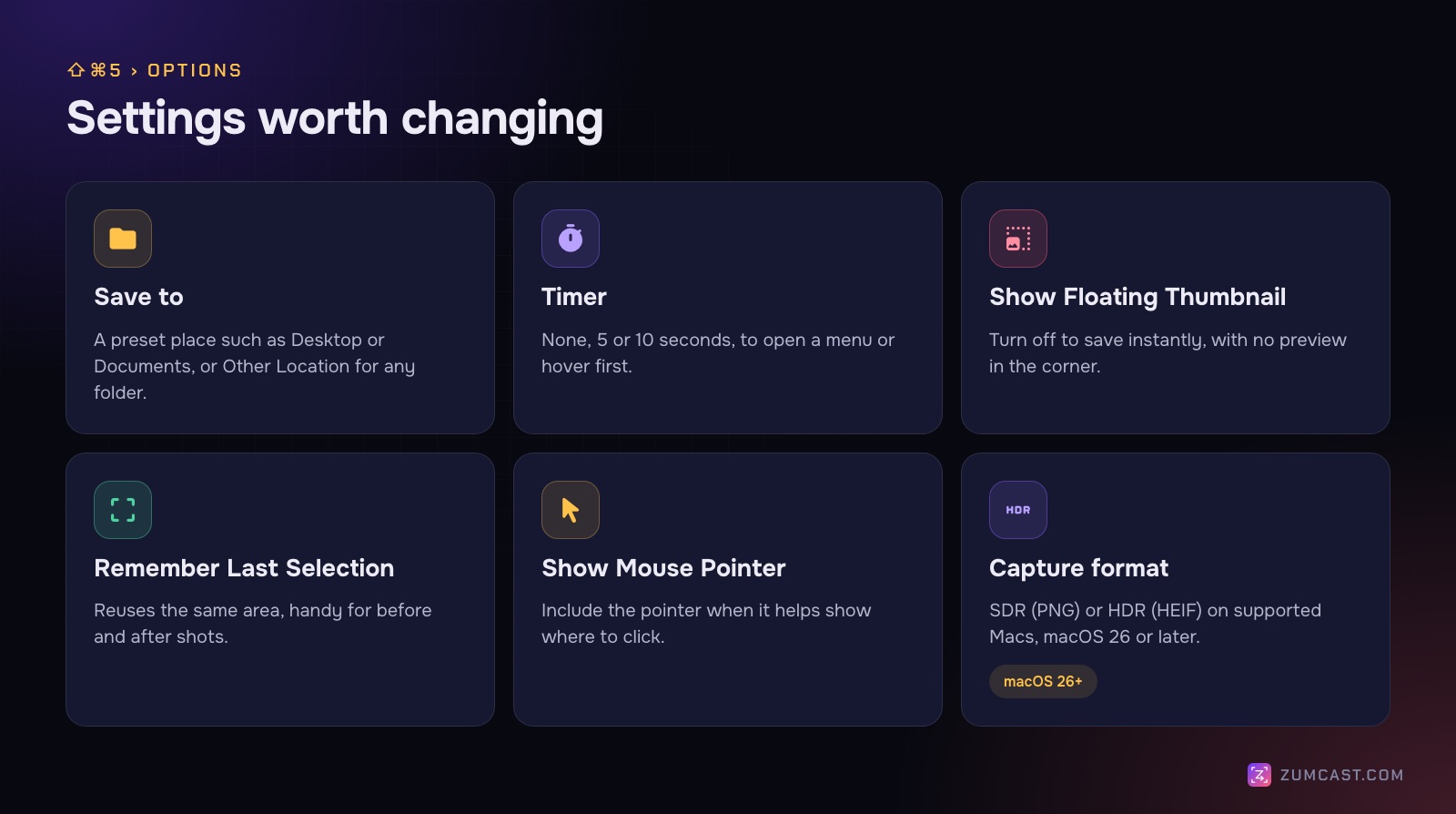
- Timer: None, 5 seconds or 10 seconds. Use it to capture a menu or a hover state that disappears when you press keys.
- Show Floating Thumbnail: the little preview that slides into the corner after each shot. Turn it off and screenshots save instantly.
- Remember Last Selection: reuses the same area next time, which makes before-and-after pairs line up.
- Show Mouse Pointer: includes the pointer. Useful when the point of the image is where to click.
Changing the file format
On supported Macs with macOS 26 Tahoe or later, the Options menu has a capture format choice: SDR (Most Compatible), which saves PNG, or HDR, which saves HEIF for HDR content. Stick with SDR unless you know the image will be viewed on an HDR screen; PNG opens everywhere.
To get JPEG instead of PNG, which gives much smaller files for photos and gradients, there's no menu option. The simple way is to open the screenshot in Preview, choose File › Export, then pick JPEG.
You'll also find a Terminal command shared online for this:
defaults write com.apple.screencapture type jpg
killall SystemUIServer
Apple doesn't document it, and we haven't confirmed it on macOS 26 or later, so take a test screenshot afterwards to check. Swap jpg for png to go back.
Changing the shortcuts
Open System Settings › Keyboard › Keyboard Shortcuts › Screenshots to change or turn off any of the shortcuts.
The floating thumbnail
When the thumbnail appears in the corner, you have a few seconds to do something with it:
- Click it to open a Markup window: crop, draw, add text and shapes, then Done. See How to Annotate a Screenshot on a Mac for the details.
- Drag it straight into an email, a message, a document or a Finder folder. The file goes where you drop it.
- Swipe it to the right to save it right away.
- Control-click it for a shortcut menu of options, such as Save to Clipboard.
Hover over the thumbnail to keep it on screen while you decide.
Common problems
The screenshot is black, or a window is missing. Some apps, including many streaming services, protect what's on screen, and macOS leaves it out of screenshots. That's expected.
Nothing happens when I press the keys. Check the shortcuts are switched on in System Settings › Keyboard › Keyboard Shortcuts › Screenshots, and that another app hasn't taken them.
I can't find my screenshots. Press Shift-Command-5 and look at Options › Save to, which shows where they're going. If you added Control to the shortcut, they went to the clipboard and were never saved as files.
The files are huge. Full-screen PNGs on a Retina display are big. Capture a smaller area, or export a JPEG copy as above.
When a screenshot app helps
The built-in tools are fine for quick grabs. They run out when the image is going to other people: a help article, a bug report, a launch post. That's when you want numbered steps, a blur over private details, a whole scrolling page, or a clean background.
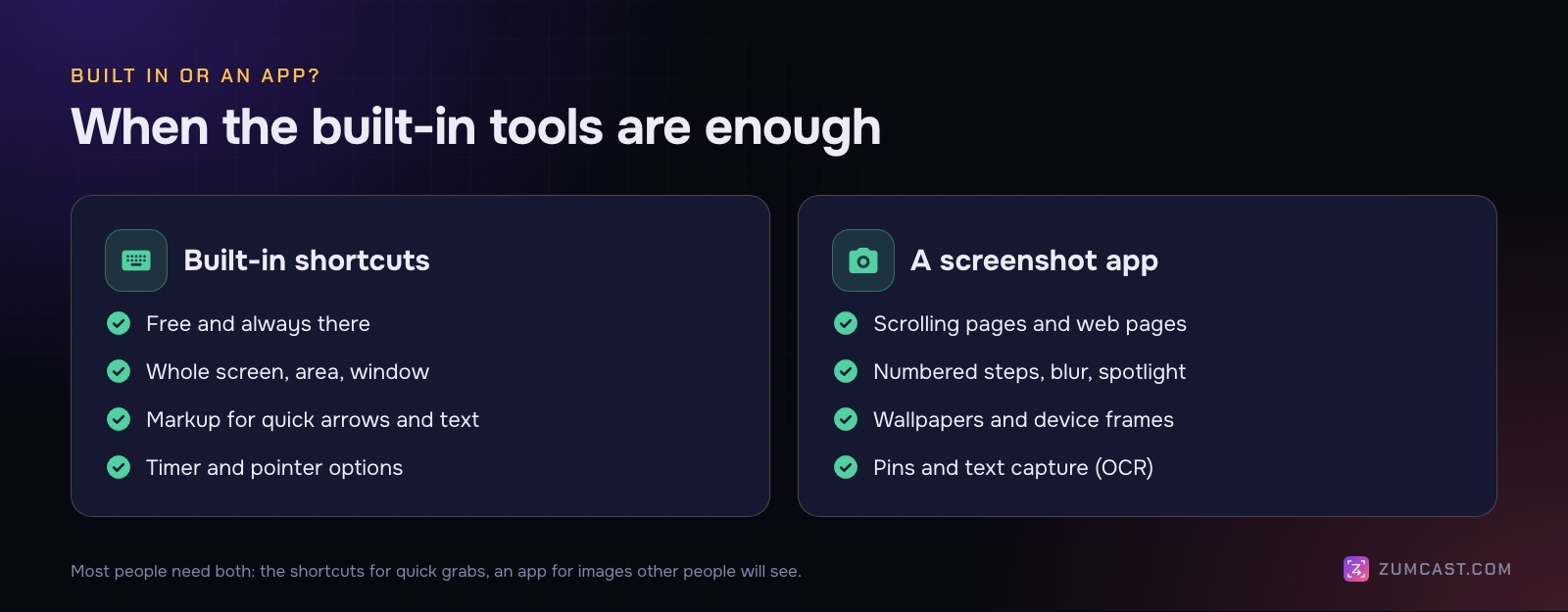
Screenshots in ZumCast
ZumCast is a screen recorder, and it takes screenshots too, which it calls shots. Its shortcuts use Control-Shift rather than Shift-Command, so they don't clash with the built-in ones:
- ⌃⇧3: a whole display
- ⌃⇧4: an area
- ⌃⇧5: a window
- ⌃⇧6: a scrolling page (Pro)
- ⌃⇧T: capture text: copies the words in an area to the clipboard
You can change them in Settings › Shots. Options include a 3, 5 or 10 second timer, showing the pointer, freezing the screen while you select, and showing desktop icons. There's also a Web page mode that captures a URL at a phone, tablet or desktop width, light or dark, without anything on your own screen getting in.
After each shot, it's copied to the clipboard and saved, and a small capsule appears in the corner. Drag the image from it into another app, open it, save a copy, pin it, or ask Zumi, ZumCast's AI editor. The capsule also warns you if it spots something private, like an email address or an API key.
Open the shot and you're in the shot editor, with one key per tool: arrows, boxes, numbered steps, text, highlight, blur, spotlight and crop. The Look tab sets the shot on one of 102 wallpapers with padding, a size such as 16:9 or 1:1, a window, MacBook or browser frame, and an optional 3D tilt. Pin floats a shot above your other windows so you can copy from it, and pins never appear in other screenshots or recordings.
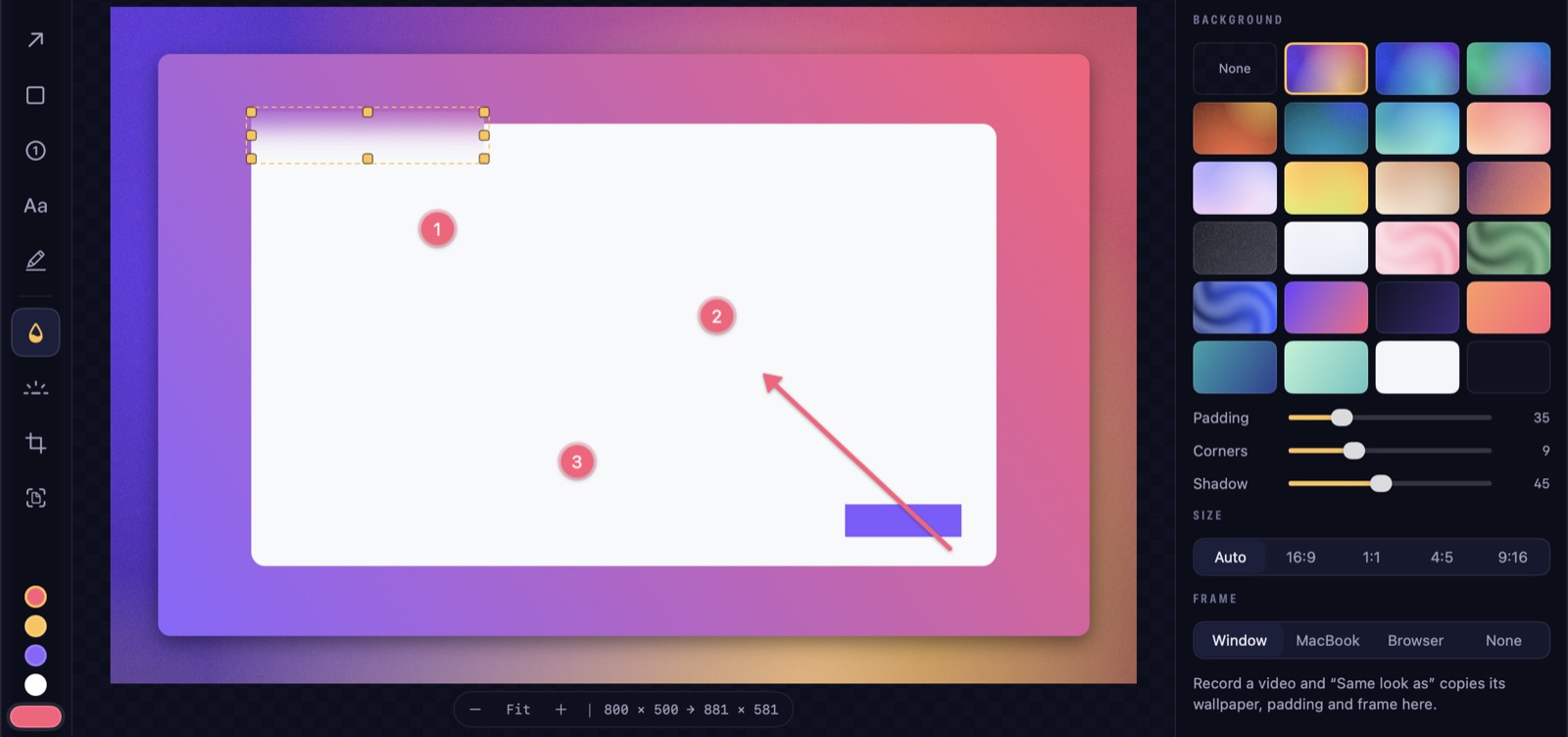
Export as PNG, JPEG or PDF with ⌘E. The original is always kept as a full-size PNG.
What's free and what's Pro: area, window and display shots, markup, wallpapers and pins are free. Without Pro, shots that leave ZumCast carry a small corner watermark; scrolling shots and Zumi on shots are part of Pro. See the Shots docs and pricing.
For long pages specifically, see How to Take a Scrolling Screenshot on a Mac.
FAQ
How do I screenshot just one window on a Mac? Press Shift-Command-4, then Space, then click the window. Hold Option as you click to leave out the shadow.
Where do screenshots go on a Mac? To the Desktop by default, as PNG files named "Screenshot" with the date and time. Change it in the Shift-Command-5 toolbar under Options › Save to.
How do I copy a screenshot without saving a file? Add Control to the shortcut, for example Control-Shift-Command-4, then paste with Command-V. Or Control-click the floating thumbnail and choose Save to Clipboard.
How do I stop the thumbnail from appearing? Press Shift-Command-5, click Options and untick Show Floating Thumbnail. Screenshots then save straight away.
Can I save Mac screenshots as JPEG?
Not from a menu. Open the screenshot in Preview and choose File › Export, then pick JPEG. A Terminal command shared online (defaults write com.apple.screencapture type jpg) isn't documented by Apple, so test it first. On macOS 26 and later, the Options menu only chooses between SDR (PNG) and HDR (HEIF).
How do I take a screenshot with a delay? Press Shift-Command-5, open Options and choose a 5 or 10 second Timer, then click Capture.
How do I screenshot a whole web page? The built-in tools can't scroll. Browsers have their own options, or use an app with scrolling capture; our scrolling screenshot guide covers both.
ZumCast is a Mac screen recorder with an AI editor that runs on your Mac. Alongside recording, it takes screenshots of areas, windows, scrolling pages and web pages, with numbered steps, blur and 102 wallpapers in the same app. The Basic version is free; Pro is a one-time purchase. Download it free.