How to Create a Step-by-Step Guide (SOP) From a Screen Recording
Turn one screen recording into a step-by-step guide with a screenshot for every click. A template for clear SOPs and how-to docs, how to write each step, and how to keep guides up to date.
这篇文章目前只有英文版。
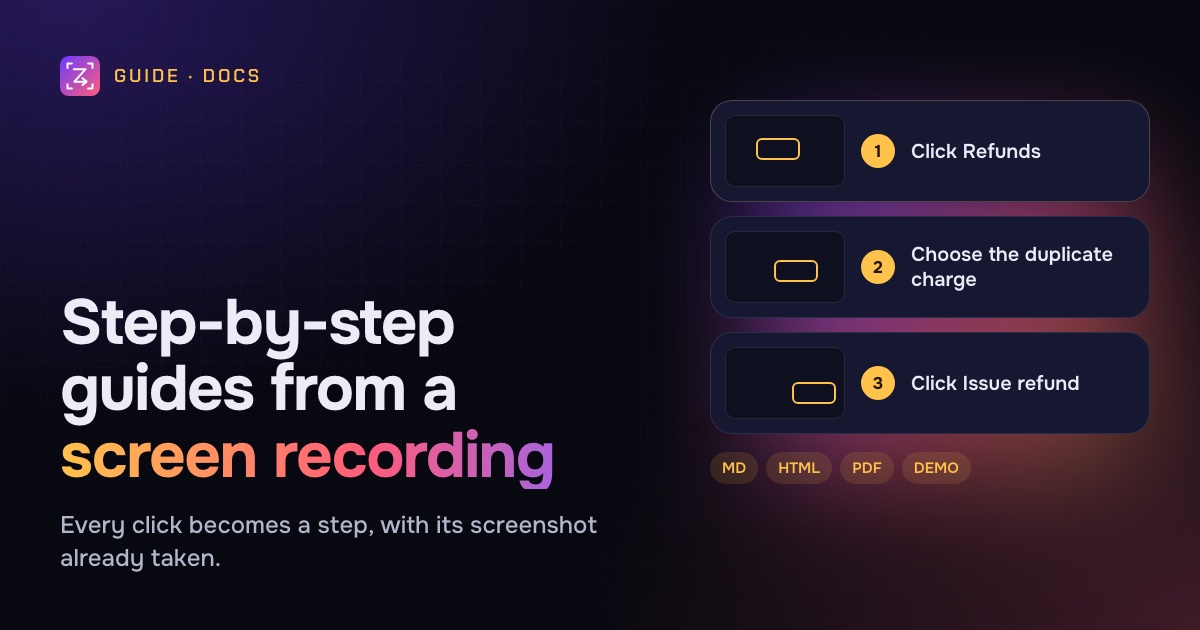
Every team has processes that live in one person's head: how to issue a refund, set up a new hire's laptop, publish the newsletter, rotate a key. Writing them down is the obvious fix, and it never happens, because writing a guide by hand is tedious: do a step, take a screenshot, crop it, paste it, write a sentence, repeat forty times.
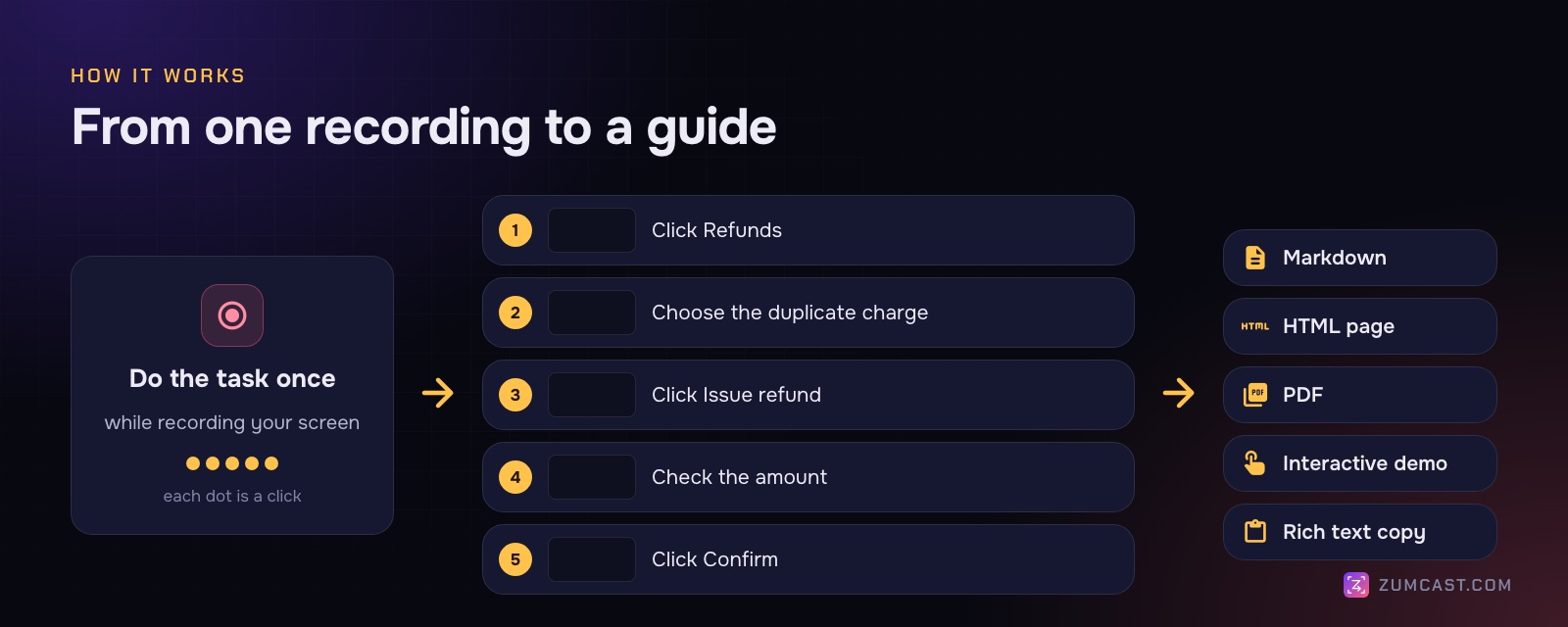
There's a faster way. Do the task once while recording your screen, and turn the recording into the guide. Every click becomes a step, with its screenshot already taken. You spend your time on the words, not the screenshots.
This article covers how that works, a template for a clear standard operating procedure (SOP), and how to write steps people can follow without asking you.
Why guides from recordings work better
A hand-written guide has three problems:
- It takes ages. Most of the time goes into screenshots, not thinking.
- It skips steps. When you know a process well, you stop noticing the small clicks, and those are exactly the ones a newcomer gets stuck on.
- It goes out of date and nobody updates it, because updating is as tedious as writing.
A recording fixes the first two: it captures every click, including the ones you'd forget, and the screenshots come for free. And when the process changes, re-recording is faster than editing forty screenshots.
Step 1: Prepare the run-through
- Use a test account or test data. The guide will be shared; customer names and real amounts shouldn't be in it.
- Start from the right place. Begin where the reader begins, for example signed in, on the dashboard, not halfway through.
- Close everything else and turn on Do Not Disturb, so no notifications land in a screenshot.
- Know the happy path. Do the task once without recording, then record the clean version.
Step 2: Record the task
Do the task once, at a normal pace, clicking deliberately. Narration is optional; the clicks are what become steps. If you take a wrong turn, carry on; you can hide those steps afterwards.
In ZumCast, choose the Tutorial + guide or Onboarding project type, which makes a guide from your clicks automatically. With the Accessibility permission allowed, ZumCast knows what you clicked, so steps get real names like "Click Save" instead of "Click here". ZumCast's own windows and shortcuts never appear in the recording or the guide.
Step 3: Edit the steps
Open the guide and go through it once:
- Rewrite each step in plain words (see the next section).
- Hide steps that don't matter, such as a wrong turn or a scroll.
- Reorder if you did something out of order.
- Blur anything private in a step's screenshot.
- Add the "why" to steps where people tend to go wrong.
How to write a step people can follow
A good step answers three questions: what do I do, where, and how do I know it worked?
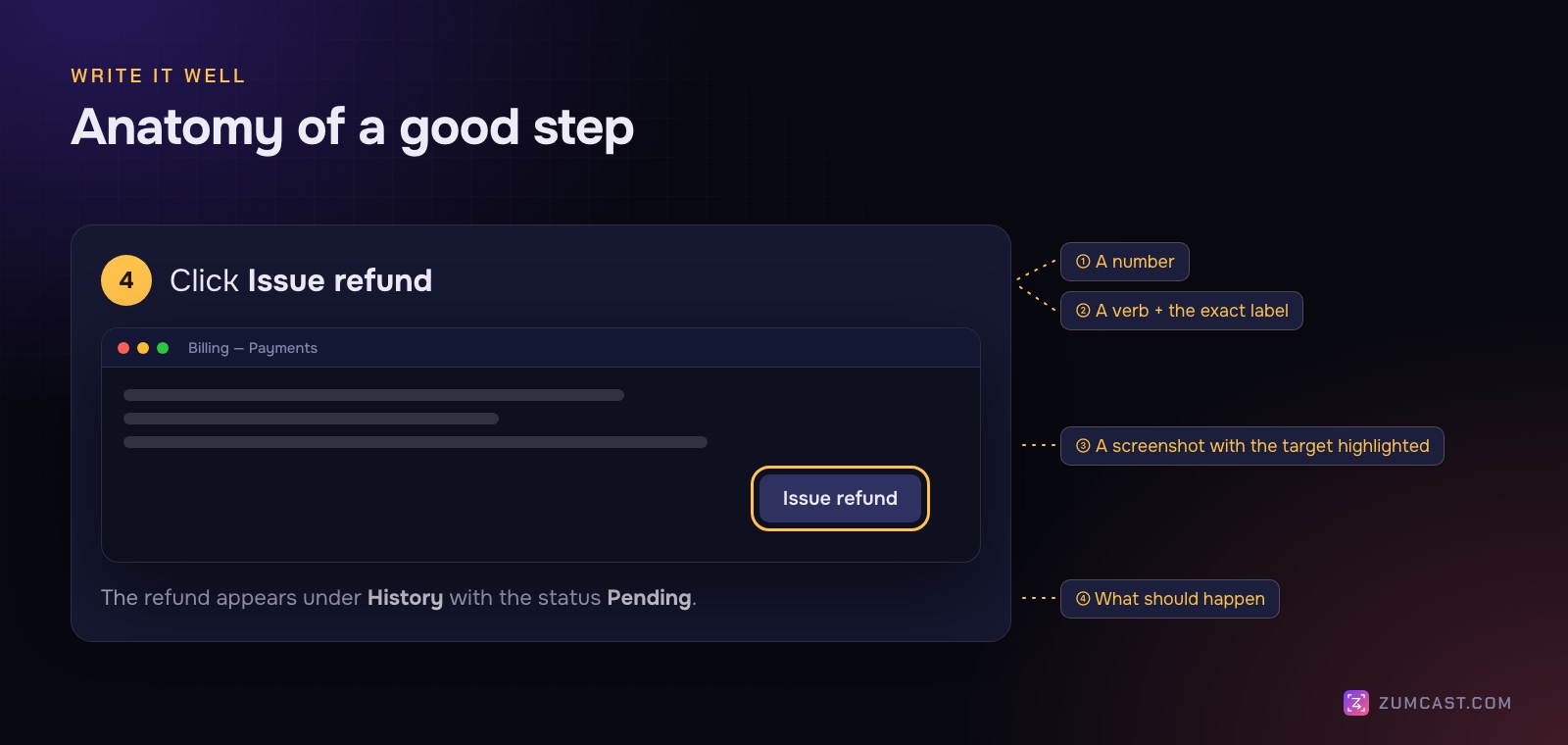
- Start with a verb: Click, Choose, Type, Turn on, Drag.
- Use the exact label on screen, in bold: Click Issue refund. Not "hit the refund button".
- One action per step. "Open Settings and choose Billing" is two steps.
- Say what should happen: "The refund appears under History with the status Pending."
- Put warnings before the step, not after: "This can't be undone. Check the amount, then click Confirm."
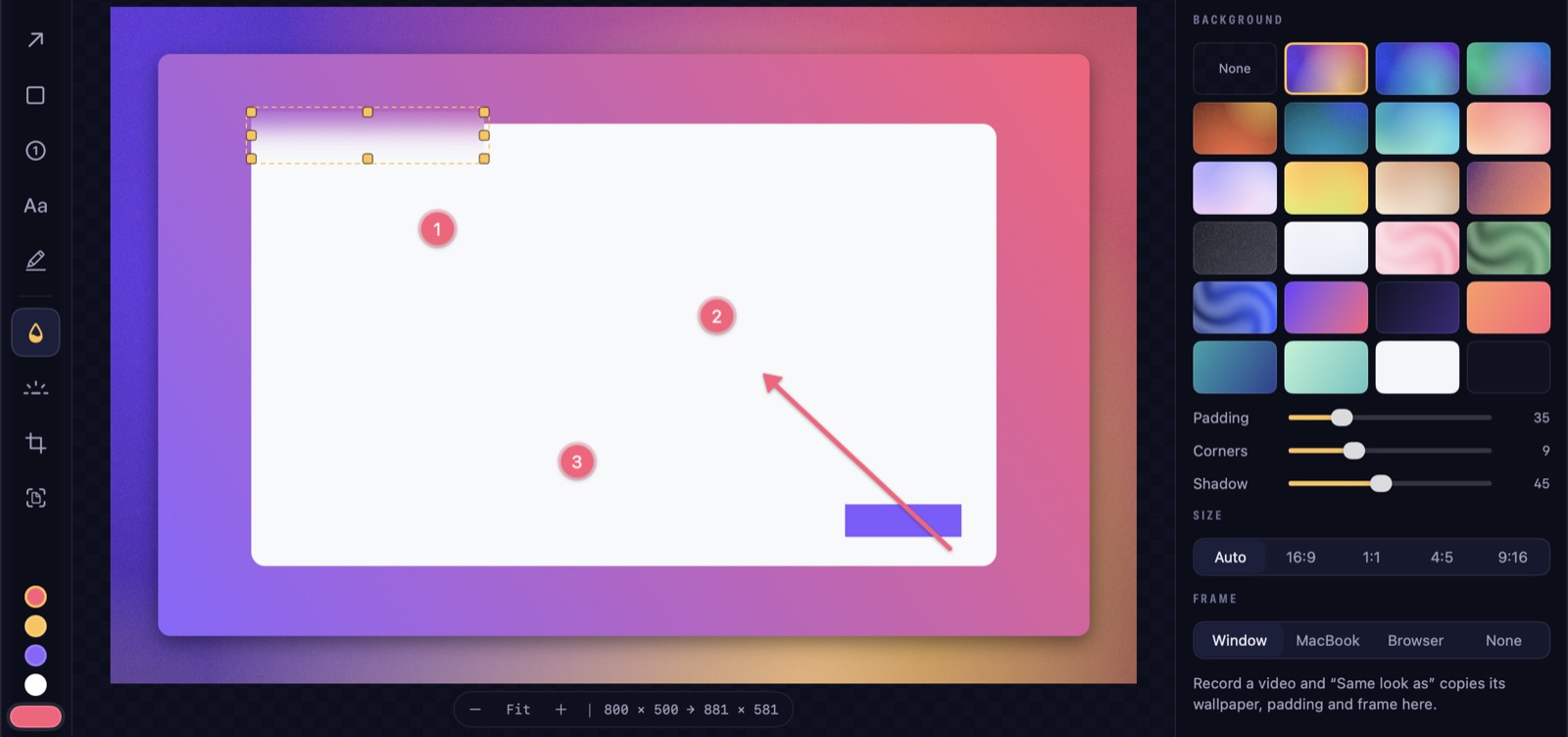
- Highlight the target in the screenshot with a box or an arrow, especially in dense screens.
A template for a standard operating procedure
For processes people follow at work, wrap the steps in a little structure. This is the template we use:
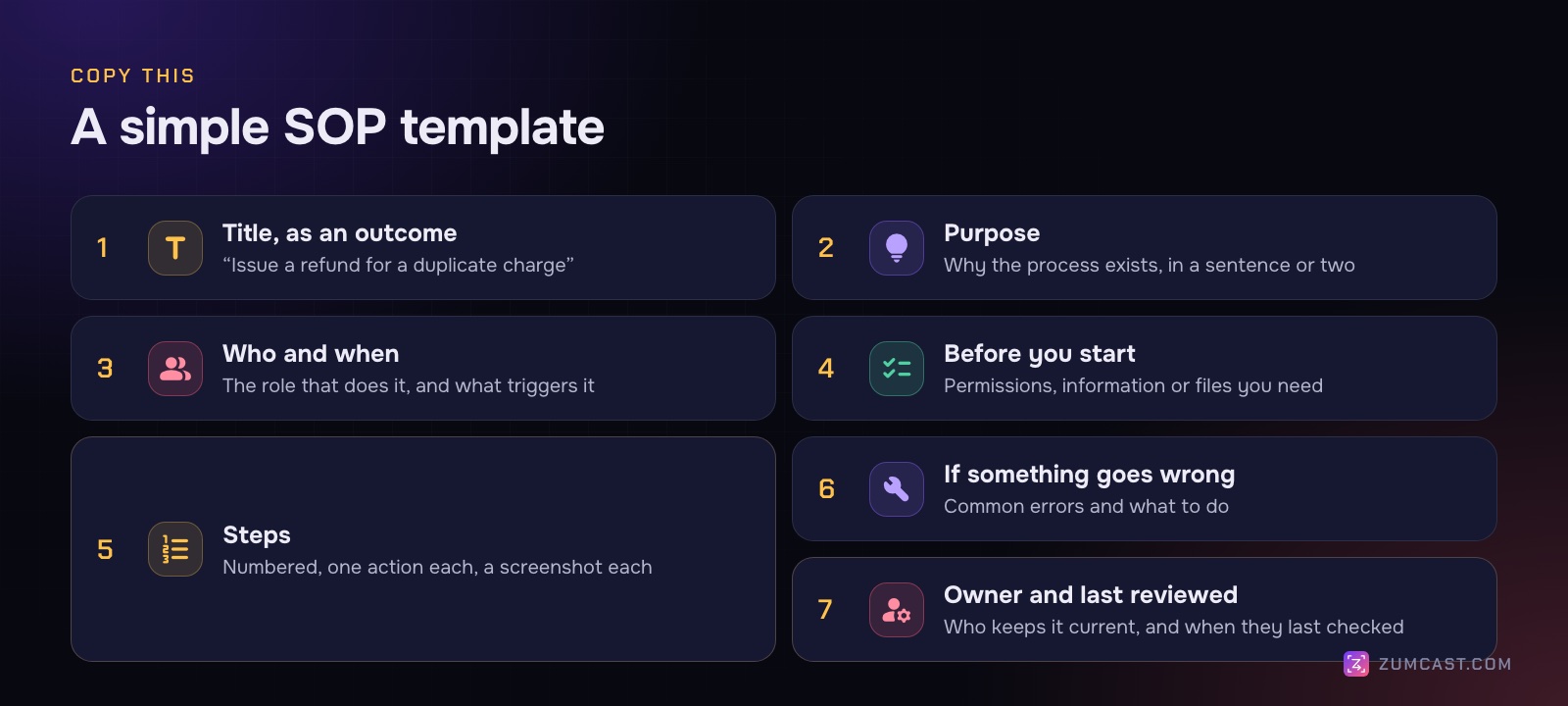
- Title, as an outcome: "Issue a refund for a duplicate charge".
- Purpose: one or two sentences on why the process exists.
- Who and when: which role does it, and what triggers it.
- Before you start: permissions, information or files you need.
- Steps: numbered, one action each, with screenshots.
- If something goes wrong: the common errors and what to do.
- Owner and last reviewed: who keeps it current, and when they last checked.
The last section is the one most guides skip, and it's the reason most guides rot.
Choose the right format
Where the guide will live decides the format:
- Notion, GitHub, a docs site or a wiki that uses Markdown: export Markdown (a folder with the text and images) or copy it as Markdown and paste.
- Confluence or Google Docs: copy as rich text and paste; headings, numbering and images come with it.
- A help centre or a link to send: an HTML page.
- A printable or attachable copy: a PDF.
- Training and onboarding: an interactive demo, a page viewers click through step by step, is more memorable than reading.
ZumCast exports guides as a Markdown folder, an HTML page, a PDF or an interactive demo, and copies them as Markdown or rich text. And the same recording is still a video, so you can publish both. See How to Make a Tutorial Video on a Mac.
Keep guides alive
- Give every guide an owner and a review date.
- Re-record when the screens change, instead of patching screenshots. With a recording-based guide, that's a few minutes.
- Link guides from where the work happens: the ticket template, the tool's sidebar, the onboarding checklist.
- Ask the next person who follows it to fix anything that confused them. They're the best editor you'll get.
FAQ
What's the fastest way to create an SOP? Record yourself doing the task once and turn the recording into a step-by-step guide. You then edit the wording and add the purpose, prerequisites and troubleshooting around the steps.
What's the difference between an SOP and a how-to guide? A how-to guide is the steps. An SOP adds the context a team needs to rely on it: why the process exists, who does it, what to check first, what to do if it goes wrong, and who owns it.
How many steps should a guide have? As many as the task needs, but group them: more than about ten steps in a row is hard to follow. Split long processes into sections with their own headings.
Can I make a guide from a video I already recorded? It depends on the tool. Guides built from clicks need the click data captured during recording. Otherwise, you'd take screenshots from the video by hand.
How do I keep screenshots in guides free of private information? Record with test data, and blur anything private before you share. ZumCast can scan screenshots for emails, keys, card numbers and faces on your Mac and blur them for good. See our privacy checklist.
Are guides free in ZumCast? ZumCast Basic exports the first 3 steps of a guide or demo, so you can try it on your own process. Pro exports every step, plus interactive demos.
ZumCast is a Mac screen recorder with an AI editor that runs on your Mac. Every click in a recording becomes a guide step with a screenshot, ready to export as Markdown, HTML, PDF or an interactive demo, alongside the video. The Basic version is free; Pro is a one-time purchase. Download it free.