How to Make a Tutorial Video on a Mac That People Can Actually Follow
Plan, script, record and edit a software tutorial on your Mac, with chapters, on-screen shortcuts, captions and a written guide alongside, so viewers can follow along at their own pace.
这篇文章目前只有英文版。
A demo shows that something can be done. A tutorial has a harder job: the viewer has to be able to do it themselves afterwards, usually with your video paused in one window and the app open in another.
That changes almost everything about how you plan, record and edit. This guide walks through making a software tutorial on a Mac that people can follow step by step, from the learning goal to the finished video, with a written guide alongside.
If you're making a short product demo for a landing page instead, see How to Make a Product Demo Video People Actually Watch to the End.
Step 1: Write down what the viewer will be able to do
Start with one sentence: "By the end, you'll be able to ___."
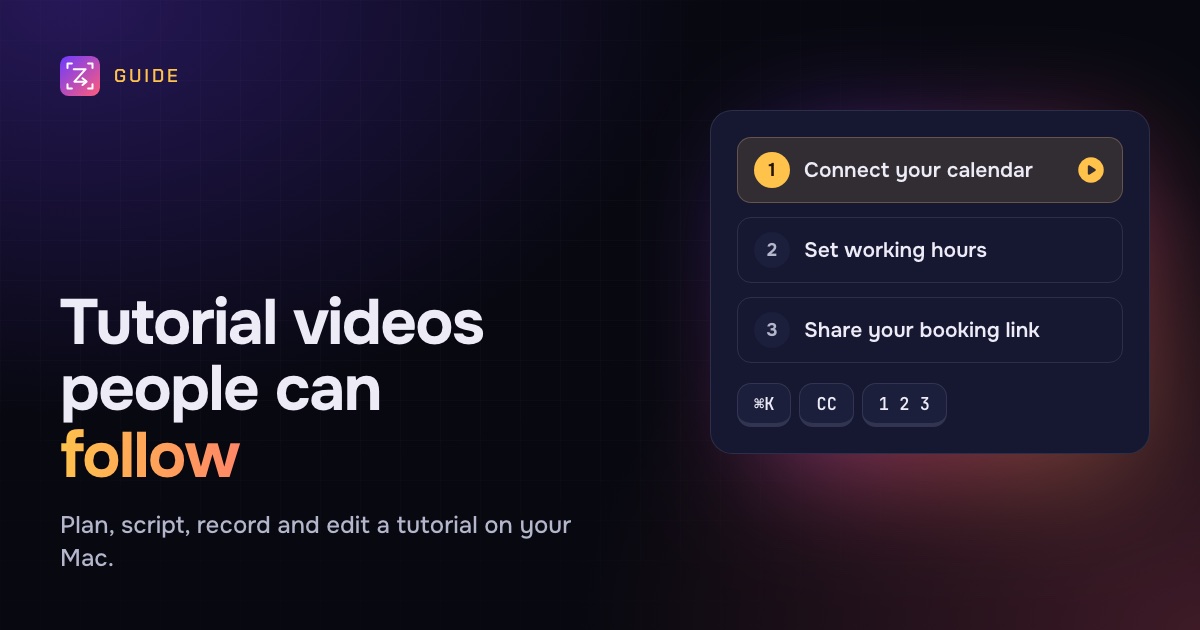
- "...connect your calendar and set your working hours."
- "...create an invoice and send a reminder."
- "...set up a staging environment and deploy to it."
Then write down what they need before they start: an account, a role or permission, a file, an earlier tutorial. Say it in the first 20 seconds of the video, so nobody gets halfway and finds they can't continue.
Step 2: Outline in chapters and steps
A tutorial is a list of steps, grouped into chapters. Plan that structure before you record anything.
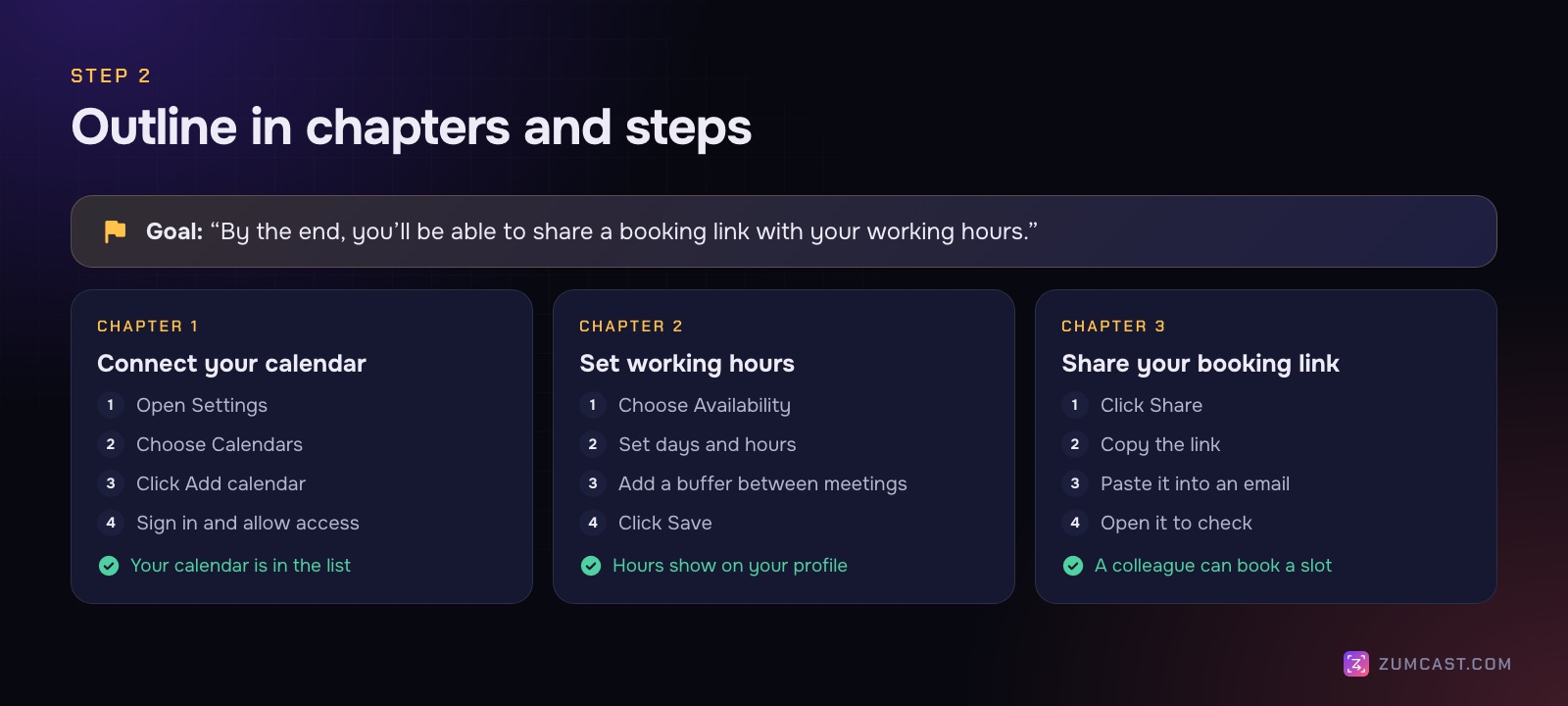
- Three to five chapters, each ending with something that works. Viewers pause and rewind by chapter.
- Three to seven steps per chapter. If a chapter has more, split it.
- One action per step: "Click Settings", "Choose Calendars", "Turn on Sync". Not "Go to settings and set up your calendars".
- If the whole thing is longer than about ten minutes, consider a series of shorter videos instead. People come back to find one part.
Step 3: Script the talk track
You don't need to read a script word for word, but you need one. A tutorial without a script fills up with "um, so, let me just...", and those are the moments viewers skip and lose their place.
For each step, write:
- What we're doing and why, in one sentence.
- The action, using the exact words on screen: "Click Add calendar", not "click the plus thing".
- What should happen, so viewers can check they're on track: "You'll see your calendar in the list."
Then add the mistakes people commonly make at that step. That's the part written docs usually miss, and it's why people watch tutorials.
Tip: put the script in a teleprompter beside the app, so you're looking at the screen, not at another document. ZumCast's teleprompter floats over your screen, never shows up in the recording, and can scroll as you speak and wait when you stop.
Step 4: Set up your Mac for recording
Tutorials are watched at full screen, in a small window beside the app, and on phones. Set up for all three.
- Record one window at a fixed size, such as 1920×1080 or 1280×720. Every chapter will match.
- Zoom in. Browser zoom at 125–150%, larger text in apps where you can.
- Use a clean, realistic account with demo data. No real customers, no personal notifications, nothing you'd mind being paused on.
- Turn on Do Not Disturb, and hide desktop icons.
- Use the same window layout for every chapter, so the viewer's eye knows where to look.
Step 5: Record chapter by chapter
- One chapter per take. Re-recording a two-minute chapter is easy; re-recording a whole tutorial isn't.
- Move the mouse deliberately. Go straight to the target, pause, click, pause. Viewers are copying you.
- Say the action before you do it. "Now click Add calendar" then click. Viewers who are a step behind catch up.
- If you make a mistake, pause and redo the sentence. You'll cut it later.
- Show the result of each step for a beat before moving on.
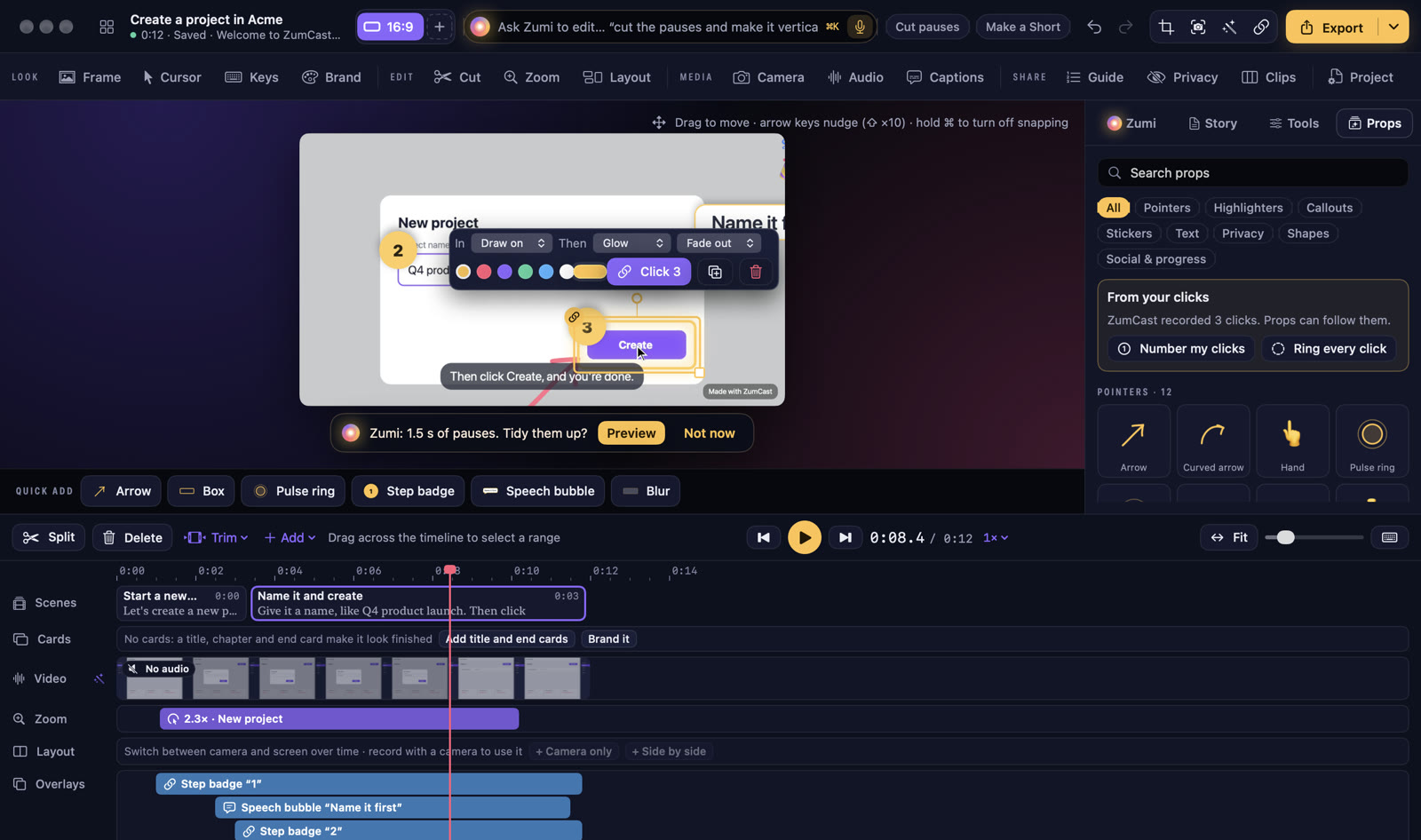
In ZumCast, the Tutorial + guide project type sets this up for you: the look, the format, captions, and a step-by-step guide made from your clicks.
Step 6: Edit for people who are following along
Editing a tutorial is different from editing a demo. You're not cutting for excitement; you're cutting for clarity.
Cut pauses and fillers, but not the results. Keep the beat where the result appears. That's what viewers check against.
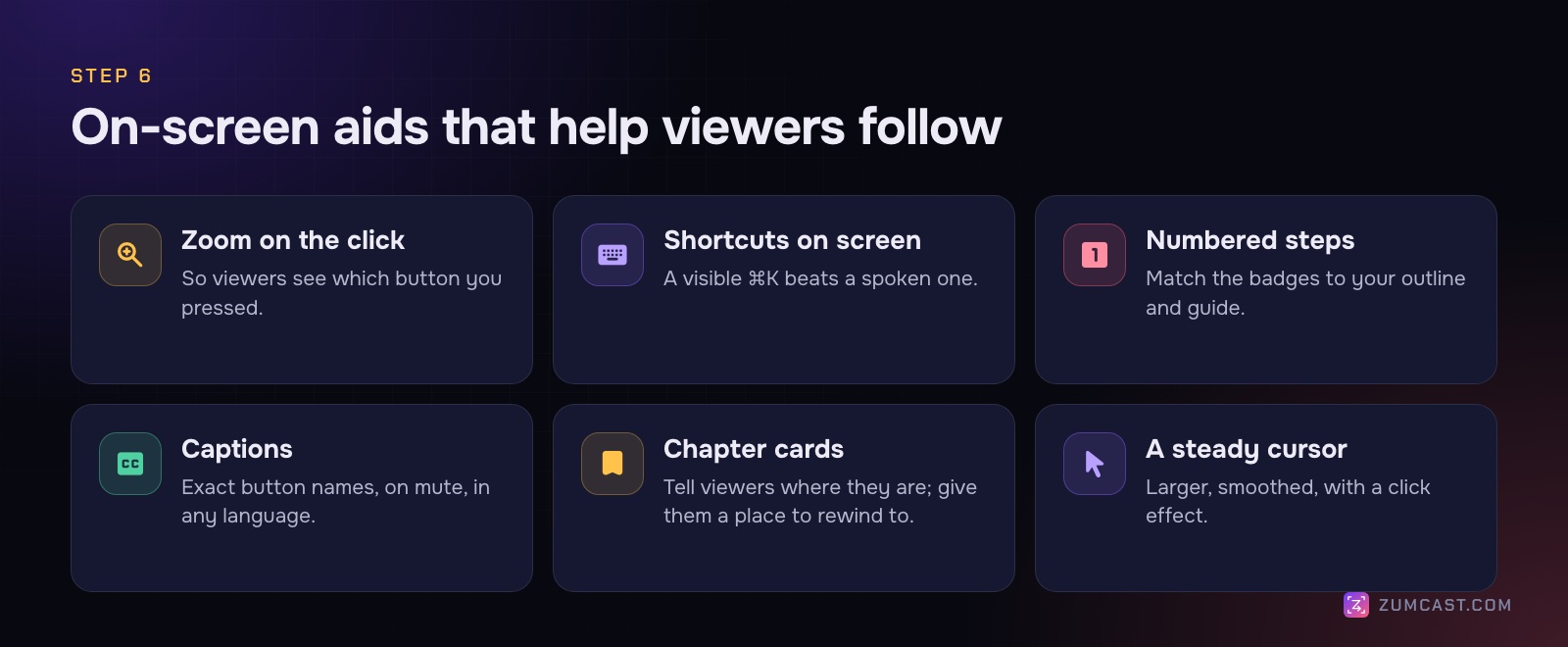
Zoom in on every click. In a full-screen view of a dense app, the viewer can't see which button you pressed. A zoom shows them.
Show keyboard shortcuts on screen. If you press ⌘K, the viewer needs to see ⌘K. A spoken "press command K" is easy to miss.
Number the steps on screen. A small numbered badge on each click matches your outline and the written guide. In ZumCast, Number my clicks adds one to every click, and each badge stays on the button as the video zooms.
Add chapter cards. A short card at the start of each chapter, or a lower third, tells viewers where they are and gives them a place to rewind to.
Add captions. For tutorials, captions aren't a nice-to-have: viewers need the exact words of buttons and menus, many watch on mute at work, and non-native speakers rely on them. Translated captions widen your audience further. Upload caption files (SRT or VTT) to YouTube so viewers can turn them on and off.
Step 7: Publish the video with a written guide
The most useful tutorials come with a written version: the same steps, as text with a screenshot each. People skim it, search it, copy from it, and come back to it next month without rewatching.
You can write it by hand from your outline, or generate it from the recording: every click becomes a step with a screenshot. ZumCast does this automatically, and with Accessibility allowed the steps get real names, like "Click Add calendar". You edit the wording, reorder or hide steps, then export it as Markdown, an HTML page, a PDF or a clickable interactive demo. See How to Create a Step-by-Step Guide From a Screen Recording.
When you publish:
- Title it with the outcome: "How to connect Google Calendar to Acme", not "Calendar settings walkthrough".
- Add chapters to the description on YouTube, as timestamps.
- Link the written guide under the video, and the video at the top of the guide.
- Say what's next: the follow-on tutorial, the docs page, or where to get help.
Keep tutorials up to date
Software changes, and an outdated tutorial is worse than none. A few habits help:
- Note the app version and date in the description.
- Record in chapters, so you can replace one chapter when one screen changes.
- Keep the project, not just the export. Re-exporting with a new title card or caption fix is quick; recreating the edit isn't.
- Review your top tutorials whenever there's a big release.
FAQ
What's the best way to record a tutorial on a Mac? Record one window at a fixed size, with a microphone, in chapters, from a script. For a quick one, Shift-Command-5 works. For a tutorial you'll publish, a recorder that adds zooms, shows shortcuts and makes captions saves hours. We compared the options in The Best Screen Recorders for Mac in 2026.
How long should a tutorial video be? As long as the task takes, and no longer. Split anything over about ten minutes into chapters or a short series. Viewers come back to find one part.
Should I show my face in a tutorial? A camera bubble at the start and end builds trust. During the steps, the screen matters more; keep the camera small or hide it so it doesn't cover the interface.
How do I add chapters to a tutorial on YouTube? Add timestamps to the description, starting with 0:00, each followed by the chapter name. YouTube turns them into chapters on the timeline.
Do I need a written version of my tutorial? It's one of the most useful things you can add. People search and skim text, and it helps viewers who can't watch with sound. Generating it from your recording takes minutes instead of an hour.
How do I make tutorials in other languages? Translated captions are the fastest route: the video stays the same and viewers pick their language. ZumCast translates captions on your Mac into 16 languages and exports each as an SRT or VTT file.
ZumCast is a Mac screen recorder with an AI editor that runs on your Mac. It adds zooms on every click, shows your shortcuts, numbers your steps, writes captions and makes a step-by-step guide from the same take. The Basic version is free; Pro is a one-time purchase. Download it free.