How to Turn a Screen Recording Into a GIF on a Mac (Small, Sharp and Looping)
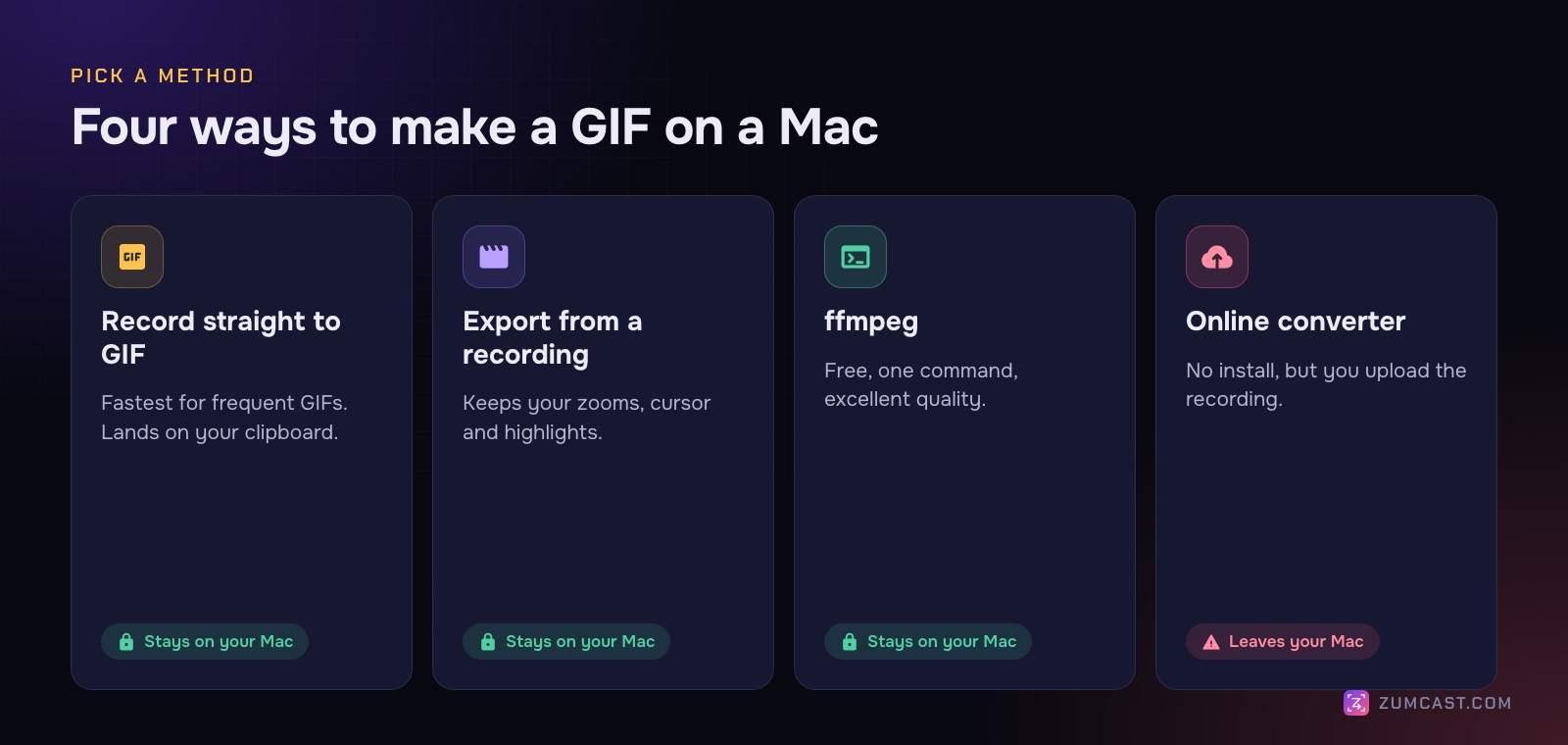
Four ways to make a GIF from your Mac's screen, from a free one-line command to recording straight to GIF, plus the settings that keep GIFs small enough for docs, READMEs and Slack.
这篇文章目前只有英文版。
A short GIF is still the easiest way to show one thing on screen: a button that does something, a setting to change, a bug that happens. GIFs play automatically, loop, need no player and work almost everywhere: docs, READMEs, help articles, Slack, Notion, Jira and many email clients.
But macOS can't record a GIF on its own, and a naive conversion of a screen recording gives you a 40 MB file with blotchy colours. Here's how to do it properly.
First, what makes a good GIF
GIF is an old format: each frame can have only 256 colours, and there's no modern compression. Every second, every frame and every pixel adds to the size. Four settings control almost all of it:
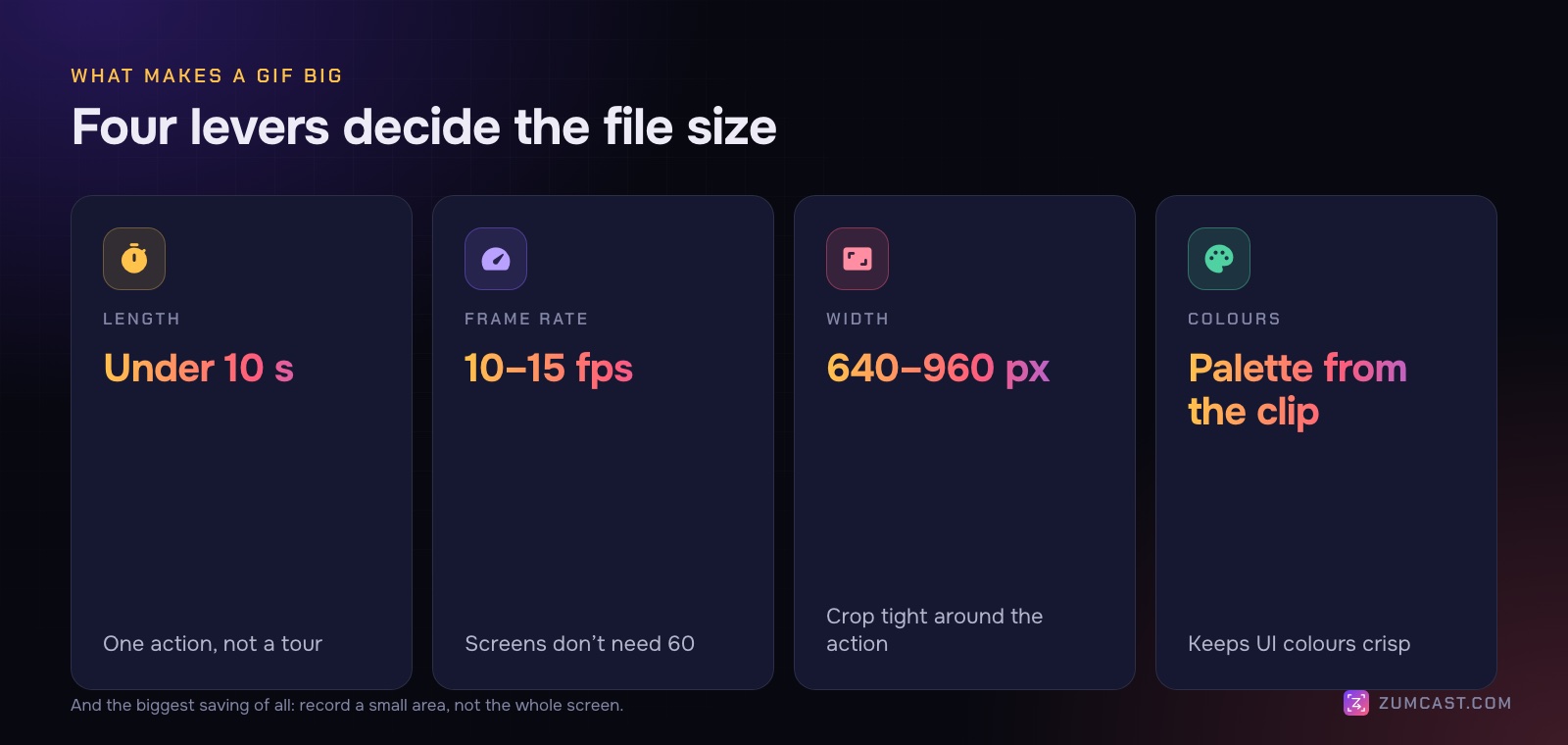
- Length: under 10 seconds. One action, not a tour. If it needs narration, it should be a video.
- Frame rate: 10–15 fps. Screen content doesn't need 60 fps. 15 looks smooth for cursor movement; 10 is fine for clicks.
- Width: 640–960 pixels. Most places show GIFs at about that size anyway. Record a small area, not your whole screen.
- Colours: let a good palette do the work. A palette made from the clip itself keeps UI colours crisp; a generic one makes gradients blotchy.
And one tip that beats all four: crop tightly. A GIF of a 600-pixel area around the button is far smaller and clearer than a scaled-down whole screen.
Method 1: Record straight to GIF (fastest)
If you make GIFs often, skip the conversion step entirely. Some screen recorders can record directly to GIF.
In ZumCast, choose Record GIF in the Hub, the HUD or the menu bar, drag out an area and record. You get a looping GIF up to 800 pixels wide at 15 fps, up to 30 seconds long, copied straight to your clipboard so you can paste it into Slack or a doc right away. It's also kept as a project, so you can come back to it. GIFs have no sound or camera, which is exactly what you want for a quick loop.
Method 2: Export part of a recording as a GIF
If you already have a polished recording, with zooms, a smooth cursor and highlights, export a GIF from it instead of re-recording. That way the GIF gets all the same edits.
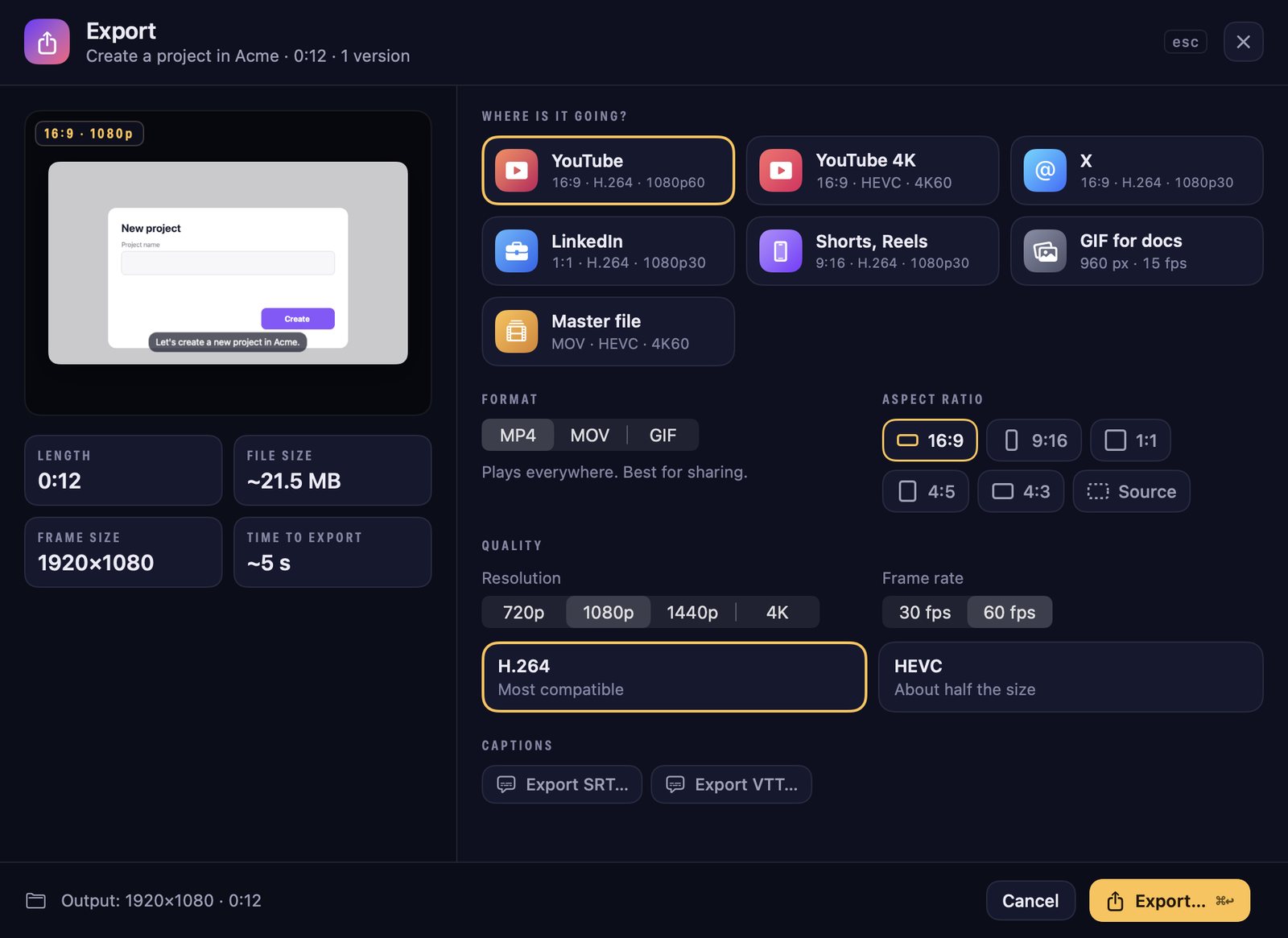
In ZumCast, trim the project to the moment you want (or make a short version), then press ⌘E and choose the GIF for docs preset (960 px, 15 fps), or set the width yourself, from 480 to 1,280 pixels, at 10, 15 or 24 fps. GIFs can be up to 60 seconds. With Export all, you can also make a GIF of every version (16:9, 9:16, 1:1) in one go.
Method 3: Convert with ffmpeg (free, one command)
If you're comfortable in Terminal, ffmpeg makes excellent GIFs for free. Install it with Homebrew (brew install ffmpeg), record your clip with Shift-Command-5, and run:
ffmpeg -i "Screen Recording.mov" -vf "fps=15,scale=960:-1:flags=lanczos,split[a][b];[a]palettegen[p];[b][p]paletteuse" -loop 0 out.gif
What each part does:
fps=15drops the frame rate to 15.scale=960:-1makes it 960 pixels wide and keeps the shape.palettegenandpaletteusebuild a 256-colour palette from your clip and use it, which is the single biggest quality improvement.-loop 0makes it loop forever.
To keep only part of the recording, add -ss 3 -t 6 before -i to start at 3 seconds and keep 6 seconds.
Method 4: An online converter (use with care)
Websites that turn a video into a GIF work, but they mean uploading your recording to someone else's server. That's fine for a public product page; it's not fine for an internal dashboard, a customer's account or anything under NDA. If you use one, check what's on screen first.
When not to use a GIF
GIFs are perfect for short silent loops. For anything else, a video is better:
- Longer than about 15 seconds, or with narration: use an MP4.
- On GitHub: you can upload MP4 and MOV videos to issues, pull requests and Markdown files, and they're far smaller than the same GIF.
- In email: some email clients show only the first frame of a GIF. Make sure the first frame makes sense on its own.
- On a website you control: a short, muted, looping MP4 or WebM plays like a GIF at a fraction of the size.
Make the loop look intentional
- Start and end on the same screen, so the loop doesn't jump.
- Pause on the result for a second before it loops, so people can see what happened.
- Add a highlight or a numbered step to point at the thing that matters. Viewers have no sound to guide them.
- Keep the cursor visible and steady. A larger cursor and click effects help a lot at GIF sizes.
FAQ
Can a Mac record a GIF without extra software? No. macOS records screen video as .mov files. You need to convert the video (for example with ffmpeg) or use a recorder that records to GIF directly.
Why is my GIF so big? Usually it's too long, too wide or too many frames per second. Cut it to under 10 seconds, scale it to 960 pixels wide or less, drop to 10–15 fps, and crop to the part that matters.
Why do the colours in my GIF look blotchy? GIF frames can have only 256 colours. Generate a palette from your own clip (ffmpeg's palettegen does this) rather than using a generic one, and avoid gradients and video backgrounds in the area you record.
What's the best frame rate for a screen GIF? 15 fps for cursor movement and scrolling, 10 fps for clicks and static screens. Higher rates mostly add size.
Can I add text or arrows to a GIF? Yes, if you make it from an edited recording: add the arrow, highlight or caption to the video, then export the GIF. In ZumCast, any prop you add to the video appears in the GIF too.
Are GIFs bad for accessibility? They can be. Avoid fast flashing, keep them short, and add alt text that says what the GIF shows. Where you can, offer a pause control or use a video instead.
ZumCast is a Mac screen recorder with an AI editor that runs on your Mac. Record a GIF straight to your clipboard, or export any edited recording as a GIF from 480 to 1,280 pixels wide. The Basic version is free (GIFs up to 10 seconds, with a mark); Pro is a one-time purchase. Download it free.