How to Record a Presentation on a Mac With Your Face and Voice
How to record a presentation on a Mac with your face and voice, in Keynote, PowerPoint or Google Slides, and export it for YouTube or LinkedIn.
这篇文章目前只有英文版。
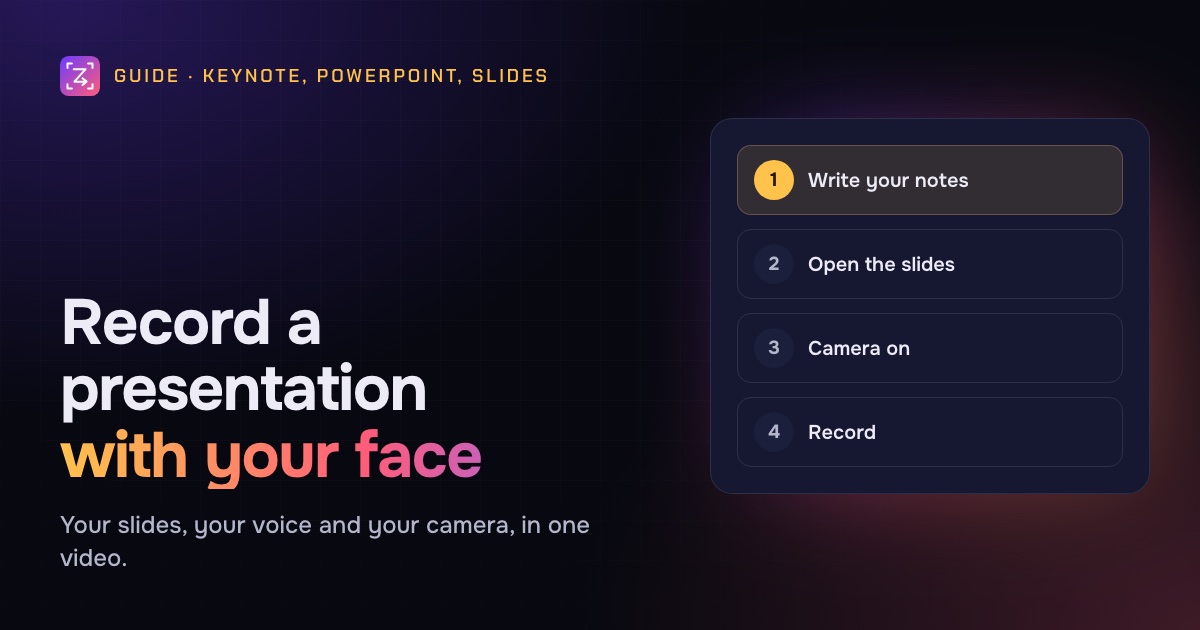
You've made the slides. Now you need the talk as a video: for a class, a conference that went remote, a team that's in five time zones, or a course. You want your slides, your voice and your face in one file, and you want to get it right without twenty takes.
Keynote, PowerPoint and Google Slides each have a built-in way to record a presentation, and they're worth knowing. But they differ a lot in whether they include your camera, how easy they are to fix, and what you can do with the result. Screen-recording the slideshow with a camera bubble is often the more flexible route.
This guide covers all four, plus how to read your notes without looking away, and how to export for where the video is going.
The quick answer
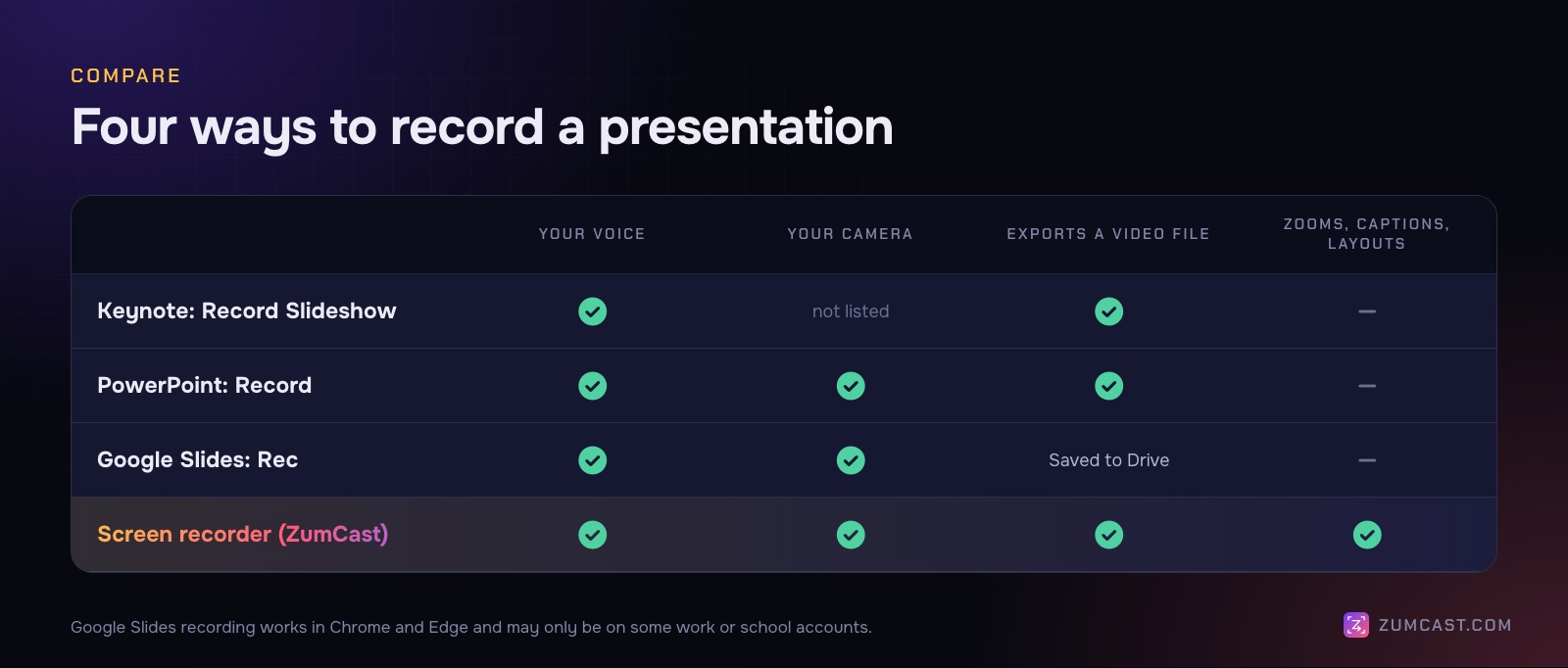
- Keynote: choose Play › Record Slideshow, click the record button, and narrate as you click through. It records your voice and slide timings, not your camera.
- PowerPoint: use the Record button or the Record tab. It records your voice and camera, slide by slide, and exports a video.
- Google Slides: click Rec at the top right in Chrome or Edge (on accounts where it's available). The video is saved to Google Drive.
- Any of them, with more control: play the slideshow in a window and record it with a screen recorder that adds your camera as a separate layer, so you can move it, resize it and add zooms and captions afterwards.
Method 1: Keynote's Record Slideshow
Keynote has recorded narration for years. It's built in, free, and keeps the recording with the presentation.
- Open the presentation and click the first slide in the slide navigator.
- Choose Play › Record Slideshow. The presenter display opens, with recording controls at the bottom.
- Click the record button. Recording starts after a three-second countdown.
- Narrate. Press the Right Arrow key to move to the next slide or build, and Left Arrow to go back. Click Mute to pause your narration without stopping.
- Click the record button again to stop, then Play to check it.
- To fix a part, drag the playback slider to that point, click record, and choose Record to re-record from there.
- Press Esc to leave.
To watch it later, play the presentation and choose Play Recorded Slideshow. To share it as a video file, choose File › Export To › Movie, then choose Slideshow Recording from the Playback pop-up menu so your narration is included.
What's missing: your camera. Keynote's recording is your voice and the slides. Keynote can add live camera video to a slide, but Apple's guide to recording doesn't say it's captured in a recorded slideshow, so test before relying on it.
Method 2: PowerPoint's recording
PowerPoint for Mac (Microsoft 365) can record your voice, your camera and slide timings, then export a video.
- Open the presentation and click Record near the top right of the window, or open the Record tab.
- Turn your camera and microphone on or off with the buttons at the top of the recording view.
- Click record, and present. Advance slides as you go.
- Stop, review, and re-record any slide that went wrong. Recordings are kept per slide, so you can redo one without redoing the rest.
- Export a video from the recording view, or with File › Export and a video format such as MP4.
Two things to know. PowerPoint doesn't record audio during the transition between slides, so pause briefly when you advance and don't talk over the change. And the camera position is set as part of the slide, so plan your layouts to leave room for it.
Method 3: Google Slides recording
Google Slides has a Rec button at the top right. Click it, choose Record new video, and use the red record button to start. You can pause and re-record, then Save to Drive; recordings go into a Slides recordings folder in My Drive.
Recording works in Chrome and Edge, and may only be available on some work or school accounts. If you don't see the button, it's likely your account type.
Method 4: Screen-record the slideshow, with your camera on top
This works with any presentation app, including web ones. You play the slideshow, record it like any screen recording, and add your camera. What you get is more control afterwards: the camera is a separate layer you can move and resize, and you can zoom into a chart, add captions, and make a vertical version from the same recording.
Set up
- Play the slideshow in a window at a fixed size, so the camera and notes aren't covered. In Keynote, Play › In Window. In PowerPoint, use a windowed slide show (Slide Show › Set Up Slide Show › Browsed by an individual (window)).
- Put your notes somewhere the viewer won't see them: on a second screen, or in a teleprompter that isn't recorded (more below).
- Turn on Do Not Disturb. A banner over slide 12 means a retake.
Record with ZumCast
- Open the recorder (the HUD) with ⌃⇧H.
- Press 2 and click the slideshow window. You can resize it to 1280×720, 1440×900 or 1920×1080 first, which suits 16:9 slides.
- Press C and pick your camera. Make sure the microphone is on; Test mic shows a level meter.
- Press Return to start. Click through your slides and talk. Press ⌃⇧R to stop.
When the Studio opens, your camera is on its own track. Pick its shape (circle, rounded, square and others) and one of nine positions, and blur or remove the background. In Layout, switch between picture in picture, screen only, camera only and split screen over time, for example camera only for your intro, then slides with a small bubble. There are ready-made layouts too, such as a YouTube tutorial with a round camera and a talking-head intro.
ZumCast zooms in on clicks automatically. In a slideshow you mostly press keys, so you'll want to place a few zooms yourself: press Z on the timeline to zoom into a chart or a dense table at the moment you talk about it.
Zumi, the built-in AI editor, can help with the rest: ask "cut the pauses" or "add a title and end card with my brand", check the plan, and press Apply. Removing filler words and cutting all pauses are part of Pro; trimming and splitting by hand are free.
Read your notes without looking away
The hardest part of recording a presentation is the words. Reading from a sheet makes you look down; going from memory makes you stumble. A teleprompter near your camera solves both.
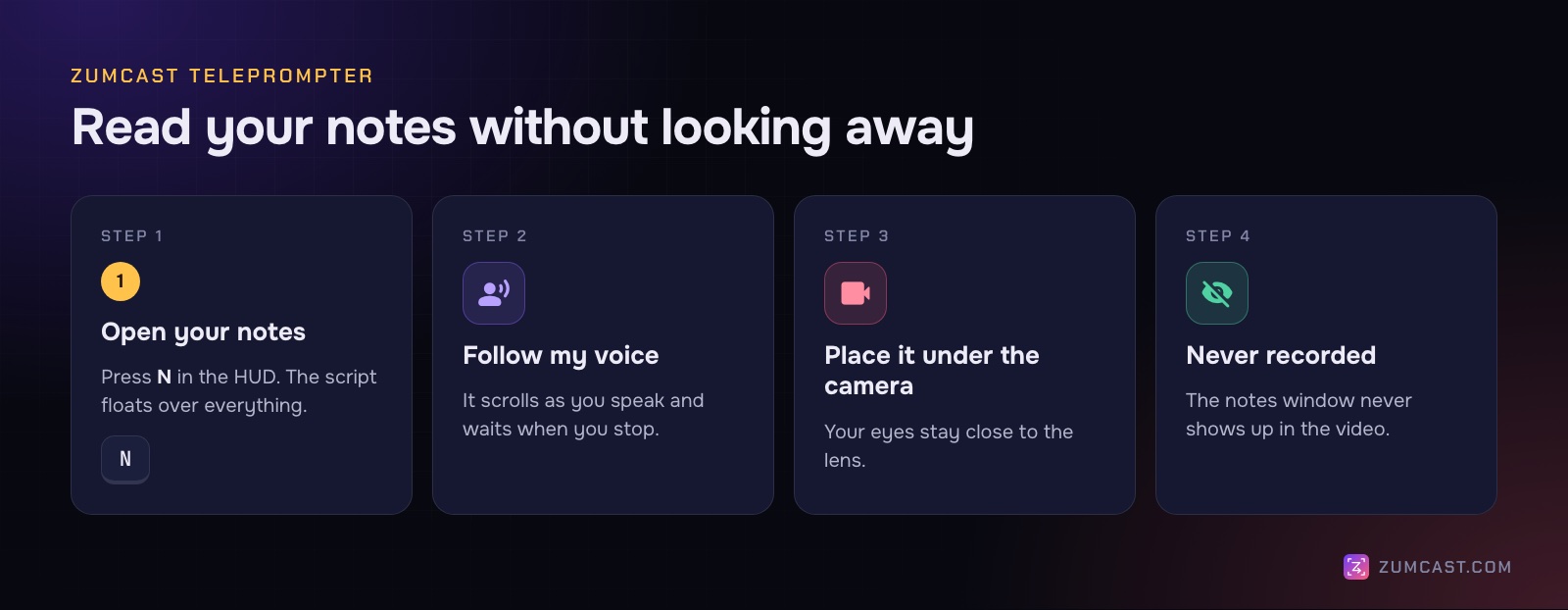
In ZumCast, press N in the HUD to open your script in a floating window. It never shows up in the recording, so you can put it right under your camera. Three ways to scroll it:
- Follow my voice: the script scrolls as you speak and waits when you stop. Speech recognition runs on your Mac.
- Step through paragraphs: press ↓ or Space for the next paragraph, ↑ for the previous one.
- Auto-scroll: a steady speed you choose.
You can set the text size and highlight colour, and scripts are saved as Markdown on the Hub's Scripts page, so you can reuse them.
Tips for the script itself:
- Write how you talk. Short sentences, contractions, no slide text read out word for word.
- One paragraph per slide. It makes stepping through and re-recording much easier.
- Mark the clicks. A "[next]" in your script reminds you when to advance.
Before you record
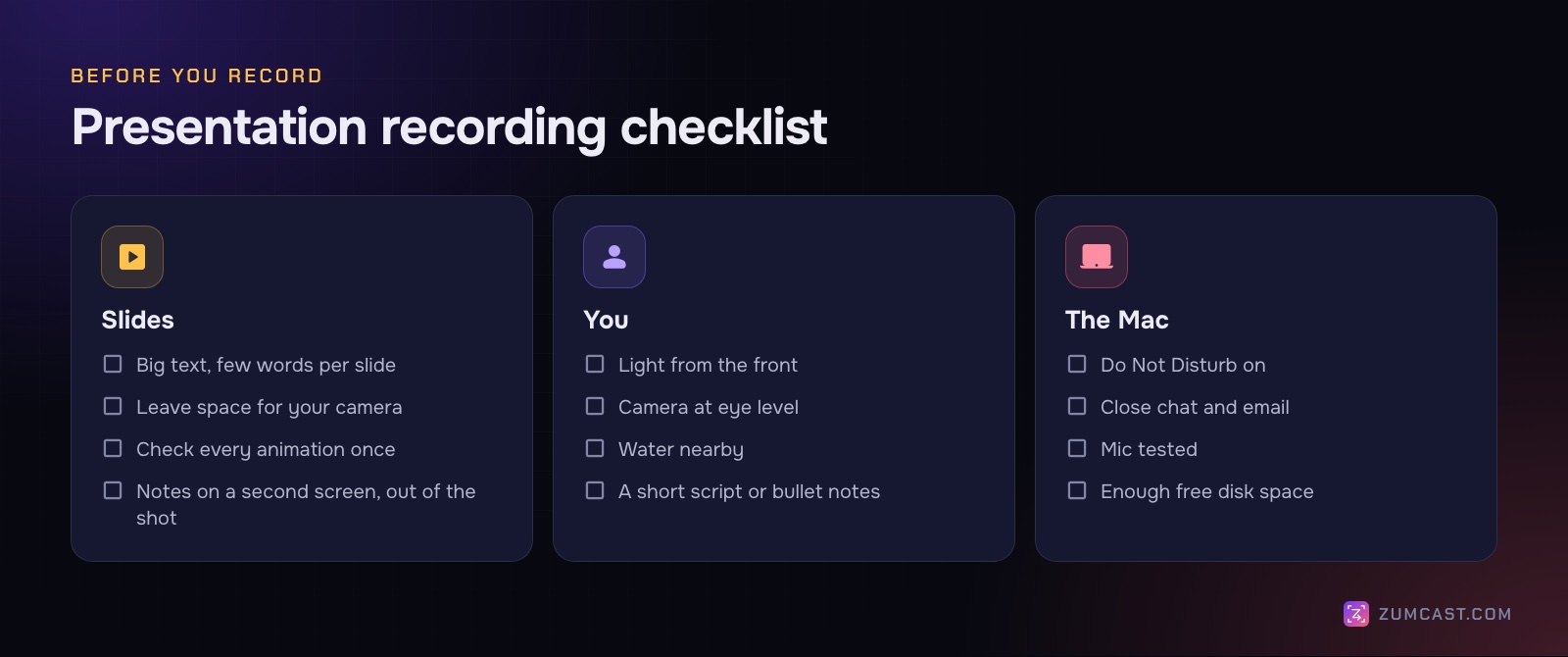
- Big text, few words. A video is often watched on a laptop or a phone, smaller than a projector.
- Leave space for your camera. If your bubble sits bottom right, keep that corner of your slides clear.
- Check every animation once. Builds that work in the editor sometimes behave differently when played.
- Light from the front, camera at eye level. See How to Record Your Screen and Webcam at the Same Time on a Mac for more on looking good on camera.
- Do a 30-second test and listen back with headphones.
Export for where it's going
Where your video goes decides its shape.
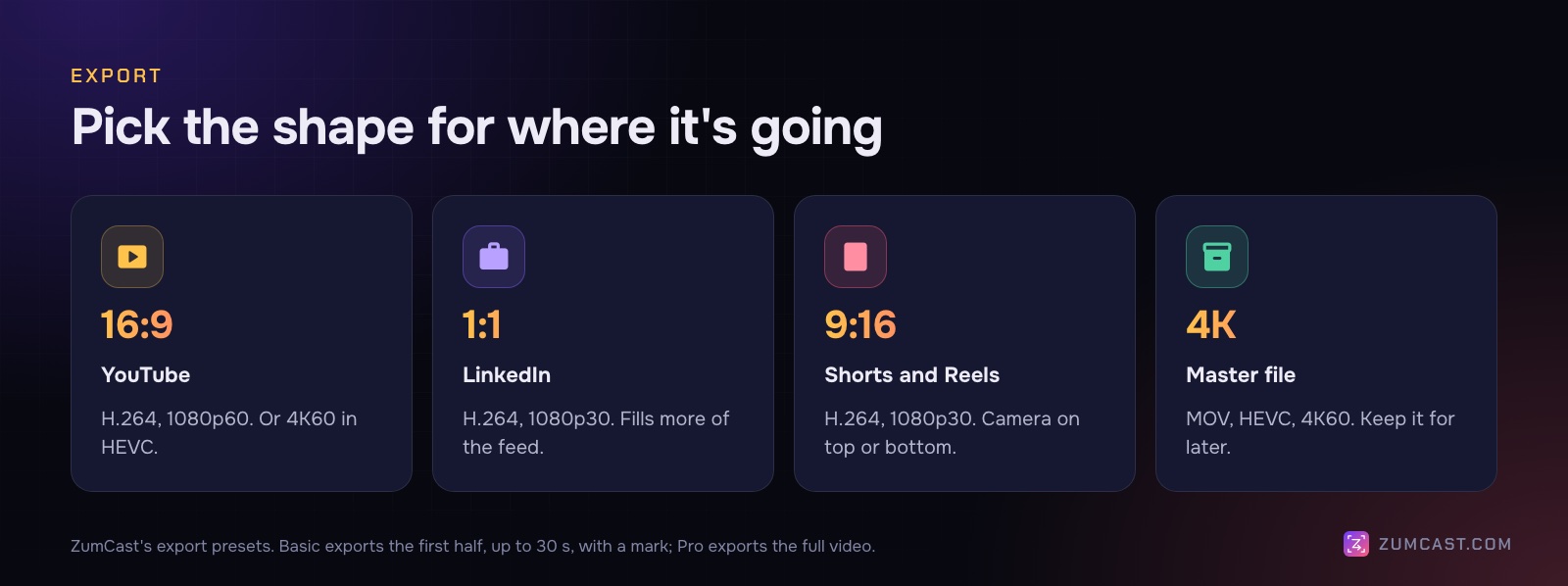
- YouTube, a course platform or your website: 16:9 at 1080p, the same shape as your slides.
- LinkedIn: square (1:1) takes up more of the feed. Your slides will be cropped or set on a background, so check they still read.
- Shorts and Reels: 9:16. Slides are wide, so this works best for a short clip: your camera on top, one slide below.
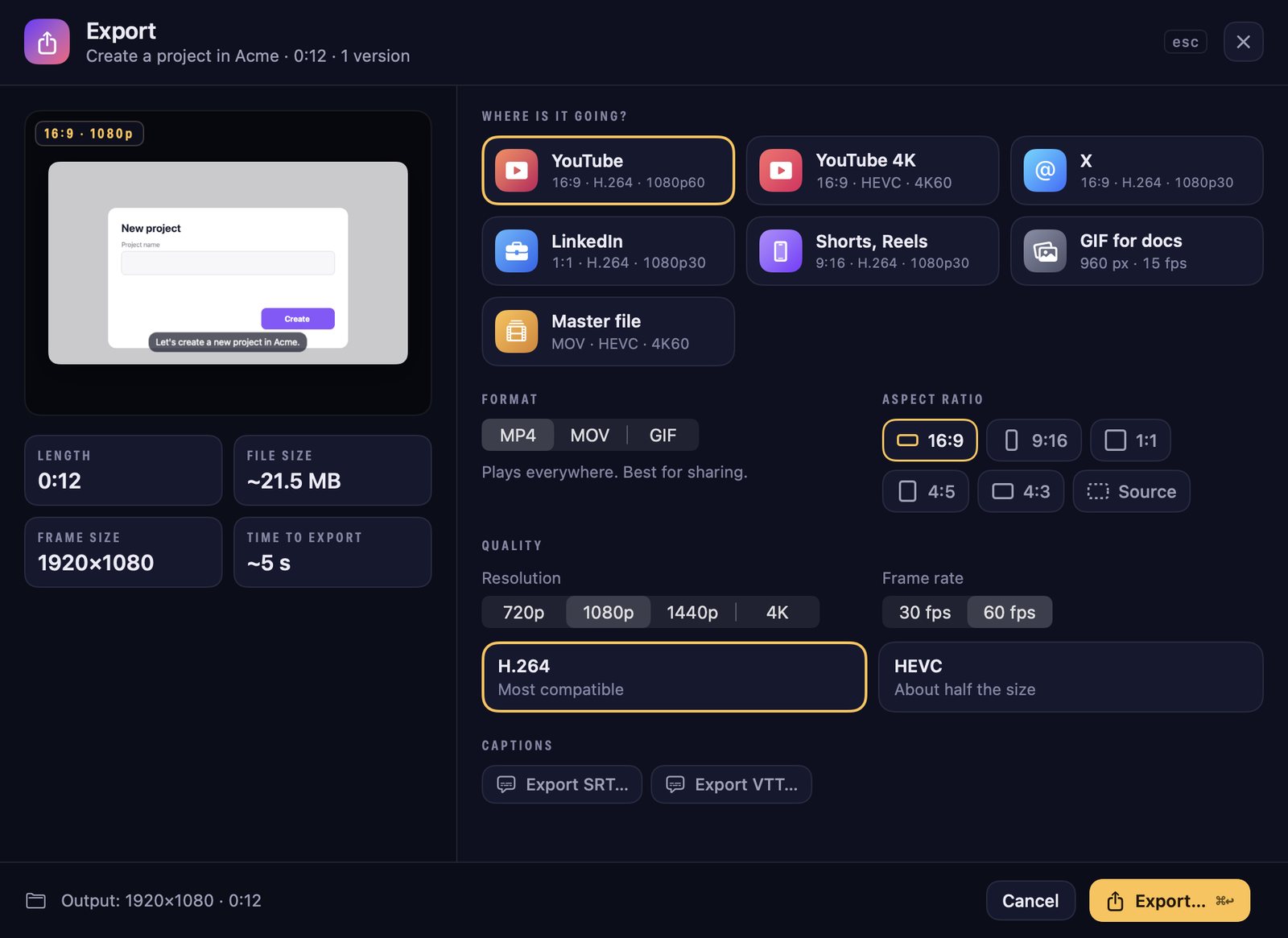
In ZumCast, press ⌘E and pick a preset: YouTube (16:9, 1080p60), YouTube 4K, LinkedIn (1:1, 1080p30), Shorts and Reels (9:16, 1080p30), or a master file. One project can have several versions with their own camera layout but the same edit. With Pro, Export all makes every version in one go. In the free Basic version, video exports are the first half of the video, up to 30 seconds, with a small "Made with ZumCast" mark.
Add captions
Captions help people who watch with the sound off and people who don't speak your language natively, and they make a talk easier to follow. In ZumCast, Transcribe writes down what you said on your Mac; pick one of eight caption styles, and export SRT or VTT files for YouTube, including translated languages. Transcription and caption files are part of Pro. More in How to Add Captions to a Screen Recording.
FAQ
How do I record a Keynote presentation with my face? Keynote's Record Slideshow records your voice and slides, not your camera. Play the slideshow in a window and record it with a screen recorder that adds your camera, or use the QuickTime floating camera trick.
Can I record a PowerPoint presentation with video on a Mac? Yes. PowerPoint for Microsoft 365 on a Mac can record your camera and voice per slide and export a video.
How do I record a Google Slides presentation on a Mac? Use the Rec button in Chrome or Edge, if your account has it. Otherwise, present in a browser window and record it with a screen recorder.
Can I re-record just one slide? In PowerPoint, yes, recordings are per slide. In Keynote you can re-record from any point. With a screen recording, cut the bad part and record that slide again, then join the clips.
How do I read my notes without looking down? Use a teleprompter placed just under your camera. ZumCast's teleprompter (press N) floats over your screen, follows your voice and is never recorded.
What resolution should I export a presentation video in? 1080p is enough for most talks. Use 4K only if your slides have very fine detail or you'll zoom in a lot.
ZumCast is a Mac screen recorder with an AI editor that runs on your Mac. Record your slides with your camera on its own layer, read from a teleprompter that follows your voice, and export for YouTube, LinkedIn or Shorts from one take. The Basic version is free; Pro is a one-time purchase. Download it free.