Async Video Updates: How to Replace Meetings With Video
When an async video update beats a meeting, how to structure a 2-minute update, the etiquette that gets it watched, and the team norms that make it stick.
这篇文章目前只有英文版。
Your calendar has a 30-minute status meeting where eight people take turns saying what they did. Most of it doesn't concern most of them. Someone is in another time zone and joins at 7 a.m. The decision that actually needed making gets squeezed into the last three minutes.
An async video update replaces that with a two-minute recording people watch when it suits them, at 1.5× if they like, with the one question that needs an answer right at the end. Done well, it's faster for everyone. Done badly, it's a ten-minute ramble nobody finishes.
This guide covers when a video beats a meeting (and when it doesn't), a simple structure for a two-minute update, the etiquette that gets it watched, and the team norms that make the habit stick.
The quick answer
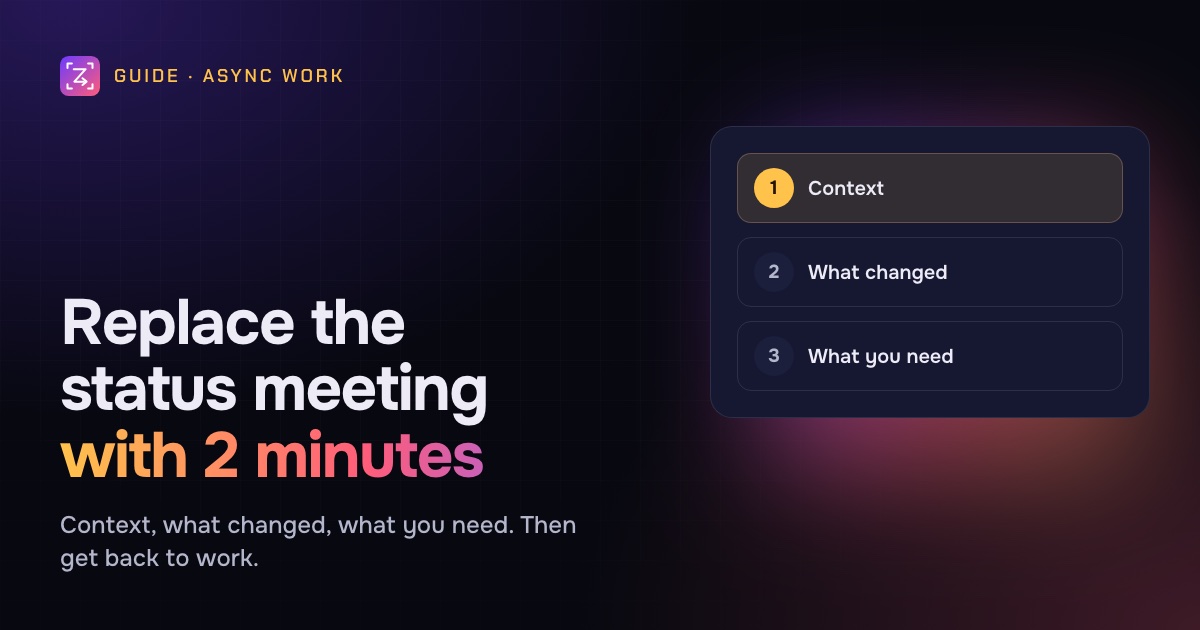
Use an async video update when you're sharing information or asking for a decision that doesn't need live debate: status, a demo of finished work, a design walkthrough, a handover. Keep it under two minutes, and structure it in three parts:
- Context: what this is about and why it matters now (10–15 seconds).
- What changed: show it on screen (60–90 seconds).
- What you need: the decision, review or answer, from whom, by when (10–15 seconds).
Give it a title that says what's inside, add captions, and put the ask in the message as well as in the video. Keep meetings for conflict, brainstorming and anything sensitive.
When a video beats a meeting, and when it doesn't
Async video isn't a replacement for every meeting. It's a replacement for the ones that are really broadcasts.
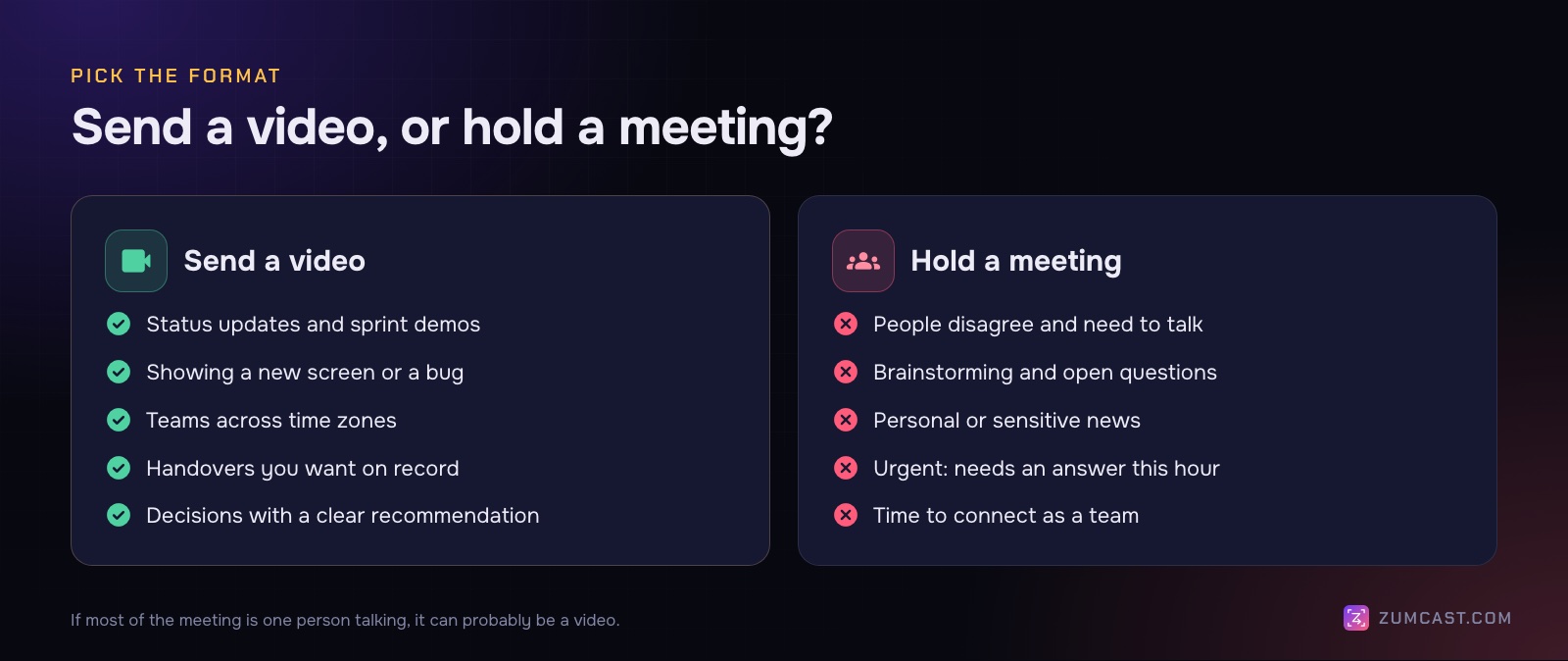
A video works better when:
- One person talks and everyone else listens. Weekly status, sprint demos, release notes.
- You need to show something. A new screen, a bug, a dashboard. Seeing it beats hearing it described.
- People are spread across time zones. Nobody has to be awake at the wrong hour.
- You want a record. A video can be rewatched, linked from a ticket and found later.
- The decision has a clear recommendation. "I suggest we ship on Tuesday. Reply if you disagree."
A meeting works better when:
- People disagree and need to talk it through. A thread of video replies to a disagreement gets slow and tense.
- You're generating ideas. Brainstorming feeds on quick back-and-forth.
- The news is personal or sensitive. Feedback, reorganisations and anything emotional deserve a live conversation.
- It's urgent and needs an answer in the next hour.
- The team needs to bond. Some meetings exist for connection, not information, and that's fine.
A common pattern is to send the update as a video and keep a shorter meeting for the two or three items that turned out to need discussion.
How to structure a two-minute update
Most rambling updates have the same cause: the speaker figures out what they're saying while recording. A two-minute structure fixes that.
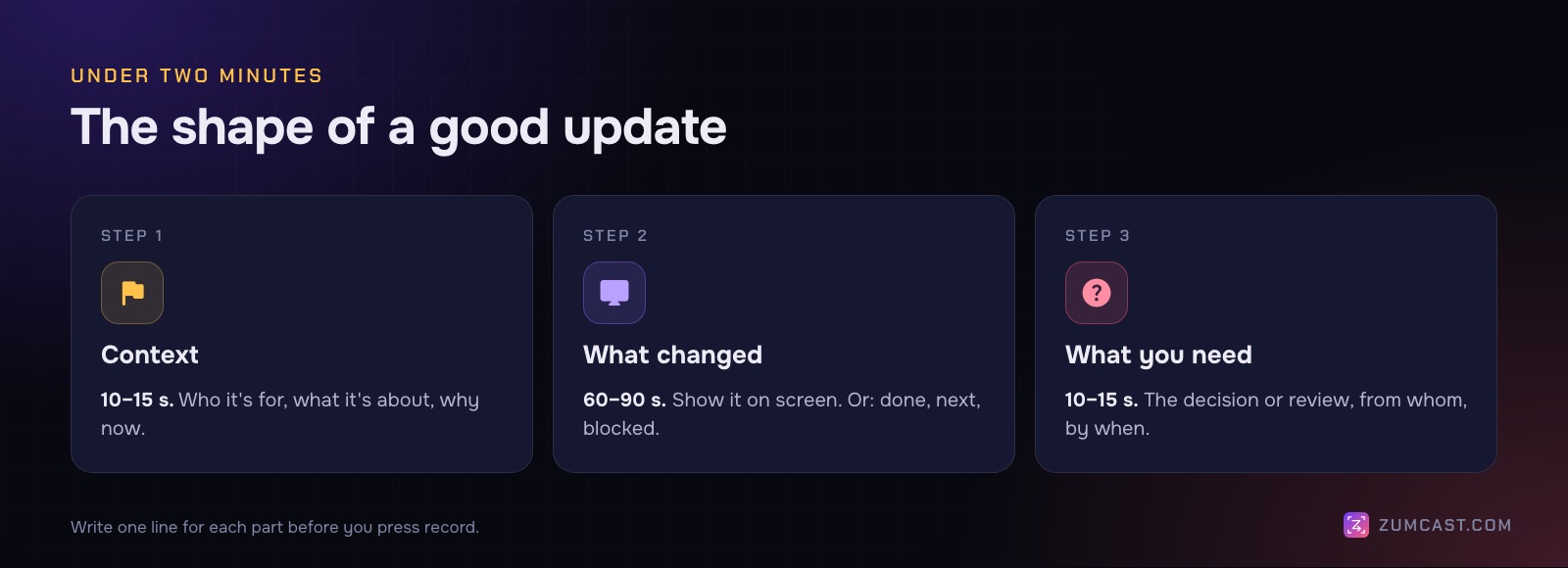
1. Context (10–15 seconds)
Say who it's for and what it's about in one or two sentences. "Hi design team, this is the onboarding checklist change we talked about last week. It's ready for review."
Skip "So, um, I just wanted to quickly…". Start with the subject.
2. What changed (60–90 seconds)
Show, don't list. Open the actual screen and walk through the change once, at a normal pace. Point out the two or three things that matter, not every pixel.
If you're reporting status instead of showing work, use three short headings: done, next, blocked. Put them on screen as a slide or a note so people can pause on them.
3. What you need (10–15 seconds)
This is the part most updates forget. Be specific:
- What: "Approve the copy on the second screen" or "Pick option A or B."
- Who: name the people. "Priya and Tom."
- By when: "By Thursday, so we can ship on Monday."
If you need nothing, say so: "No action needed, this is just so you know." People appreciate permission to skip.
Write three lines first
Before you record, write one line for each part. You don't need a script; three lines are enough to keep you on track. If you'd rather read from a script, use a teleprompter so you're not looking away from the camera (more on that below).
Etiquette that gets your update watched
A video that's easy to skim gets watched. A video called "Untitled recording 14" doesn't.
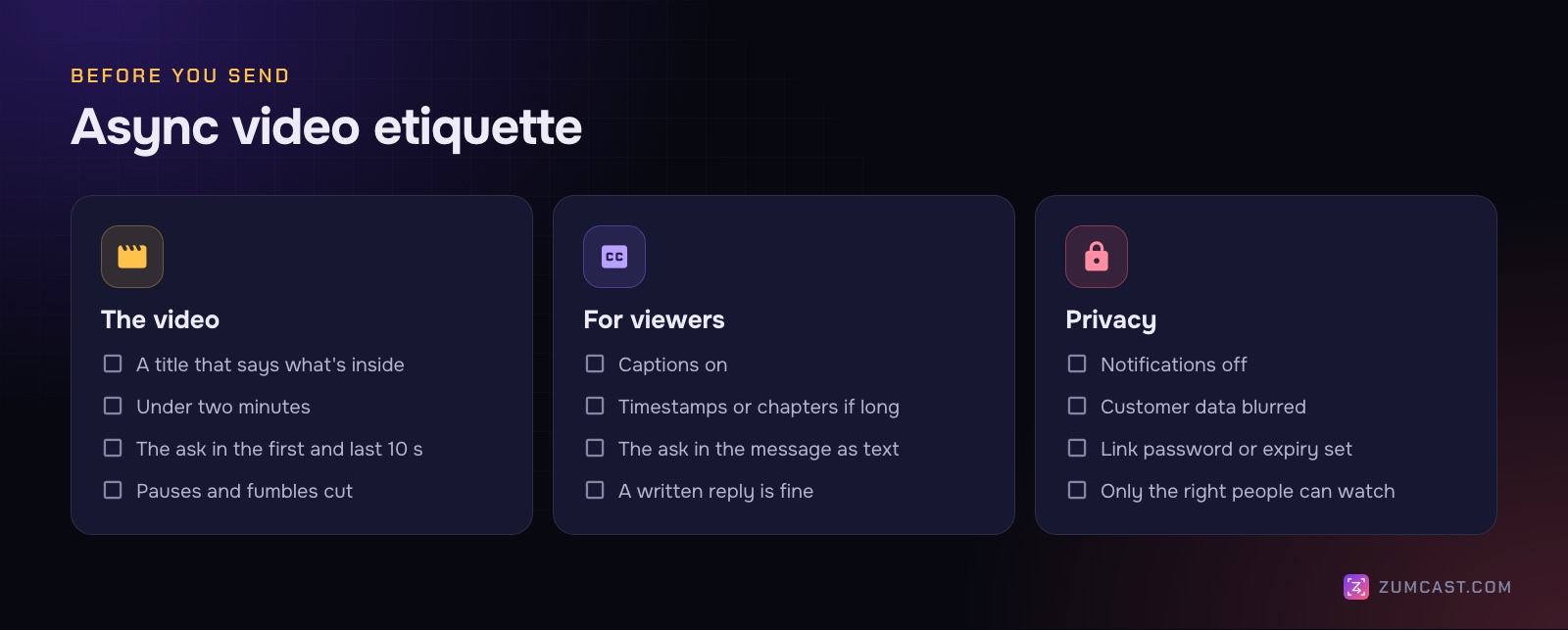
- Title it like an email subject. "Onboarding checklist v2: approve copy by Thu" tells people whether to watch now.
- Keep it short. Under two minutes for an update; if it runs to five, it's probably two updates.
- Put the ask in the message too. Paste the "What you need" line as text above the link. Some people will read that and nothing else, and that's fine.
- Add captions. People watch with the sound off in open offices, on trains and between calls. Captions also help colleagues working in a second language.
- Add timestamps or chapters for anything over two minutes: "0:00 context, 0:20 new flow, 1:40 the question."
- Speed it up yourself. Cut long pauses and the "um, let me just find that tab" moments before you send. Your viewers shouldn't have to.
- Hide what shouldn't be seen. Turn off notifications before recording, and blur customer names, emails or keys. Our guide on hiding sensitive information in screen recordings covers this in detail.
- Reply in kind, or in text. A short written reply is a perfectly good answer to a video.
Team norms that make it stick
Async video works when the team agrees how to use it. Without norms, it turns into one more inbox. Agree on these once, write them down and pin them in your team channel.
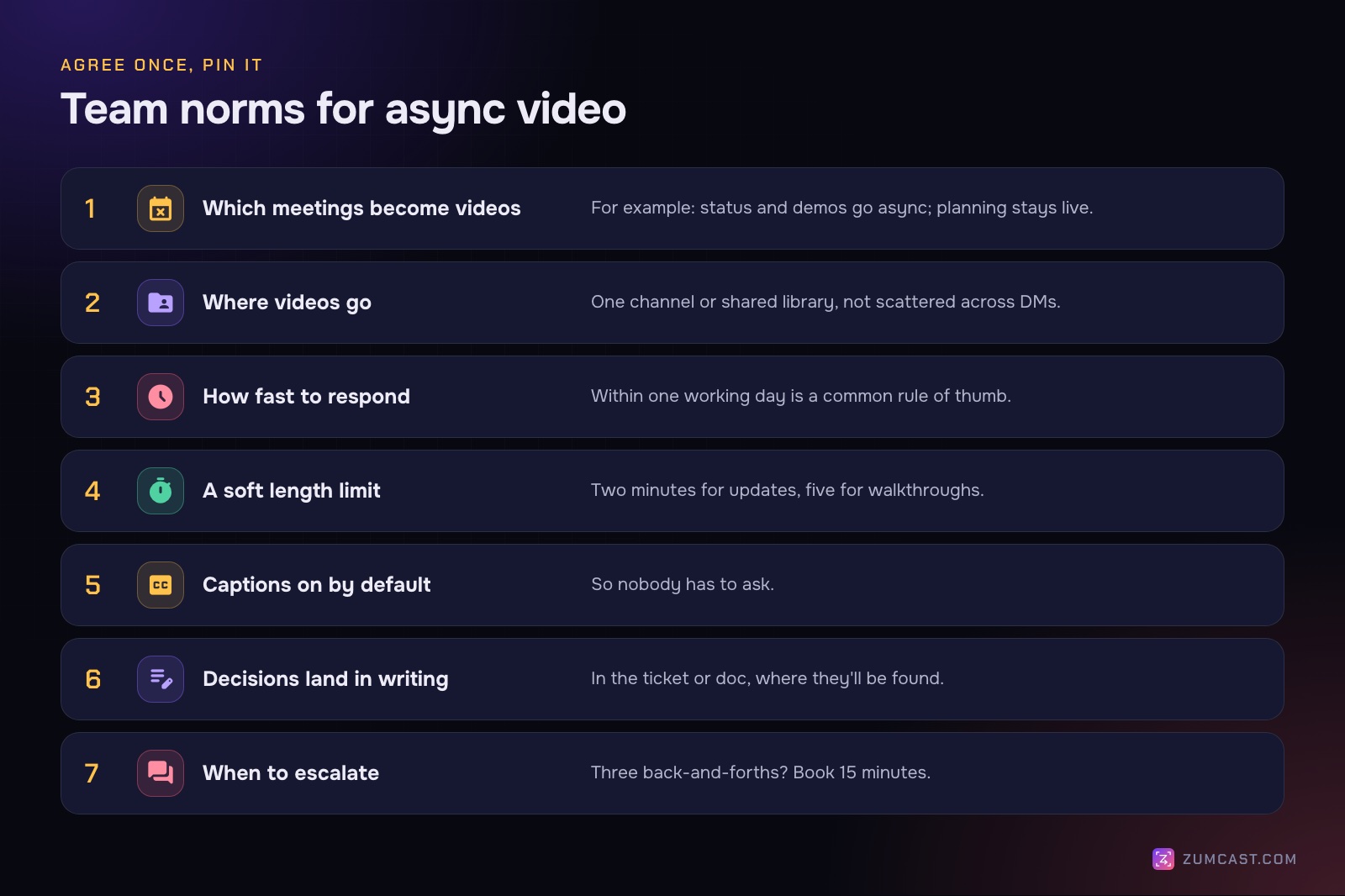
- Which meetings become videos. For example: weekly status and sprint demos go async; planning and retros stay live.
- Where videos go. One channel or one shared library, not scattered across DMs.
- How fast to respond. "Within one working day" is a common rule of thumb. Faster than that, and people feel they have to watch everything immediately.
- Length. Agree on a soft limit, such as two minutes for updates and five for walkthroughs.
- Captions on by default, so nobody has to ask.
- How decisions are recorded. A video can raise a decision, but the decision itself should land in writing, in the ticket or doc where it'll be found.
- When to escalate to a meeting. If a thread goes back and forth three times, book 15 minutes.
Revisit the norms after a month. Keep what helped and drop what didn't.
Recording async updates with ZumCast
ZumCast is a Mac screen recorder with an on-device AI editor, Zumi. It's built for polished demos and tutorials, but it has a project type for exactly this job.
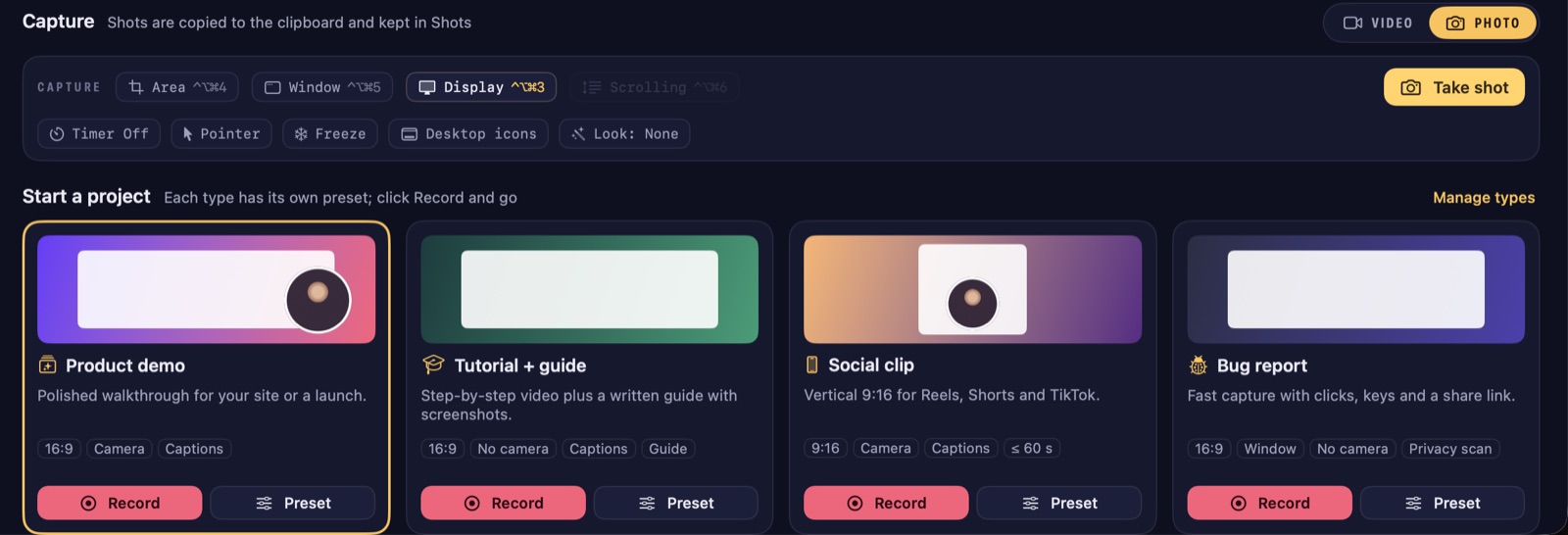
Set up an update in one line. In the Hub, press ⌘K and describe it, for example "a 2-minute team update with my camera". Zumi picks the project type, turns your camera on and sets a title. Or choose the Team update project type yourself: project types set the look, the source, the formats, captions and a brand kit, and you can duplicate one in Presets to make your team's own.
Record. Press ⌃⇧H from any app to open the HUD and Return to start. Press N for your notes and teleprompter; with Follow my voice, the script scrolls as you speak and never appears in the recording. Press ⌃⇧R to stop.
Tidy it. When you stop, zooms on your clicks are already on the timeline, so viewers can read the screen at normal speed. Ask Zumi "cut the pauses" and check the plan before applying it. With Pro, you can edit by transcript, removing filler words and pauses, and add captions made on your Mac.
Hide private details. Ask Zumi to "blur anything private", and ZumCast finds emails, phone numbers, card numbers, API keys and faces on screen so you can choose what to blur.
Share a link (Pro). Press Share, choose ZumCast link, and set who can watch, a password, an expiry date, and whether comments, downloads and captions are on. Viewers can comment at the exact moment they mean and react with an emoji. You see views, comments and reactions in the Hub's Shared links page. Pro includes 5 GB for links, and each link lasts up to 90 days.
Find it later. Search in the Hub covers titles, tags and the text on screen, and once a recording is transcribed (a Pro feature), the words you said too. So "what did Sam say about the pricing page?" is a search, not a rewatch.
For teams: ZumCast Cloud and the honest comparison with Loom
ZumCast Cloud for teams is an optional add-on for a shared workspace and library, team-only links, comments and reactions, and pooled storage. It costs $3 per person a month, billed yearly, and each person uses their own one-time ZumCast Pro. It's launching soon; see ZumCast Cloud for teams for the current status.
To be fair about it: if your team wants a mature, shared async video library today, Loom is strong here. Its videos live in a team library from the moment you record, it runs on Mac, Windows, Chrome and phones, and its paid plans add AI titles, summaries and chapters. That convenience comes from being cloud-first: everything is uploaded, and Business starts at $18 per user per month. We compared the options in The Best Loom Alternatives for Mac.
ZumCast makes more sense if your updates are often demos you'd like to look polished, if you want editing, transcripts and captions to stay on your Mac, or if you'd rather pay once for the app. What it doesn't do: it's Mac only (macOS 14 or later), there's no Windows or phone app, and share links are a Pro feature.
FAQ
What is an async video update? A short recorded video that replaces a live meeting or a long written message. Colleagues watch it when it suits them and reply in writing or with their own video.
How long should an async video update be? Under two minutes for a status update is a good target. Walkthroughs can run to five. If it's longer, split it into separate videos with clear titles.
Can async video replace all meetings? No. It works best for one-way updates, demos and handovers. Keep live meetings for disagreements, brainstorming, sensitive conversations and urgent decisions.
Should I show my face in a video update? It helps, especially in a distributed team, because tone comes across better. A small camera bubble in a corner is enough, and you can turn it off for screen-heavy demos.
Do async videos need captions? They should have them. Many people watch with the sound off, and captions help colleagues who work in a second language. They also make the video searchable.
What's the best tool for async video updates on a Mac? Loom if you want a cloud team library across every platform. ZumCast if you want polished, captioned updates edited on your Mac and paid for once. For quick silent clips, the built-in Shift-Command-5 toolbar works too; see How to Screen Record on a Mac With Audio.
ZumCast records your screen and camera, tidies the take with an AI editor that runs on your Mac, and shares a link with comments and reactions when you're ready. Basic is free with no time limit. Download it free.