How to Record Your Screen and Webcam at the Same Time on a Mac
Record your screen and webcam at the same time on a Mac, free with QuickTime or with a camera you can move, resize and restyle after recording.
这篇文章目前只有英文版。
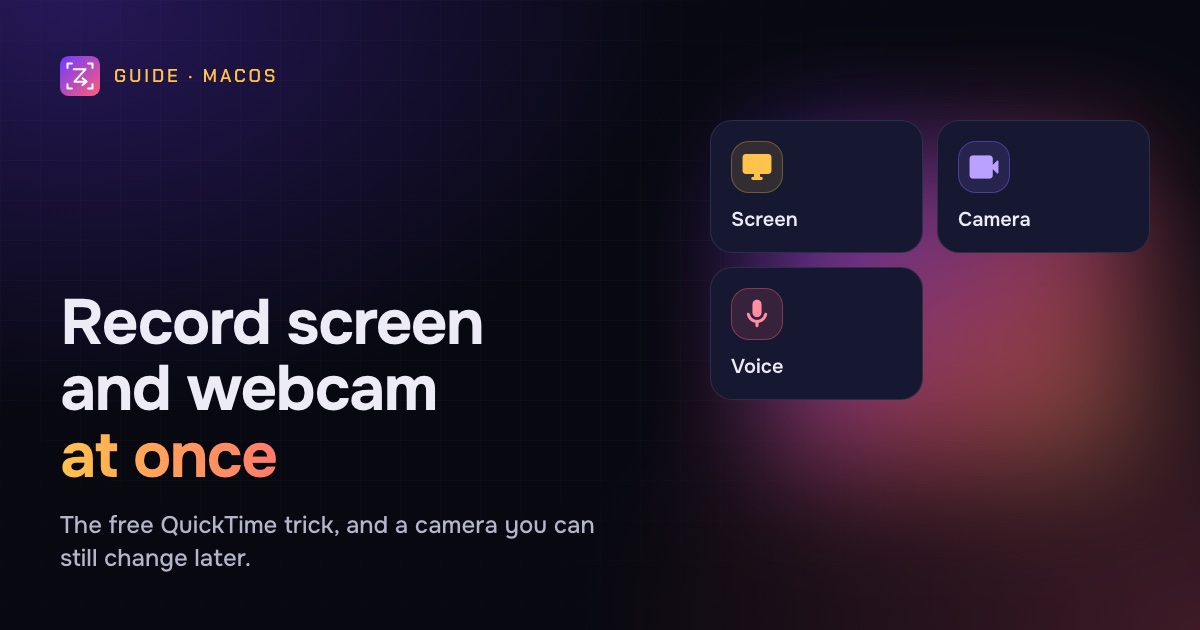
A screen recording with your face in the corner feels different. People see who's talking, they trust the advice more, and a tutorial feels like a person helping rather than a cursor moving on its own. That's why so many tutorials, course videos, sales messages and product updates use a camera bubble.
The Mac doesn't have a single "screen and camera" button. The built-in screen recorder records the screen; the camera lives in other apps. But there's a free trick that combines them, and there are recorders that capture both properly, as separate tracks you can change later.
This guide covers both, what each layout is good for, and how to look and sound good on camera.
The quick answer
- Free: open QuickTime Player, choose File › New Movie Recording (don't press record), choose View › Float on Top, drag the camera window to a corner, then press Shift-Command-5 and record the screen. The camera is captured as part of the screen.
- Better: use a screen recorder that records the camera as its own track. Then you can move it, resize it, change its shape and background, or hide it after recording. In ZumCast, turn on the camera in the recorder and press Return.
Method 1: The QuickTime floating camera (free)
This works on any Mac and needs nothing extra. QuickTime shows your camera in a window, you keep that window on top, and the screen recorder captures it along with everything else.
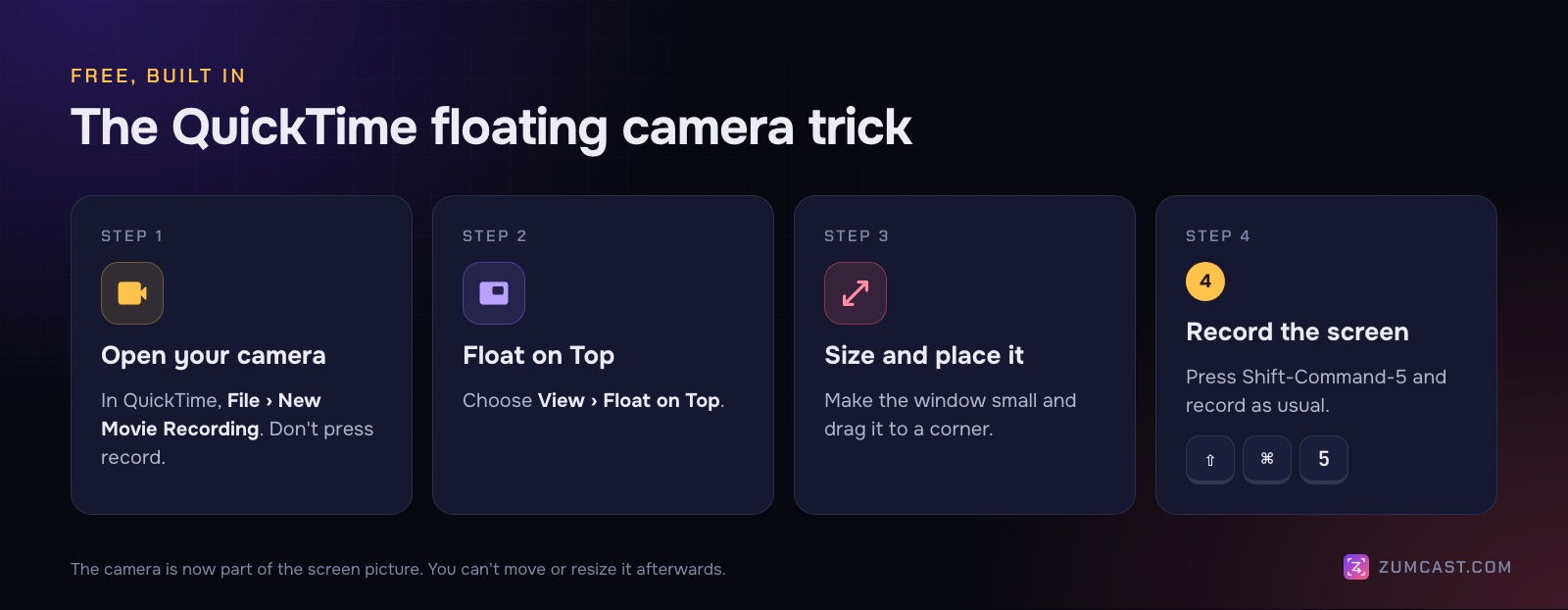
- Open QuickTime Player and choose File › New Movie Recording. Your camera appears in a window. Don't press its record button; you only need the preview.
- Choose View › Float on Top, so the camera window stays above your other windows.
- Make the window small and drag it to a corner where it won't cover anything important.
- Choose your microphone in the menu next to the record button, if you want to check levels. (The screen recorder records the sound, not this window.)
- Press Shift-Command-5, pick what to record, choose your microphone under Options, and click Record.
Some full-screen apps, such as a slideshow played full screen, can cover the floating window. If the camera disappears, keep the app in a window instead.
Some people use Photo Booth for the camera window instead. It can work, but do a short test first: check that the camera window stays visible above your other windows and that the picture isn't flipped.
The catch: the camera is baked in
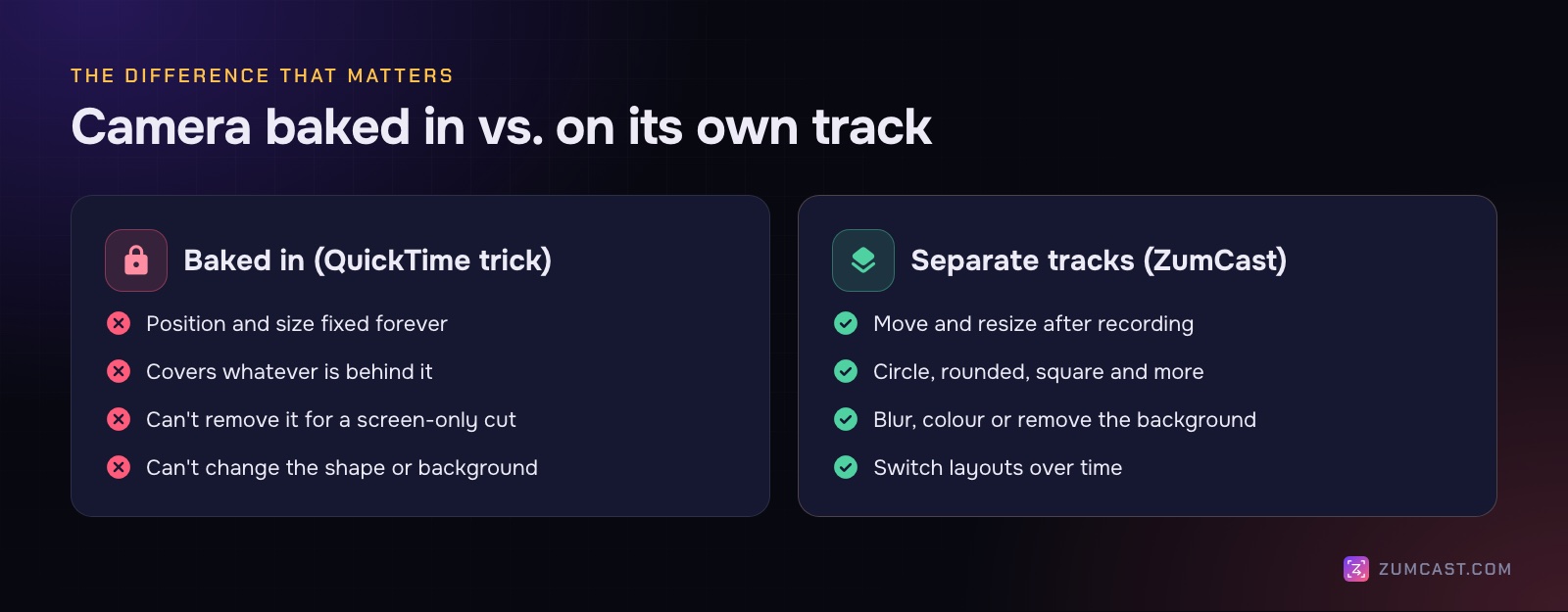
Because the camera is part of the screen picture, it's fixed. You can't move it if it turns out to cover a button you clicked. You can't make it bigger for the intro and smaller for the demo. You can't hide it for a part where the screen needs every pixel, and you can't make a vertical version with the camera in a different place. If you want to change any of that, you record again.
Method 2: A recorder that keeps the camera separate
Dedicated screen recorders record your camera as its own track, next to the screen and your microphone. The camera bubble you see is a layout, not part of the picture, so you can change it at any time.
Here's how it works in ZumCast (macOS 14 or later).
Record
- Open the recorder (the HUD) with ⌃⇧H.
- Pick what to record: 1 display, 2 window, 3 area.
- Press C to open the camera menu and pick your camera. Turn on your microphone, and press A for system audio if your demo has sound.
- Press Return to start, and ⌃⇧R to stop.
You can also turn the camera on from the Hub before you start. ZumCast asks for Camera permission the first time.
Change the camera afterwards
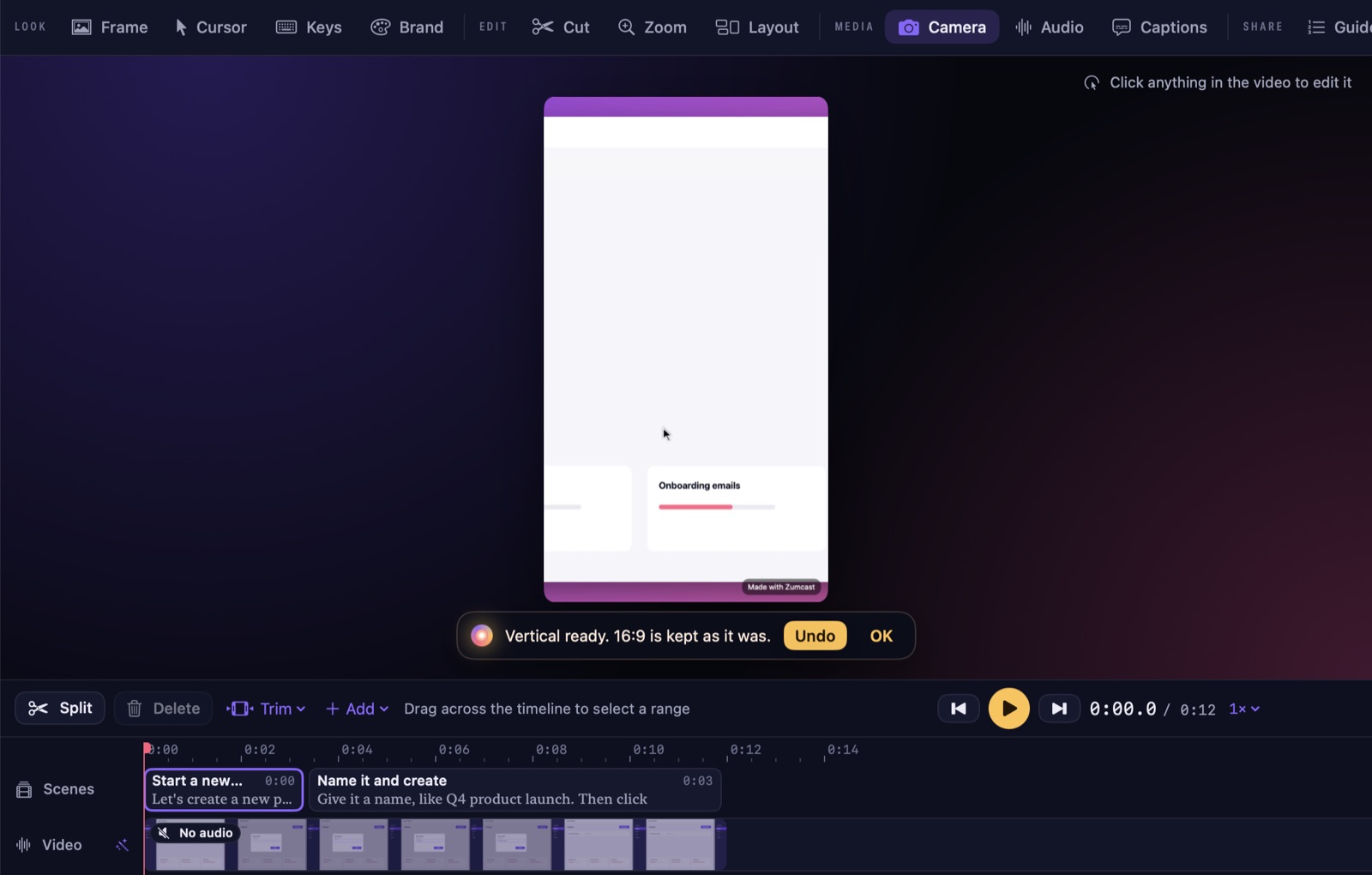
When you stop, the Studio opens. Camera, voice and screen were saved separately, so in Camera you can:
- Pick a shape: circle, rounded, square and other ratios.
- Pick a position: one of nine, from top left to bottom right.
- Change the background behind you: blur it, replace it with a colour, or remove it.
- Resize it.
Or ask Zumi, the built-in AI editor, in plain words: "move my camera to the top left and make it smaller". Zumi shows the plan first, and nothing changes until you press Apply. Zumi runs on your Mac, and the free Basic version includes three plans a day.
Layouts: when to show your face, and how big
A camera bubble isn't right for every moment. Most good screen-and-camera videos switch between a few layouts.
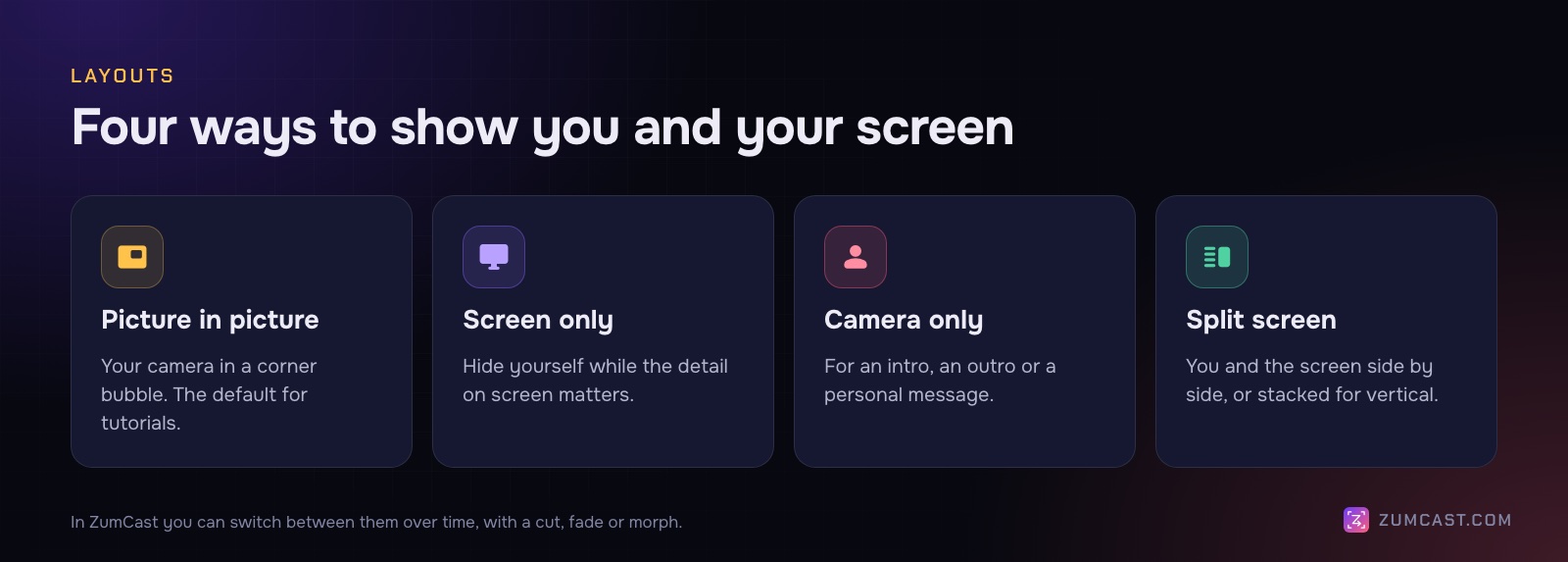
- Picture in picture: your camera in a small bubble in a corner. The default for tutorials and demos. People see you, but the screen is the focus.
- Screen only: hide yourself while the detail on screen matters, like a dense settings page or a code walkthrough.
- Camera only: for an intro, an outro, or a personal message where the screen doesn't matter yet.
- Split screen: you and the screen side by side, or stacked for a vertical video. Good for reactions, reviews and interviews.
In ZumCast's Layout tool you switch between these over time, with a cut, a fade or a morph between them. A common pattern is camera only for the first five seconds, picture in picture for the demo, and camera only again for the sign-off.
Ready-made layouts
ZumCast also has ready-made layouts for the formats people make most:
- YouTube tutorial with a round camera.
- Reels with the camera on top or bottom.
- Shorts bubble.
- LinkedIn split.
- Talking-head intro.
Because a project can have several versions (16:9, 9:16, 1:1, 4:5 and 4:3), each with its own camera layout but the same edit, you can have the camera in a corner bubble on YouTube and stacked on top in a vertical Short, from one recording. See How to Make a Vertical Video From a Screen Recording.
Where to put the camera
A few rules of thumb:
- Don't cover the action. Many apps put important buttons at the top right and bottom right. Bottom left is often the safest corner for a desktop app; check your own app.
- Keep it small during the demo. About a fifth of the width of the video is plenty for picture in picture.
- Match the platform. On Shorts and Reels, captions and buttons cover the bottom of the screen, so a camera at the top often works better.
- Be consistent. If you make a series, keep the camera in the same place and shape every time.
Look good on camera
You don't need a studio. Most of the difference comes from light, where you look, and what's behind you.
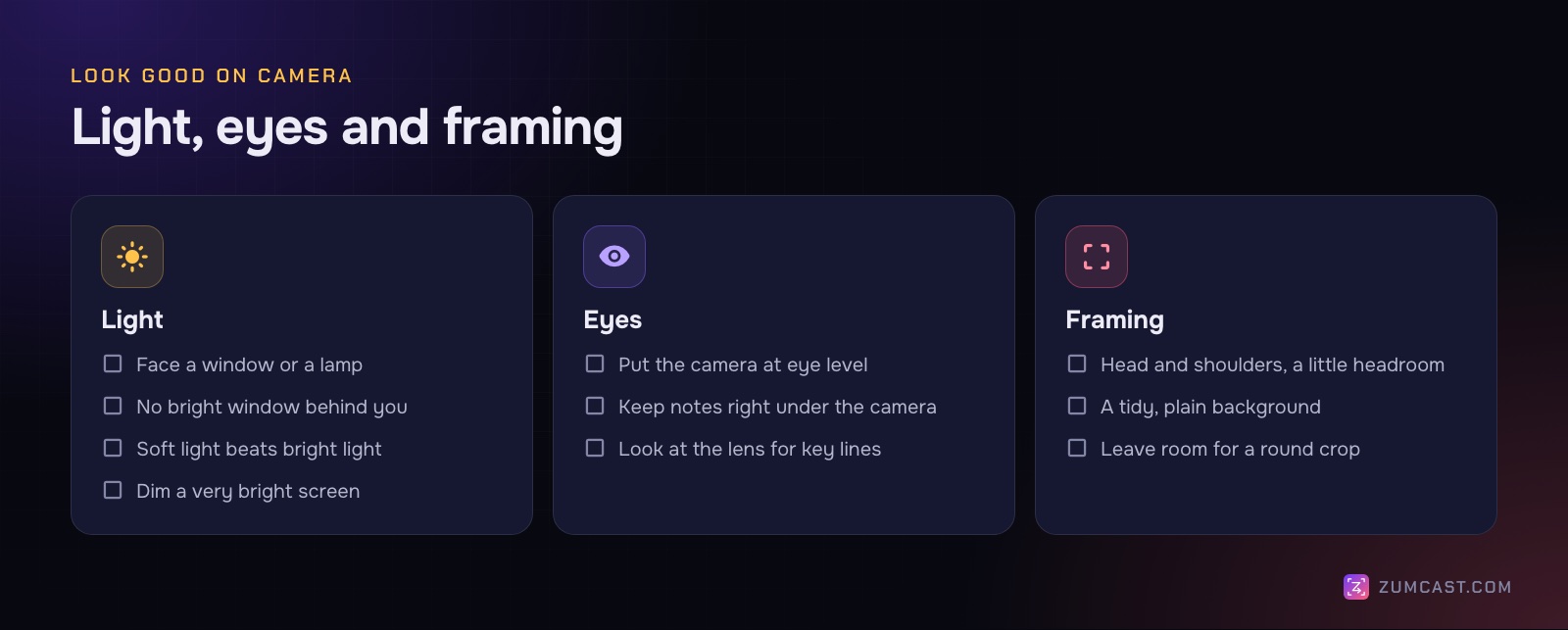
Light
- Face the light. Sit facing a window or put a lamp behind your screen. Light from the front is flattering; light from above or the side makes shadows.
- No bright window behind you. The camera exposes for the bright background, and you become a silhouette.
- Soft beats bright. A lamp bounced off a wall, or daylight through a thin curtain, looks better than a bare bulb.
Eyes
- Camera at eye level. Raise the laptop on a stand or a few books. Looking down into a camera is rarely flattering.
- Keep your notes near the lens. Your eyes follow what you read. ZumCast's teleprompter (press N in the HUD) floats over your screen and never shows in the recording; put it right under the camera. It can follow your voice, scrolling as you speak and waiting when you stop.
- Look at the lens for important lines. The intro, the key point and the sign-off.
Framing and background
- Head and shoulders, with a little space above your head.
- A tidy background. Or blur it. A bookshelf or a plain wall works.
- Leave room for a round crop. If you'll use a circle, keep your face centred.
Sound
People forgive a soft camera image long before they forgive bad sound. A USB mic or a headset beats the built-in mic in most rooms. In ZumCast, voice clean-up removes hum and hiss and evens out the volume on your Mac, keeping the original. See How to Add a Voiceover to a Screen Recording on a Mac.
Exporting
For most screen-and-camera videos, 1080p is the sweet spot. ZumCast's Export window (⌘E) has presets for YouTube (16:9, 1080p60), YouTube 4K, X, LinkedIn (1:1), Shorts and Reels (9:16), a GIF for docs and a master file. With Pro, Export all makes every version in one go. In the free Basic version, video exports are the first half of the video, up to 30 seconds, with a small mark.
FAQ
How do I record my screen and webcam at the same time on a Mac for free? Open your camera in QuickTime with File › New Movie Recording, choose View › Float on Top, place the window in a corner, then record the screen with Shift-Command-5. The camera is recorded as part of the screen.
Can I move the webcam bubble after recording? Not with the QuickTime trick; it's part of the picture. With a recorder that records the camera on its own track, like ZumCast, you can move, resize and reshape it after recording.
Why is my camera window not showing in the recording? A full-screen app may be covering it. Keep the app in a window, and check that View › Float on Top is ticked in QuickTime.
Can I blur or remove my background? In ZumCast you can blur the background, replace it with a colour, or remove it, after recording. The QuickTime trick has no background options.
What size should the camera bubble be? A common rule of thumb is about a fifth of the video's width during the demo, bigger for the intro and sign-off.
Can I use an iPhone as the webcam? Continuity Camera lets a nearby iPhone act as your Mac's camera; when it's available, it appears in the camera list like any other camera.
ZumCast is a Mac screen recorder with an AI editor that runs on your Mac. It records your screen, camera and voice on separate tracks, so you can change the camera's shape, position and background, and switch layouts, after you record. The Basic version is free; Pro is a one-time purchase. Download it free.