How to Add a Demo GIF or Video to a GitHub README
How to add a demo GIF or video to a GitHub README, with current size limits, GIF vs MP4, light and dark mode, alt text, and how to keep the file small.
这篇文章目前只有英文版。
People decide whether to try a project in the first few seconds on its README. A short demo at the top, showing the thing actually working, answers "what does this do?" faster than any paragraph.
But there are pitfalls. A 40 MB GIF that takes ages to load. A video that shows up as a bare link instead of a player. A dark screenshot that disappears on GitHub's dark theme. Text so small it's unreadable.
This guide covers how to add a GIF or a video to a GitHub README properly, which to choose, and how to make one that's small and sharp.
The quick answer
For a GIF: commit it to your repository (for example docs/demo.gif) and add it with Markdown near the top of the README:

For a video: edit the README on github.com, drag an MP4, MOV or WebM file into the editor, and GitHub uploads it, inserts a link and shows the video as a player. Keep that link on a line of its own, so it isn't treated as an ordinary link in a sentence.
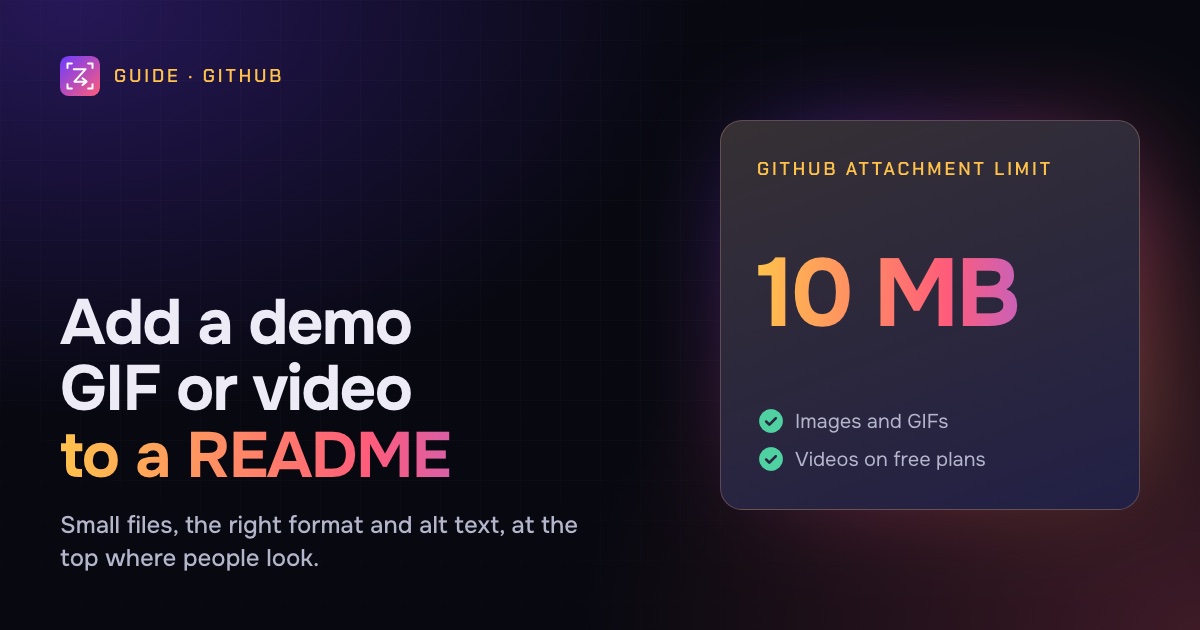
Keep GIFs under 10 MB (GitHub's limit for uploaded images and GIFs), and ideally much smaller.
GIF or video?
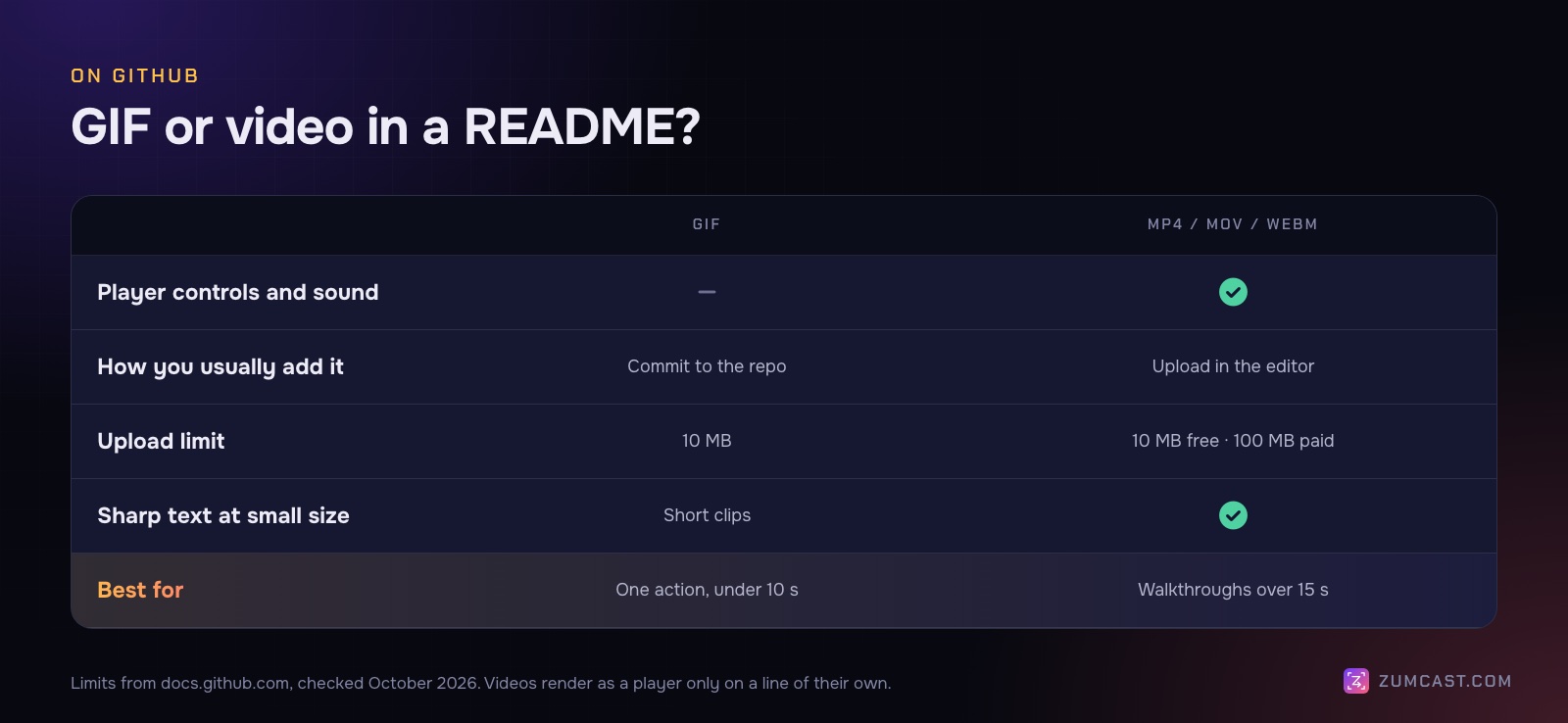
A GIF plays automatically and loops, with no click and no sound. It's perfect for one action: a command running, a component animating, a setting changing. It's an old format, though: 256 colours per frame and weak compression, so long GIFs get big fast.
A video (MP4, MOV or WebM) is far smaller for the same length and keeps text sharp. On GitHub it shows in a player with controls and can have sound, so viewers can pause and go back. Use it for anything longer than about 15 seconds, or when narration helps.
A common pattern is both: a 5–10 second GIF at the top to hook people, and a link to a longer video walkthrough further down.
GitHub's limits (checked October 2026)
From GitHub's documentation on attaching files:
- Images and GIFs: up to 10 MB each. Supported: PNG, GIF, JPEG and SVG.
- Videos: MP4, MOV and WebM, up to 10 MB in a repository owned by a user or organisation on a free plan, and up to 100 MB on a paid plan.
- Codecs: browser support varies, so GitHub recommends H.264 for the widest compatibility.
These are limits for files you upload through the editor. A GIF you commit to the repository isn't held to the 10 MB upload limit, but every clone downloads it, and everyone who opens the page waits for it, so the same budget is sensible.
How to add a GIF to a README
- Put the GIF in your repository, in a folder such as
docs/or.github/. - Reference it with a relative path near the top of
README.md:

- To control the size on screen, use an HTML tag instead (GitHub allows
imgwithwidth):
<img src="docs/demo.gif" width="720" alt="Demo: acme-cli init scaffolds a project in two seconds">
You can also drag a GIF into the github.com editor and it's uploaded for you, but committing it keeps it versioned with your code and visible in forks and mirrors.
How to add a video to a README
- Open
README.mdon github.com and click the pencil icon to edit. - Drag your MP4, MOV or WebM file into the editor (or paste it). GitHub uploads it and inserts a link.
- Keep the link on its own line, with a blank line above and below, rather than inside a sentence. Then preview the README to check the player appears.
- Commit the change.
The uploaded video lives on GitHub's servers, not in your repository. It shows as a player on github.com, but other sites that display your README (package registries, mirrors, other Git hosts) may show only a link, so a GIF or a thumbnail image linking to the video is a safer bet if the README is published elsewhere too.
Record a small area, and keep it small
Most oversized README demos have one cause: recording the whole screen and scaling it down. Record only what matters, at about the size it will be shown.
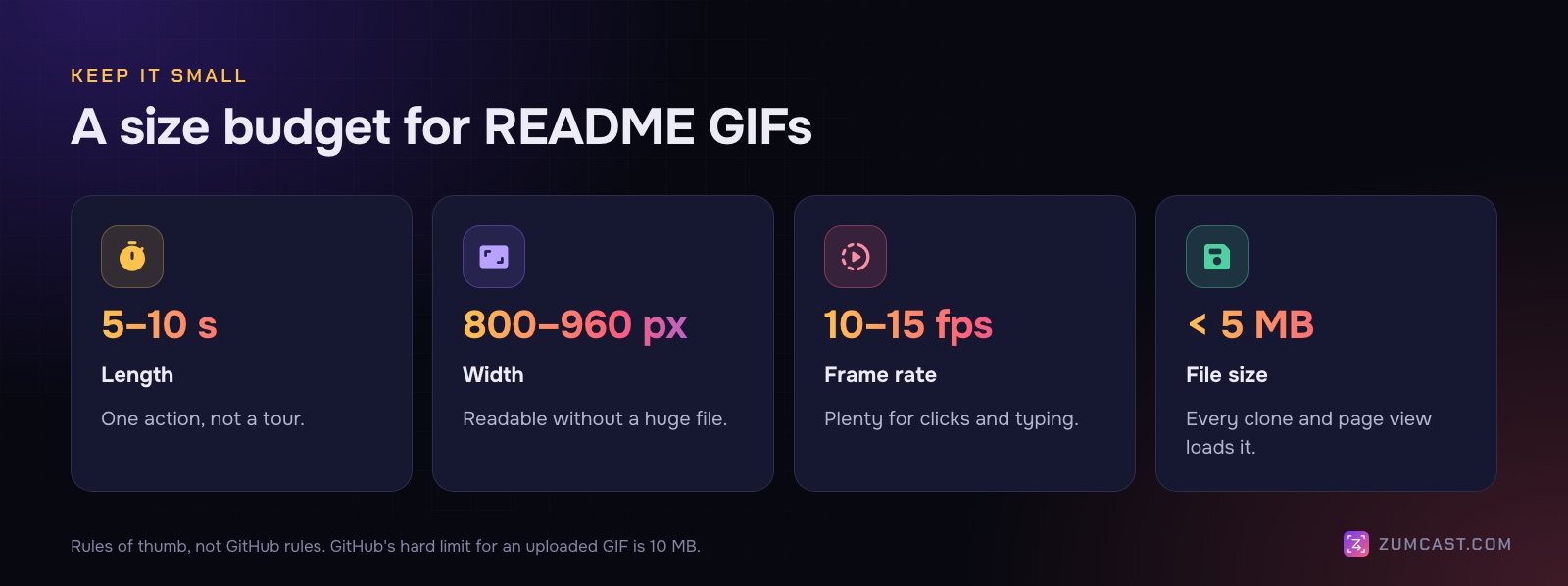
- Length: 5–10 seconds. One action. Trim the start and the end tightly so the loop doesn't linger.
- Width: 800–960 pixels. A rule of thumb: wide enough to read on a laptop, without making the file huge.
- Frame rate: 10–15 fps. Plenty for a terminal or a UI; 60 fps just triples the size.
- Size: aim well under 5 MB. Smaller loads faster for everyone, especially on mobile.
A few more things that help:
- Make text big. Increase your terminal or editor font size before recording. Text that's readable in the full window is often unreadable at README size.
- Use a clean environment. A plain prompt, no personal paths, a demo folder, fictional data.
- Hold the final frame. Pause a second on the result before the loop restarts, so people can read it.
- Script it. For a terminal demo, type the command in advance, or slow down, so viewers can follow.
For the conversion itself, including a one-line ffmpeg command with a proper palette, see How to Turn a Screen Recording Into a GIF on a Mac.
Light mode, dark mode
GitHub readers use both themes. A screenshot of a dark terminal floating on a dark page can lose its edges, and a transparent PNG with dark text can vanish on a dark background.
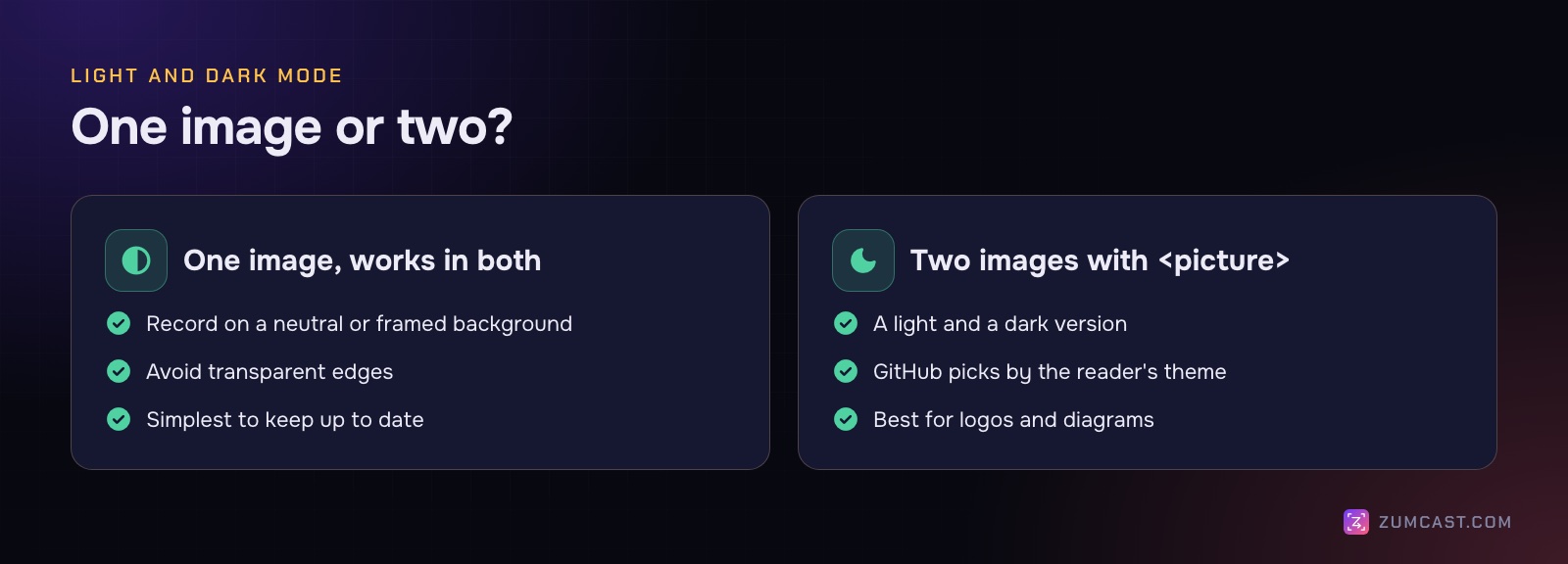
Easiest: one image that works on both. Give it a solid background with some padding, or a frame, and avoid transparent edges.
For logos and diagrams: supply two versions with the HTML picture element, and GitHub shows the one that matches the reader's theme:
<picture>
  <source media="(prefers-color-scheme: dark)" srcset="docs/diagram-dark.png">
  <img alt="Architecture: the CLI talks to the Acme API" src="docs/diagram-light.png">
</picture>
Alt text and placement
Alt text is read aloud by screen readers and shown if the image doesn't load. Describe what the demo shows, not that it's a GIF: "Demo: running acme-cli init creates a project and opens it in the browser" beats "demo.gif".
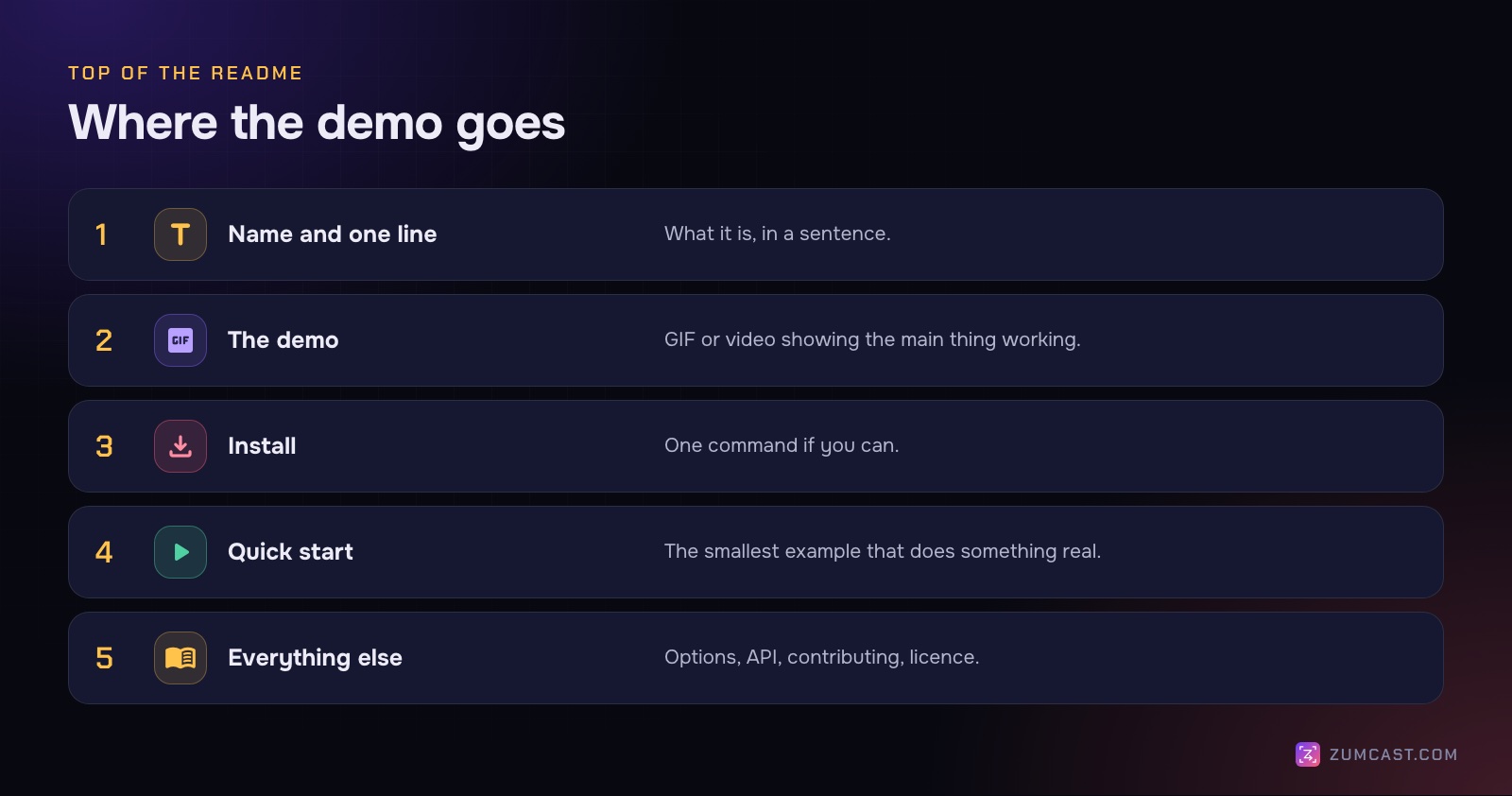
Placement: right after the project name and one-line description, before installation. That's where people decide whether to keep reading.
Making README demos with ZumCast
ZumCast is a Mac screen recorder that records GIFs directly and exports them from polished recordings.
Record GIF. Choose Record GIF in the Hub, the HUD or the menu bar, drag out an area, and record up to 30 seconds. You get a looping GIF up to 800 pixels wide at 15 fps, copied to the clipboard and kept as a project. GIFs have no sound or camera, which is right for a README.
Export a GIF from a recording. If you've recorded a fuller demo, with zooms on each click and a smooth cursor, press ⌘E and choose GIF for docs (960 px, 15 fps), or set the width yourself from 480 to 1,280 pixels at 10, 15 or 24 fps, up to 60 seconds. The Export window shows the file size before you export, so you can check it against your budget.
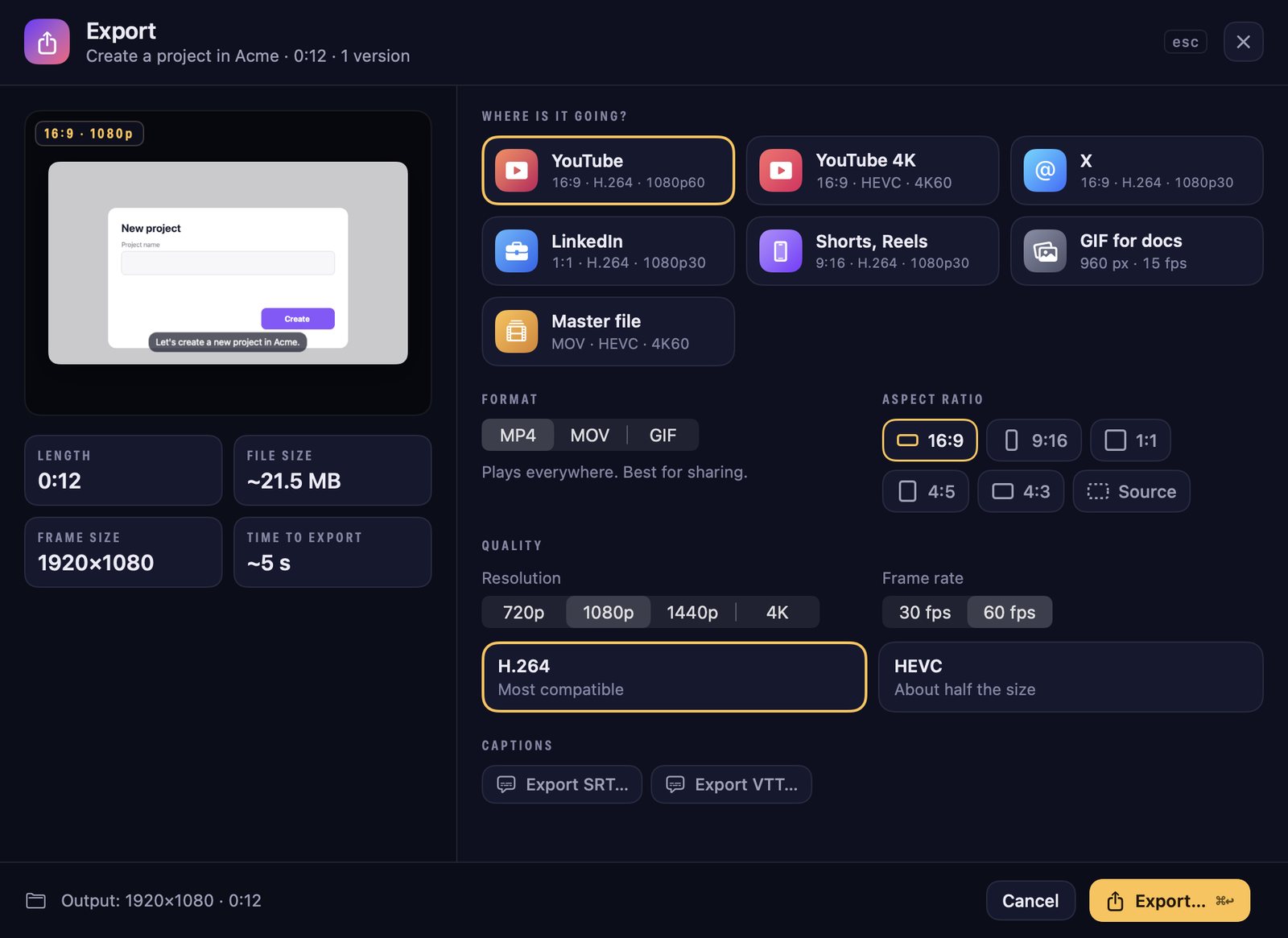
Export an MP4 for the video upload. The same window exports MP4 with H.264, the codec GitHub recommends, at 720p or 1080p to stay under the upload limit.
Hero images from screenshots. For a static image at the top of a README, take a shot (⌃⇧4 for an area, ⌃⇧5 for a window), then use the Look tab to set it on one of 102 wallpapers with padding and a window or browser frame. The solid background works in both light and dark mode.
What needs Pro: on Basic, GIF exports are up to 10 seconds with a "Made with ZumCast" mark, video exports are the first half (up to 30 seconds) with a mark, and shots carry a small corner watermark. Pro removes the marks and limits. See pricing.
FAQ
Can you put a video in a GitHub README? Yes. Edit the README on github.com and drag in an MP4, MOV or WebM file. GitHub uploads it and shows a player. Keep the link on a line of its own and check the preview.
What's the maximum GIF size on GitHub? Uploaded images and GIFs can be up to 10 MB. Aim much smaller (under 5 MB is a good target) so the README loads quickly.
Why does my video show as a link instead of a player? Check the link isn't inside a sentence or next to other text. Put it on its own line with a blank line above and below, then preview again.
How do I make a GIF smaller for a README? Record a smaller area, shorten it to 5–10 seconds, drop to 10–15 fps and keep the width around 800–960 pixels. A palette built from the clip itself keeps quality up.
Should the README GIF autoplay? GIFs play and loop by themselves on GitHub, unless the viewer has turned off autoplay for animated images or asked their system to reduce motion; then they get a play button. That's why GIFs work well for one short action, and why longer demos are better as a video with controls.
How do I show a different image in dark mode on GitHub?
Use the picture element with a source for prefers-color-scheme: dark and an img for the light version.
Where should a demo GIF go in a README? Near the top: after the project name and one-line description, before install instructions.
ZumCast is a Mac screen recorder with an AI editor that runs on your Mac. It records GIFs straight to your clipboard, exports README-sized GIFs and MP4s from polished recordings, and turns screenshots into clean hero images. The Basic version is free; Pro is a one-time purchase. Download it free.