Sales Video Prospecting: A Guide to Personalised Video Outreach
How to make personalised sales videos prospects actually watch. What to personalise, a 60–90 second structure, thumbnails, subject lines and follow-ups.
Por enquanto, este artigo está só em inglês.
A prospect's inbox is full of emails that look the same: a first name, a company name, a paragraph that could have been sent to anyone. A short video in which you say their name, show their website and explain one specific idea stands out, because it obviously took a person a few minutes to make.
That's the case for video prospecting. But it only works when the personalisation is real and the video respects the viewer's time. A generic two-minute pitch with the prospect's name on a whiteboard isn't personal; it's a template with extra steps.
This guide covers what to personalise, a 60–90 second structure, camera and screen, thumbnails, subject lines and follow-ups, plus the privacy mistakes that are easy to make when you share your screen.
The quick answer
Record a 60–90 second video for one person, about one specific thing:
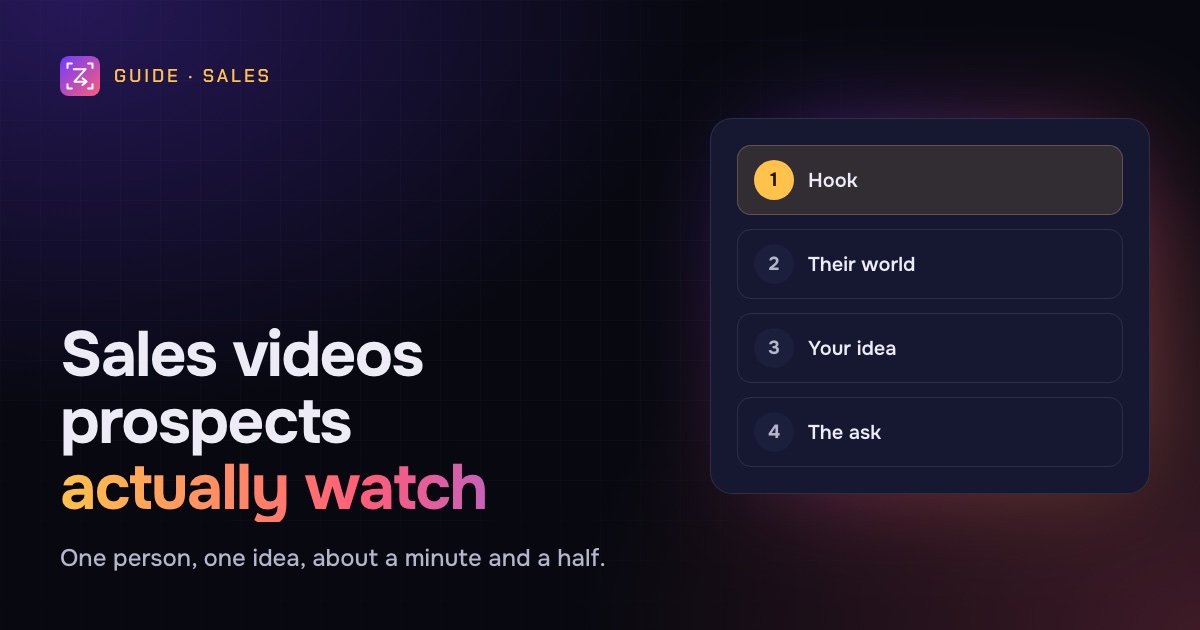
- Hook (5–10 seconds): their name and the specific reason you're reaching out, on camera.
- Their world (20–30 seconds): show something of theirs on screen, such as their pricing page, a job post or a product page, and point to the one thing you noticed.
- Your idea (20–30 seconds): how you'd help with that one thing, with one short proof point.
- The ask (10 seconds): one small, easy next step.
Send it with a plain subject line, a two-line email and a thumbnail that shows their own website. Follow up with something new, not "just bumping this".
What personalisation actually matters
Prospects can tell the difference between a video made for them and a template with their name in it. Personalisation that matters shows you looked at their situation.
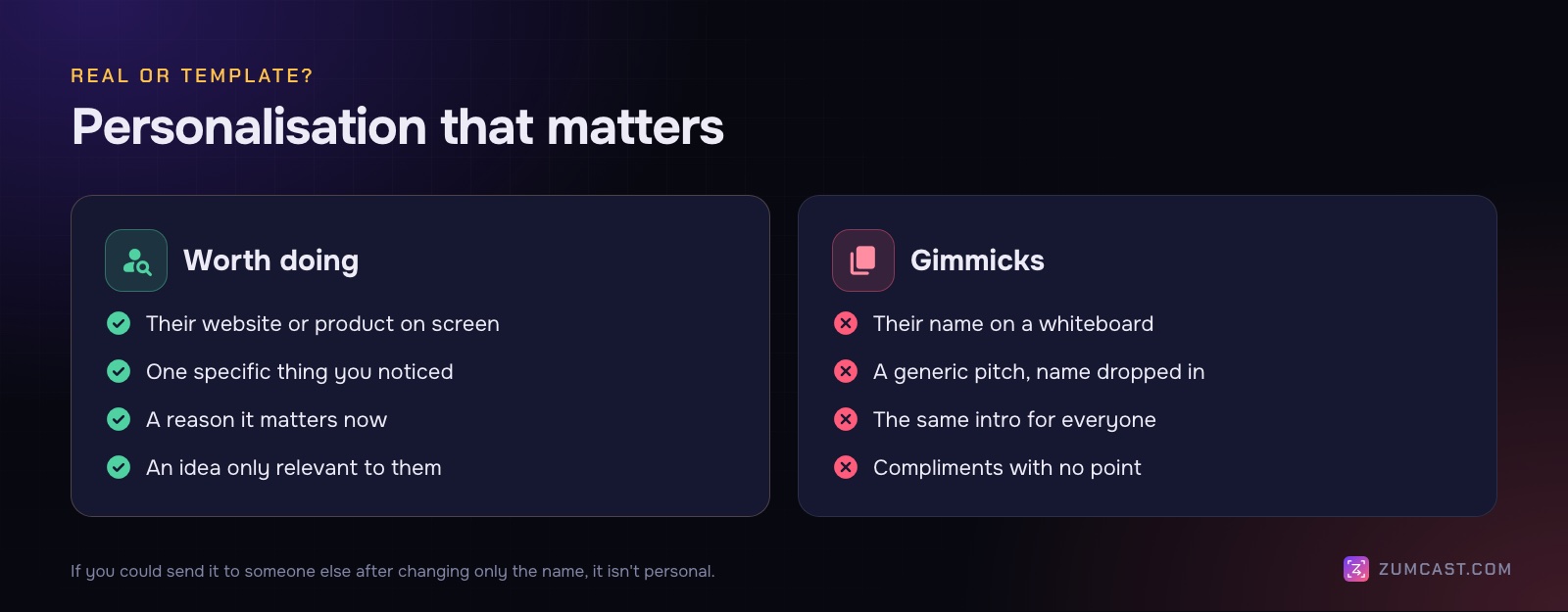
Worth doing:
- Show their world. Their website, app, job posting, changelog or a recent announcement on screen. It's the strongest signal you did the work.
- Name one specific thing. "Your pricing page has four plans but no comparison table" beats "I love what you're building."
- Say why now. A new funding round, a new market, a new hire for the role your product helps.
- Make the idea theirs. One concrete suggestion that only makes sense for this company.
Not worth doing:
- Their name written on a whiteboard or a coffee cup. It's a template, and people know.
- A generic pitch with only the first five seconds personalised.
- Long compliments before the point.
A useful test: if you could send this video to someone else after changing only the name, it isn't personal enough.
A 60–90 second structure
Short videos get finished. Shorter than you'd like, in fact: if the video runs past two minutes, it's probably a pitch, not an opener.
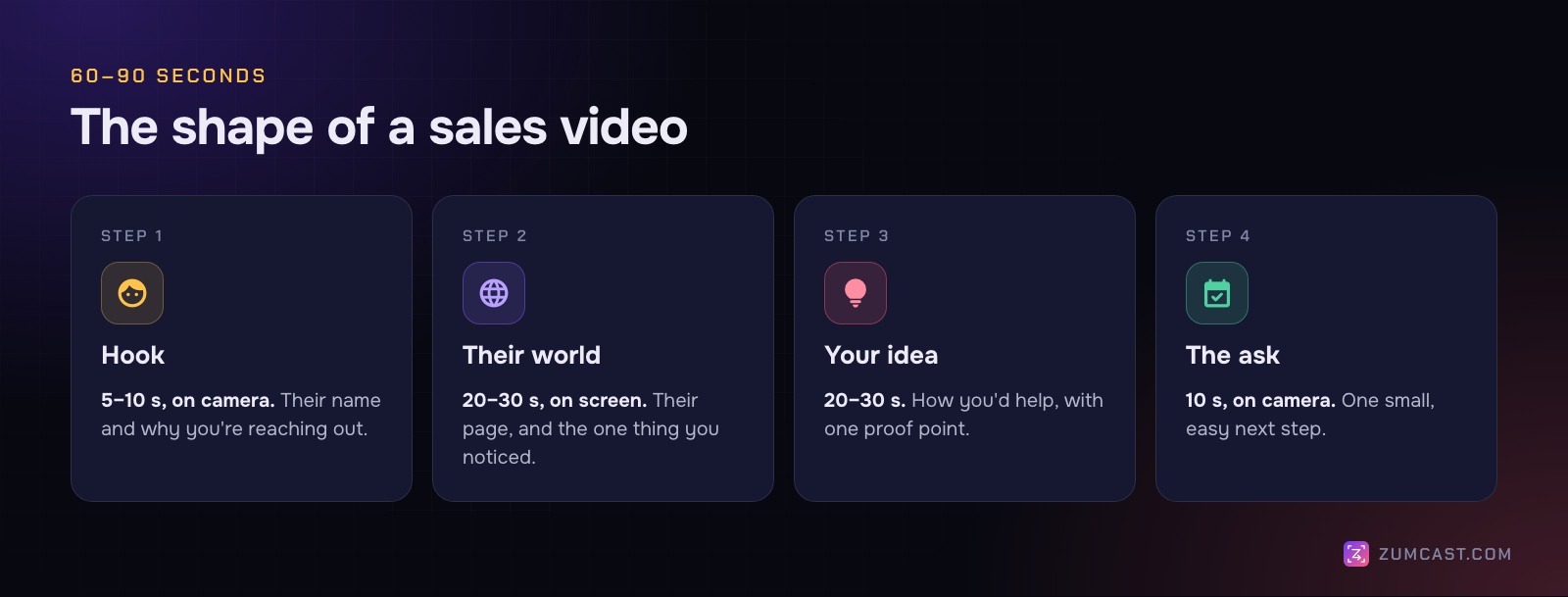
1. Hook (5–10 seconds)
Start on camera, looking at the lens. "Hi Dana, I'm Sam from Acme. I was looking at your new onboarding flow and noticed something I think could help."
2. Their world (20–30 seconds)
Switch to the screen with your camera in a corner. Show the page you're talking about and point at the specific thing. A highlight or arrow helps people see it straight away.
3. Your idea (20–30 seconds)
Explain your one idea in plain words, and back it up with one proof point you can stand behind: a similar customer, a quick before-and-after, a number from your own data. Skip the full feature list.
4. The ask (10 seconds)
Ask for something small and specific: "Worth a 15-minute call next week?" or "Want me to send the two-page write-up?" Go back to full camera for this part if you can; it's more personal to end face to face.
Write it down first
Write four lines before you record, one per part. If you read from a script, use a teleprompter near your camera so your eyes stay close to the lens.
Camera and screen
You don't need a studio, but a few basics make a big difference:
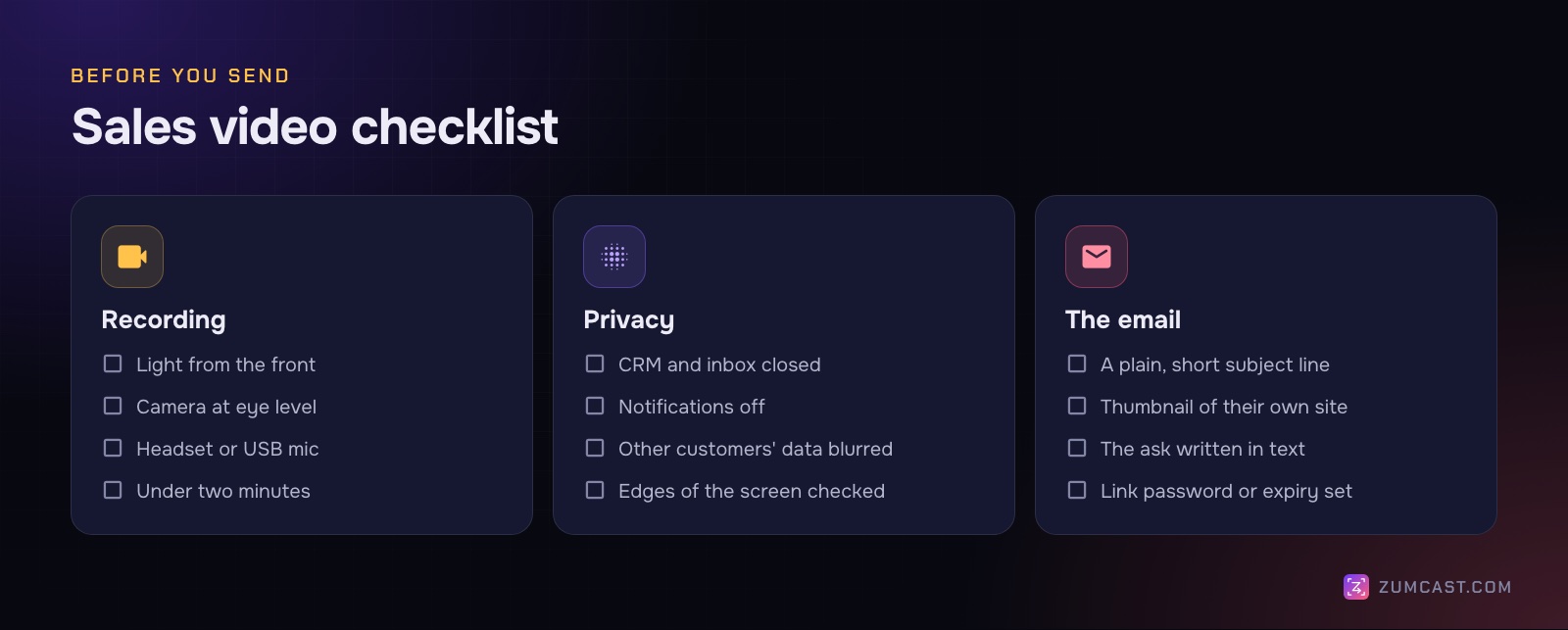
- Light from the front. Face a window or a lamp, not away from one.
- Camera at eye level. Stack a few books under your laptop.
- A decent microphone. A headset or USB mic beats the laptop's built-in mic in most rooms.
- A clean browser. Close unrelated tabs and bookmarks bars, turn off notifications, and use a fresh browser profile if you can.
- Switch layouts. Full camera for the hook and the ask, screen with a small camera bubble for the middle. Split screen works too.
Thumbnails and subject lines
Most email clients won't play a video inline, so your email shows a thumbnail image linking to the video. The thumbnail does a lot of work.
A good thumbnail:
- shows their website or product, with you in a corner;
- has a play button so it's obviously a video;
- has little or no text: maybe their company name;
- is a still frame from the actual video, not a stock image.
Subject lines. Keep them short and plain, like something a colleague would send: "Idea for your onboarding flow" or "Quick video about Acme's pricing page". Whether to mention "video" in the subject is worth testing on your own list; we don't have a number to give you, and you should be wary of anyone quoting a universal reply-rate figure.
The email itself. Two or three lines: why you're writing, the thumbnail, and the ask written out in text. People who don't click should still understand the point.
Follow-ups
Plenty of replies come after a follow-up rather than the first message. Make each one add something:
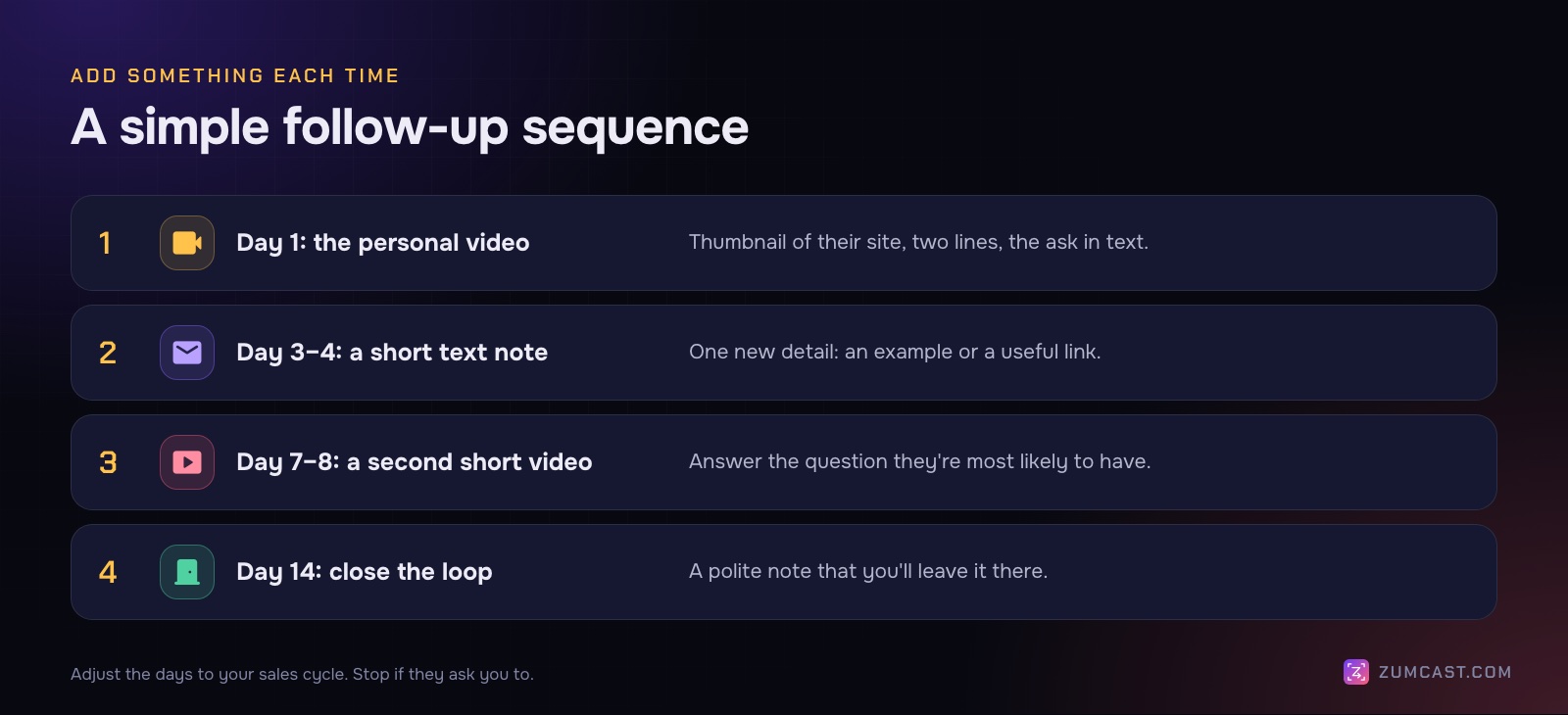
- Day 1: the personal video.
- A few days later: a short text note with one new detail, such as a relevant example or a link.
- About a week later: a second, shorter video answering the question they're most likely to have.
- About two weeks later: a polite close-the-loop message. "Seems like the timing isn't right. I'll leave it here."
Stop if they ask you to, and follow the email and privacy rules that apply where you and your prospects are.
Don't show other customers' data
The easiest mistake in a sales video is showing something you shouldn't: another customer's name in your CRM sidebar, a pipeline value, an email address in a notification. It's embarrassing at best, and a privacy problem at worst.
Before you record, close your CRM and inbox, hide notifications and use demo data where you can. After you record, watch it once looking only at the edges of the screen. Then blur anything private. Our guide on hiding sensitive information in screen recordings goes through it step by step.
Recording sales videos with ZumCast
ZumCast is a Mac screen recorder with an on-device AI editor, Zumi. Its Sales outreach project type is set up for personal videos with your camera, so each new prospect video starts with the same look.
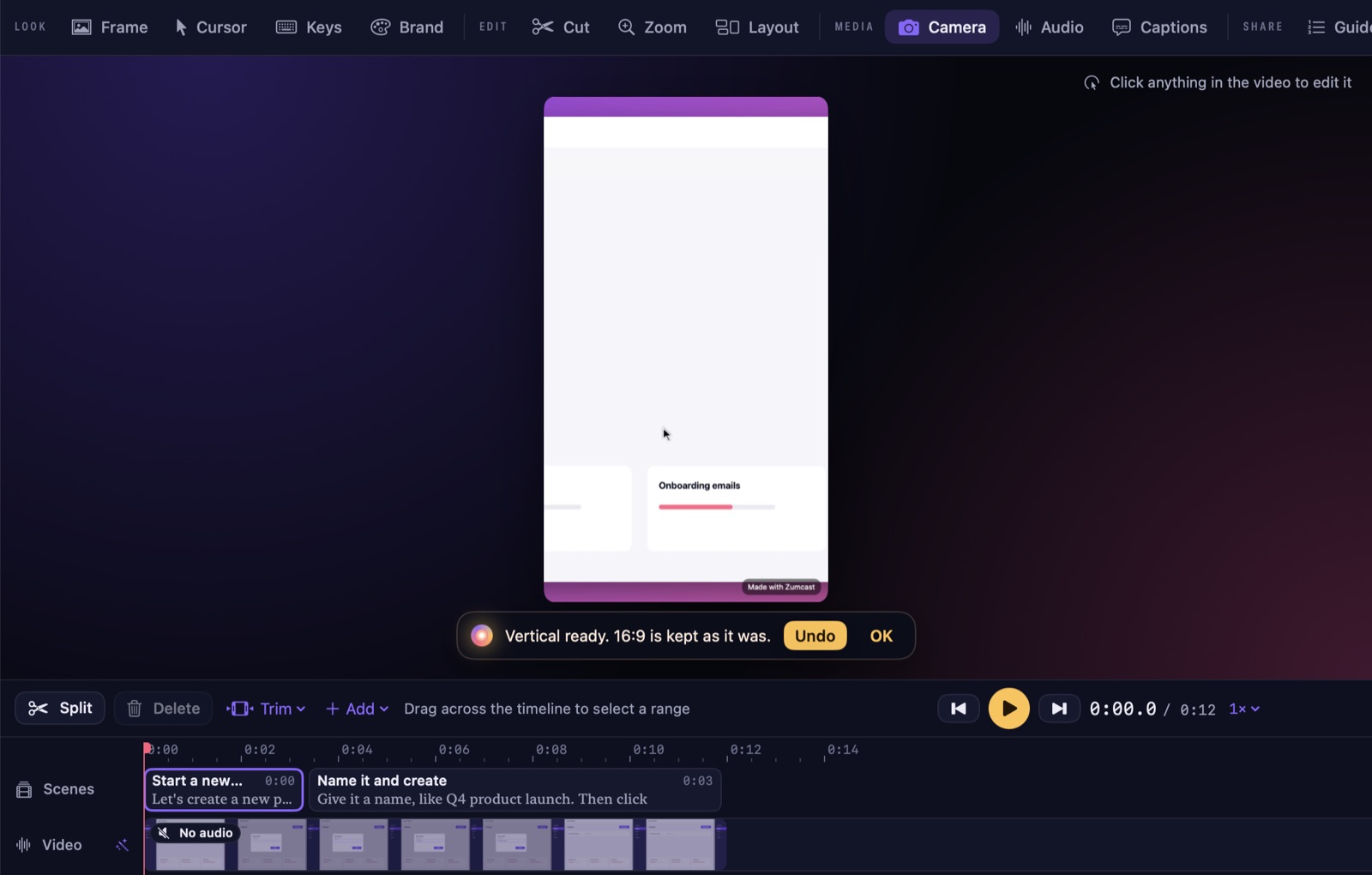
- Camera and screen, changeable later. Camera, voice and screen are saved separately, so you can change the camera's shape (circle, rounded, square and others), its position (one of nine) and its size after recording. Blur, colour or remove the background behind you.
- Layouts over time. In Layout, switch between camera only, picture in picture, split screen and screen only, with a cut, fade or morph between them. There's a ready-made talking-head intro.
- Point at the thing. Zooms on your clicks are made automatically. Add a highlight box, an arrow or a "Look here" prop from the Props tab, or ask Zumi to "highlight the Pricing link".
- Read without looking away. Press N for a teleprompter that follows your voice and never appears in the video.
- Tidy the take. Ask Zumi to "trim the first 3 seconds". With Pro, remove filler words and pauses, or edit by transcript.
- A thumbnail from the video. In the Studio, press S to save the current frame as a shot, add a play arrow or highlight in the shot editor and export it as PNG or JPEG. Without Pro, frames are saved at preview size and exported shots carry a small mark.
- Blur other customers' data. Ask Zumi to "blur anything private" and ZumCast finds emails, phone numbers, card numbers, API keys and faces on screen, and names and money amounts if you turn them on. Masks follow the text as the page scrolls, and the hidden part is never in the file.
- Share links (Pro). Share a link with a password, an expiry date (1, 7 or 30 days, or up to 90), and comments, downloads and captions on or off. Prospects can comment at a moment in the video or react, and you see views, comments and reactions in the Hub's Shared links page.
What to know: ZumCast is Mac only (macOS 14 or later), and it doesn't connect to a CRM or email tool; you paste the link or thumbnail into your own email. Exports are limited on the free Basic plan; Pro is $49 once. See pricing.
FAQ
How long should a sales prospecting video be? 60–90 seconds is a good target for a first touch. Follow-up videos can be even shorter.
What should I say in a personalised sales video? Their name, one specific thing you noticed about their business, one idea for how you'd help, and one small ask. Show their website or product on screen while you talk.
Should I put "video" in the subject line? Test it on your own list. A short, plain subject line about their business usually matters more than whether it mentions video.
Do personalised videos work better than text emails? They can stand out, but results depend on your market, your list and how personal the video really is. Track your own replies rather than relying on general figures.
How do I make a thumbnail for a sales video? Use a still frame from the video showing their website with you in a corner, add a play button, and link the image to the video.
How do I avoid showing private data in a sales video? Close your CRM and inbox, turn off notifications, use demo data, and blur anything sensitive before sending. Watch the edges of the screen once before you share.
ZumCast records your screen and camera, lets you change the layout after recording, and blurs private details on your Mac before anything is shared. Basic is free with no time limit. Download it free.