How to Record a Bug Report Video Developers Love (With Template)
How to record a bug report video developers can act on: what to show and say, how to keep it short and private, and a bug report template to copy.
Por enquanto, este artigo está só em inglês.
"It doesn't work" is the bug report every developer dreads. A short video fixes most of that: the developer sees exactly what you did, in what order, and what happened. No guessing which button, which page or which account.
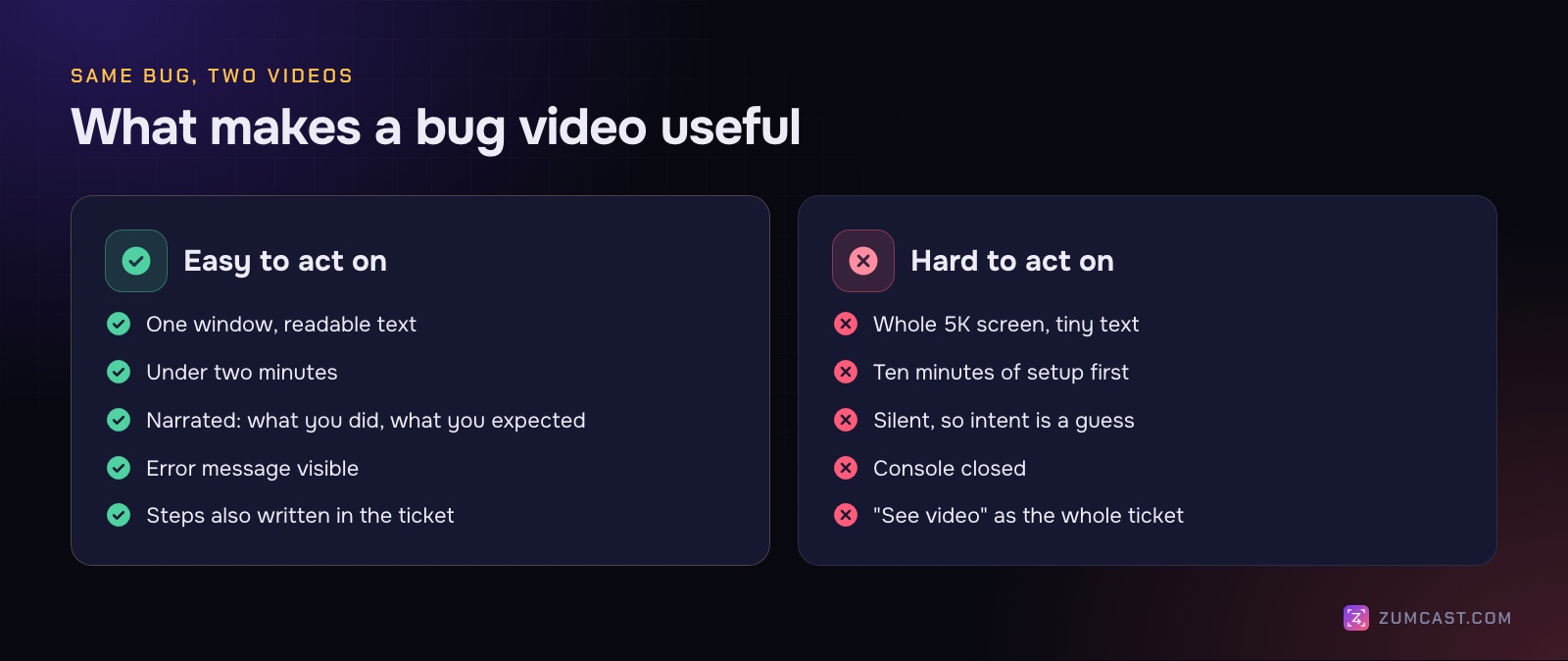
But a video can also be a ten-minute, silent, full-screen recording where the bug happens somewhere in the middle, in tiny text, with someone's inbox visible in the corner. That's not much better.
This guide is about the first kind. What to include, how to record it, how to keep private things out, and a template for the ticket that goes with it.
The quick answer
A bug report video developers love is:
- Short: the steps and the bug, nothing else. A common rule of thumb is under two minutes.
- One window: the app with the bug, at a size where text is readable.
- Narrated: say what you're doing, what you expected, and what happened instead.
- Complete: show the error message, and the console or log line if there is one.
- Private: no real customer data, emails or keys in the frame.
- Backed by text: the steps, expected and actual results, and your environment written in the ticket too.
Why video, and why not only video
Video is the fastest way to show what happened. It captures details people forget to write down: the exact click order, a flicker, a loading spinner that never stops, a page you visited first without thinking about it.
But developers also need to search, skim and copy. They can't search a video for an error message or paste a URL out of it. So the video goes with a written report, not instead of one. Most teams that like video bug reports still want the steps in text.
Before you record
A minute of setup saves a lot of back-and-forth later.
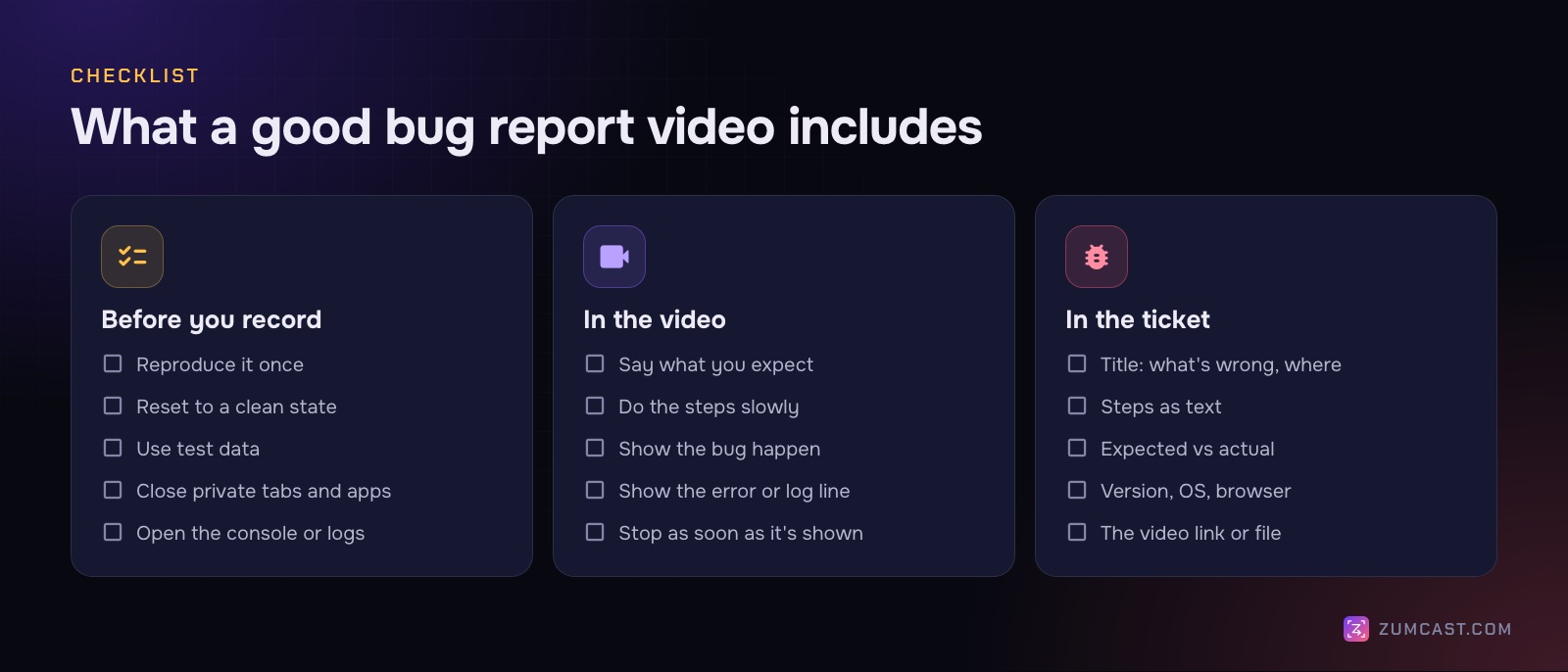
- Reproduce it once without recording. Make sure you know the steps that trigger it. If it only happens sometimes, note how often.
- Start from a clean state. Sign out and in, reload the page, or open a fresh window, so the video starts from somewhere a developer can get to as well.
- Use test data. A test account, fictional names (Acme, example.com), no real customers. It's easier than blurring later.
- Close what shouldn't be seen. Email, chat, other browser tabs, password managers. Turn on Do Not Disturb so notifications don't pop up mid-take.
- Open the console or logs. For a web app, open the browser's developer tools on the Console or Network tab. For a desktop app, have the log file or Console app ready.
- Make text readable. Record one window, not a whole 5K display. Zoom the page in a step if the text is small.
What to show and say
Narration is what turns a recording into a report. You don't need a script; just say what you'd type in the ticket, as you go.
- Set the scene (5–10 seconds). "This is the staging site, version 2.4.1, in Safari, signed in as a test user."
- Say what you expect. "When I click Export, a CSV should download."
- Do the steps slowly. Pause briefly on each click so the developer can see what you clicked. If you type something, say what.
- Show the bug happen. Let it sit on screen for a second or two. Point the cursor at it.
- Show the evidence. Switch to the console or log and show the error, the failed request or the stack trace.
- Stop. Once the bug and the error are visible, you're done.
If the bug takes a while to appear, cut the waiting out rather than making people watch it, and say in the ticket that there was a wait.
Recording it with the built-in tools
Every Mac can do this for free:
- Press Shift-Command-5.
- On macOS 26 or later, choose Record Selected Window and click the app's window. On earlier versions, choose Record Selected Portion and drag the frame tightly around it.
- Under Options, pick your microphone (it's set to None by default, which is why many first recordings are silent).
- Click Record, do the steps, and stop with the button in the menu bar.
- Click the thumbnail to trim the start and end, then attach the
.movto the ticket.
If the file is too big for your bug tracker, see How to Compress a Screen Recording on a Mac, or make a short GIF of just the moment the bug happens with How to Turn a Screen Recording Into a GIF. For the full rundown of built-in recording, see How to Screen Record on a Mac With Audio.
Keep private data out
Bug reports often go to more people than you think: contractors, vendors, a public issue tracker. Before you send:
- Watch it once, at double speed if you like, looking only at the edges of the frame and anything you typed.
- Blur or cut anything private: emails, names, tokens in URLs, API keys in a config file, card numbers.
- Check the browser address bar and tab titles. They leak more than people expect.
There's more on this in How to Hide Sensitive Information in Screen Recordings.
A bug report template
Copy this into your tracker. The video is one line of it, not the whole thing.
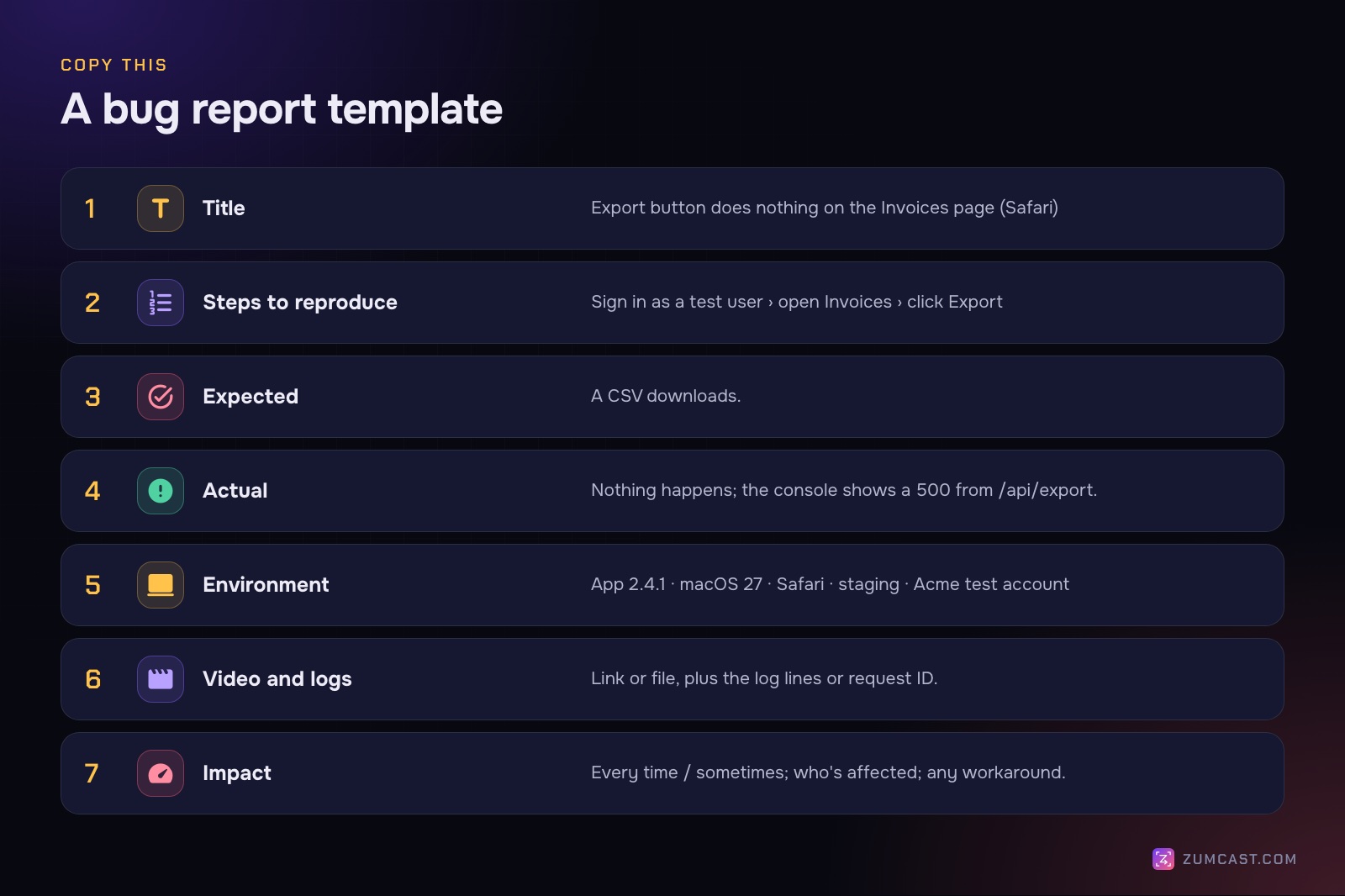
Title: [What's wrong] on [where] ([browser/device if relevant])

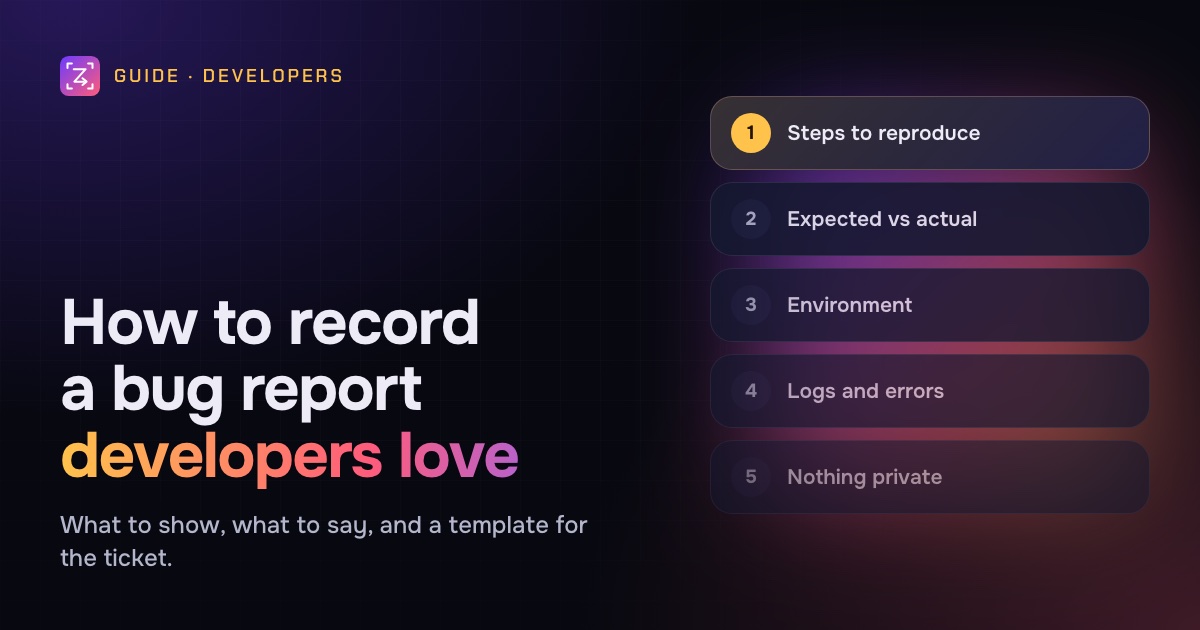
Steps to reproduce
1.
2.
3.

Expected:
Actual:

Environment: app version · OS · browser · environment (prod/staging) · account type
Video: [link or attached file]
Logs / errors: [error text, request ID, stack trace]
Impact: every time / sometimes · who's affected · workaround?
A good title says what's wrong and where: "Export button does nothing on the Invoices page (Safari)", not "Export broken". Paste error messages as text, not only as a screenshot, so they can be searched.
Recording bug reports in ZumCast
ZumCast is a Mac screen recorder, and it has a project type made for this: Bug report. Pick it from the Hub's Presets, or describe the video in Ask Zumi (for example "a bug report for the export button") and Zumi picks it. It sets up the recording for you: a window, a privacy scan and no captions.
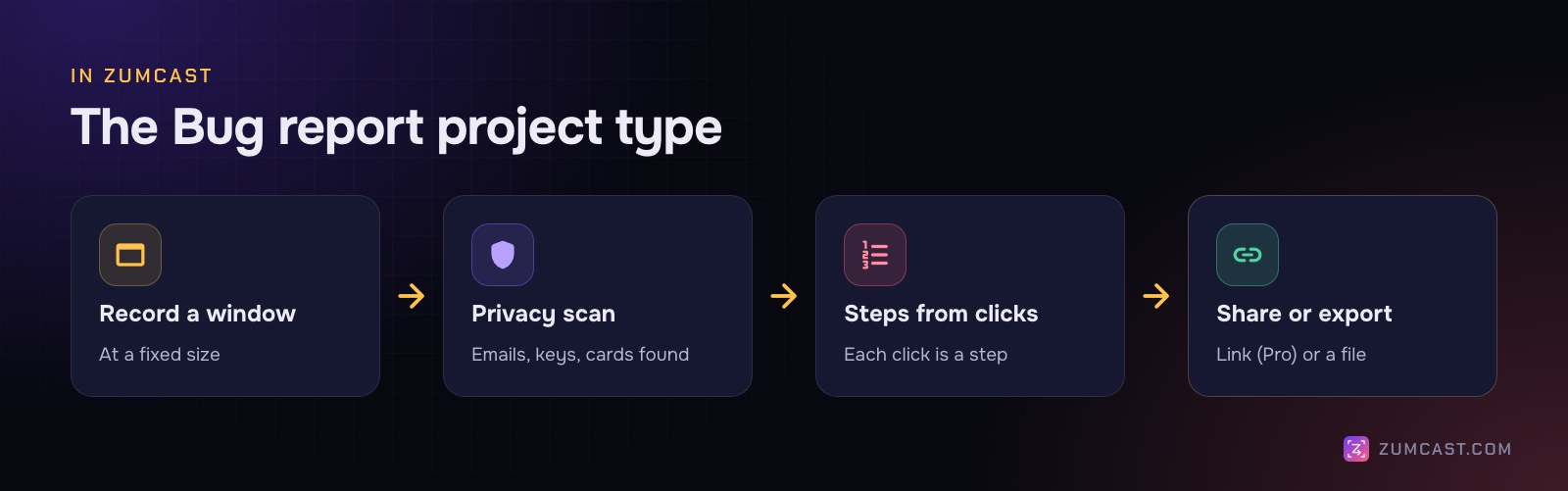
Record one window at a fixed size. Press 2 in the recorder and click the window. You can resize it to 1280×720, 1440×900 or 1920×1080 first, so text stays readable and every report looks the same. You can also hide notifications and desktop icons while recording.
Discard bad takes. If you fumble a step, press ⌃⇧D to discard the take (it asks you to confirm) and start again. ⌃⇧R starts and stops; ⌃⇧P pauses.
Private details are found for you. The Bug report type runs a privacy scan automatically. It reads the screen on your Mac and finds email addresses, phone numbers, card numbers, IBANs, API keys and other secrets, IP addresses and faces. Check what it found, untick anything you want to keep, and the blur is burnt into every export, following the text as the page scrolls. Nothing is uploaded to do this.
Show the keys you pressed. In the Studio's Keys settings, the shortcuts you press appear on screen, which helps when a bug depends on a keyboard shortcut. Typed text is never shown or stored.
Steps from your clicks. Every click becomes a guide step with a screenshot, and with Accessibility allowed, steps get real names like "Click Save". Use Copy as Markdown to paste them into GitHub, Jira or Linear as your steps to reproduce, then tidy the wording.
Share it. With Pro, Share › ZumCast link uploads the video and copies a link. You can set a password and an expiry date, and developers can comment at the exact moment they're talking about. Or export an MP4 and attach it.
What's free and what isn't. Recording, the privacy scan and editing are free. But on Basic, video exports are limited to the first half of the video, up to 30 seconds, with a "Made with ZumCast" mark, and guides and demos export the first 3 steps. Pro adds share links and full-length video exports, and exports every step, plus interactive demos. For quick one-off bug reports, the built-in Shift-Command-5 is perfectly good; ZumCast is worth it if you file them often and want the privacy scan and written steps. See pricing.
FAQ
How long should a bug report video be? As short as it takes to show the steps and the bug. A common rule of thumb is under two minutes. If setup takes longer, cut it out and describe it in the ticket.
Should I narrate a bug report video? Yes, if you can. Saying what you expected and what happened removes most of the guesswork. If you can't record audio, add the expected and actual results in the ticket text.
What should a bug report include? A clear title, steps to reproduce, expected and actual results, the environment (app version, OS, browser), the video or screenshots, any error messages or logs, and how often it happens.
Should I record the whole screen or one window? One window. Text stays readable, and you're far less likely to show private things by accident. On macOS 26 or later, the Screenshot toolbar has Record Selected Window.
How do I send a bug report video that's too big? Trim it to the essential part, export at 1080p or lower, or use HEVC. For a single moment, a short GIF is often enough. A share link avoids attachment limits altogether.
Is a GIF or a video better for a bug report? A GIF is fine for a short visual glitch with no sound. Use a video when the steps take more than a few seconds or when narration helps.
How do I avoid showing private data in a bug video? Use a test account and fictional data, close other apps and tabs, and turn on Do Not Disturb. Then watch the recording before sending and blur or cut anything private.
ZumCast is a Mac screen recorder with an AI editor that runs on your Mac. Its Bug report project type records one window, scans for private details on your Mac and turns your clicks into written steps. The Basic version is free; Pro is a one-time purchase. Download it free.