How to Create an Interactive Product Demo (Clickable Walkthrough)
How to create an interactive product demo, a clickable walkthrough viewers go through at their own pace: when it beats video, how to structure it, and how to make one.
Diesen Artikel gibt es vorerst nur auf Englisch.
Not everyone wants to watch a video. Some people want to click through at their own speed, skip ahead, go back a step, and see the real screens without sound. That's what an interactive product demo is for.
An interactive demo is a clickable walkthrough of your product: a series of screens, each with one highlighted spot to click and a short caption. Click the spot and you move to the next screen. It feels like using the product, without signing up, installing anything or waiting for a video to get to the good part.
This guide covers when an interactive demo is the right choice, how to structure one so people finish it, and how to make one from a single screen recording.
The quick answer
- Pick one task the viewer cares about, with a clear finish: "send your first invoice", not "a tour of everything".
- Plan 10 steps or fewer, one click per step.
- Record yourself doing the task in a clean demo account with fictional data.
- Turn each click into a step with a screenshot, a hotspot on what you clicked and one short sentence.
- Edit the captions, hide any steps that don't add anything, and blur anything private.
- Export as an HTML page and put it on your website, in your docs or in a sales email.
What an interactive demo is (and isn't)
An interactive demo is made from screenshots of your product, not the live product. Each step shows:
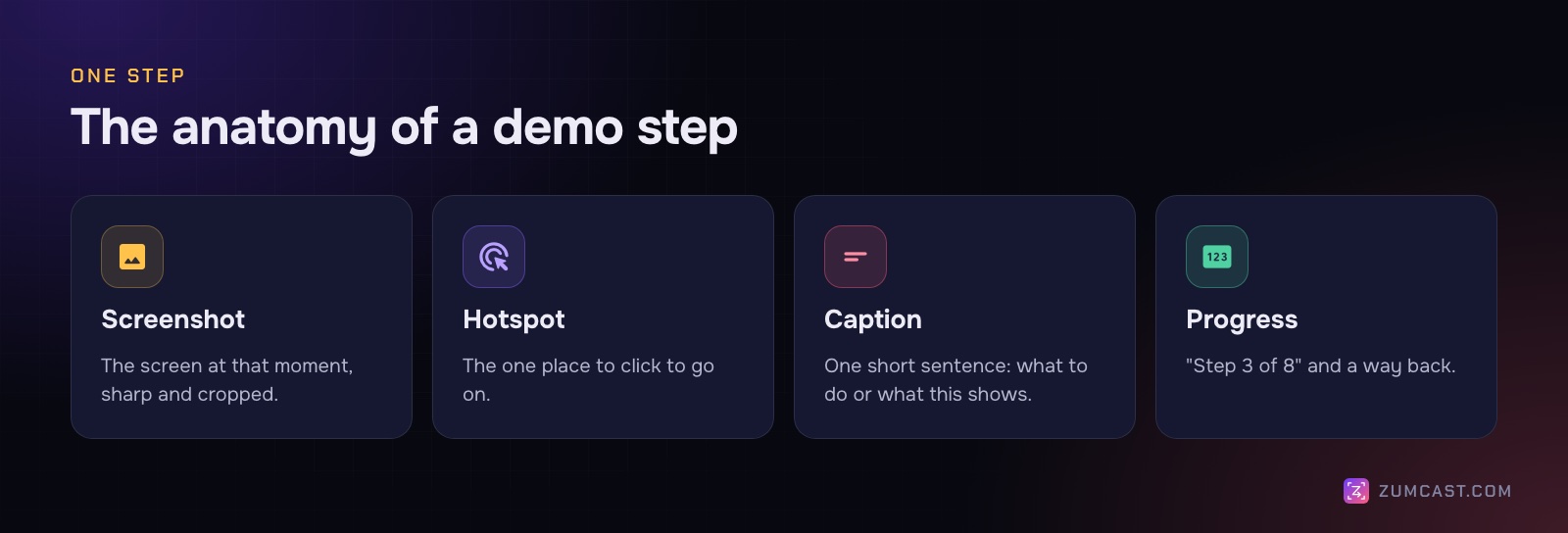
- A screenshot of the screen at that moment.
- A hotspot: the one place to click to continue, usually the button you clicked when you recorded it.
- A caption: one short sentence saying what to do or what this screen shows.
- Progress: "Step 3 of 8", and a way back.
It isn't a sandbox. Viewers can't type their own data or wander off the path, and that's the point: they see the best route through your product, with nothing to break.
When an interactive demo beats a video
Both have their place. The question is what the viewer needs.
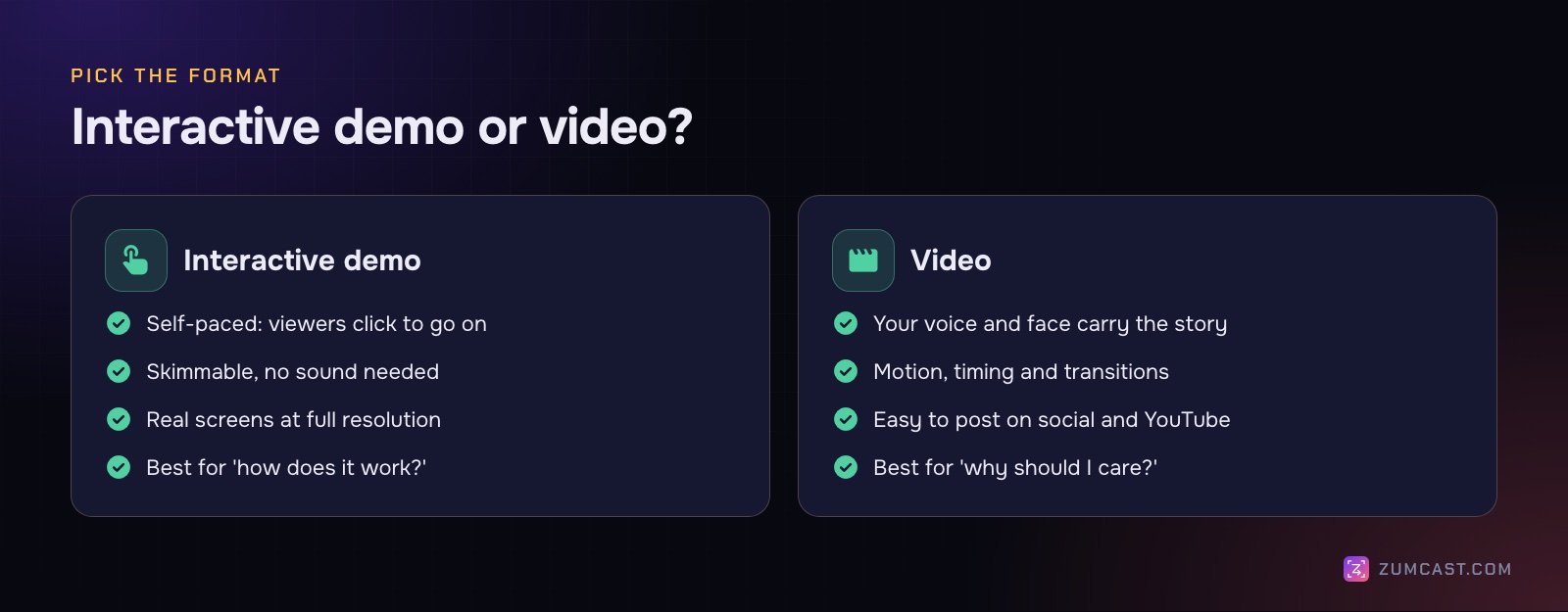
Choose an interactive demo when:
- People want to go at their own pace: skim the easy steps, linger on the tricky ones.
- They're likely to be somewhere without sound: at work, on a train, in an open office.
- The point is how something works: the clicks, the screens, the order.
- You want something that stays accurate and easy to update: re-record one task, re-export.
Choose a video when:
- The story matters more than the clicks: a launch, the problem you solve, a customer's result.
- Your voice and face build trust, as in sales outreach or a founder's intro.
- Motion is the feature: animations, real-time collaboration, speed.
- It's going on YouTube or social feeds.
Many teams use both: a short video on the homepage that explains why, and an interactive demo one click away that shows how. For the video side, see How to Make a Product Demo Video.
How to structure an interactive demo
Most interactive demos that people abandon are simply too long. Every extra step is another chance to leave.
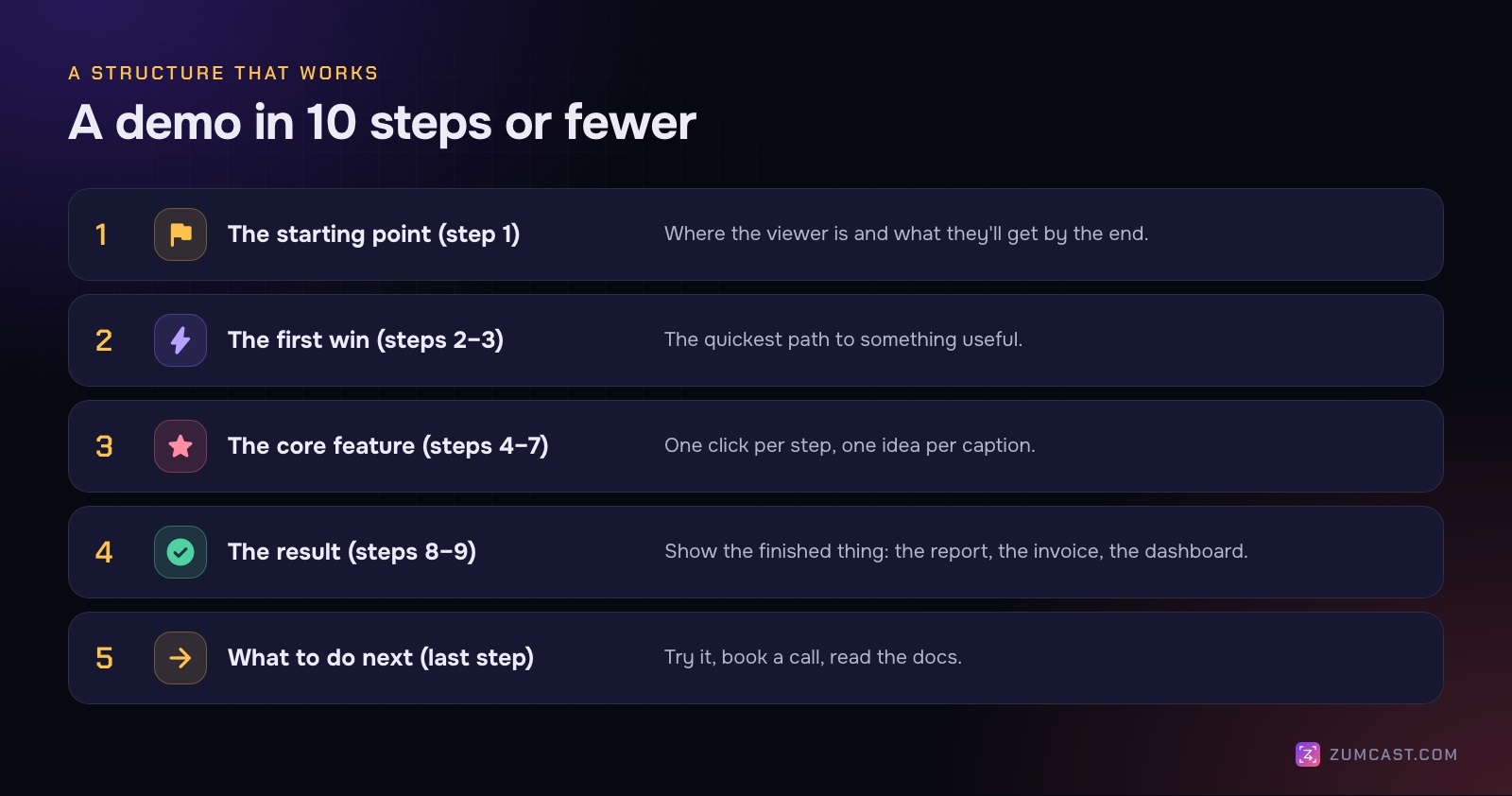
Keep it to 10 steps or fewer. If the task needs 25 clicks, split it into separate demos, or skip the routine clicks and show only the ones that matter.
Start with where they'll end up. Step 1 sets the scene: "You'll create and send an invoice in about a minute." People stick with a path when they know where it goes.
Get to a win quickly. Put something satisfying in the first three steps: a report appearing, a template filling in. Don't open with settings.
One click, one idea per step. The caption explains the click or the result, never both plus a feature list.
Keep captions short. One sentence, ideally under 15 words. Use the words on the screen: "Click Send invoice", not "click the button at the top right".
Show the result. End on the finished thing, the sent invoice or the dashboard with data in it, not on a settings screen.
Finish with a next step. "Start a free trial", "book a call", "read the full guide". One, not three.
How to record a demo that becomes a good walkthrough
When steps come from your clicks, the recording is the script. A little preparation makes the editing almost unnecessary.
- Use a demo account with fictional data. Acme Inc., Jane Doe, example.com. Real customer names in a public demo are a privacy problem and hard to clean up later.
- Set the window to a fixed size. 1280×720 or 1440×900 keeps the screenshots readable and consistent.
- Plan your clicks. Write the 8–10 steps down. During the recording, click only those, and avoid clicking around while you think: every click becomes a step.
- Pause briefly after each click. Let the next screen finish loading, so its screenshot isn't half-drawn.
- Narrate if your tool uses it. Some tools take a step's caption from what you said, so saying "now we send the invoice" gives you a first draft for free.
Where to use interactive demos
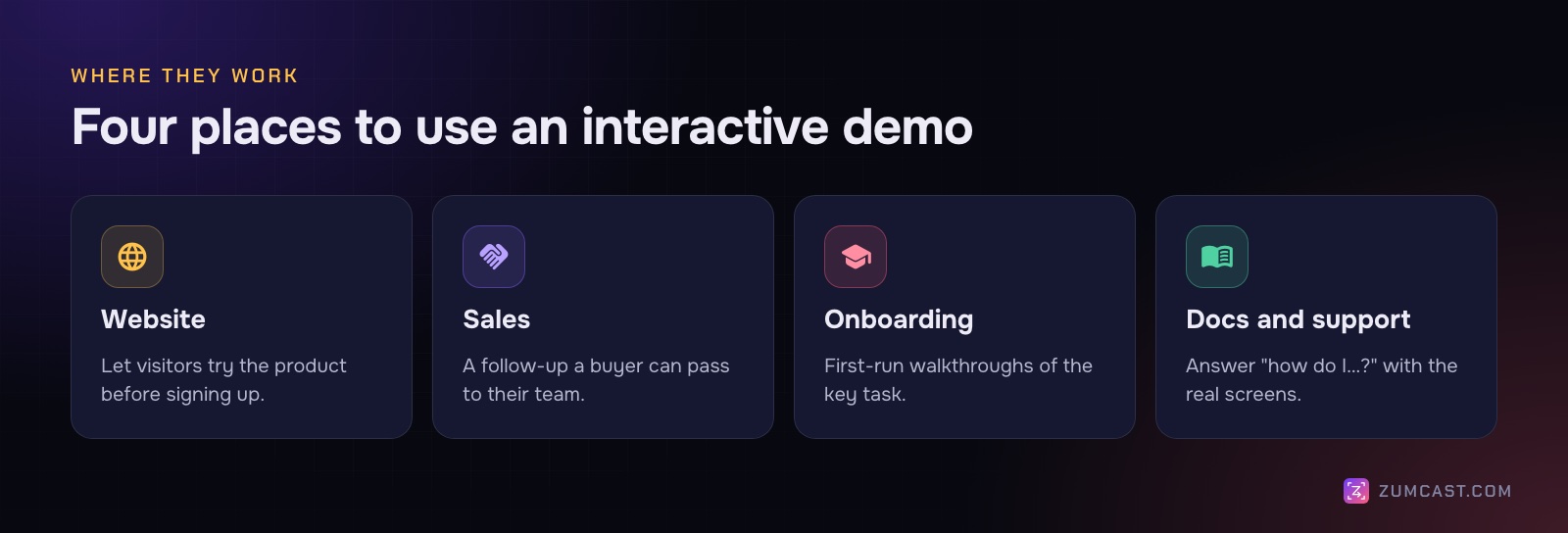
- Your website. A "See how it works" button next to "Sign up" lets curious visitors try the flow first.
- Sales. A walkthrough a buyer can forward to colleagues who weren't on the call.
- Onboarding. A walkthrough of the first important task, linked from a welcome email or an empty state. See also customer onboarding videos.
- Docs and support. Answer "how do I…?" with the real screens, instead of a wall of text.
Since an interactive demo is usually an HTML page, you can host it like any other page and link to it, or embed it in a page that allows embedded frames.
Making an interactive demo with ZumCast
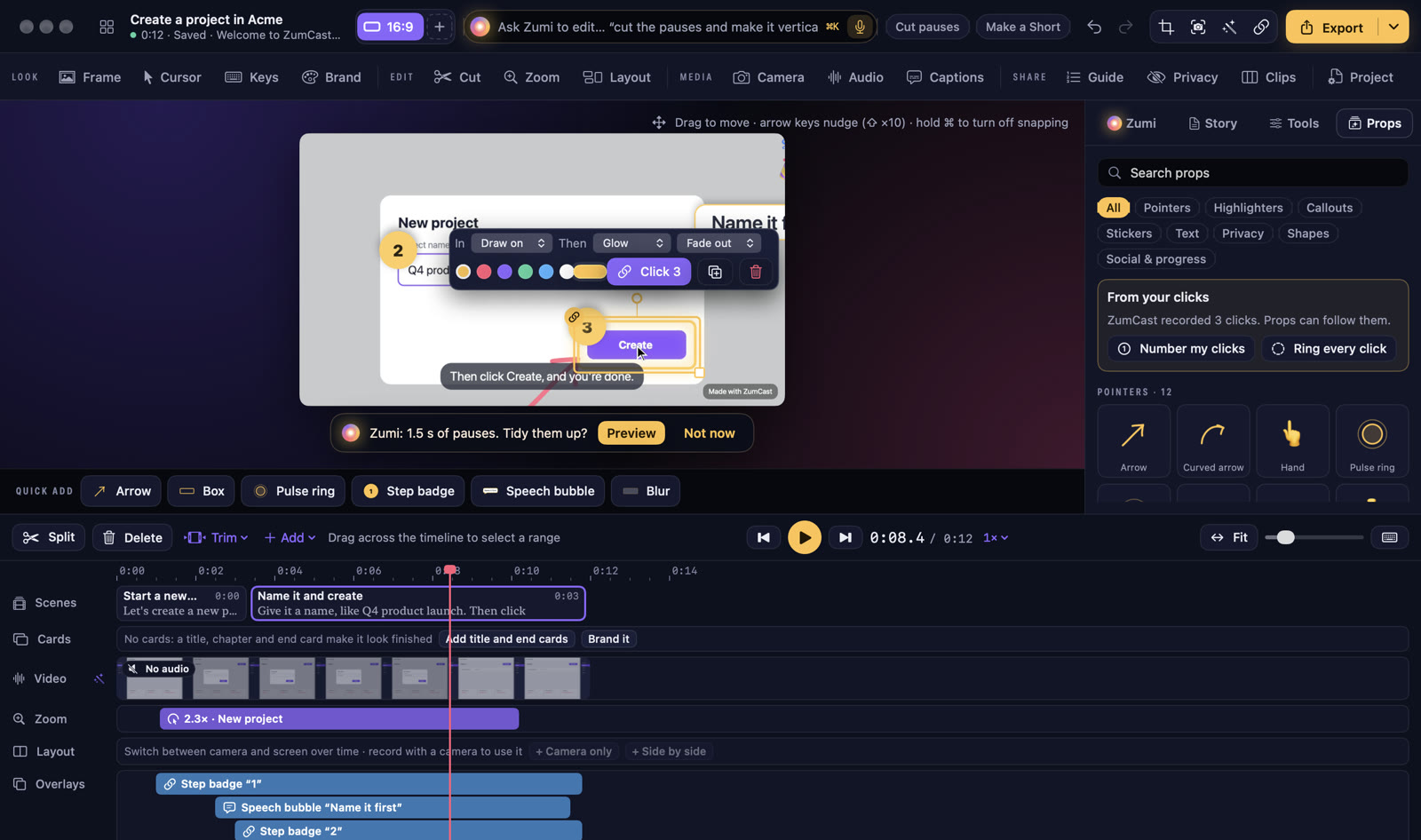
ZumCast is a Mac screen recorder that turns a recording into a written guide and an interactive demo, from the same take.
Every click becomes a step. While you record, ZumCast notes each click. When you stop, each one is a guide step with its own screenshot and a line taken from what you said. With the Accessibility permission allowed, steps get real names like "Click Save" instead of a position on screen.
Edit the steps. Open Guide in the Studio to edit the words, reorder or hide steps, and blur a step that shows something private. Redaction from ZumCast's privacy scan is burnt into the screenshots too.
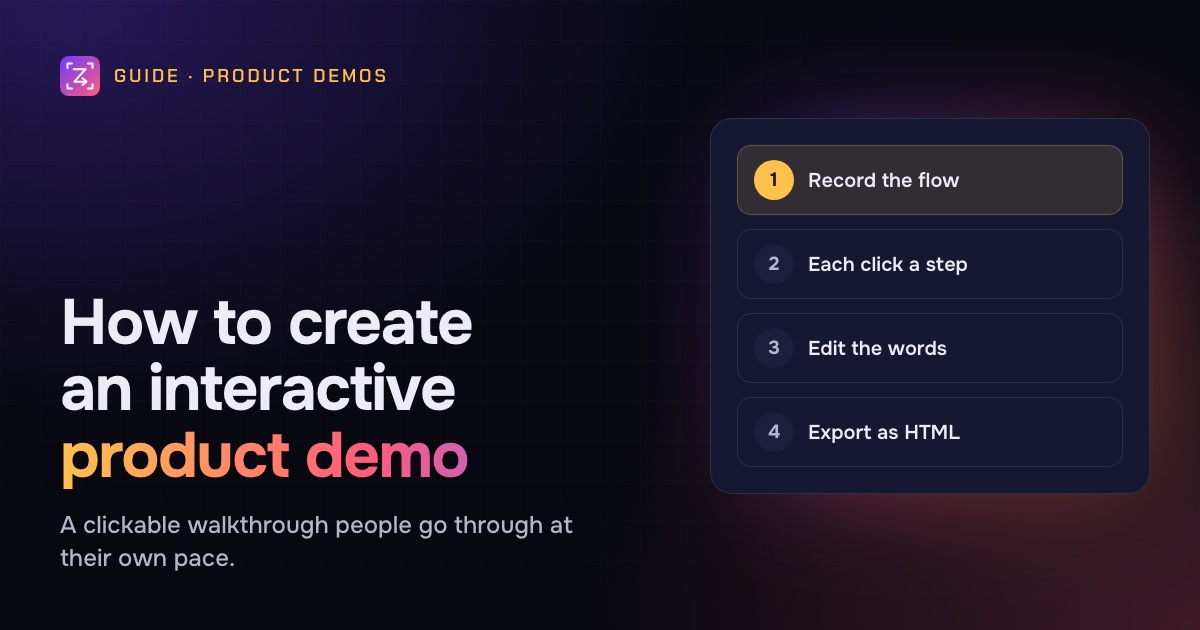
Export it. Choose an interactive demo: an HTML page viewers click through, with one hotspot per step and its caption, a step counter and a back button. You can host it or share it like any HTML file. The same steps also export as a Markdown folder, an HTML page or a PDF, or copy as Markdown (for GitHub or Notion) or rich text (for Confluence or Google Docs). More on written guides in How to Make a Step-by-Step Guide From a Screen Recording.
Use the video too. The same recording is a video with zooms on each click, so you can export a short clip for the homepage and the interactive demo for the "how it works" link.
What it doesn't do. ZumCast's interactive demos are self-contained HTML walkthroughs. Viewer analytics, branching paths, lead-capture forms and CRM integrations aren't among its listed features; if you need those, look at a dedicated demo platform and use ZumCast for the recording and screenshots.
Free vs Pro. Basic exports guides and demos for the first 3 steps, which is enough to try the workflow. Pro, a one-time purchase, exports every step, plus interactive demos. See pricing and the Export docs.
FAQ
What is an interactive product demo? A clickable walkthrough of your product made from screenshots. Each step highlights one spot to click and has a short caption, and clicking it moves to the next step.
How many steps should an interactive demo have? Ten or fewer is a good rule of thumb. If a task needs more, split it into several demos or skip the routine clicks.
Is an interactive demo better than a video? For showing how something works, at the viewer's own pace and without sound, often yes. For telling a story, building trust with your voice or posting to social media, a video is better. Many teams use both.
How do I make an interactive demo without coding? Record yourself doing the task in a tool that turns clicks into steps, edit the captions, and export it as an HTML page. No code is needed.
Where should I put an interactive demo? On your website next to the sign-up button, in sales follow-ups, in onboarding emails and in your help docs.
Can I embed an interactive demo on my website? If it's an HTML page, you can host it on your site and link to it, or embed it with an iframe where your site allows that.
How do I keep an interactive demo up to date? Keep demos short and focused on one task, so when the product changes you only re-record that task and export again.
ZumCast is a Mac screen recorder with an AI editor that runs on your Mac. Every click in a recording becomes a guide step, and the same take exports as a video, a written guide and a clickable interactive demo. The Basic version is free; Pro is a one-time purchase. Download it free.