How to Trim or Cut a Screen Recording on a Mac (5 Ways)
How to trim a screen recording on Mac, cut out the middle, and remove pauses, with the Screenshot thumbnail, QuickTime, Photos, iMovie and ZumCast.
这篇文章目前只有英文版。
Every screen recording starts the same way: a few seconds of you reaching for the mouse, then the window you meant to show. And it ends with you hunting for the stop button. In between there's usually a page that took too long to load, a wrong click, or a pause while you remembered what came next.
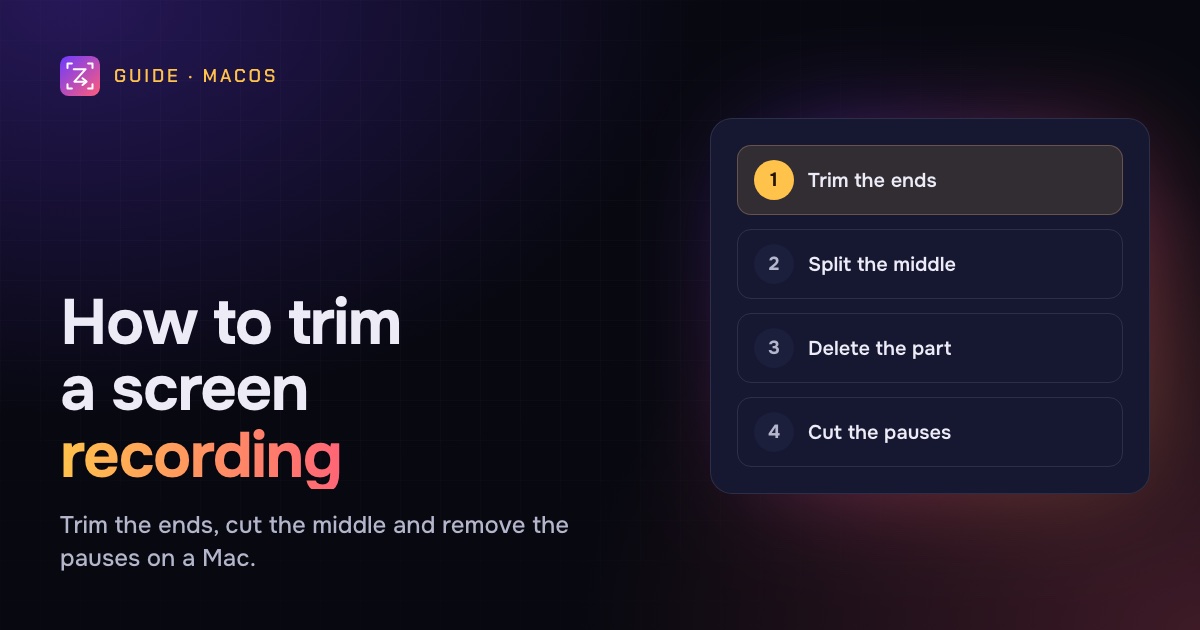
None of that needs to stay. Your Mac can cut most of it without installing anything, and the right tool depends on what you want to remove: just the start and end, a chunk from the middle, or every pause in a ten-minute take.
This guide covers all of them, step by step.
The quick answer
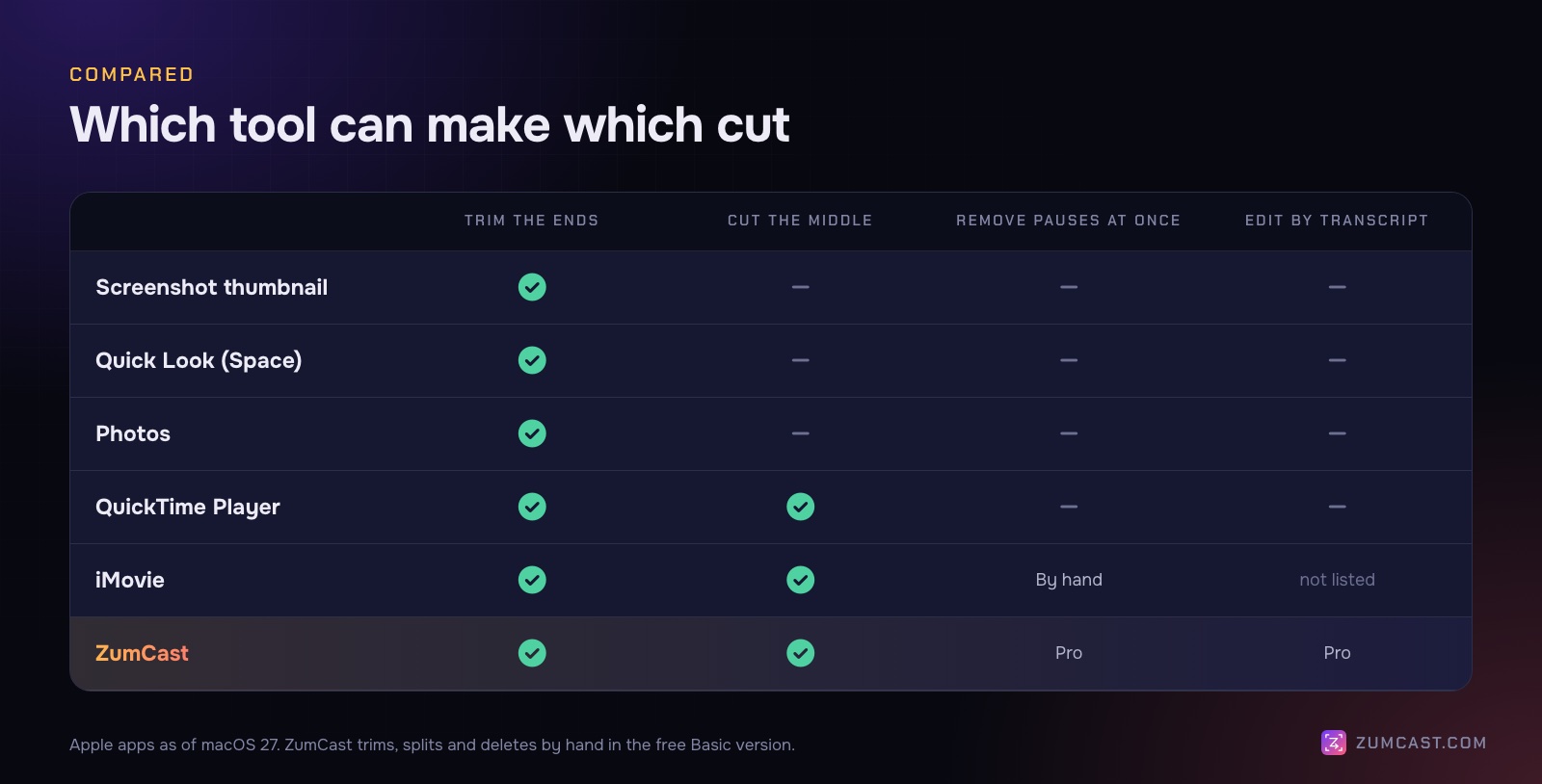
To trim the start and end, open the recording in QuickTime Player, choose Edit › Trim (Command-T), drag the yellow handles to the part you want to keep, and click Trim. Then choose File › Save or File › Export As.
To cut something out of the middle, use QuickTime's Edit › Split Clip (Command-Y) on either side of it, select the part you don't want and delete it.
To remove every pause or "um" at once, you need an editor that works from the audio or the transcript, like ZumCast (that part is Pro).
Method 1: Trim right after you record (the thumbnail)
When you record with Shift-Command-5, a thumbnail slides in at the bottom right of the screen when you stop. That's your fastest chance to trim.
- Click the thumbnail before it disappears. The recording opens in a preview window.
- Click the Trim button in the window's toolbar.
- Drag the yellow handles at each end of the timeline to the part you want to keep.
- Click Done.
If you miss the thumbnail, there's a second chance in Finder: select the recording, press Space to open Quick Look, and click the Trim button at the top. Drag the handles and click Done.
Good for: cutting the fumbling at the start and the reach for the stop button.
Not good for: anything in the middle. Quick Look only trims the ends.
Method 2: QuickTime Player (trim, split and delete)
QuickTime Player comes with every Mac and does more editing than most people realise. It can trim, split a recording into clips, delete clips and put the rest back together.
Trim the start and end
- Open the recording in QuickTime Player.
- Choose Edit › Trim, or press Command-T. A yellow bar appears around the timeline.
- Drag the yellow handles to the start and end of the part you want to keep. Press play to check.
- Click Trim. Changed your mind? Edit › Undo Trim.
Cut a part out of the middle
This is the step most people don't know QuickTime can do.
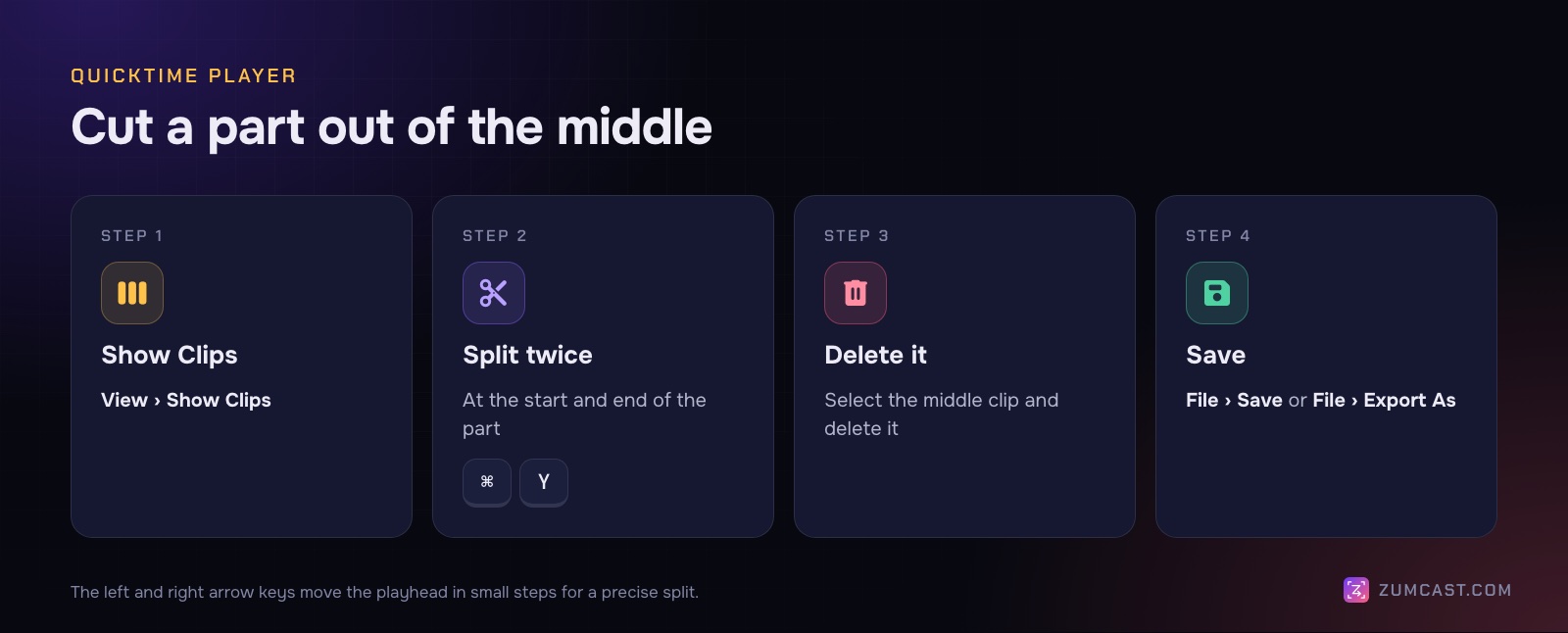
- Choose View › Show Clips. The recording appears as one clip under the video.
- Move the playhead (the red line) to the start of the part you want to remove. The left and right arrow keys move it in small steps for a precise cut.
- Choose Edit › Split Clip, or press Command-Y.
- Move the playhead to the end of the unwanted part and split again. You now have three clips.
- Click the middle clip to select it and delete it.
- Click Done.
You can double-click any clip to trim its ends, and drag clips to change their order.
Save the result
Choose File › Save to save the edited recording, or File › Export As to save a copy at a chosen resolution (4K, 1080p, 720p or 480p). Exporting at a lower resolution also makes the file smaller; see How to Reduce a Screen Recording's File Size on a Mac.
Good for: one or two cuts in a short recording, for free.
Not good for: lots of cuts. There's no way to see the audio waveform, so finding the exact start of a pause is guesswork.
Method 3: The Photos app
If your recordings end up in Photos, you can trim them there. Drag the file into Photos first, then:
- Double-click the video to open it, then click Edit in the toolbar.
- Click Adjust, then drag the trim handles at either end of the timeline.
- Click Done.
Trimming in Photos doesn't delete anything. Apple says you can recover the trimmed footage later, and Revert to Original puts the whole video back. Like Quick Look, Photos only trims the start and end.
Method 4: iMovie
iMovie is free from Apple and gives you a real timeline with an audio waveform, which makes finding pauses much easier than in QuickTime.
- Create a new movie project and drag your recording into it, then drag it down to the timeline.
- To trim the ends: drag the start or end edge of the clip toward its middle.
- To cut the middle: move the playhead to where the cut should start and choose Modify › Split Clip (Command-B). Split again at the end of the part you don't want, select it and press Delete.
- Choose File › Share › File to export.
For finer control, the clip trimmer (in the Window menu) lets you add or remove single frames.
Good for: a recording with several cuts, where you want to see the waveform.
Not good for: speed. Creating a project and importing feels heavy for a two-minute screen recording, and iMovie has no screen-recording extras like zooms on your clicks.
Method 5: ZumCast (trim, split, and cut by text)
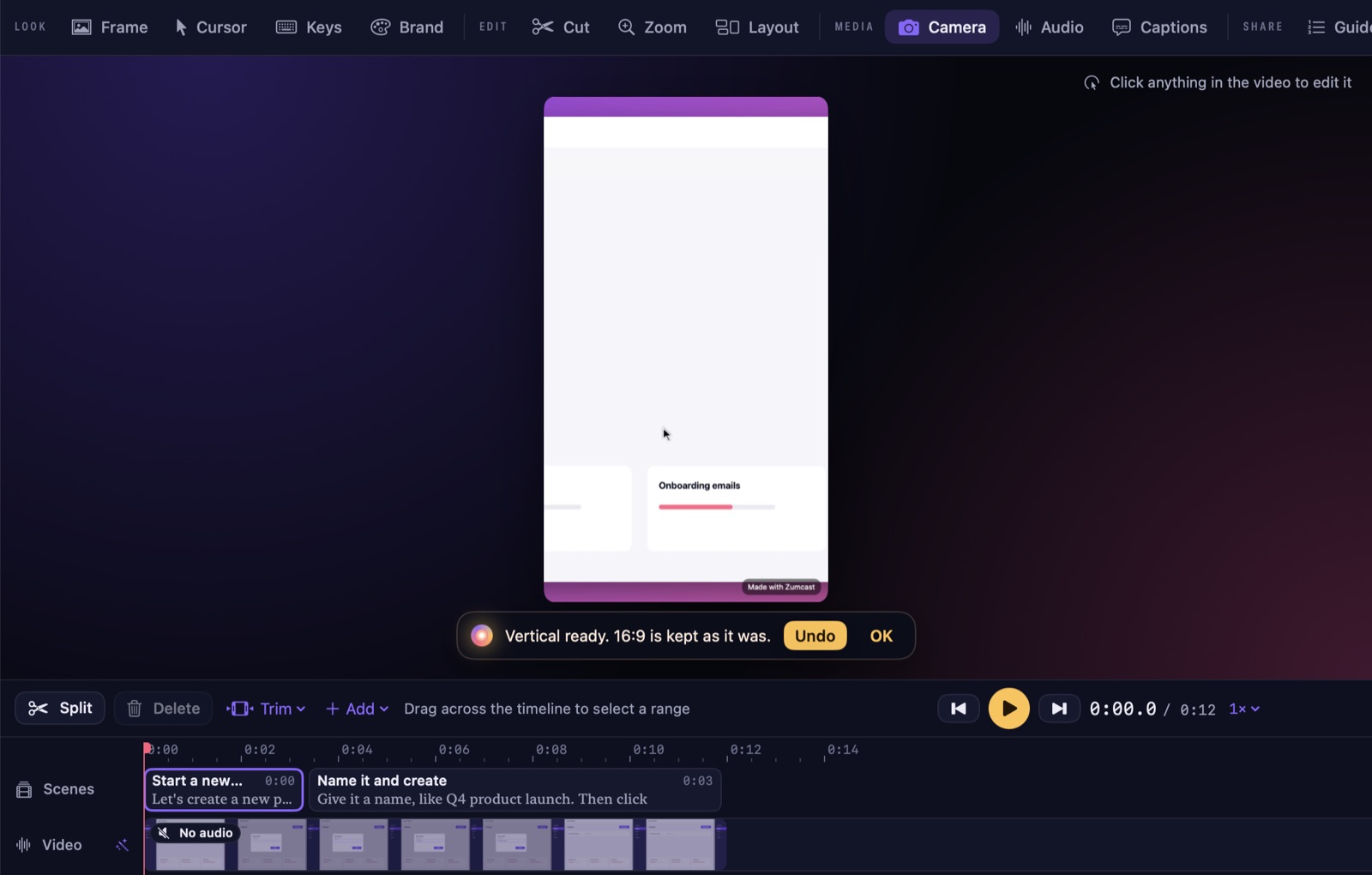
ZumCast is our Mac screen recorder, and it's built for the cuts screen recordings need most. When you stop recording, the Studio opens with the take on a timeline, and you can import a video you recorded elsewhere with Import video in the Hub.
By hand (free)
These work in the free Basic version:
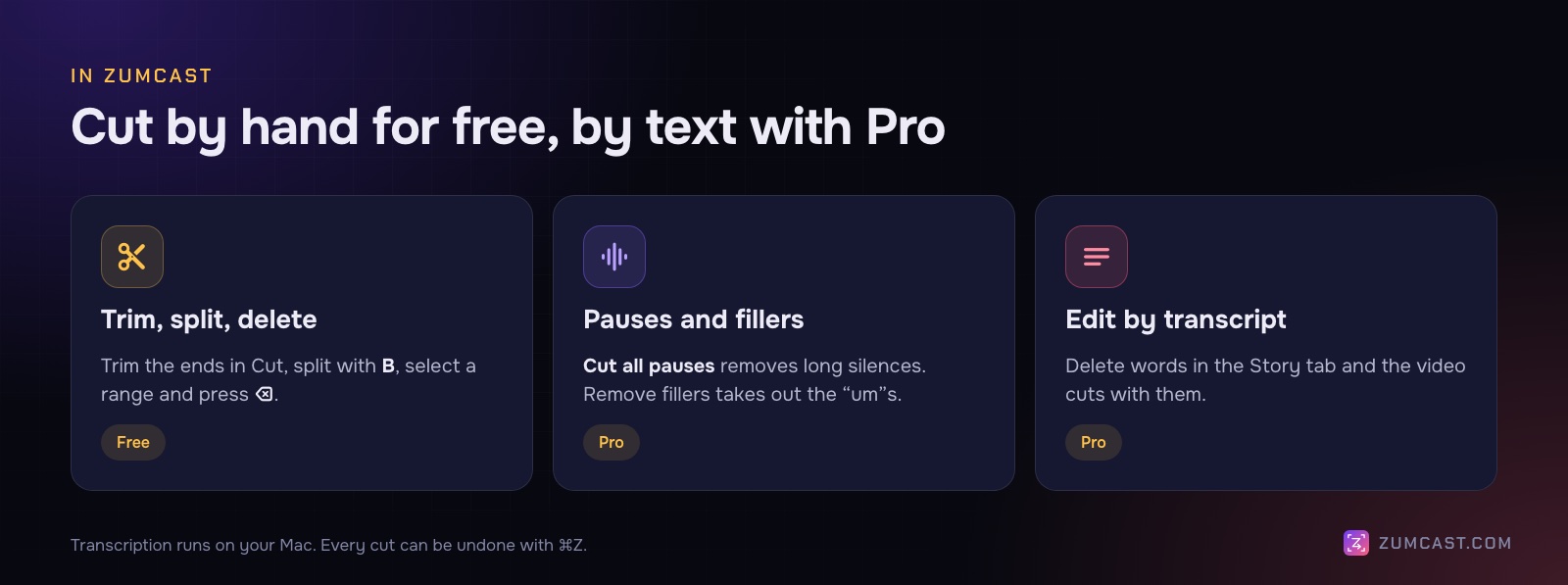
- Trim the start and end in the Cut tool.
- Split at the playhead with B.
- Delete a range: drag across the timeline to select it, then press ⌫ or click Delete.
- J, K, L jump back 5 seconds, pause and jump forward 5 seconds; ← and → step one frame for exact cuts.
- ⌘Z undoes any cut.
You can also ask Zumi, the built-in AI editor, in plain words: "trim the first 3 seconds". It shows a plan with the cuts in red on the timeline, and nothing changes until you press Apply. Basic includes three Zumi plans a day.
Pauses, fillers and the transcript (Pro)
This is where a screen-recording editor saves real time:
- Cut all pauses removes long silences in one go.
- Remove fillers takes out the "um"s and "you know"s.
- Edit by text: the Story tab shows the transcript of what you said. Delete words and the video cuts with them. Click a word to jump there, shift-click to select a run.
The transcript, removing fillers and Cut all pauses are part of Pro; trimming, splitting and deleting by hand are free. Transcription runs on your Mac, so nothing is uploaded.
One thing to know: Basic exports the first half of the video, up to 30 seconds, with a small "Made with ZumCast" mark. Pro exports the full length. See Free vs Pro and the Studio guide.
What to cut (and what to keep)
Knowing how to cut is the easy part. Knowing what to cut is what makes a recording feel short.
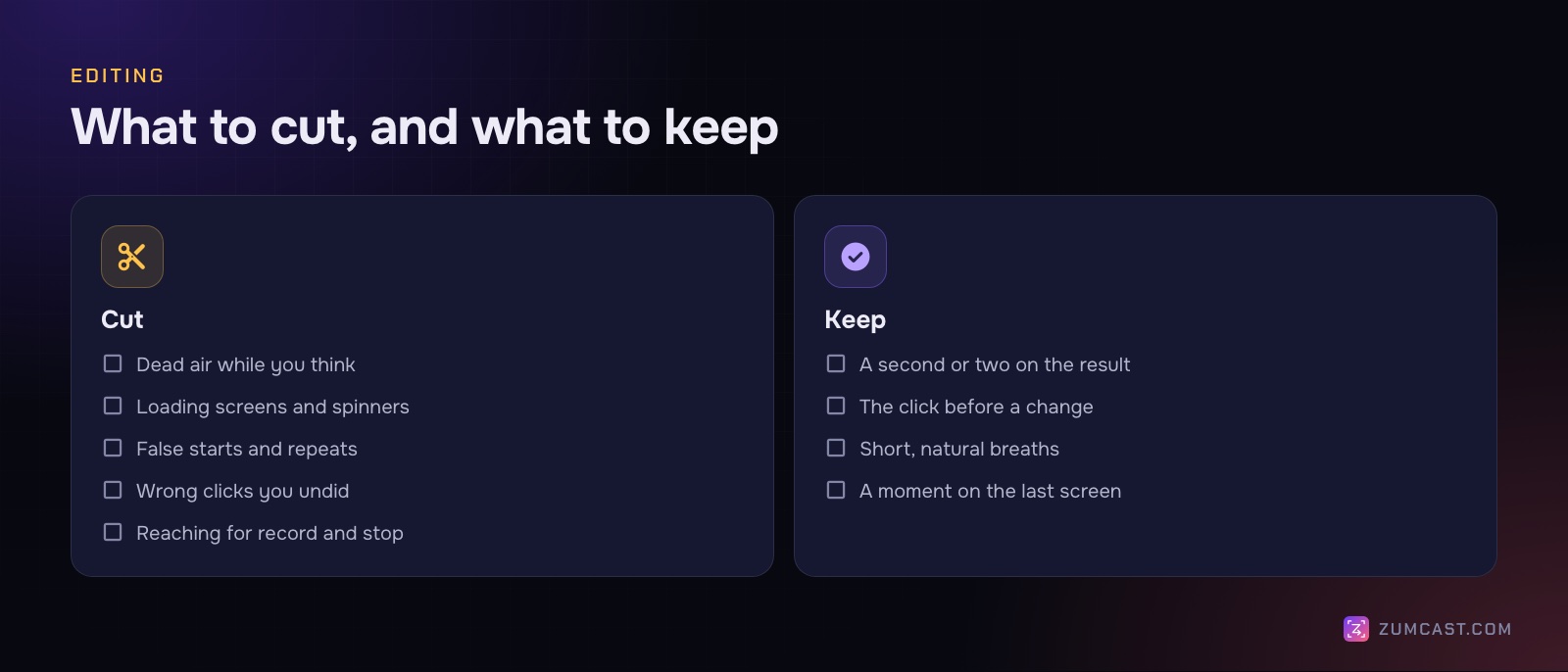
Cut:
- Dead air. Silence while you think, or while you move the mouse to the next thing. A few seconds here and there adds up fast.
- Loading. Nobody needs to watch a spinner. Cut from the click straight to the loaded page.
- False starts. If you said a sentence twice, keep the better one.
- Mistakes you corrected. A wrong click and the undo can both go.
- The ends. The reach for the record button and the reach for the stop button.
Keep:
- The result beat. After the important click, leave a second or two on the result so people can see what changed. This is the cut people get wrong most often: they cut so tightly that the payoff flashes past.
- The click before a change. Viewers need to see what you did, not just what happened.
- Short breaths. Cutting every tiny gap makes speech sound chopped. Remove long pauses, not natural rhythm.
- A moment on the last screen. End on the finished state, not mid-movement.
A good rule of thumb: watch the recording once at normal speed before cutting anything, and note where your own attention drifts. Those are your cuts.
Keep the original
If you plan to cut a lot, keep the original file until you're happy with the edit. A cut you regret is easy to fix when the full take still exists.
- QuickTime: use File › Export As to save the edited copy, instead of saving over the original.
- Photos: nothing is lost. Revert to Original brings back the trimmed parts.
- ZumCast: every cut can be undone with ⌘Z, and an export is always a new file, so the project stays editable.
Exporting at the same resolution you recorded at keeps a screen recording looking sharp. Text gets soft only when you export smaller than the original, so pick the resolution your viewers will actually watch at.
FAQ
How do I trim a screen recording on a Mac without an app? Click the thumbnail that appears after you stop recording, or select the file in Finder and press Space, then click Trim and drag the yellow handles. For cuts in the middle, use QuickTime Player, which comes with every Mac.
How do I cut out the middle of a video in QuickTime? Choose View › Show Clips, split at the start and end of the part you don't want with Edit › Split Clip (Command-Y), select the middle clip and delete it. Then save or export.
Can I trim a screen recording on a Mac without losing quality? Yes. Export at the same resolution you recorded at and the difference is very hard to see. Text only gets soft when you export at a smaller size than the original.
How do I remove pauses from a screen recording automatically? You need an editor that reads the audio or the transcript. In ZumCast, Cut all pauses removes long silences in one step (Pro). QuickTime and iMovie only let you cut pauses by hand.
Why is the Trim option greyed out in Photos? If the video is stored in iCloud, your Mac may need to download the original first. Wait for it to finish downloading, then try again.
Is there a way to trim a recording by deleting words? Yes, with a transcript-based editor. In ZumCast's Story tab, deleting words from the transcript cuts the video at the same spot. Transcription and editing by text are part of Pro.
What if I need to blur something, not cut it? If a password or customer's email is on screen, cutting may not be enough. See How to Blur Part of a Video on a Mac and How to Hide Sensitive Information in Screen Recordings.
ZumCast is a Mac screen recorder with an AI editor that runs on your Mac. It trims, splits and cuts by hand for free, and with Pro removes pauses and fillers or cuts by deleting words in the transcript, all without uploading anything. The Basic version is free; Pro is a one-time purchase. Download it free.