How to Take a Scrolling Screenshot on a Mac (Full Page, Any App)
macOS can't take a scrolling screenshot on its own. Here are four ways that work, from free browser tricks to capturing a long page in any app, plus tips for clean results.
這篇文章目前只有英文版。
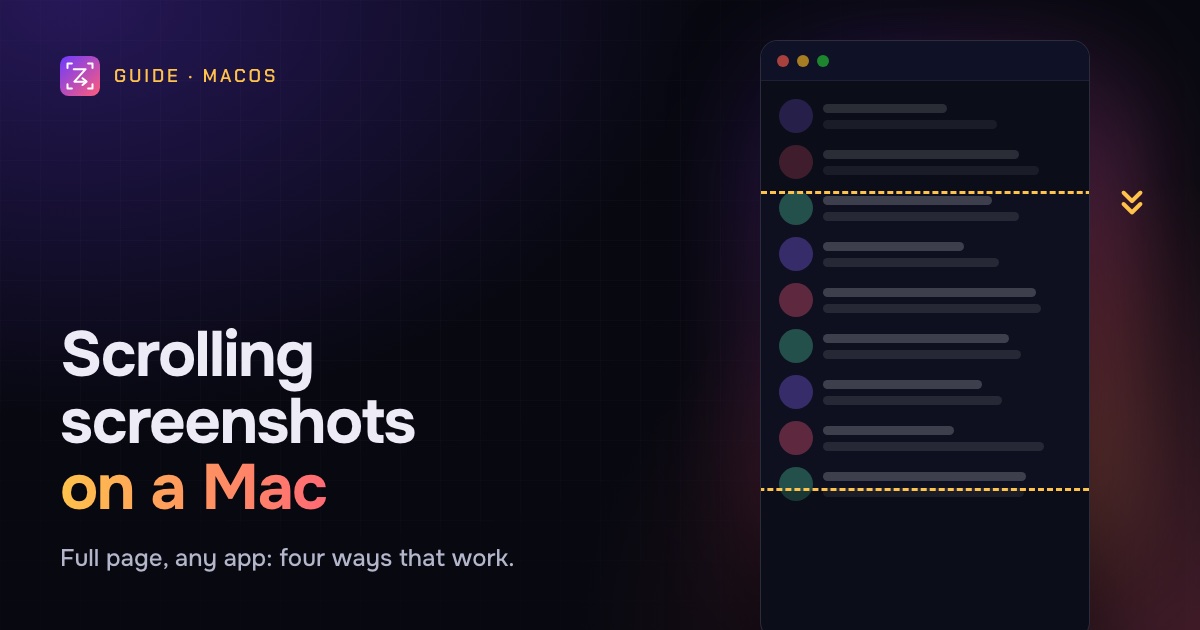
You want a screenshot of a whole web page, a long chat thread or a settings screen that runs below the fold. You press Shift-Command-4, and you get... the part that fits on screen.
Here's the short version: macOS has no built-in scrolling screenshot. Shift-Command-3, 4 and 5 capture only what's visible. But there are four reliable ways to get a full-length capture, and which one is best depends on what you're capturing.
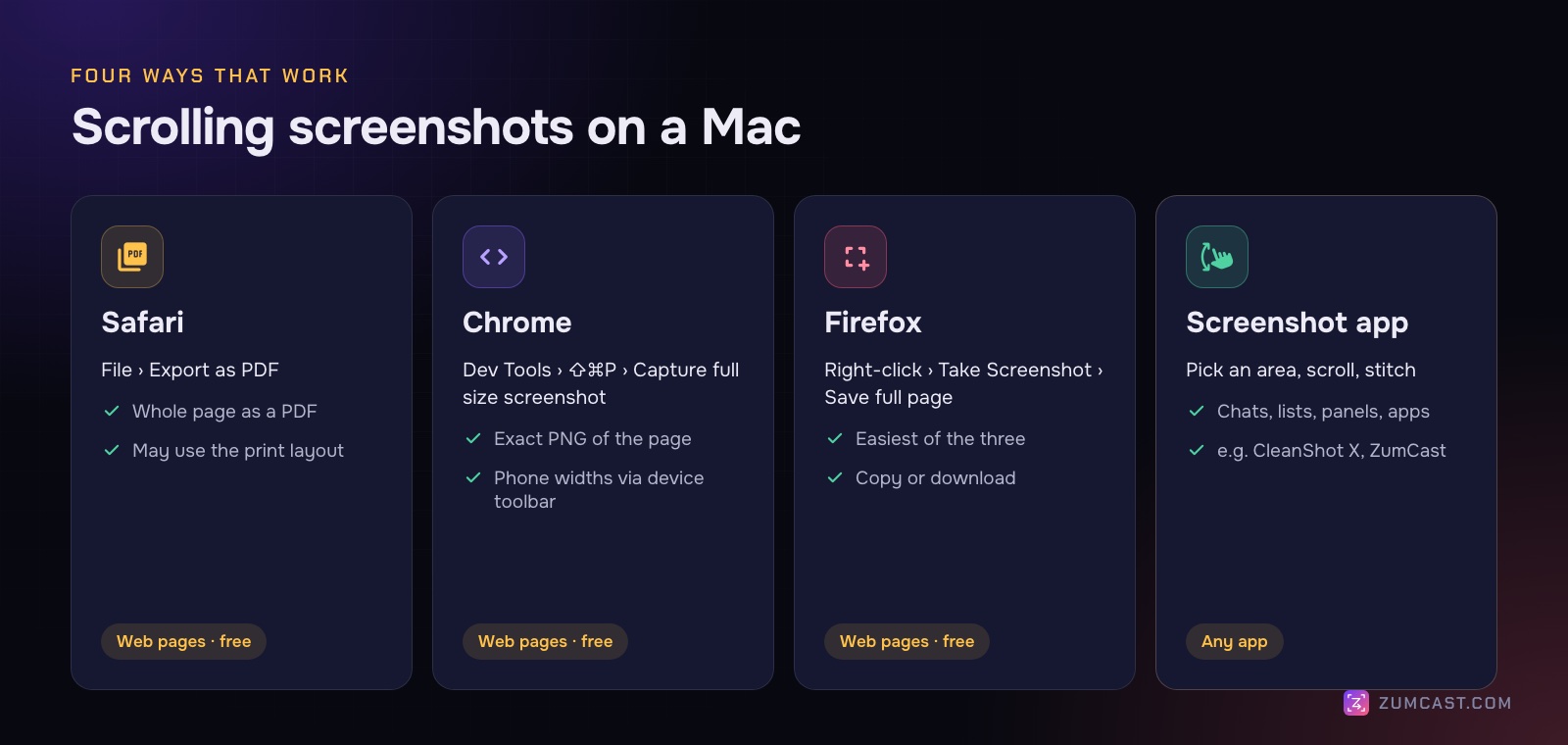
Method 1: Safari, Export as PDF (web pages, free)
If the long thing is a web page and you use Safari, this is the quickest route.
- Open the page in Safari and scroll to the bottom once, so any images that load as you scroll have loaded.
- Choose File › Export as PDF…
- Save it.
Safari saves the whole page as a PDF, usually as one long page rather than split into sheets. That's ideal for sending to someone or archiving. If you need an image instead, open the PDF in Preview and choose File › Export, then pick PNG or JPEG.
Watch out for: Safari uses the page's print layout for some sites, so the PDF can look different from the screen, for example without the navigation bar or with a simpler layout.
Method 2: Chrome, Capture full size screenshot (web pages, free)
Chrome has a full-page screenshot hidden in its developer tools. It captures the page exactly as it's drawn on screen.
- Open the page and press Option-Command-I to open Developer Tools.
- Press Shift-Command-P to open the command menu.
- Type screenshot and choose Capture full size screenshot.
A PNG of the whole page lands in your Downloads folder. Microsoft Edge and other Chromium-based browsers have the same command.
Tip: to capture the page at phone width, turn on the device toolbar in Developer Tools first (the phone-and-tablet icon), pick a device, then run the same command.
Method 3: Firefox, Save full page (web pages, free)
- Right-click anywhere on the page and choose Take Screenshot.
- Click Save full page in the top-right corner.
- Choose Download or Copy.
It's the friendliest of the three browser methods: no menus to dig through, and you can drag to select just one part of the page instead.
The limit of all three browser methods
They only work on web pages in that browser. They can't capture:
- A long conversation in Slack, Messages or Mail
- A list in Finder, Notes or a spreadsheet
- A settings screen in a Mac app
- A web app whose content scrolls inside a panel rather than the whole page (many dashboards, email clients and chat apps work this way)
For those, you need an app that does what the browser can't: scroll the area for you, capture each screenful, and stitch them into one tall image.
Method 4: A screenshot app with scrolling capture (any app)
Several Mac screenshot tools can take scrolling captures, including CleanShot X and ZumCast. They work the same way: you choose an area, the app scrolls it (or you do), and it stitches the screens into one image.
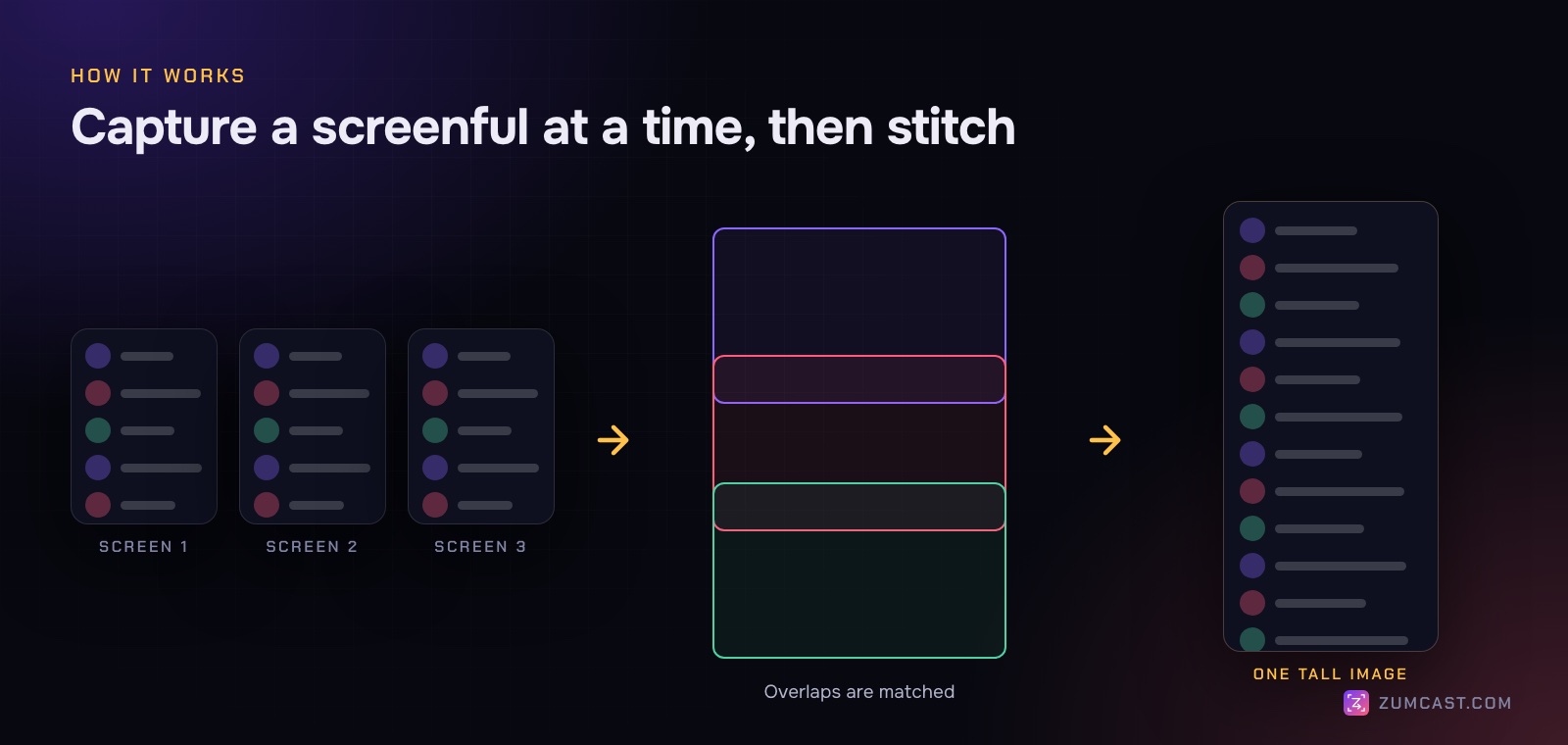
Here's how it works in ZumCast:
- Press ⌃⇧6 (or switch the HUD to Photo and choose the scrolling mode).
- Drag out the area that scrolls: a chat thread, a list, a page.
- Scroll yourself, or press Auto-scroll and let ZumCast do it.
- Press Return when you're done.
Shots can be up to 20,000 pixels tall. The finished image opens in the shot editor, where you can crop it, add arrows, numbered steps and highlights, blur anything private, and set it on a wallpaper.
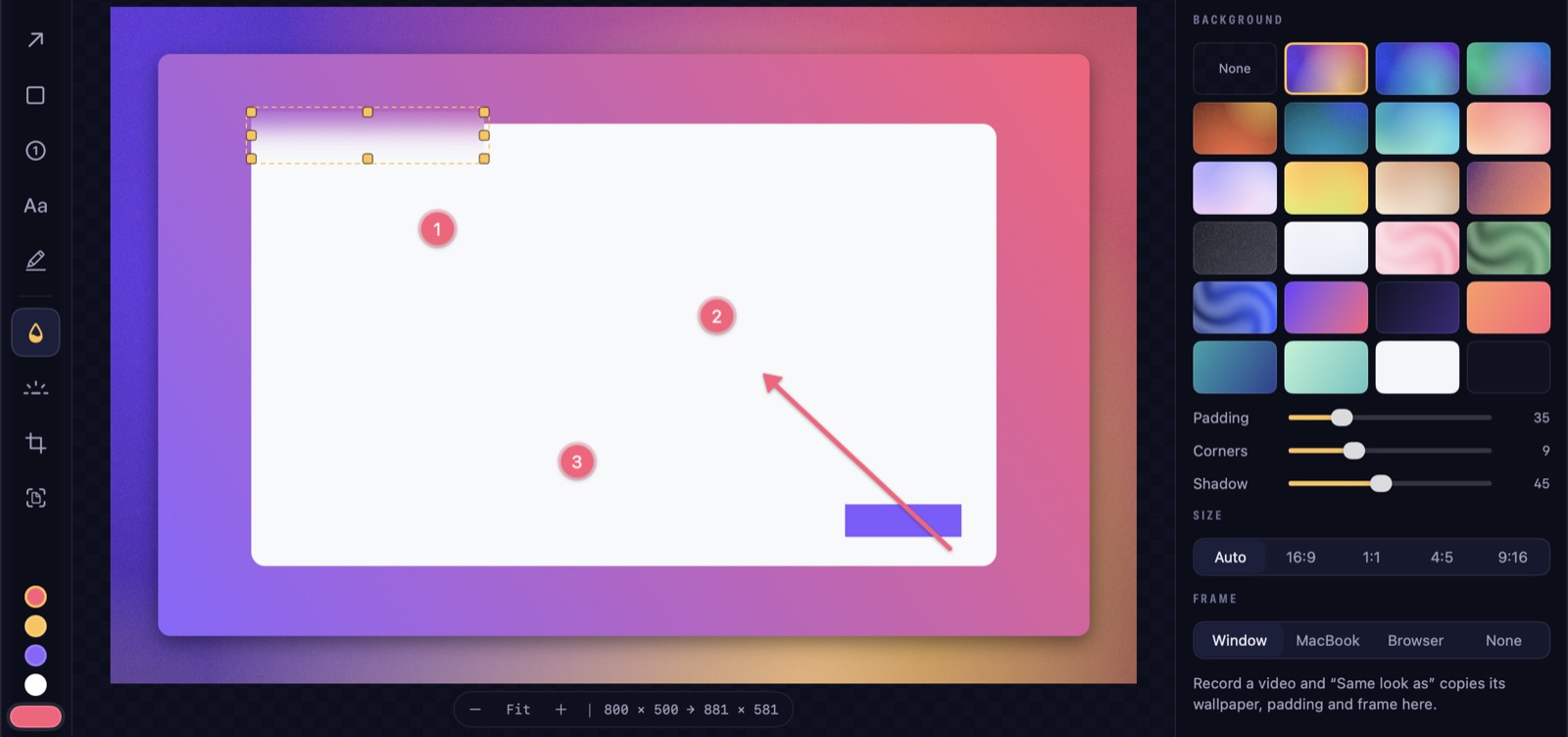
ZumCast can also capture a web page by URL, without touching your screen at all. Enter the address, pick a phone, tablet or desktop width (or any width from 320 to 3,840 pixels), light or dark, and the visible part or the full page. The page is drawn off screen, so nothing else on your display ends up in the shot.
Scrolling shots are part of ZumCast Pro; area, window and display shots are free.
Tips for clean scrolling screenshots
Hide sticky headers and banners. Headers that stay at the top of the page can be repeated down a stitched capture, and cookie banners and chat bubbles get in the way. Dismiss them first. In a browser, Reader view is a quick way to get rid of clutter for articles.
Let lazy content load. Many pages load images only when you scroll to them. Scroll to the bottom and back once before you capture, or you'll get empty boxes.
Scroll steadily. When scrolling by hand, scroll at an even pace and don't jump. Stitching works by matching the overlap between screens; big jumps leave nothing to match.
Avoid animated areas. Videos, carousels and animations change between screens and can confuse stitching. Pause them first.
Mind the size. A full page can be enormous. For sharing, crop to the part that matters. For a document, a PDF is often easier to read than a 15,000-pixel image.
Check for private details. A long capture holds a lot more than you looked at: other people's names in a thread, email addresses in a list, notifications. Scan it before you send it. See our privacy checklist for screen captures.
Which method should you use?
- A web page, to send or archive: Safari's Export as PDF.
- A web page, as an exact image: Chrome's Capture full size screenshot or Firefox's Save full page.
- A web page at phone width: Chrome's device toolbar, or capture by URL in a screenshot app.
- A chat, a list, an app, or a panel inside a web app: a screenshot app with scrolling capture.
FAQ
Does macOS have a scrolling screenshot? No. The built-in Screenshot tools (Shift-Command-3, 4 and 5) capture only what's on screen. Use a browser's full-page capture for web pages, or a screenshot app with scrolling capture for anything else.
How do I screenshot a whole web page on a Mac without an app? In Safari, choose File › Export as PDF. In Chrome, open Developer Tools, press Shift-Command-P and run Capture full size screenshot. In Firefox, right-click, choose Take Screenshot, then Save full page.
How do I take a scrolling screenshot of a Slack or Messages conversation? Browser methods can't do this. Use a screenshot app with scrolling capture, select the conversation area, and scroll through it.
Why does my full-page screenshot have blank areas? The page loads images as you scroll. Scroll to the bottom and back to the top before capturing, then try again.
How do I take a scrolling screenshot on an iPhone? Take a normal screenshot in Safari, tap the preview, and choose Full Page at the top. It saves the whole page as a PDF.
What's the best screenshot app for Mac? If screenshots are most of what you do, CleanShot X is a strong choice. If you also record videos and want one app for both, ZumCast does screenshots, scrolling capture and screen recording together. We compared the options in The Best Screen Recorders for Mac in 2026.
ZumCast is a Mac screen recorder and screenshot app with an AI editor that runs on your Mac. Take area, window, display, scrolling and web page shots, mark them up and set them on one of 102 wallpapers. The Basic version is free; Pro is a one-time purchase. Download it free.