How to Add a Voiceover to a Screen Recording on a Mac
How to add a voiceover to a screen recording on a Mac, live or afterwards, with free tools like iMovie, plus mic, room, script and pacing tips.
這篇文章目前只有英文版。
A silent screen recording makes people work. They have to guess why you clicked, what they should notice, and when the important part is coming. A voice explains all of that, and it's the difference between a clip and a tutorial.
But talking while you click is harder than it looks. You lose your place, say "um" a lot, or click before you've explained why. So there are really two questions: should you talk while you record, or add the voice afterwards? And how do you make it sound good either way?
This guide covers both approaches, the free way to add a voiceover on a Mac with iMovie, the microphone and room setup that matters most, and how to write and pace a script.
The quick answer
- Talking while you record: choose a microphone in your recorder before you start. In the Shift-Command-5 toolbar, it's under Options › Microphone (it's set to None by default).
- Adding a voiceover afterwards, free: put the recording in iMovie, move the playhead to where the voice should start, click the Record Voiceover button below the viewer, and speak.
- Either way: use a USB mic or a headset, record in a small soft room, keep your levels out of the red, and write at least a rough script.
Live, or recorded afterwards?
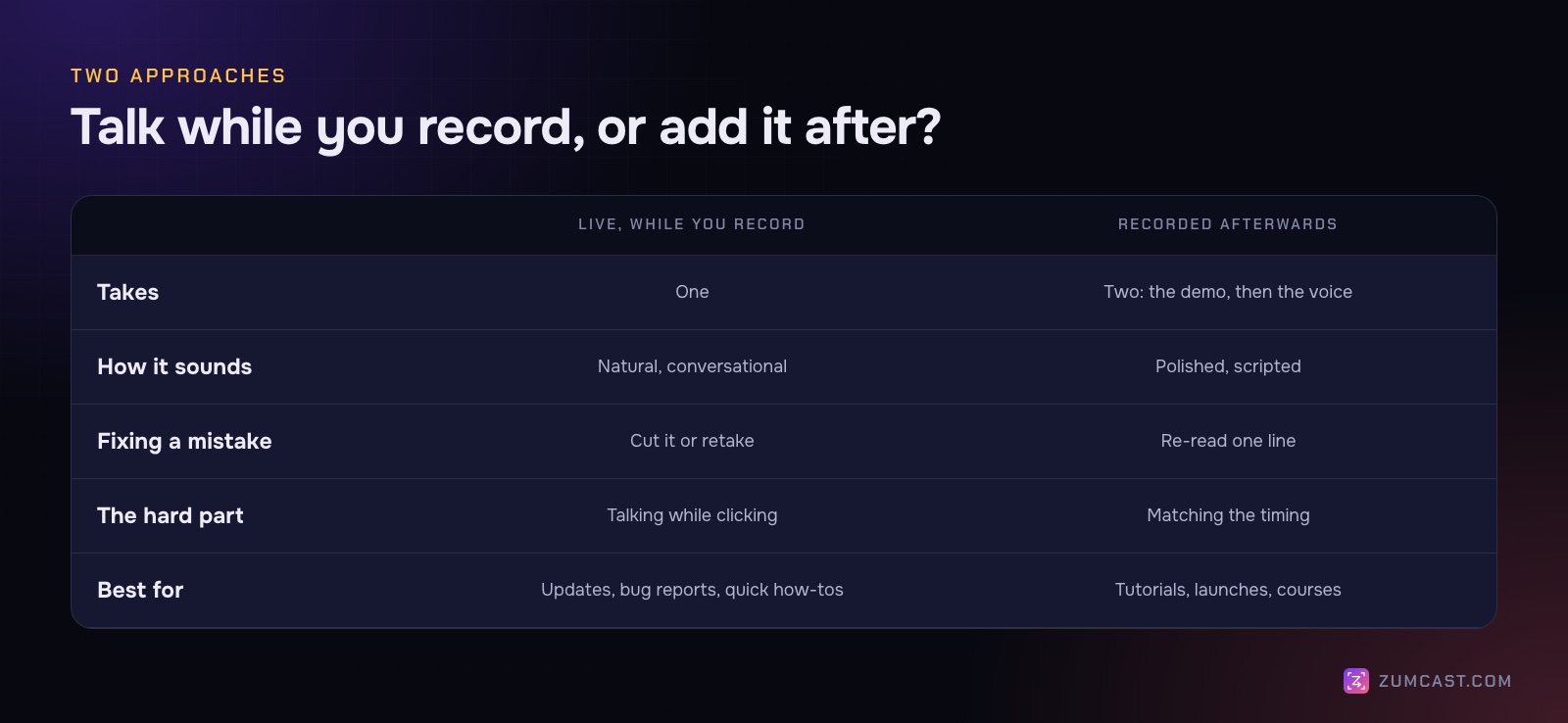
Live is one take. It sounds natural, because you're reacting to what's on screen, and it's fast. It's the right choice for team updates, bug reports and quick how-tos. The downside is that you're doing two things at once, so mistakes are more likely, and a mistake means a cut or a retake.
Afterwards is two passes. First you record the demo in silence, concentrating on clicking cleanly and slowly. Then you watch it back and record the voice, reading a script. It sounds more polished, and a stumble only means re-reading one line. The hard part is timing: your words need to line up with what happens on screen.
A middle path that works well: record live with a rough script on a teleprompter, then cut the pauses and mistakes afterwards.
Get the sound right first
Viewers will put up with a slightly soft picture. They won't put up with a voice that's echoey, hissy or too quiet. Three things make most of the difference.
The microphone
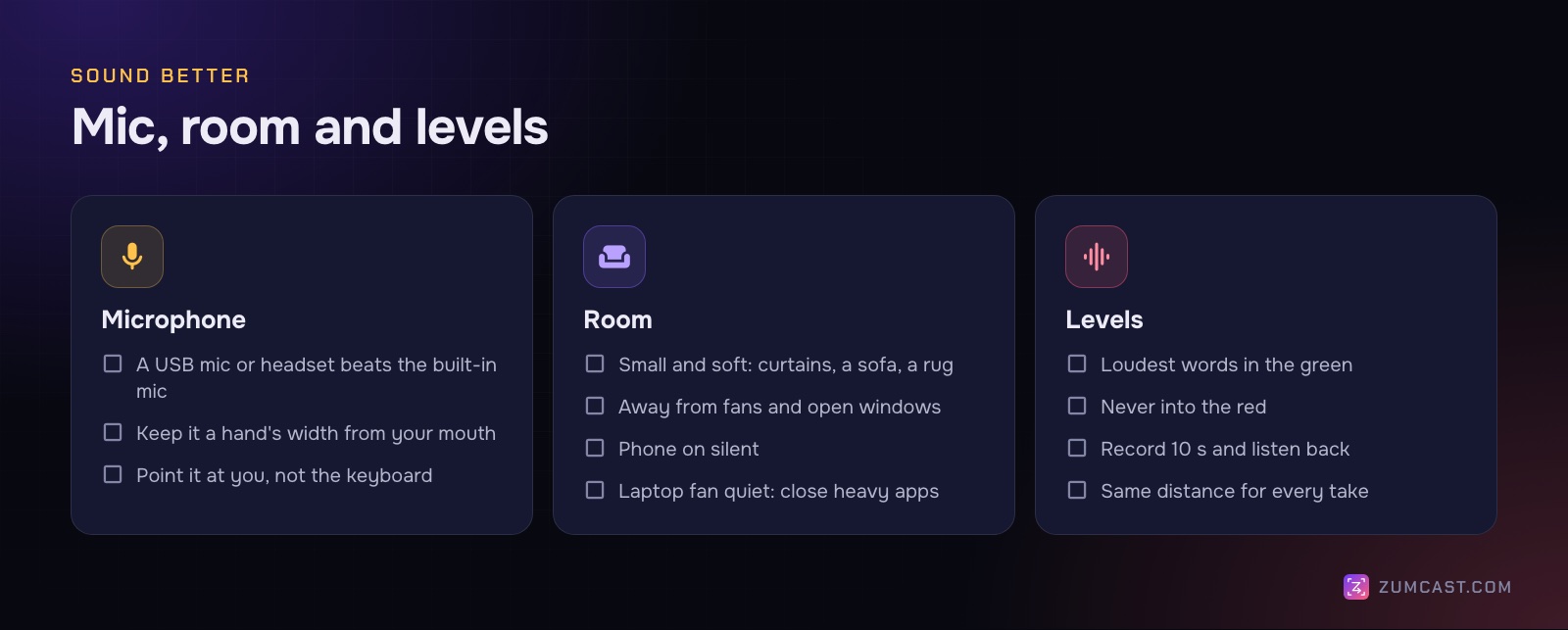
- Almost anything beats the built-in mic. A USB microphone or a headset with a boom mic is a big step up, because it's closer to your mouth and further from your keyboard and fan.
- Distance matters. About a hand's width from your mouth is a common starting point. Closer sounds warmer, but you'll hear more breathing and "p" pops.
- Point it at you, not at your keyboard. Typing noise travels.
The room
Hard, empty rooms echo. Small rooms with soft things in them (curtains, a sofa, a rug, a wardrobe full of clothes) don't. You don't need foam panels. Record in the softest room you have, away from fans, open windows and the fridge. Put your phone on silent.
The levels
Before you record for real, record ten seconds and listen back with headphones. Your loudest words should be well up the meter but never hit the red; audio that's too loud distorts, and that can't be fixed later. Too quiet is easier to fix, but it brings up background noise too. Keep the same distance from the mic for every take so the volume stays even.
Method 1: Talk while you record
Every recorder can record your microphone. Choose it before you start:
- Shift-Command-5 or QuickTime: open Options and pick your mic under Microphone.
- ZumCast: turn on the microphone in the Hub or the HUD. Test mic shows a level meter. Press M in the HUD to mute or unmute.
If your demo has sound of its own (an app, a video, an alert), you also need system audio. On macOS 27 Golden Gate, the Screenshot toolbar has Options › Include System Audio; on macOS 26 and earlier it doesn't. See How to Screen Record on a Mac With Audio for the workarounds.
Method 2: Add the voiceover afterwards in iMovie (free)
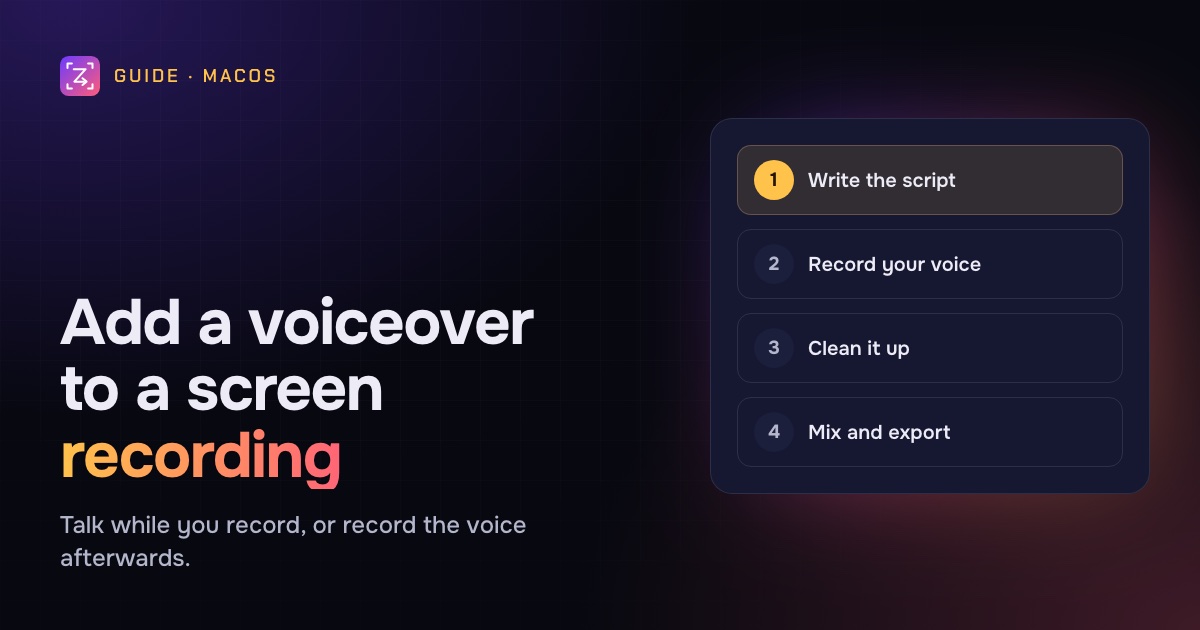
iMovie comes free on every Mac, and recording a voiceover over a video takes a minute.
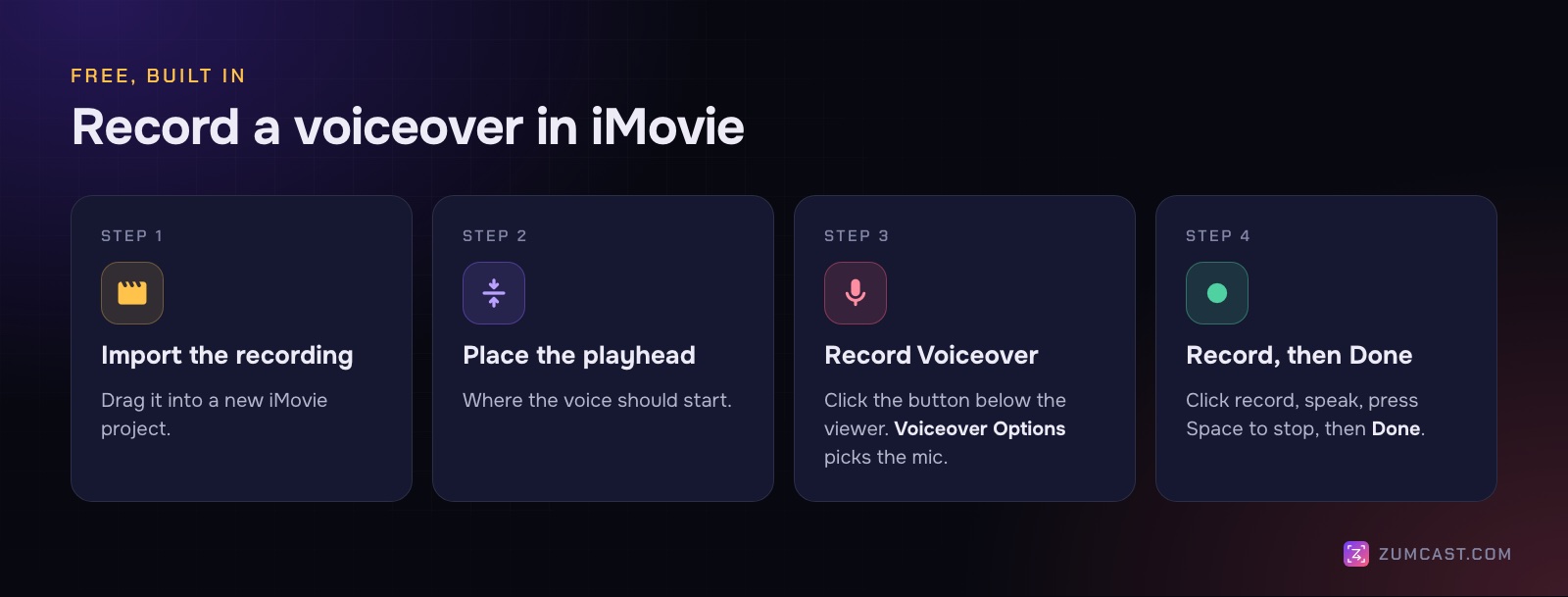
- Create a new iMovie project and drag your screen recording into it.
- Move the playhead to where the voiceover should start.
- Click the Record Voiceover button (a microphone) below the viewer. The voiceover controls appear.
- Click Voiceover Options to pick your microphone and set the input volume. Watch the meter to the left of the red record button: it should stay green even when you're loudest.
- Click the red record button. The video plays and you talk over it.
- Click the button again, or press Space, to stop. The voiceover appears as a new clip in the timeline.
- Click Done.
Record in short sections, a paragraph or a step at a time. If one goes wrong, delete that clip and record it again. If the original recording has sound you don't want (keyboard clicks, a cough), turn the video clip's volume down.
When it sounds right, export with File › Share › File.
Method 3: Write the script, record silently, and clean up in one place
If you make screen recordings regularly, doing the voice in your screen recorder saves the trip through a second app. Here's what ZumCast (macOS 14 or later) does with audio.
While you record
- Teleprompter. Press N in the HUD to open your script in a floating window that never shows in the recording. Follow my voice scrolls it as you speak and waits when you stop; you can also step through paragraphs with ↓ or Space, or set a steady auto-scroll speed. Speech recognition runs on your Mac.
- Separate tracks. Your voice, system audio and screen are saved separately.
After you record
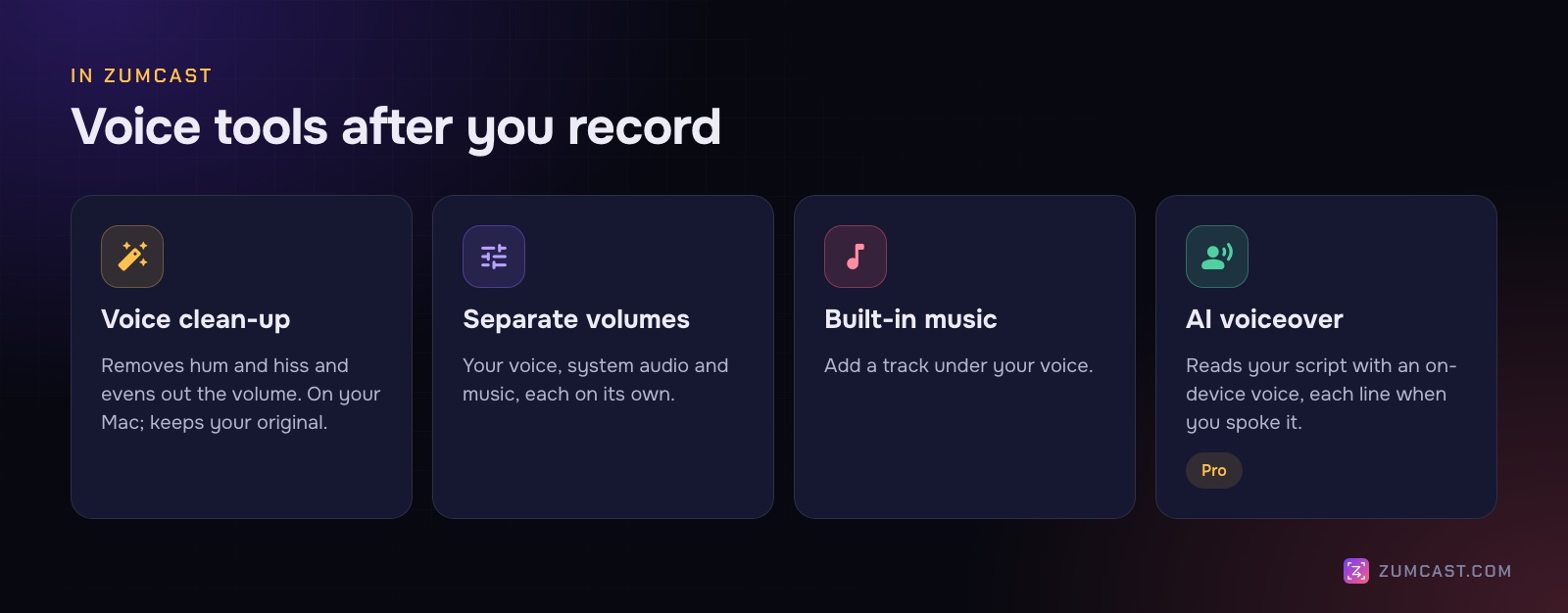
- Voice clean-up removes hum and hiss and evens out the volume. It runs on your Mac and keeps your original, so you can compare.
- Volumes for your voice, system audio and music, set separately. Useful when an app's sound is louder than you.
- Music: add a built-in track under your voice, quietly.
- Cut the "um"s. In the Story tab, the transcript shows every word; delete words and the video cuts with them. Or ask Zumi, the built-in AI editor, to "cut the pauses". The transcript, removing fillers and Cut all pauses are part of Pro; trimming and splitting by hand are free.
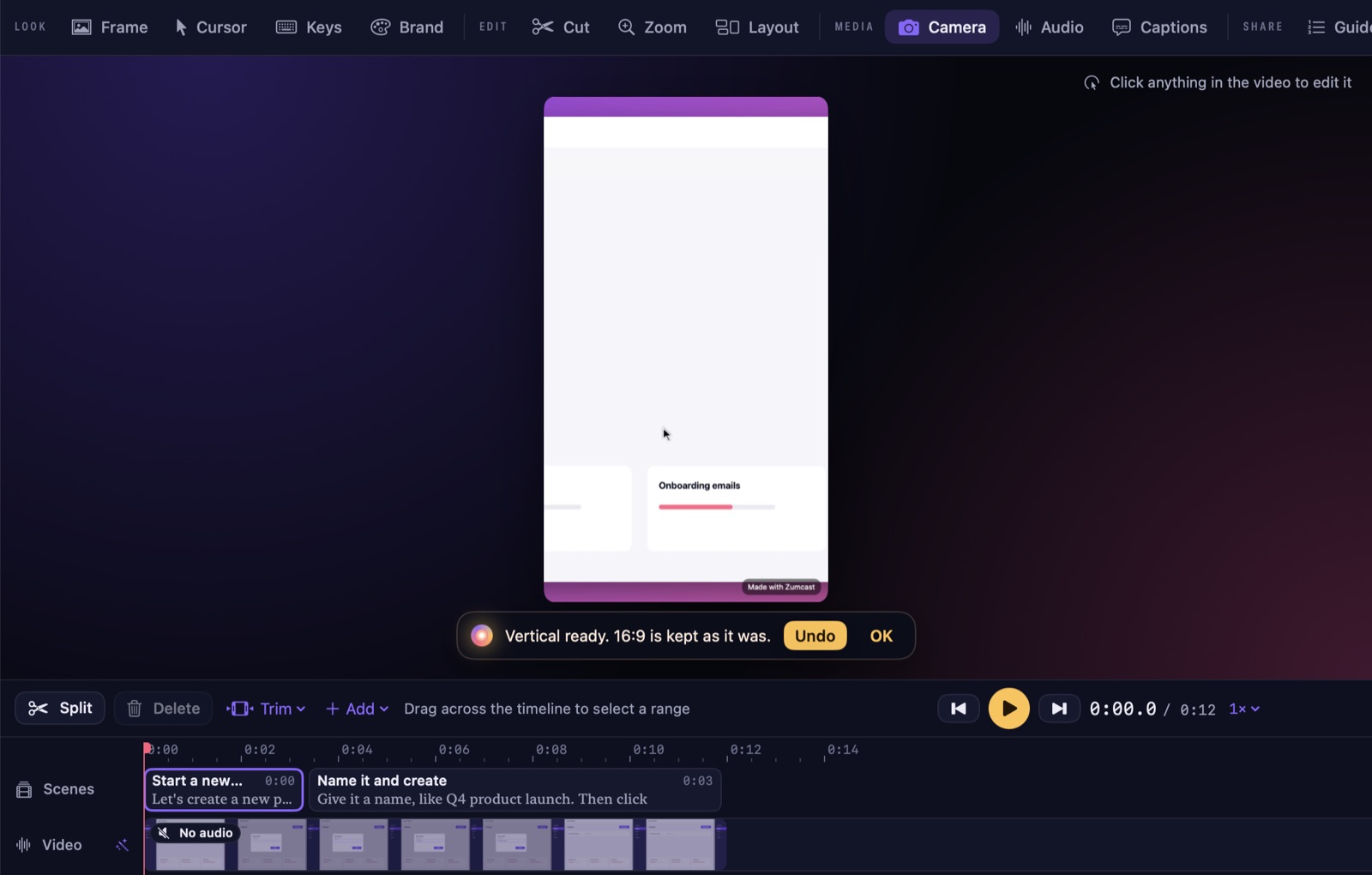
AI voiceover (Pro)
Recorded without speaking, or want a cleaner read than your live take? AI voiceover reads your script with an on-device voice, and each line starts when you spoke it. Nothing is sent to the cloud. It's part of Pro.
It's a good fit for product clips and docs videos that you update often: change the script, regenerate the voice, and you don't have to record again. For anything personal, like a sales message or a team update, your own voice is still better.
What ZumCast doesn't list is a tool for recording your own voice over an existing take afterwards, like iMovie's Record Voiceover. If you want your own voice added later, record it in iMovie, then bring the video into ZumCast with Import video in the Hub for zooms, captions and formats.
Write a script that sounds spoken
Even a live recording benefits from a script, or at least bullet points.
- Write how you talk. Short sentences. Contractions. "Click Save" rather than "The user should then proceed to click the Save button."
- Say why before you click. "To share it with the team, open the Share menu." Then click. Viewers follow the voice, so the voice should lead.
- One idea per paragraph, matching one step on screen. It makes re-recording and stepping through a teleprompter easy.
- Cut the intro. "Hi, in this video I'm going to show you…" can usually go. Start with the result.
- Read it out loud once before recording. Anything you trip over, rewrite.
Pace and timing
- Slower than feels natural. On a recording, normal speed sounds rushed. A common rule of thumb for narration is around 130 to 150 words a minute.
- Pause after each action so people can see what changed.
- Match the length. If you're recording afterwards, time the silent demo first. If a step takes eight seconds on screen, its line should take about eight seconds to say. Too long, and the video moves on while you're still explaining; too short, and there's dead air.
- Leave a beat at the start and end of each take. It makes cutting clean.
Mix and export
Before you export, play the whole video with headphones and then with laptop speakers.
- Voice on top. Music should sit well under your voice; if you notice it while you're talking, it's too loud.
- Even volume from start to finish. Voice clean-up or a compressor in your editor helps.
- No clicks at cuts. If you hear a pop where two clips meet, nudge the cut to a pause.
Then export for where it's going. For captions, which help everyone who watches with the sound off, see How to Add Captions to a Screen Recording.
FAQ
How do I add a voiceover to a screen recording on a Mac for free? Open the recording in iMovie, place the playhead, click Record Voiceover below the viewer, and speak. The voice is added as a separate clip you can move and adjust.
Can QuickTime add a voiceover to a video? Not over an existing video. QuickTime can record your voice with File › New Audio Recording, but you'll need iMovie or another editor to put it under the video.
Why does my voiceover sound echoey? The room is too hard and empty. Record in a smaller room with soft furnishings, get closer to the mic, and use a USB mic or headset rather than the built-in one.
Should I record the voiceover live or afterwards? Live is quicker and sounds natural; afterwards sounds more polished and is easier to fix. For short updates, go live. For tutorials and launch videos, record afterwards or use a teleprompter.
How do I remove background noise from a voiceover? Start with a quiet room and a closer mic. Then use a noise reduction or clean-up tool, such as ZumCast's voice clean-up, which removes hum and hiss on your Mac and keeps the original.
Can I use an AI voice for a screen recording? Yes. ZumCast Pro's AI voiceover reads your script with an on-device voice, timed to when you spoke each line.
How fast should I talk in a voiceover? Slower than in conversation. Around 130 to 150 words a minute is a common rule of thumb, with short pauses after each action.
ZumCast is a Mac screen recorder with an AI editor that runs on your Mac. It records your voice on its own track, cleans it up on your Mac, follows your script with a teleprompter, and can read it with an on-device AI voice in Pro. The Basic version is free; Pro is a one-time purchase. Download it free.