How to Record Your iPhone Screen on a Mac (3 Free Ways)
How to record your iPhone screen on a Mac with Control Center, QuickTime over a cable or a screen recorder, plus how to make the video look clean.
這篇文章目前只有英文版。
You've built an app, or you're writing a how-to, or support needs to see what's happening on your phone. You want the iPhone's screen as a video, and you want it on your Mac, where you can edit it and send it.
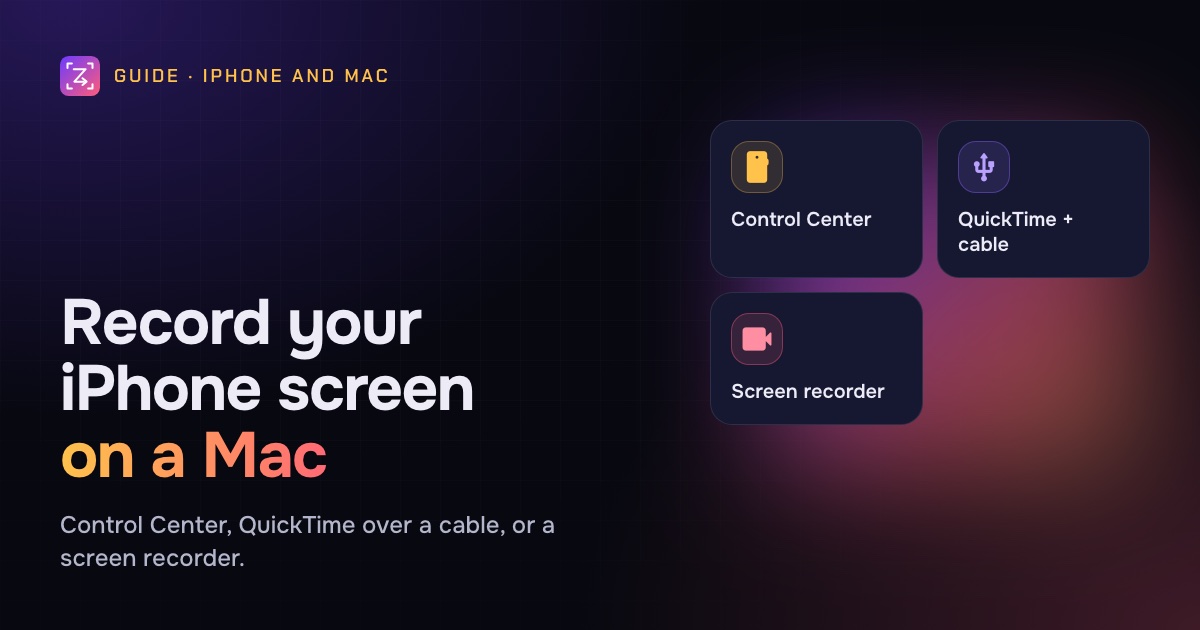
There are three good ways to do it. One happens entirely on the iPhone. Two use a cable and record straight to the Mac. Which is best depends on whether you want a quick clip or a video you'll edit and publish.
The quick answer
- Quickest: on the iPhone, open Control Center and tap Screen Recording. The video goes to Photos; AirDrop it to your Mac.
- Straight to the Mac, free: connect the iPhone with a cable, open QuickTime Player, choose File › New Movie Recording, and pick the iPhone in the menu next to the record button.
- Straight to the Mac, ready to edit: use a screen recorder that takes the iPhone as a source. In ZumCast, connect the cable, tap Trust, press 4 in the recorder and press Return.
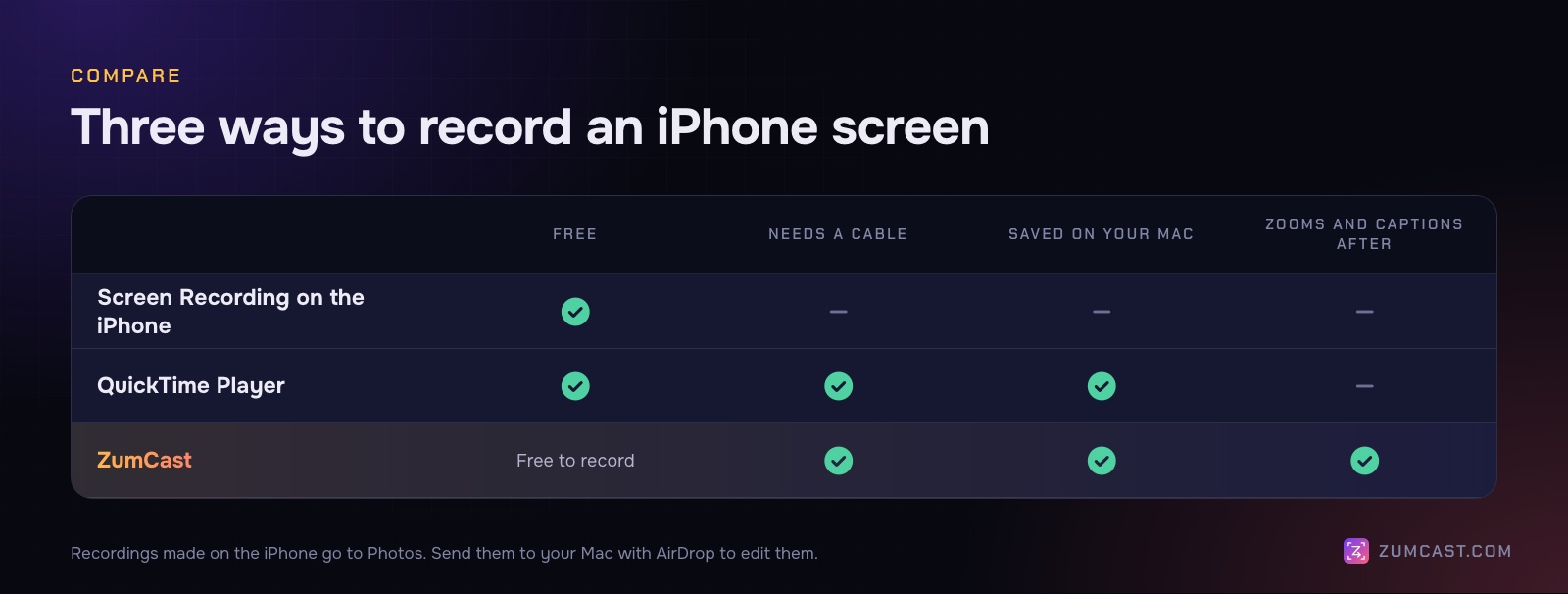
Method 1: Screen Recording on the iPhone
Every iPhone can record its own screen. Nothing to install, no cable, no Mac needed until you want to edit.
Add the button (once)
Swipe down from the top-right corner to open Control Center. If you don't see a Screen Recording button (a solid circle inside a ring), add it. On iOS 18 and later, open Control Center, tap the + button at the top left, tap Add a Control, and choose Screen Recording. On older versions, go to Settings › Control Center and add it there.
Record
- Open Control Center and tap Screen Recording. A three-second countdown starts.
- Close Control Center and do what you want to show.
- To stop, tap the red indicator at the top of the screen (or open Control Center and tap the button again), then Stop.
The video is saved to Photos. It records the sound the iPhone plays. To record your voice too, touch and hold the Screen Recording button and turn on Microphone before you start.
Get it to your Mac
AirDrop it from Photos, or let iCloud Photos sync it. Then open it on the Mac to trim or edit.
Good for: a quick clip, or recording when you're away from your Mac.
Not so good for: long demos you'll edit. The file is the phone's full resolution, the countdown and the stop tap are in the video, and you have an extra step to move it.
Method 2: QuickTime Player over a cable
QuickTime Player can show and record a connected iPhone as if it were a camera. The video goes straight to the Mac.
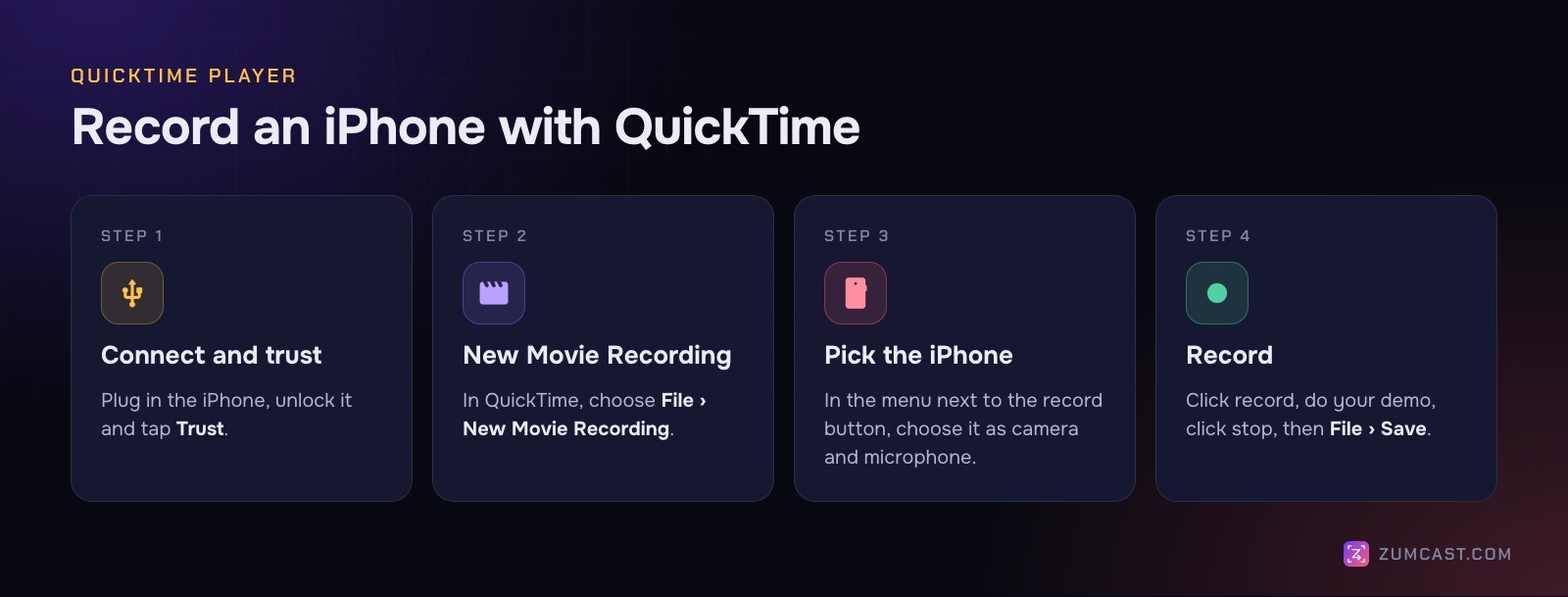
- Connect the iPhone to the Mac with a cable. Unlock it and tap Trust if it asks.
- Open QuickTime Player and choose File › New Movie Recording. You'll probably see your Mac's camera first.
- Click the small arrow next to the record button. Under Camera, choose your iPhone. Under Microphone, choose the iPhone too if you want its sound (app sounds, videos, games).
- Click the record button. Do your demo on the iPhone.
- Click stop, then File › Save.
The iPhone's screen appears in the QuickTime window while you record, so you can watch it on the big screen. It's a good way to record app demos at the iPhone's full resolution without any software to install.
Good for: free, clean recordings straight to the Mac.
Not so good for: anything beyond a trim. QuickTime has Edit › Trim and split, but no zooms, captions or backgrounds. You'd edit in iMovie or another editor afterwards.
If the iPhone doesn't show up in the menu, unplug it, unlock it, plug it in again and tap Trust. A cable that only charges (some cheap ones) won't work; use one that carries data.
Method 3: A screen recorder that takes the iPhone as a source
Some Mac screen recorders treat a connected iPhone as a capture source, like a display or a window. The advantage is what happens after you stop: the recording opens in an editor that's built for screen recordings.
Here's how it works in ZumCast (macOS 14 or later):
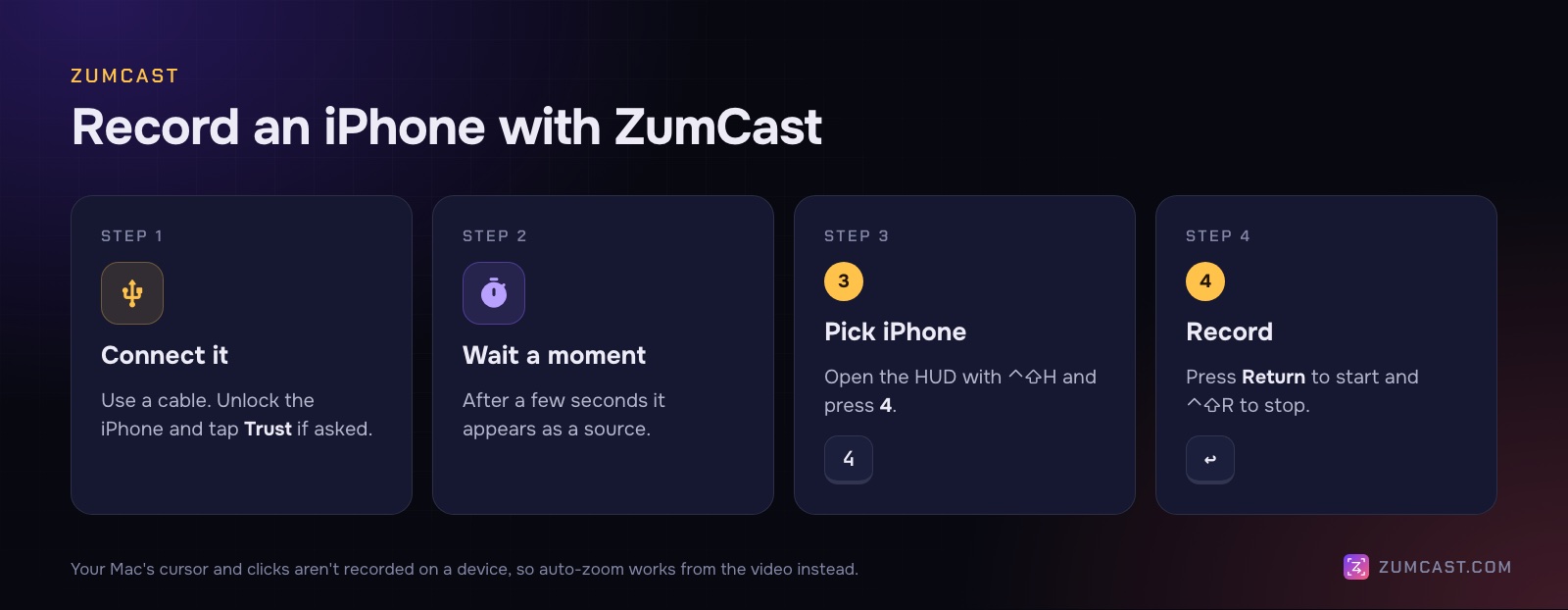
- Connect the iPhone or iPad with a cable.
- Unlock it and tap Trust if asked.
- After a few seconds it appears as a source. Open the recorder (the HUD) with ⌃⇧H and press 4 to pick it, or click iPhone in the Hub.
- Press Return to start. Press ⌃⇧R to stop.
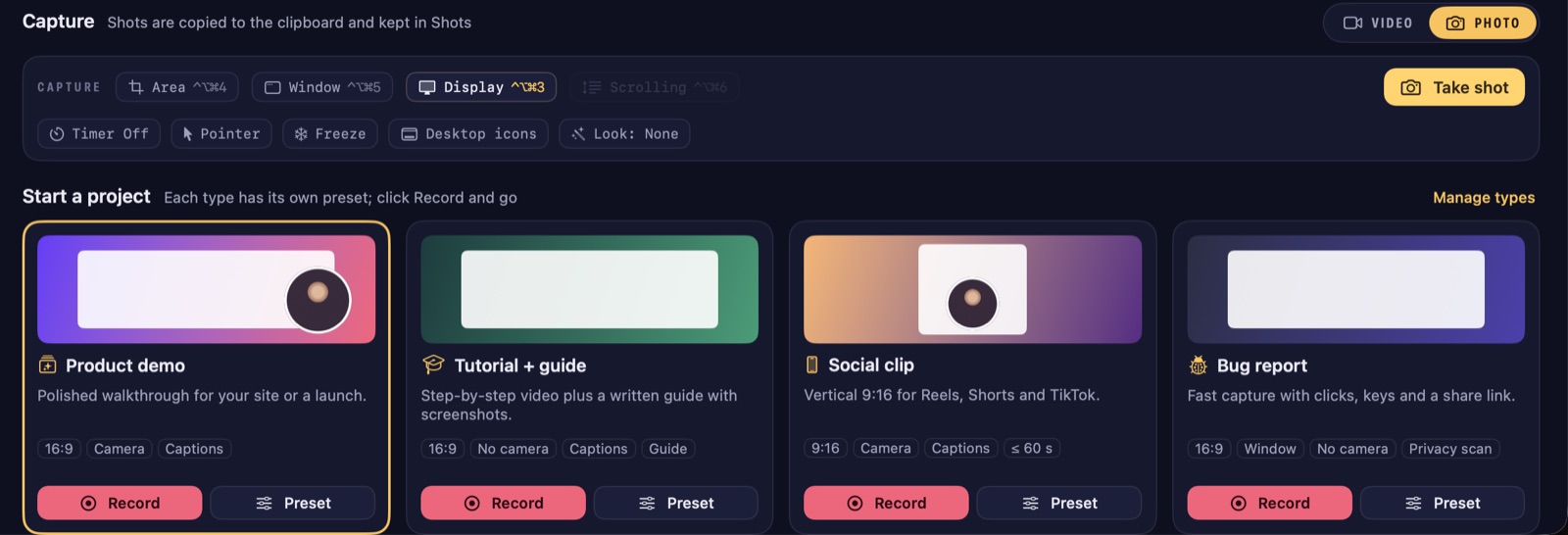
One difference from recording your Mac: your Mac's cursor and clicks aren't recorded on a device, so ZumCast can't use them to place zooms. Auto-zoom works from the video instead. You can still add your own zooms (press Z on the timeline), drag their edges to change timing, or ask Zumi, the built-in AI editor, for something like "zoom in on the Save button".
Once it's in the Studio, the same tools as any recording apply:
- Frame: put the phone recording on a wallpaper with padding, rounded corners and a shadow, so it doesn't float in black bars.
- Versions: make a 9:16 version for Shorts and Reels and a 16:9 one for YouTube from the same edit.
- Captions: transcribe what you said and add captions (transcription is part of Pro).
- Privacy: scan for emails, phone numbers and card numbers on screen and blur them.
Basic is free for recording and editing; exports in Basic are the first half of the video, up to 30 seconds and 1080p, with a small "Made with ZumCast" mark. Pro, a one-time purchase, exports full length.
Good for: app demos, tutorials and social clips you'll publish.
Not so good for: recording when your Mac isn't nearby. Use the iPhone's own recorder for that.
What about iPhone Mirroring?
Recent versions of macOS can show your iPhone in a window on the Mac with iPhone Mirroring. It looks like the obvious thing to record, but Apple doesn't document recording it, and reports disagree on whether the window records reliably. We couldn't confirm it, so we'd use one of the methods above for anything that matters. If you try it, do a short test first and check the playback.
Get the iPhone ready before you record
A few minutes of preparation is the difference between a clip you publish and one you redo.
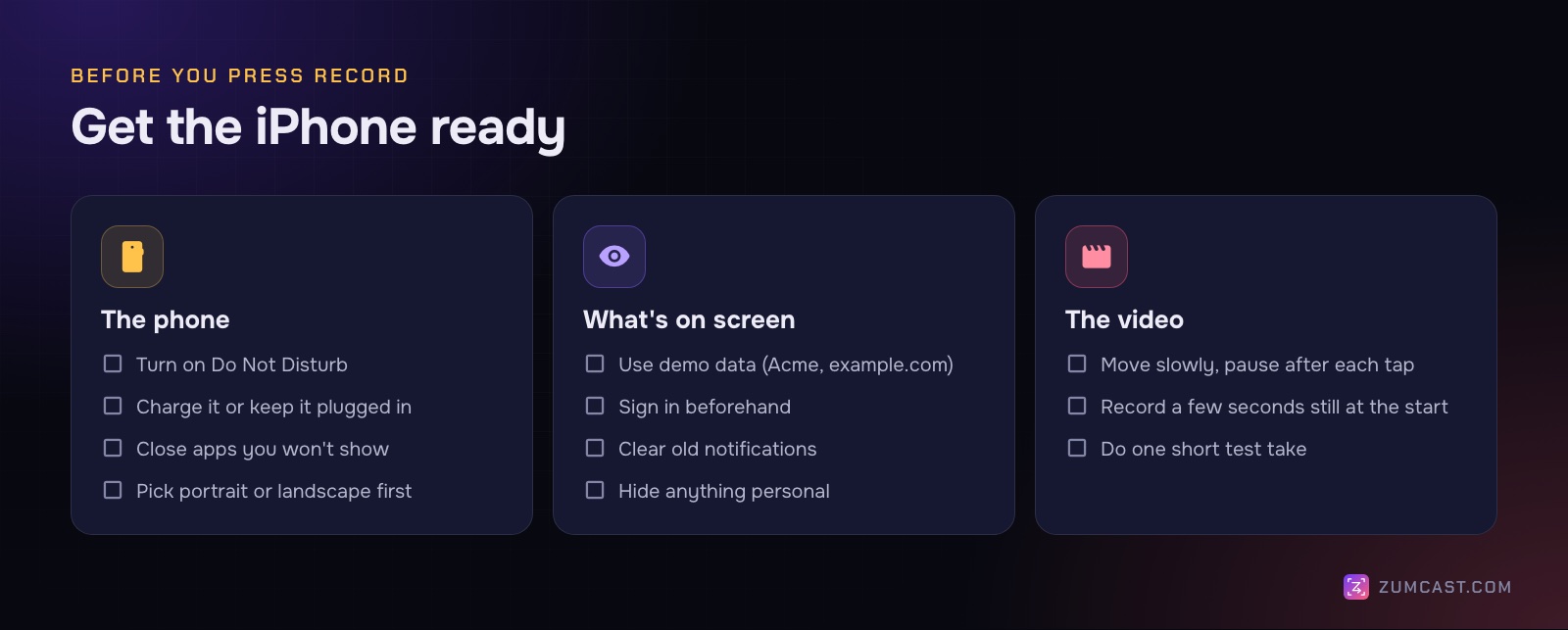
- Turn on Do Not Disturb. On the iPhone, open Control Center and choose a Focus. A message from a friend sliding down mid-demo is the most common reason to re-record.
- Charge it, or keep it plugged in. A low-battery warning is a pop-up you can't cut around neatly. With the cable methods, it charges as you record.
- Tidy the status bar. There's no built-in way to fake a "perfect" status bar on a real iPhone, so do what you can: good Wi-Fi, a decent charge, and no unusual icons. You can also crop the status bar out later.
- Use demo data. Sign in to a test account, use names like Acme and addresses like example.com, and close apps you won't show.
- Pick an orientation. Rotate before you press record, not during.
- Move slowly. Pause briefly after each tap so the viewer can see what changed. Taps on a phone are much harder to follow than clicks on a Mac.
If you record with ZumCast or QuickTime, there's no countdown or stop tap in the video, which saves trimming.
Making phone recordings look good
A phone recording is tall and narrow. On a 16:9 video, that leaves big empty sides. A few ways to handle it:
- Publish vertical. For Shorts, Reels and TikTok, a 9:16 phone recording fits perfectly. See How to Make a Vertical Video From a Screen Recording.
- Put it on a background. For YouTube or a website, set the phone recording on a wallpaper or a brand colour with padding and a shadow, so the sides look intentional.
- Use a device frame. Many people like the iPhone shape around the recording. If you add one, use an official bezel image from Apple's design resources rather than drawing your own.
- Zoom in on the detail. A small button on a phone screen is tiny on a laptop. Zoom in when it matters.
FAQ
How do I record my iPhone screen with sound? On the iPhone, the Screen Recording button records the phone's sound; touch and hold it to turn on the microphone for your voice. In QuickTime, choose the iPhone as the microphone as well as the camera.
Why doesn't my iPhone show up in QuickTime? Unlock it, tap Trust, and check the cable carries data, not just power. Then click the arrow next to the record button and look under Camera.
Can I record my iPhone screen on a Mac wirelessly? The iPhone's own Screen Recording is wireless, and you can AirDrop the file over. QuickTime and recorders that use the iPhone as a source need a cable.
Why is part of my iPhone recording black? Many streaming and protected apps block screen recording, and their video comes out black. That's expected and can't be worked around.
Where do iPhone screen recordings go? Recordings made on the iPhone go to Photos. QuickTime saves where you choose with File › Save. ZumCast keeps projects in ~/Movies/Zumcast.
Can I record an iPad screen the same way? Yes. All three methods work with an iPad, and ZumCast lists a connected iPad as a source just like an iPhone.
Does auto-zoom work on iPhone recordings? In ZumCast, yes, but differently: your Mac's cursor and clicks aren't recorded on a device, so auto-zoom works from the video instead. You can add or adjust zooms yourself on the timeline.
ZumCast is a Mac screen recorder with an AI editor that runs on your Mac. Plug in your iPhone, press 4, and the recording opens ready for zooms, captions and a vertical version. The Basic version is free; Pro is a one-time purchase. Download it free.