The Best OBS Alternatives for Mac (If You Just Want to Record)
OBS alternatives for Mac for people who want to record, not stream. Easier screen recorders with editing, auto-zoom and sharing, and when OBS is still the right choice.
這篇文章目前只有英文版。
OBS Studio is one of the best pieces of free software ever made. It streams to any platform, mixes any number of sources into scenes, and has a plugin for almost everything. Plenty of professional streams run on it.
But a lot of people install OBS for a simpler reason: they want to record their screen on a Mac, with their voice and the sound from their apps, for a tutorial, a demo or a quick update. And then they meet scenes, sources, canvases, encoders and bitrates before they've recorded a single second. When they do get a recording, there's no editor, no captions and no way to share it.
If that's you, this guide is for you. Here are the Mac apps that make recording simple and handle the editing afterwards, and when OBS is still the right tool.
Disclosure: we make ZumCast, one of the apps below. Every other product's price and features come from its official website, October 2026.
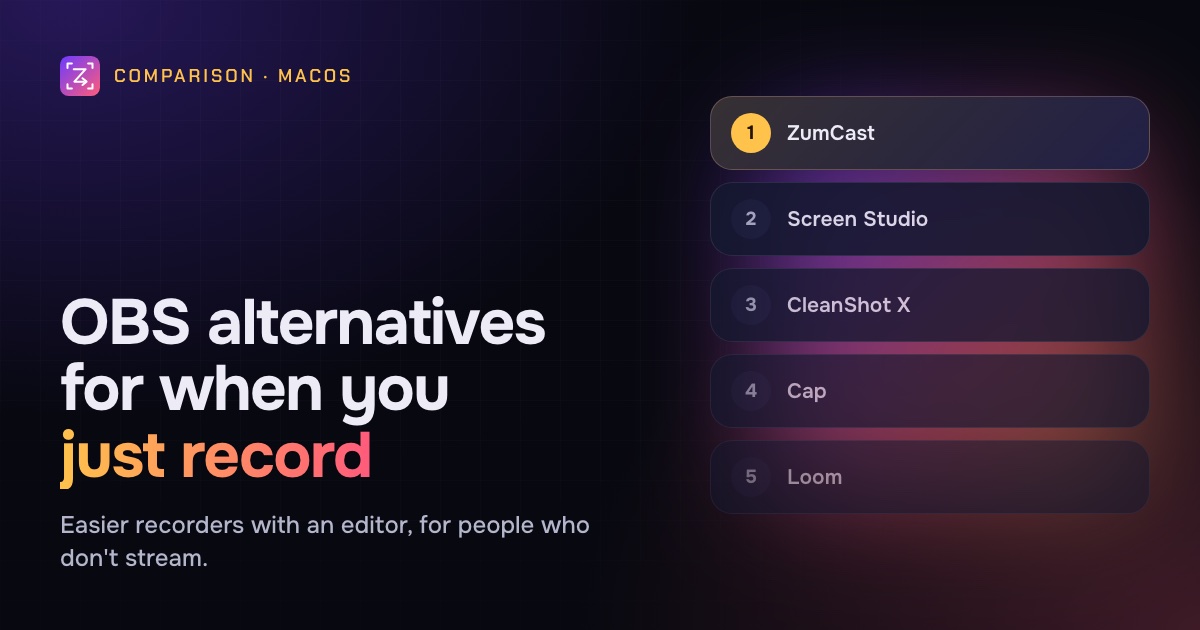
Quick picks
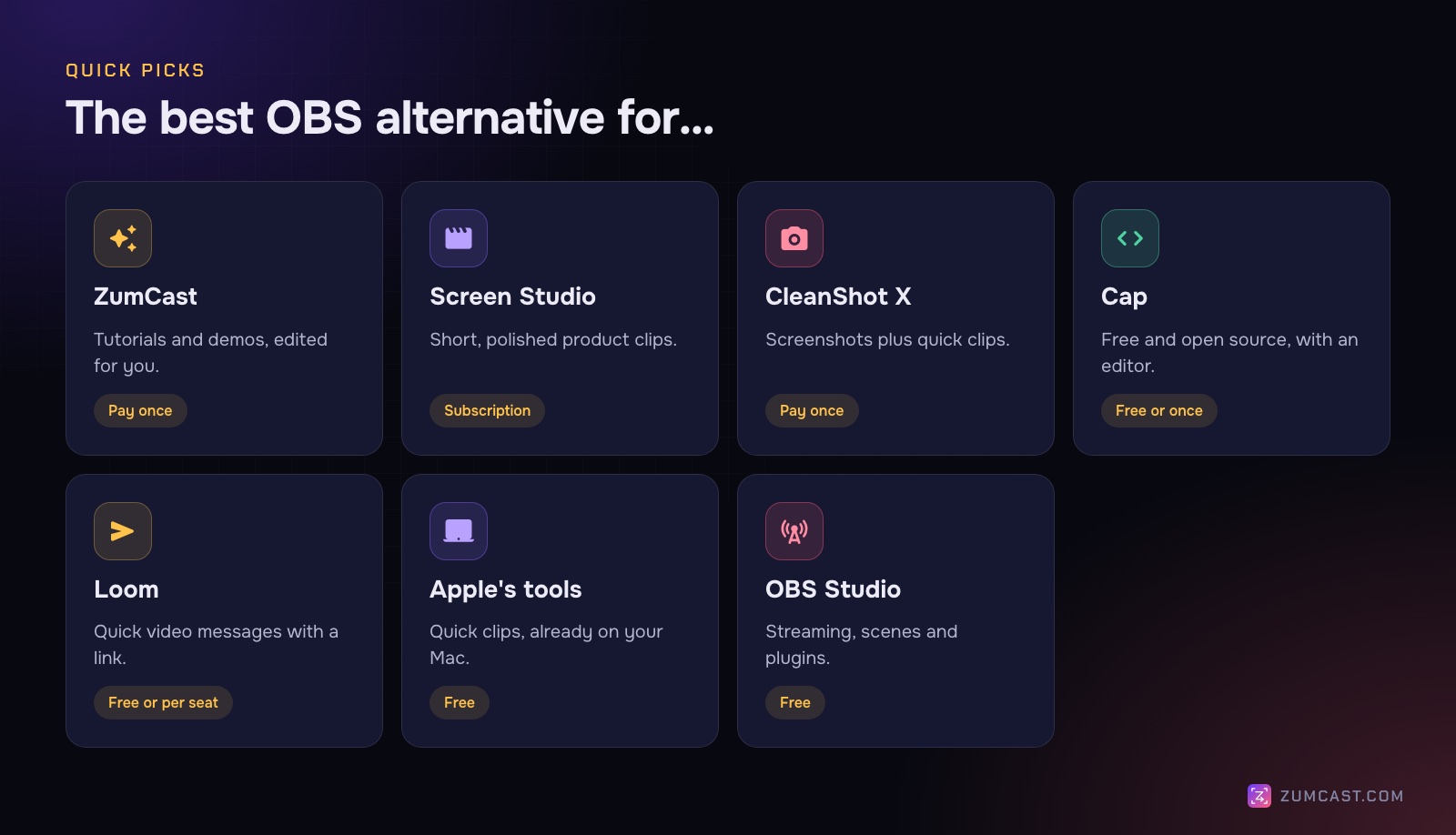
- Tutorials and demos, edited for you, paid once: ZumCast
- Short, polished product clips: Screen Studio
- Screenshots plus quick clips: CleanShot X
- Free and open source, with an editor: Cap
- Quick video messages with a link: Loom
- Free and already on your Mac: Apple's Screenshot toolbar and QuickTime
- Streaming, scenes or plugins: stay with OBS
Recording vs streaming: why OBS feels hard
OBS is built for live production. Everything happens before and during the recording: you build scenes, arrange sources and set encoder settings, because on a live stream there's no "after". That's exactly right for streaming.
For a recorded tutorial, most of the work happens after: trimming the start, cutting the mistakes, zooming in so people can read the screen, adding captions, exporting the right size and sharing a link. OBS hands you a file and stops there.
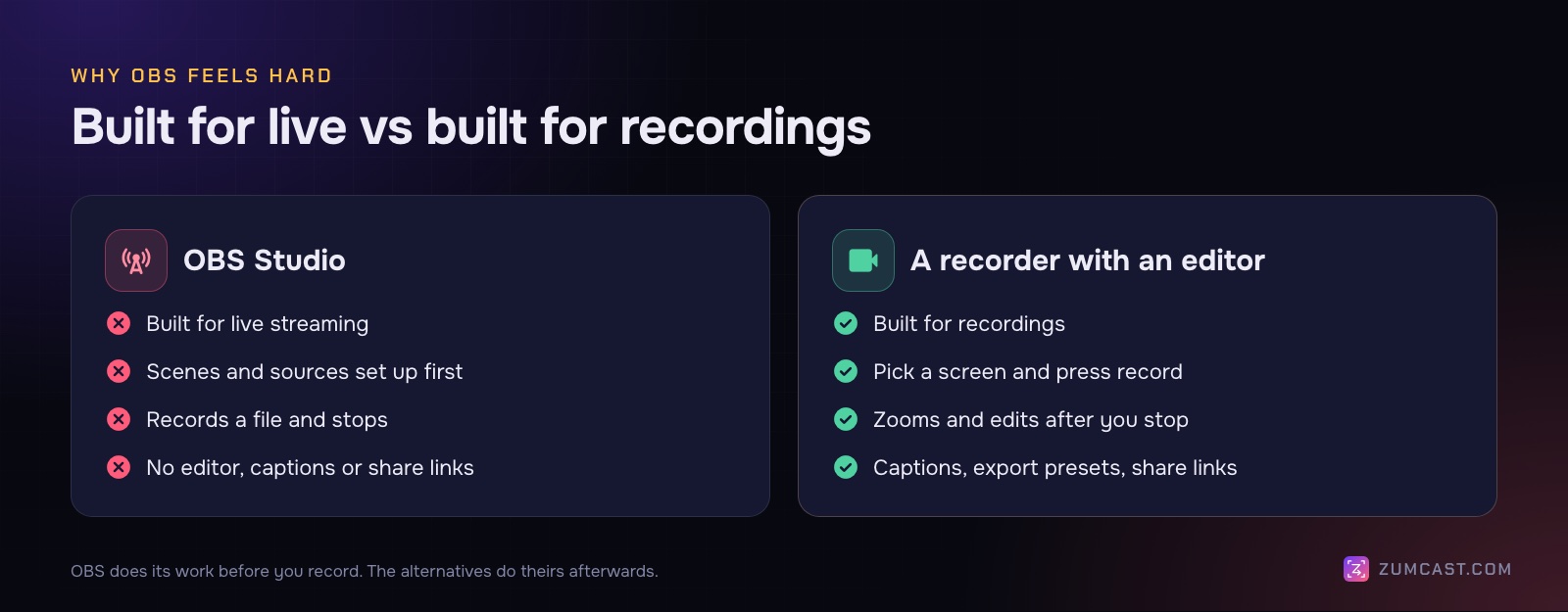
That's why the alternatives below look so different. They ask fewer questions up front and give you an editor at the end.
1. ZumCast: tutorials and demos, edited for you
Price: Basic free; Pro $49 once (launch pricing from $9). Mac only, macOS 14 or later.
ZumCast is a screen recorder with an AI editor, Zumi, that runs on your Mac. Setup is one decision: press ⌃⇧H from any app to open the HUD, press 1 to 4 for a display, a window, an area or a connected iPhone, and press Return. Switches for your microphone, camera and system audio sit right there.
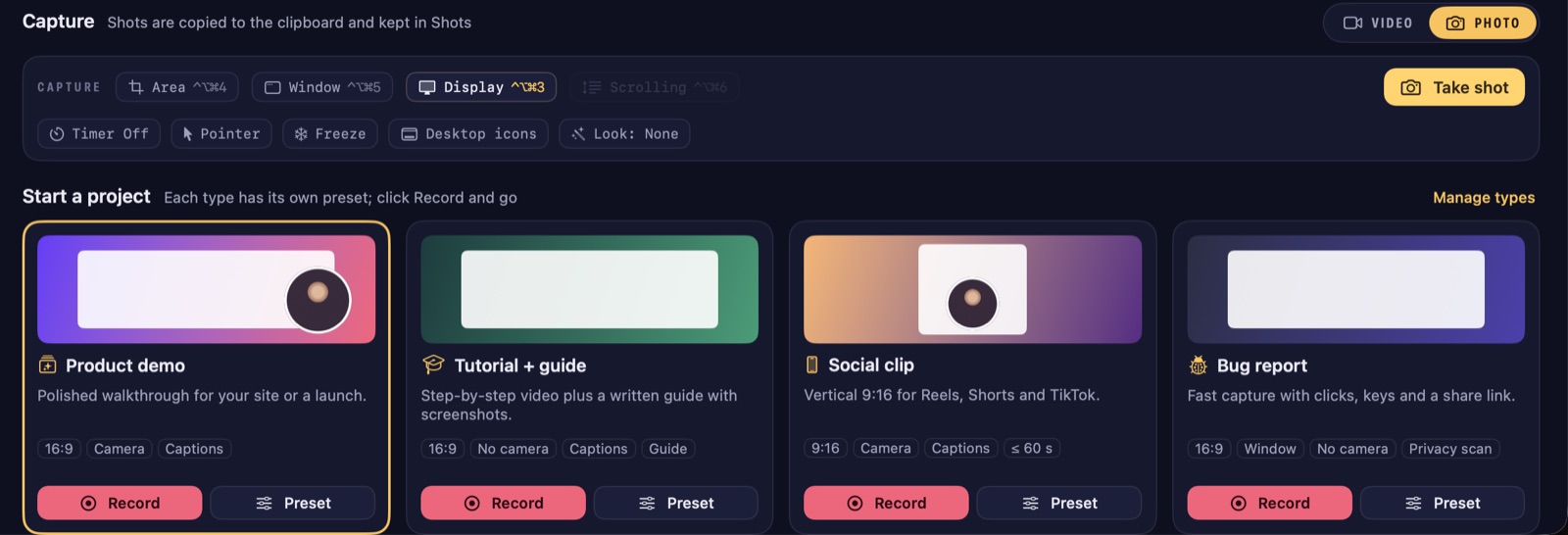
When you stop, the editing has already started: zooms on every click and a smooth cursor are on the timeline. Ask Zumi for the rest, "cut the pauses and make it vertical" or "add captions at the top", check the plan and apply it.
What you gain over OBS:
- An editor with automatic zooms, cursor effects, wallpapers and frames.
- Camera, voice and screen saved separately, so you can move or resize your camera afterwards.
- Captions and edit by transcript, made on your Mac (Pro).
- Export presets for YouTube, X, LinkedIn, Shorts and Reels, and GIF.
- Share links with comments and reactions (Pro), and step-by-step guides from the same recording.
What you give up: no live streaming, no scenes or plugins, and it's Mac only. Free exports are limited (the first half of the video, up to 30 seconds, with a mark) until you buy Pro.
Best for: people who record tutorials, demos and updates and want them to look finished without learning an editor.
2. Screen Studio: short, polished product clips
Price: $29 a month, or $9 a month billed yearly ($108 a year). Mac only.
Screen Studio records your screen, microphone, camera and system audio, then zooms on your clicks and smooths your cursor automatically. It records iPhones and iPads over USB with a device frame, adds on-device captions, and gives you share links up to 1080p60 and 30 minutes.
What you gain: beautiful clips with almost no effort.
What you give up: it's a subscription for new buyers, and there's no transcript editing or filler removal.
Best for: marketers and founders making short product videos.
3. CleanShot X: screenshots plus quick clips
Price: $35 once with a year of updates (renewal optional, $19 a year); Pro $10 per user per month billed yearly for unlimited cloud. Mac only.
CleanShot X is a screenshot tool first, with scrolling capture, annotations, pinning and OCR. Its recorder captures MP4 or GIF with your mic, computer audio and camera, and shows clicks and keystrokes. The video editor adds smart zooms, cursor smoothing, backgrounds and vertical export, and you can share cloud links.
What you gain: the best screenshots on the Mac plus easy recordings, at a low price.
What you give up: transcript editing isn't listed, and it's lighter than a dedicated video editor.
Best for: people who take more screenshots than videos.
4. Cap: free and open source, with an editor
Price: free tier with the full studio editor (share links up to 5 minutes); desktop licence $58 once or $29 a year; Pro $12 per user per month. Mac, Windows and Linux.
If you like OBS because it's open source, Cap is the closest in spirit. It records your screen, system audio, mic and camera, and its studio mode adds auto-zoom on clicks, cursor smoothing and on-device captions in 19 languages, with exports up to 4K60.
What you gain: open source, cross-platform, and an editor on the free tier.
What you give up: its cloud AI features are on Pro, and the free tier's commercial terms are worth checking.
Best for: people who want open source and an editor, or who also use Windows or Linux.
5. Loom: quick video messages
Price: Starter free (25 videos, 5 minutes per recording, 720p); Business $18 per user per month. Mac (macOS 15 or later for the current app), Windows, Chrome, iOS and Android.
Loom is the opposite of OBS: press record, talk, and you have a link when you stop. It records your mic, camera and system audio, and paid plans add trimming, transcript editing and AI titles, summaries and chapters.
What you gain: the fastest path from recording to a shared link, and a team library.
What you give up: everything is uploaded, there's no auto-zoom, and the free plan stops at 5 minutes.
Best for: quick async messages to colleagues. See The Best Loom Alternatives for Mac if Loom isn't quite right.
6. Apple's built-in tools: free, and already there
Price: free. Mac only.
Press Shift-Command-5 for the Screenshot toolbar, choose Record Entire Screen or Record Selected Portion, and click Record. QuickTime Player's File › New Screen Recording opens the same toolbar. macOS 26 added Record Selected Window.
On macOS 27 Golden Gate, the toolbar can record your Mac's sound too: Options › Include System Audio. On macOS 26 and earlier, it records the microphone only, and you'd need a virtual audio driver for app sound. (OBS 30 and later records app audio on macOS without a driver.)
What you gain: nothing to install, nothing to learn.
What you give up: QuickTime can trim and split, but there's no zoom, cursor effects, camera overlay, captions or sharing.
Best for: quick, unedited clips. Our guide on how to screen record on a Mac with audio covers every option step by step.
Side by side
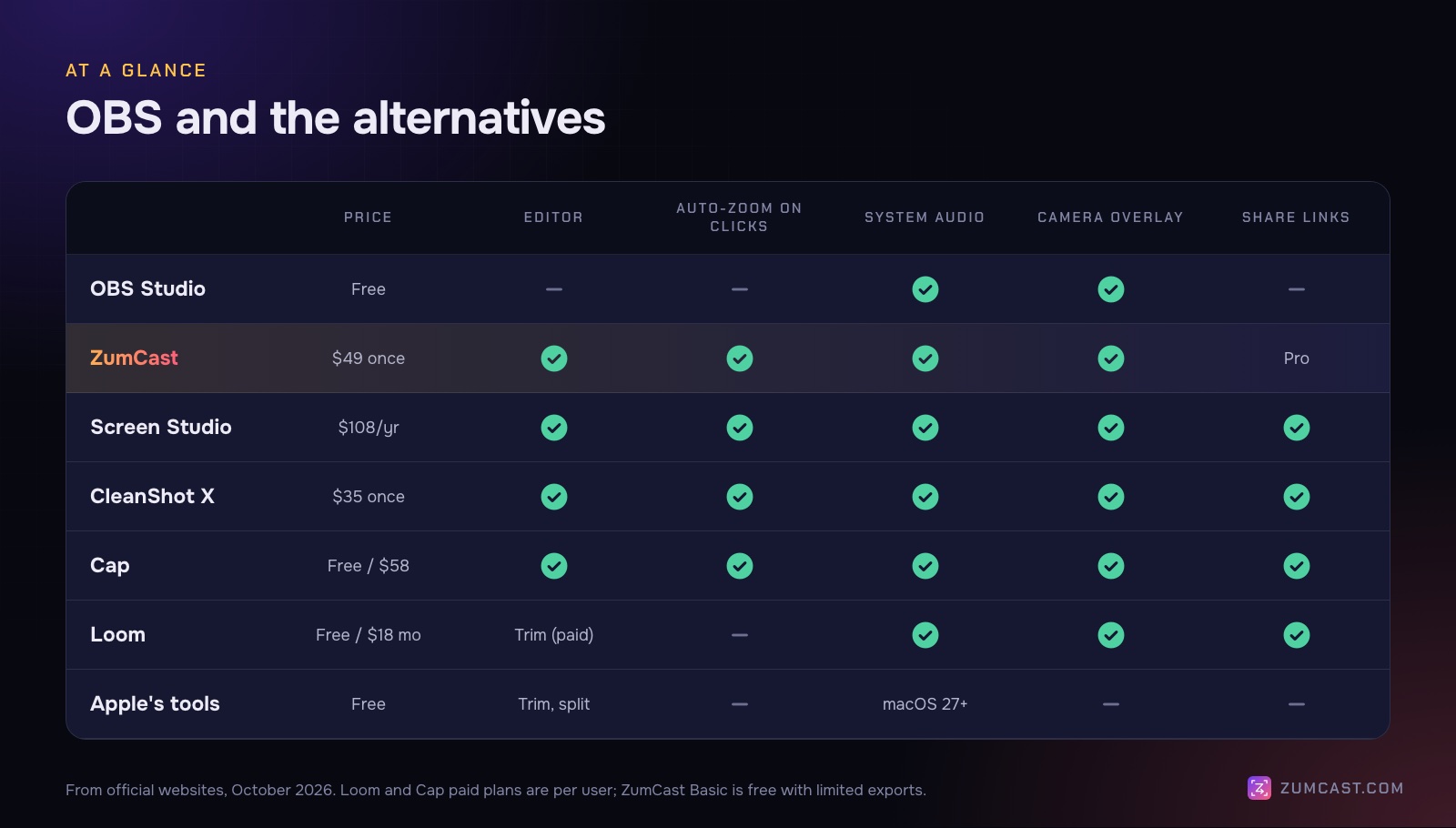
Every app here records your microphone, and all of them except Apple's tools on macOS 26 and earlier record system audio. The real differences are what you get after you stop: an editor, automatic zooms, captions and a link to share.
When OBS is still the right choice
OBS isn't hard for no reason. Its complexity is power, and some jobs need it. Stay with OBS if:
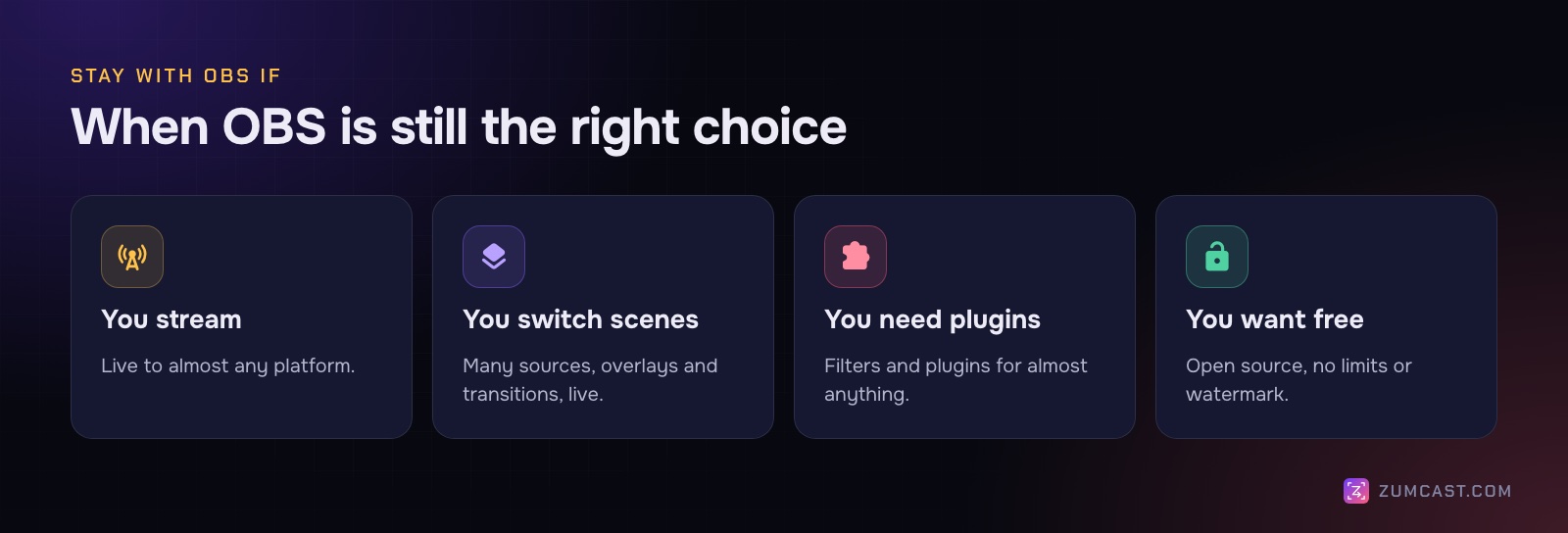
- You stream. None of the alternatives above stream live. OBS streams to almost any platform.
- You switch scenes live. Game captures, multiple cameras, overlays and transitions, switched as you go.
- You need plugins or filters for something specific.
- You want free and open source, with no limits. OBS has no watermark, time limit or account. (Cap is the open-source option if you also want an editor.)
- You already have an editor you like, and you only need a capable recorder.
A common setup is to keep OBS for streaming and use a simpler recorder for tutorials and demos. They don't conflict.
FAQ
Is there anything easier than OBS for screen recording on a Mac? Yes. Apple's Shift-Command-5 toolbar is the simplest. ZumCast, Screen Studio, CleanShot X and Cap are all easier to set up than OBS and add an editor.
What's the best free OBS alternative for Mac? Apple's built-in tools for quick clips. Cap's free tier if you want an editor with auto-zoom. ZumCast Basic records and edits for free, but its exports are limited until you buy Pro.
Can I record system audio on a Mac without OBS? Yes. ZumCast, Screen Studio, CleanShot X, Cap and Loom record system audio. Apple's Screenshot toolbar does on macOS 27 or later.
Does OBS have a video editor? No. OBS records and streams; you edit the file in another app.
Which OBS alternative can stream live? None of the alternatives in this article stream. If you need to stream, OBS is still the one to use.
Which alternatives work on Windows too? Cap and Loom. ZumCast, Screen Studio, CleanShot X and Apple's tools are Mac only.
For a broader comparison of eleven recorders, see The Best Screen Recorders for Mac in 2026, or The Best Free Screen Recorders for Mac if price is what matters most.
Prices and features were checked on each product's official website in October 2026 and may have changed since. OBS and OBS Studio are trademarks of their owners; other product names are trademarks of their respective owners. This article isn't affiliated with or endorsed by any of them. ZumCast is made by the team that wrote this article. Download ZumCast free.